
1. Taw qhia
This manual provides essential information for the safe and efficient operation of your Sharp Aquos LC42D64U 42-Inch 1080p LCD HDTV. Please read these instructions thoroughly before using your television and retain them for future reference. The Sharp Aquos D64 series offers a slim design, Full HD 1080p resolution, and advanced features for an enhanced viewhauv kev paub.
2. Cov ntaub ntawv tseem ceeb ntawm kev nyab xeeb
Nco ntsoov ua raws li kev ceev faj txog kev nyab xeeb thaum siv lub TV no kom txo tau qhov hluav taws kub, hluav taws xob poob siab, thiab raug mob.
- Lub zog Source: Connect the TV only to the power supply indicated on the label.
- Qhov cua: Xyuas kom muaj qhov cua kom zoo. Tsis txhob thaiv qhov qhib qhov cua.
- Dej thiab noo noo: Tsis txhob tso lub TV los nag lossis dej. Tsis txhob tso cov khoom ntim cov kua rau hauv TV.
- Ntxuav: Unplug the TV from the wall outlet before cleaning. Use a soft, dry cloth.
- Kev pab: Tsis txhob sim muab cov khoom no rau koj tus kheej. Xa mus rau txhua qhov kev pabcuam rau cov neeg ua haujlwm pabcuam uas tsim nyog.
- Mounting: If wall-mounting, ensure the mount is compatible and installed by qualified personnel.
- Cov menyuam yaus: Saib xyuas cov menyuam kom tiv thaiv lawv ntawm kev nce toj lossis ua si nrog TV.
3. Dab tsi hauv lub thawv
Xyuas kom tseeb tias txhua yam khoom muaj nyob ua ntej txuas ntxiv teeb tsa.
- Sharp Aquos LC42D64U 42-Inch LCD HDTV
- Chaw taws teeb tswj
- Rooj Stand
- Hwj chim Cord
- Tus Neeg Siv Los Siv (cov ntawv no)
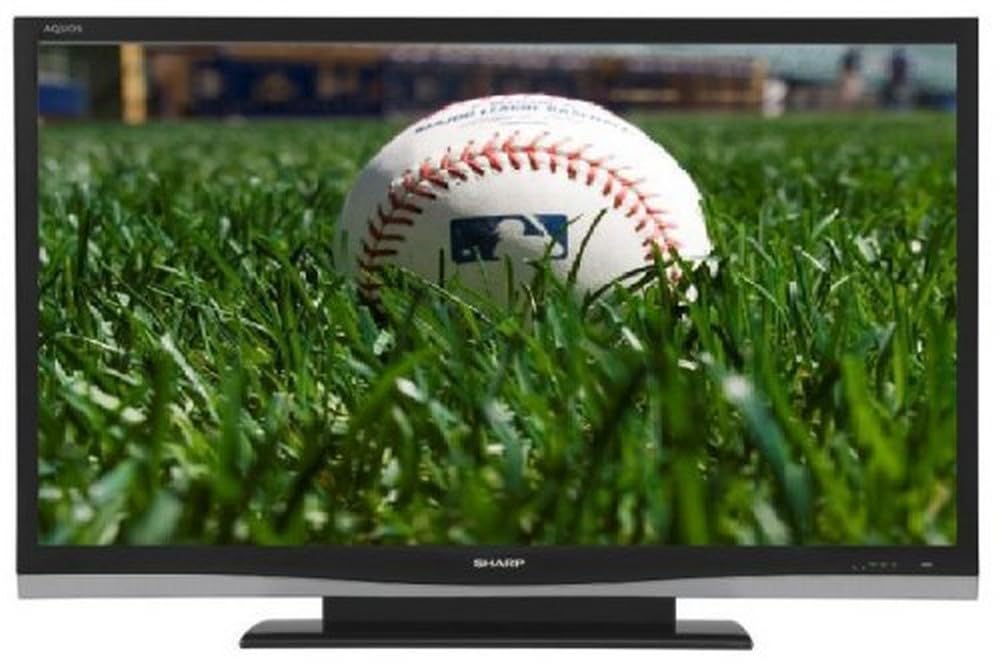
Duab: pem hauv ntej view of the Sharp Aquos LC42D64U 42-Inch LCD HDTV with its included table stand.
4. Teeb tsa
4.1 Txuas lub Rooj Stand
If you are not wall-mounting the television, attach the included table stand. Refer to the separate assembly guide for detailed instructions on securing the stand to the TV. Ensure all screws are tightened securely.
4.2 Txuas Cov Khoom Siv Sab Nraud
Connect your external devices (e.g., cable box, Blu-ray player, game console) to the appropriate input terminals on the rear or side of the TV.
- HDMI: For high-definition digital video and audio. The TV features three HDMI 1.3 inputs (two rear, one side).
- Component Video (Y, Pb, Pr): For high-definition analog video. Two inputs are available.
- Composite Video (A/V): For standard-definition analog video and audio. One side and one rear input.
- S-Yees Duab: For standard-definition video. One side and one rear input.
- PC Input (D-Sub 15-pin): Txuas lub khoos phis tawj rau kev siv ua lub monitor.
- RF Antenna Inputs: Two inputs for connecting an antenna or cable TV.
- Ethernet Chaw nres nkoj: For network connectivity (DLNA).
4.3 Kev sib txuas fais fab
After connecting all desired devices, plug the power cord into the TV's power inlet and then into a wall outlet. The TV will enter standby mode.
5. Cov lus qhia ua haujlwm
5.1 Initial Power On and Channel Setup
- Nias lub Hwj chim button on the remote control or the TV to turn it on.
- The first time you power on, the TV will guide you through the initial setup process, including language selection and channel scanning.
- Select your preferred language (English, Spanish, or French).
- Perform an "Easy Setup" or "Channel Setup" scan to detect available digital (ATSC, QAM) and analog (NTSC) channels.
5.2 Cov Haujlwm Tswj Chaw Taws Teeb Tseem Ceeb
- Hwj chim: Turns the TV on or off (standby).
- NTAWV: Cycles through available input sources (HDMI, Component, PC, etc.).
- CH +/-: Hloov cov channel.
- VOL +/-: Kho qhov ntim.
- CEEB TOOM: Accesses the on-screen menu for settings adjustments.
- ARROW BUTTON: Nkag mus los ntawm cov ntawv qhia zaub mov.
- Sau: Txheeb xyuas cov kev xaiv.
- EXIT/RETURN: Exits menus or returns to the previous screen.
5.3 Kev Taw Qhia thiab Kev Teeb tsa ntawm Cov Ntawv Qhia Zaub Mov
Nias lub MENU button to access various settings categories:
- Duab: Adjust brightness, contrast, color, tint, sharpness, and backlight. The OPC function automatically adjusts brightness based on room conditions.
- Suab: Control volume, bass, treble, balance, and select audio modes.
- Channel: Rescan channels, add/delete channels, and set up favorite channels.
- Kev teeb tsa: General settings like language, time, sleep timer, and parental controls (V-Chip).
- Advanced Features: Access settings for DLNA, Picture-in-Picture, and AQUOS LINK.
6. Advanced Features
6.1 AQUOS LINK (HDMI-CEC)
AQUOS LINK allows convenient control of compatible Sharp devices connected via HDMI using just your AQUOS TV remote. Ensure connected devices also support HDMI-CEC (Consumer Electronics Control) and are enabled in their respective settings.
6.2 DLNA Compatibility
The TV is DLNA-compatible, enabling interoperability with other DLNA-certified electronics, computers, and mobile devices. Connect the TV to your home network via the Ethernet port to access and share digital content (photos, videos, music) from compatible devices on your network.
6.3 Picture-in-Picture (PIP)
The Picture-in-Picture function allows simultaneous viewing of a TV program and a video or PC source. Consult the on-screen menu for PIP activation and source selection.
6.4 V-Chip System
The V-Chip system allows you to block TV and movie programs based on their rating, providing parental control over objectionable content. Access V-Chip settings through the TV's setup menu.
7. Kev tu
7.1 Ntxuav lub vijtsam
Maj mam so lub vijtsam nrog ib daim ntaub mos, tsis muaj lint. Rau cov cim tawv tawv, maj mam dampnyob rau hauv daim ntaub nrog dej los yog ib tug tshwj xeeb tshuaj ntsuam ntxuav. Tsis txhob use harsh chemicals, abrasive cleaners, or spray liquids directly onto the screen.
7.2 Ntxuav lub txee
Wipe the TV cabinet with a soft, dry cloth. Avoid using solvents or abrasive materials.
7.3 Kev Saib Xyuas Ib Leeg
- Tshem tawm lub TV thaum muaj cua daj cua dub lossis thaum tsis siv rau lub sijhawm ntev.
- Khaws lub TV kom deb ntawm tshav ntuj ncaj qha, cov chaw kub, thiab cov hmoov av ntau dhau.
- Xyuas kom muaj chaw txaus nyob ib puag ncig lub TV kom muaj cua nkag tau zoo.
8. Kev daws teeb meem
Ua ntej hu rau cov neeg siv khoom txhawb nqa, sim cov kev daws teeb meem hauv qab no rau cov teeb meem tshwm sim:
| Teeb meem | Kev daws teeb meem |
|---|---|
| Tsis muaj zog | Check if the power cord is securely plugged into the TV and the wall outlet. Ensure the outlet has power. |
| Tsis muaj duab, tab sis suab yog tam sim no | Xyuas kom tseeb tias qhov kev tawm tswv yim raug raug xaiv. Txheeb xyuas cov kev sib txuas cable rau cov khoom siv sab nraud. |
| Tsis muaj suab, tab sis muaj duab | Xyuas seb lub suab nrov npaum li cas thiab lub suab ntsiag to npaum li cas. Xyuas kom cov xov hlau suab txuas zoo. |
| Kev tswj chaw taws teeb tsis ua haujlwm | Hloov cov roj teeb. Xyuas kom tsis txhob muaj kev cuam tshuam ntawm cov chaw taws teeb thiab TV's IR sensor. |
| "Hotel Mode" issue (as per customer review) | If the TV is stuck in a limited functionality mode, contact Sharp customer support for assistance in disabling "Hotel Mode." This typically requires a specific service menu sequence. |
9. Cov lus qhia tshwj xeeb
| Feature | Paub meej |
|---|---|
| Qauv nab npawb | LC42D64U |
| Qhov Loj | 42 Nws |
| Zaub Technology | LCD |
| Kev daws teeb meem | 1080p (Full HD) |
| Qhov sib piv piv | 10,000:1 Dynamic |
| Teb Sijhawm | 4 milliseconds |
| HDMI Ports | 3 (sab nraub qaum, 2 sab) |
| Component Video Inputs | 2 |
| Composite Video Inputs | 3 (1 sab, 2 rear) |
| S-Video Inputs | 2 (1 sab, 1 rear) |
| PC Input | 1 (D-Sub 15-pin) |
| Ethernet Chaw nres nkoj | Yog lawm |
| Hom Tuner | ATSC, QAM, NTSC |
| Kev Tswj Niam Txiv | V-Chip |
| Qhov hnyav | 70.2 hli (kwv yees) |
| Qauv Xyoo | 2008 |
10. Warranty thiab Support
10.1 Limited Warranty
This Sharp Aquos LC42D64U television comes with a 1 Year Parts and 1 Year Labor Warranty from the date of original purchase. This warranty covers manufacturing defects in materials and workmanship under normal use. It does not cover damage caused by misuse, accident, modification, or unauthorized repair.
Thov khaws koj cov ntaub ntawv pov thawj ntawm kev yuav khoom rau kev lees paub.
10.2 Kev Pabcuam Cov Neeg Siv Khoom
For technical assistance, troubleshooting beyond this manual, or warranty service, please contact Sharp Customer Support. Refer to the contact information provided with your product documentation or visit the official Sharp website rau cov ntsiab lus txhawb nqa tam sim no.
When contacting support, please have your model number (LC42D64U) and serial number ready.