
Taw qhia
Welcome to your V7 Deluxe USB Stereo Headset. This manual provides detailed instructions for setting up, operating, and maintaining your headset to ensure optimal performance for music streaming, hands-free VOIP, Skype calls, and video conferencing on tablets, PCs, and notebooks.
Khoom Tshajview
Cov yam ntxwv tseem ceeb
- USB headset with omnidirectional noise-canceling microphone.
- Digital studio sound quality from 40 mm drivers with a frequency response of 20Hz - 20KHz.
- Soft foam ear-pads and an ergonomic, adjustable headband for comfort.
- In-line volume control and microphone mute function.
- Extra-long 6-foot USB cable.
- Compatible with laptops and PCs running Windows 2000/XP/Vista/7, Mac OS X, and Linux operating systems.
Ntim Cov Ntsiab Lus
- V7 Deluxe USB Stereo Headset (Model HU511-2NP)
Teeb tsa
Txuas koj lub mloog pob ntseg
The V7 Deluxe USB Stereo Headset is designed for plug-and-play functionality, requiring no additional software installation for basic use.
- Locate an available USB port on your computer (PC, laptop, or notebook).
- Ntxig lub qhov txuas USB ntawm lub mloog pob ntseg rau hauv qhov chaw nres nkoj USB kom ruaj khov.
- Your operating system (Windows, Mac OS X, Linux) should automatically detect and install the necessary drivers. This process may take a few moments.
- Once installed, the headset will be ready for use. You may need to select it as the default audio input/output device in your system's sound settings or within your communication application (e.g., Skype, VOIP software).
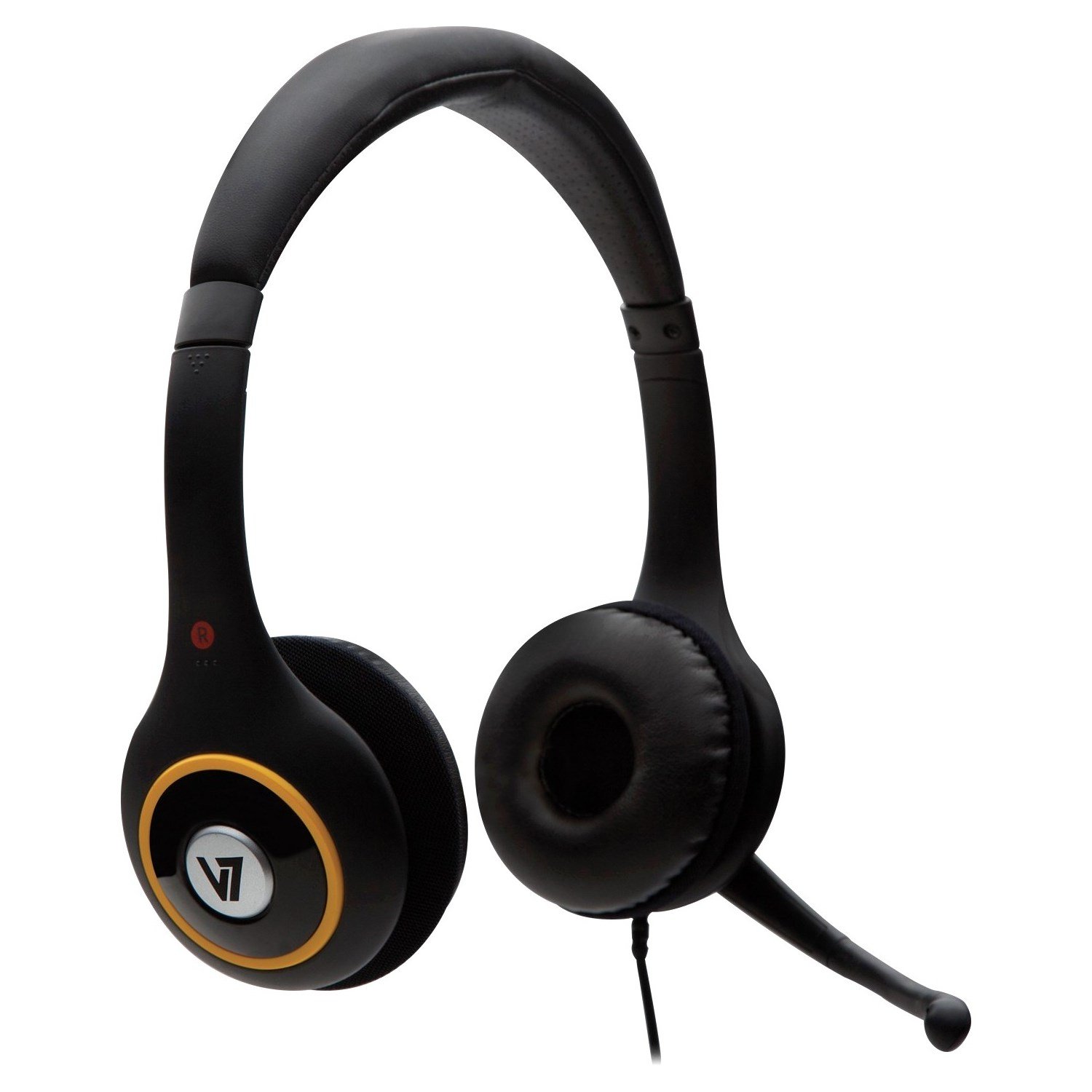
Image: V7 Deluxe USB Stereo Headset connected via USB.
Khoom Tshajview Video
Video: Ib zaug ntxivview of the V7 Deluxe USB Headset, demonstrating its features and use. This video highlights the plug-and-play USB connectivity, noise-canceling microphone, and comfortable design.
Cov lus qhia ua haujlwm
Kho lub Headset
The headset features an adjustable headband and soft foam ear-pads for a comfortable fit during extended use.
- Adjust the headband by sliding the earcups up or down until the headset rests comfortably on your head.
- Position the soft foam ear-pads over your ears.
- The omnidirectional microphone is flexible and can be folded away when not in use. For voice communication, gently bend the microphone boom to position the microphone near your mouth for optimal voice pickup.

Image: Adjustable headband and microphone positioning on the V7 Deluxe USB Stereo Headset.
Using In-Line Controls
The extra-long 6-foot USB cable includes convenient in-line controls for easy management of audio and microphone functions.
- Volume Up / Down: Use the '+' and '-' buttons on the in-line control unit to adjust the listening volume of the headset.
- Mute Microphone: Press the dedicated mute button on the in-line control unit to quickly mute or unmute your microphone. An indicator light on the control unit may show the microphone's active or muted status.
Image: Close-up of the in-line volume and mute controls on the headset cable.
Kev tu
- Keep the headset clean by wiping it with a soft, dry cloth. Avoid using harsh chemicals or abrasive materials.
- Avoid exposing the headset to extreme temperatures, direct sunlight, or high humidity.
- Do not attempt to disassemble or modify the headset, as this will void the warranty and may cause damage.
- Store the headset in a safe place when not in use to prevent damage to the cable, microphone, or earcups.
Kev daws teeb meem
Tsis muaj suab los yog lub microphone tsis ua haujlwm
- Ensure the USB connector is fully and securely inserted into the USB port on your computer.
- Check your computer's sound settings (e.g., Windows Sound Control Panel, macOS Sound Preferences) to confirm that the V7 headset is selected as the default playback (output) and recording (input) device.
- Verify that the volume is not muted on the in-line controls or in your computer's system volume settings. Increase the volume if it is too low.
- Try connecting the headset to a different USB port on your computer or to another computer to rule out a faulty USB port.
- Restart your computer. Sometimes a simple restart can resolve driver or software conflicts.
Lub suab tsis zoo
- Ensure the ear-pads are properly positioned over your ears to create a good seal for optimal sound.
- Check for any software conflicts or background applications that might be consuming system resources and affecting audio performance.
- Adjust the volume levels to an appropriate setting. Excessive volume can sometimes lead to distortion.
Lub mloog pob ntseg tsis xis nyob
- Adjust the headband for a looser or tighter fit. The headband is designed to be flexible.
- While the ear-pads are designed for comfort, extended use may require short breaks to alleviate pressure.
Specifications
| Feature | Paub meej |
|---|---|
| Hom | V7 |
| Qauv nab npawb | HU511-2NP |
| Connectivity Technology | Xov tooj (USB) |
| Form Factor | Tshaj pob ntseg |
| Tsis Siv Neeg Tswj | Suab Isolation |
| Zaus teb | 20Hz - 20KHz |
| Hom Microphone | Noise-canceling, Omnidirectional |
| Cable Ntev | 6 feet (kwv yees 1.8 meters) |
| Tswj | In-line volume control, microphone mute |
| Kev sib haum xeeb | Windows 2000/XP/Vista/7, Mac OS X, Linux |
| Yam Nyhav | 0.37 phaus (kwv yees 0.17 kg) |
Warranty thiab Support
This V7 product comes with a 2-year warranty. For technical support, warranty claims, or additional product information, please visit the official V7 website lossis hu rau lawv lub chaw pabcuam neeg siv khoom.
Official V7 Webqhov chaw: www.v7world.com ua