
1. Taw qhia
The D-Link Wireless N300 Dual Band PCI Express Desktop Adapter (DWA-566) provides high-speed wireless connectivity for your desktop computer. Utilizing Wireless N technology, it maximizes the speed and range of your wireless signal, offering superior performance compared to Wireless G devices. The dual-band capability supports both 2.4GHz and 5GHz wireless signals, allowing for flexible network usage, such as browsing on 2.4GHz and HD streaming or gaming on the clearer 5GHz band.
This adapter is designed to fit into any standard PCI Express slot, offering a higher performance interface than legacy PCI. It supports secure wireless networks with WPA or WPA2 encryption.

Figure 1.1: D-Link DWA-566 Wireless N300 Dual Band PCI Express Desktop Adapter with antennas.
2. Nta
The DWA-566 adapter includes the following key features:
- IEEE 802.11n, 802.11g, and 802.11a Compliant
- Dual Band Technology for Superior Wireless Performance (2.4GHz or 5GHz)
- Access secure wireless networks using advanced WPA or WPA2 encryption
- Fits into any standard PCI Express slot
- PCI Express Interface provides higher performance than a legacy PCI interface
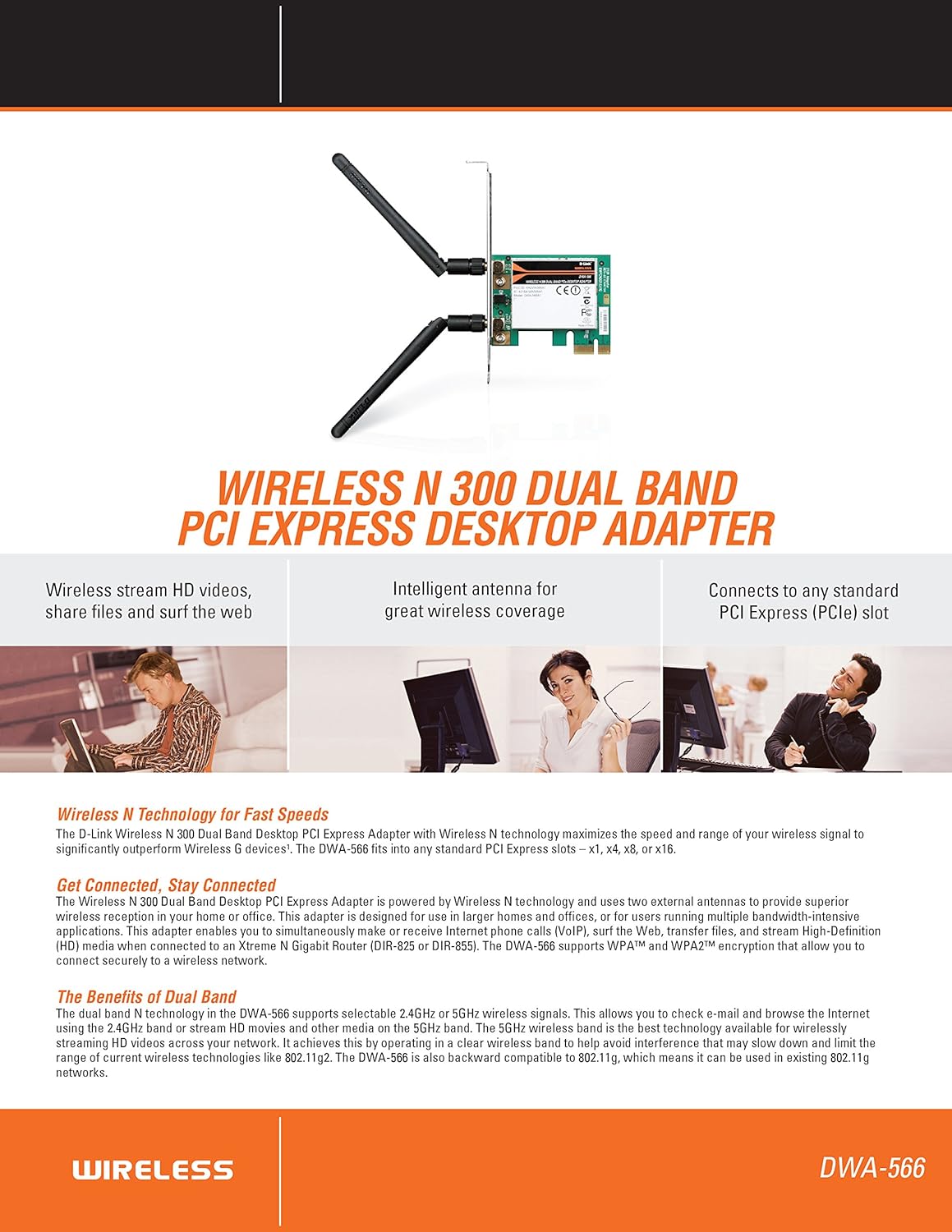
Daim duab 2.1: Tshajview of DWA-566 features and benefits.
3. Cov ntsiab lus ntawm pob
Xyuas kom tseeb tias koj lub pob muaj cov khoom hauv qab no:
- Wireless N 300 Dual Band PCI Express Adapter (DWA-566)
- Ob lub antennas uas tshem tau
- Tsawg-profile mounting bracket
- Quick Install Guide
- CD-ROM with:
- D-Link Wireless Connection Manager
- Cov tsav tsheb
- Cov ntaub ntawv khoom
4. Cov kev xav tau ntawm qhov system
Before installing the DWA-566, ensure your system meets the following minimum requirements:
- Computer with an available PCI Express slot
- Windows operating system (Windows XP, Vista, 7, 8, 10)
- CD-ROM drive (for driver installation from included CD)
- Internet Explorer 7 or Firefox 3.0 and above (for viewing documentation)
- Subscription nrog ib tug Internet Service Provider (ISP)
For optimal performance, a D-Link Wireless N router (DIR-655 or DIR-825) is recommended.

Figure 4.1: Detailed technical specifications, minimum requirements, and network diagram.
5. Kev teeb tsa thiab kev teeb tsa
5.1 Hardware Installation
- Power Off Computer: Tua koj lub computer thiab unplug lub hwj chim qaum.
- Qhib Computer Case: Tshem lub hau ntawm lub computer case.
- Nrhiav qhov PCI Express Slot: Find an available PCI Express slot on your motherboard.
- Ntxig Adapter: Carefully insert the DWA-566 adapter into the PCI Express slot, ensuring it is seated firmly.
- Ruaj Ntseg Adapter: Secure the adapter with a screw to the computer chassis.
- Txuas Antennas: Screw the two included antennas onto the connectors on the adapter.
- Kaw Case thiab Fais Fab: Replace the computer case cover, plug in the power cord, and power on your computer.

Figure 5.1: DWA-566 adapter with antennas attached, ready for installation.
5.2 Software Installation
After hardware installation, proceed with driver and utility installation:
- Ntxig CD rau Kev Teeb tsa: Insert the DWA-566 installation CD into your computer's CD-ROM drive. The setup wizard should launch automatically. If not, navigate to the CD drive and run the 'Setup.exe' file.
- Ua raws li cov lus qhia On-Screen: Follow the prompts of the D-Link setup wizard to install the drivers and the D-Link Wireless Connection Manager utility.
- Restart Computer: After the installation is complete, restart your computer when prompted.
Nco tseg: For Windows 7/8 64-bit systems, ensure you are using the latest drivers available from the official D-Link support website to avoid potential compatibility issues.
6. Cov lus qhia ua haujlwm
Once the drivers are installed, you can connect to a wireless network:
- Launch Connection Manager: Open the D-Link Wireless Connection Manager utility or use the built-in Windows wireless network utility.
- Scan rau Networks: The utility will scan for available wireless networks in your area.
- Xaiv Network: Xaiv qhov koj xav tau wireless network (SSID) los ntawm cov npe.
- Sau Tus Yuam Sij Kev Ruaj Ntseg: If the network is secured, enter the correct WPA/WPA2 security key or passphrase.
- Txuas: Click 'Connect' to establish a wireless connection.
A successful connection will be indicated by a strong signal strength and internet access.
7. Kev tu
Yuav kom ntseeg tau tias koj lub DWA-566 adapter ua haujlwm tau zoo tshaj plaws thiab siv tau ntev:
- Khaws Cov Tsav Tsheb Hloov Kho Tshiab: Tshawb xyuas qhov kev txhawb nqa D-Link tas li website for the latest drivers and firmware updates.
- Xyuas kom muaj qhov cua kom zoo: Make sure your computer case has adequate airflow to prevent overheating of internal components, including the wireless adapter.
- Antenna Positioning: Adjust the antennas for the best possible signal reception.
- Environmental Factors: Avoid placing your computer near large metal objects or other devices that may cause wireless interference.
8. Kev daws teeb meem
If you encounter issues with your DWA-566 adapter, consider the following:
8.1 Tsis muaj kev sib txuas wireless
- Verify Hardware Installation: Ensure the adapter is correctly seated in the PCI Express slot and antennas are securely attached.
- Check Drivers: Confirm that the drivers are installed correctly. Check Device Manager for any error symbols next to the network adapter. Reinstall drivers if necessary.
- Router Status: Ensure your wireless router is powered on and broadcasting a signal.
- Security Key: Double-check that the correct wireless security key (WPA/WPA2 passphrase) is entered.
- Firewall Settings: Temporarily disable your computer's firewall to see if it is blocking the connection. If it resolves the issue, configure your firewall to allow the D-Link utility.
8.2 Slow Connection Speed or Frequent Disconnections
- Kev kho kav hlau txais xov: Try repositioning the antennas for better signal reception.
- Kev cuam tshuam: Move the computer away from potential sources of interference (e.g., cordless phones, microwaves, Bluetooth devices).
- Qhov Sib Ze Ntawm Router: Ensure the computer is within the effective range of your wireless router.
- Dual Band Usage: If your router supports it, try connecting to the 5GHz band for less interference and potentially higher speeds, especially for streaming or gaming.
- Driver Update: Update the adapter drivers to the latest version from the D-Link webqhov chaw.
9. Cov lus qhia tshwj xeeb
| Feature | Specification |
|---|---|
| Hom | D-Txuas |
| Qauv nab npawb | TSW-566 |
| Kev Kho Vajtse Interface | PCI Express |
| Data Link Protocol | IEEE 802.11n, 802.11g, 802.11a |
| Cov Ntaub Ntawv Hloov Tus Nqi | Txog li 300 Megabits Ib Thib Ob |
| Zaus Band | 2.4 GHz / 5 GHz (Dual Band) |
| Kev ruaj ntseg | WPA, WPA 2 |
| Compatible Devices | Desktop Computers |
| Yam Nyhav | 0.4 phaus (kwv yees. 181 grams) |
| External Test Certification | FCC B, IC B, CE, C-Tick |
10. Warranty thiab Support
The D-Link Wireless N300 Dual Band PCI Express Desktop Adapter (DWA-566) comes with a 1-xyoo txwv warranty. For specific terms and conditions, please refer to the warranty documentation included with your product or visit the official D-Link webqhov chaw.
D-Link provides 24/7 Basic Installation Support to assist with initial setup and configuration. For technical assistance, driver downloads, and further product information, please visit the D-Link support website lossis tiv tauj lawv cov neeg siv khoom.
Kev them nyiaj yug D-Link Webqhov chaw: https://support.dlink.com/