
Khoom Tshajview
The Targus Presenter AMP09AP is a multimedia presentation remote designed for ease of use during presentations. It features a laser pointer for highlighting content, backlit buttons for low-light environments, and an ergonomic design for comfortable handling. This remote also offers cursor control for remote program access and volume adjustment for media. Its wireless technology provides a range of up to 50 feet, and the USB receiver conveniently stores within the presenter.
Teeb Qhia
1. Unpacking
Carefully remove the Targus Presenter AMP09AP and its components from the packaging. The box should contain:
- One Targus Presentation Remote
- One USB Receiver
2. Kev teeb tsa roj teeb
The Targus Presenter AMP09AP requires batteries (not included). Use alkaline batteries for optimal performance.
- Locate the battery compartment on the back of the presenter.
- Qhib lub roj teeb lub hau npog.
- Ntxig cov roj teeb uas xav tau, xyuas kom meej tias polarity raug (+/-).
- Kaw lub roj teeb lub hau npog kom ruaj ntseg.
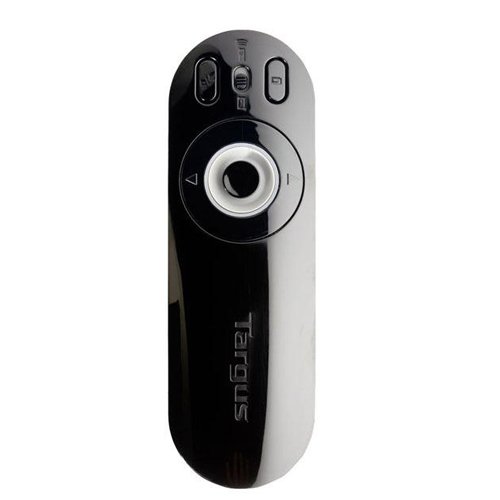
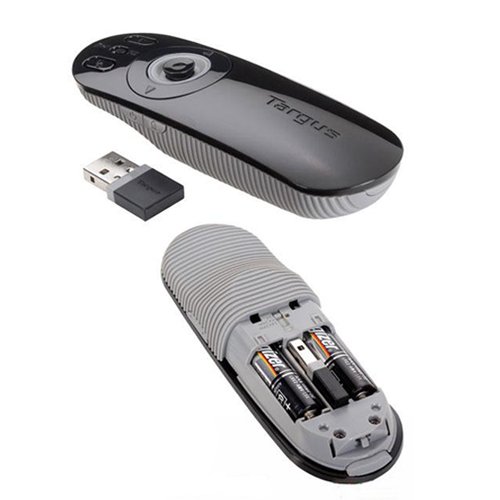
Image: The Targus Presenter AMP09AP, its USB receiver, and the open battery compartment revealing two AAA batteries.
3. Txuas USB Receiver
- Remove the USB receiver from its storage slot within the presenter.
- Txuas USB receiver rau hauv ib qho chaw nres nkoj USB uas muaj nyob hauv koj lub computer.
- Lub khoos phis tawj yuav tsum tau nrhiav thiab nruab cov tsav tsheb tsim nyog.
Lub chaw taws teeb tam sim no npaj siv tau lawm.
Cov lus qhia ua haujlwm
Kev nthuav qhia hom
The presenter's simplistic layout allows for easy navigation during presentations.
Duab: Sab saum toj view of the Targus Presenter AMP09AP, highlighting the laser pointer button, slide navigation buttons, and the mode switch.
- Laser Pointer: Press and hold the dedicated laser button to activate the laser pointer for highlighting content.
- Next Slide: Press the forward arrow button to advance to the next slide.
- Previous Slide: Press the backward arrow button to return to the previous slide.
- Backlit Buttons: Buttons are backlit for visibility in dimly lit rooms.
Cursor Control Mode
The presenter features cursor control for remote access to programs and media functions.
- Activating Cursor Control: Use the mode switch (located at the top right of the remote) to toggle between presentation and cursor control modes.
- Moving Cursor: Use the central circular button (joystick/directional pad) to move the mouse cursor on the screen.
- Nyem: Press the center of the circular button to perform a left-click action.
- Volume Control: Adjust the volume for music and videos remotely using the designated volume controls (if available on your specific model).
Khwv wireless
The wireless technology allows operation up to 50 feet (approximately 15 meters) from the computer, providing flexibility during presentations.
Kev tu
- Ntxuav: Wipe the presenter with a soft, dry cloth. Avoid using harsh chemicals or abrasive cleaners.
- Hloov roj teeb: Replace batteries when the indicator light (if present) signals low power, or when performance degrades. Ensure correct polarity during replacement.
- Cia: When not in use, store the USB receiver inside the presenter's dedicated slot to prevent loss. Store the presenter in a cool, dry place.
Kev daws teeb meem
| Teeb meem | Ua Tau | Kev daws |
|---|---|---|
| Presenter tsis teb | Roj teeb qis lossis tuag | Hloov cov roj teeb nrog cov roj teeb alkaline tshiab. |
| Presenter tsis teb | USB receiver tsis txuas zoo | Xyuas kom tseeb tias USB receiver yog ntsaws ruaj ntseg rau hauv qhov chaw nres nkoj USB ua haujlwm ntawm koj lub computer. Sim lwm qhov chaw nres nkoj USB. |
| Presenter tsis teb | Tawm ntawm qhov ntau | Move closer to the computer (within 50 feet / 15 meters). |
| Laser pointer tsis ua haujlwm | Tsawg roj teeb | Hloov cov roj teeb. |
| Cursor control erratic or not working | Interference or mode not activated | Ensure no obstructions between presenter and receiver. Check if cursor control mode is active using the mode switch. |
Specifications
| Feature | Paub meej |
|---|---|
| Hom | Targus |
| Qauv nab npawb | AMP09 PAB-51 |
| Xim | Dub thiab Grey |
| Qhov Loj (LxWxH) | 12.1 x 3.8 x 2.5 cm |
| Yam Nyhav | 140 g ib |
| Connectivity Technology | Wireless |
| Khwv wireless | Mus txog 50 ko taw (kwv yees 15 meters) |
| Hom roj teeb | Alkaline (tsis suav nrog) |
| Cov Cheebtsam suav nrog | Presentation Remote, USB Receiver |
| Tshwj xeeb nta | Ergonomic design, Laser pointer, Cursor control, Backlit buttons |
Warranty thiab Support
For warranty information and technical support, please refer to the documentation provided with your purchase or visit the official Targus webqhov chaw. Khaws koj cov ntaub ntawv pov thawj ntawm kev yuav khoom rau kev lees paub.