
Juniper Networks QFX5100-48S-AFI
Juniper Networks Layer 3 Switch QFX5100-48S-AFI User Manual
Model: QFX5100-48S-AFI | Brand: Juniper Networks
1. Khoom Tshajview
The Juniper Networks QFX5100-48S-AFI is a highly flexible, high-performance Layer 3 switch designed to provide the foundation for modern data centers. It supports cloud and Software-Defined Networking (SDN) adoption, enabling rapid deployment and delivery of applications. This switch is a universal building block for data center switching architectures, offering diverse deployment options including fabric, Layer 3, and spine and leaf configurations, allowing easy adaptation to changing requirements.

Daim duab 1: Pem hauv ntej view of the Juniper Networks QFX5100-48S-AFI Layer 3 Switch, showing the numerous SFP+ ports.
2. Kev teeb tsa thiab kev teeb tsa
This section provides general guidelines for setting up your Juniper Networks QFX5100-48S-AFI switch. For detailed rack mounting and cabling instructions, please refer to the official Juniper Networks documentation.
2.1 Kev teeb tsa lub cev
- Rack Mounting: The QFX5100-48S-AFI is designed for rack-mounting. Ensure proper rack space and ventilation.
- Kev sib txuas fais fab: Connect the power cords to the power supply units at the rear of the switch. This unit may have more than one power supply cord. CAUTION: Disconnect all power supply cords before servicing to avoid electric shock.
- Network Cabling: Connect your network cables (fiber optic SFP+ transceivers) to the front panel ports.

Daim duab 2: Hauv qab view of the switch, highlighting the modular power supply units and fan modules. Note the "AIR OUT" labels on the fan modules, indicating airflow direction.

Figure 3: Close-up of the AC input warning label, indicating 100-240V~50-60Hz 4.5-2A input and a caution about disconnecting all power cords before servicing.
3. Kev khiav hauj lwm qhov hloov
Once the switch is physically installed and powered on, it will begin its boot sequence. The front panel provides indicators for system status and port activity.
3.1 Pem hauv ntej Vaj Huam Sib Luag Indicators
- Qhov System Status LEDs: Monitor the ALM (Alarm), SYS (System), and MST (Master) LEDs for overall device health.
- Port Activity LEDs: Each SFP+ port has an associated LED that indicates link status and activity. A green light typically signifies an active link.
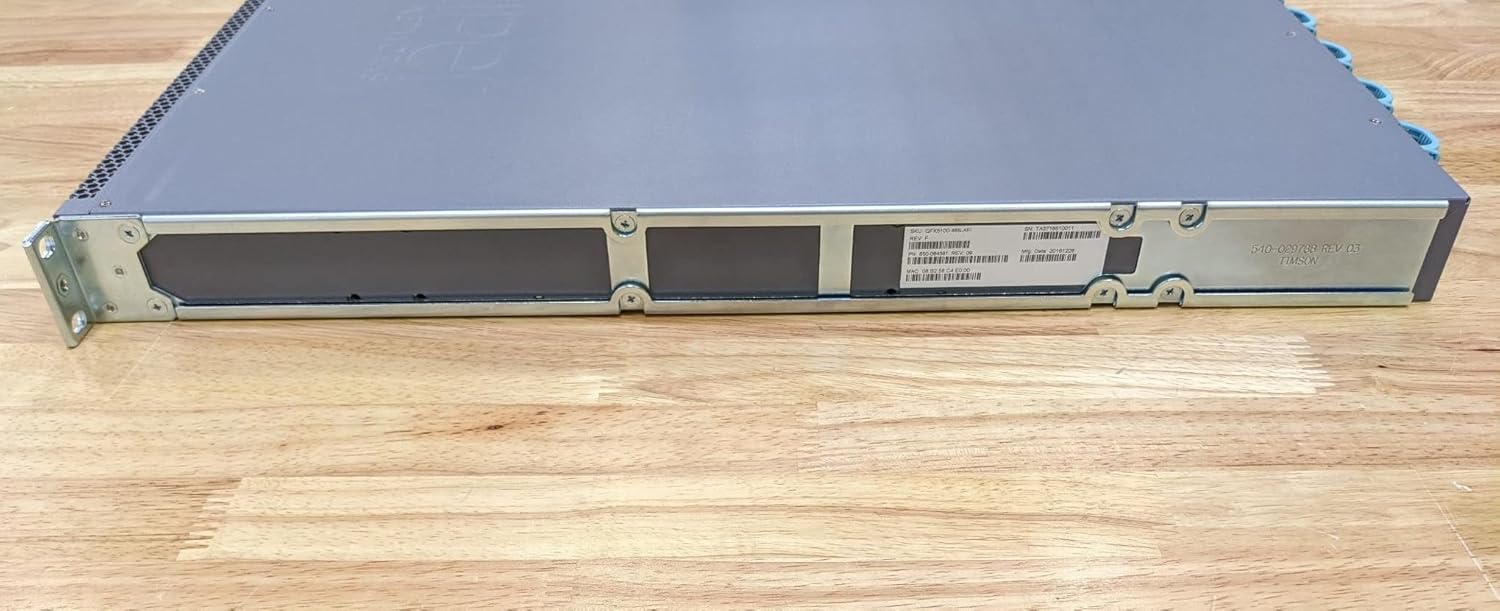
Daim duab 4: Sab view of the switch, showing mounting brackets and chassis design.

Daim duab 5: Sab nraud view of the switch, providing another perspective of its physical dimensions.
3.2 Kev Tswj Xyuas Kev Sib Txuas Lus
The switch can be managed via its console port (CON), out-of-band management Ethernet port (C0), or in-band management through a configured network interface. The USB port can be used for software upgrades or configuration backups.

Figure 6: Close-up of the product label, showing SKU: QFX5100-48S-AFI, Serial Number (SN): TA3716510011, Part Number (PN): 650-064381 REV: 09, Manufacturing Date: 20161226, and MAC Address: 08:B2:58:C4:E0:00.

Figure 7: Close-up of the regulatory compliance label, indicating compliance with FCC Part 15, CE, UL, and other certifications. It also states "ASSEMBLED IN CHINA".
4. Kev tu
Regular maintenance ensures optimal performance and longevity of your QFX5100-48S-AFI switch.
- Ntxuav: Keep the switch and its surroundings clean and free of dust. Use a soft, dry cloth for external cleaning. Do not use liquid cleaners.
- Airflow: Ensure that the air intake and exhaust vents are unobstructed to maintain proper cooling. The fan modules are designed for specific airflow directions (e.g., "AIR OUT").
- Hloov tshiab Firmware: Periodically check the Juniper Networks support website for the latest firmware updates to ensure security and performance enhancements.
- Hloov cov khoom siv: Power supply units and fan modules are hot-swappable. Refer to the official documentation for safe replacement procedures.
5. Kev daws teeb meem
This section covers common issues and their potential solutions.
| Teeb meem | Ua Tau | Kev daws |
|---|---|---|
| Switch tsis power on. | Power cords not connected or power supply failure. | Ensure all power cords are securely connected. Check power outlets. Verify power supply unit status LEDs. |
| Port LED is off. | No link, faulty cable, or incorrect transceiver. | Check cable connection at both ends. Replace cable. Verify transceiver compatibility and proper insertion. Check remote device status. |
| System Alarm LED (ALM) is lit. | Hardware fault, temperature issue, or power issue. | Check system logs for specific error messages. Ensure proper ventilation. Verify power supply status. Contact Juniper Networks support if the issue persists. |
6. Cov lus qhia tshwj xeeb
| Feature | Paub meej |
|---|---|
| Qauv nab npawb | QFX5100-48S-AFI |
| Hom | Juniper Networks |
| Hloov hom | Tswj |
| Tus naj npawb ntawm cov chaw nres nkoj | 48 (SFP+) |
| Expansion Slots | 54 |
| Hom interface | PoE, SFP |
| Case Material | Hlau |
| Xim | Grey |
| Yam Nyhav | 21.8 puj |
| Pob Dimensions | 36 x 24 x 12 po |
| Chaw tsim tshuaj paus | Juniper Networks, Inc |
| Hnub Ua Ntej Muaj | Kaum Ob Hlis 24, 2013 |
| UPC | 832938068032 |
7. Warranty thiab Support
For detailed warranty information and technical support, please refer to the official Juniper Networks website or contact their customer service. Keep your product's serial number (found on the product label, e.g., TA3716510011) readily available when seeking support.
You can find more information and support resources at the official Juniper Networks webqhov chaw.
Ask a question about this manual
Ask about setup, troubleshooting, compatibility, parts, safety, or missing instructions. Manuals+ will review the question and use this page’s manual context to help answer it.