
1. Taw qhia
This manual provides detailed instructions for installing, configuring, and maintaining your GIGABYTE GA-B150M-D3H Micro ATX motherboard. The GA-B150M-D3H is designed to support 6th Generation Intel Core Processors and features Dual Channel DDR4 memory, PCIe Gen3 x4 M.2 connector, SATA Express, and 8-channel HD audio with Audio Noise Guard.
Please read this manual thoroughly before beginning installation to ensure proper setup and operation.
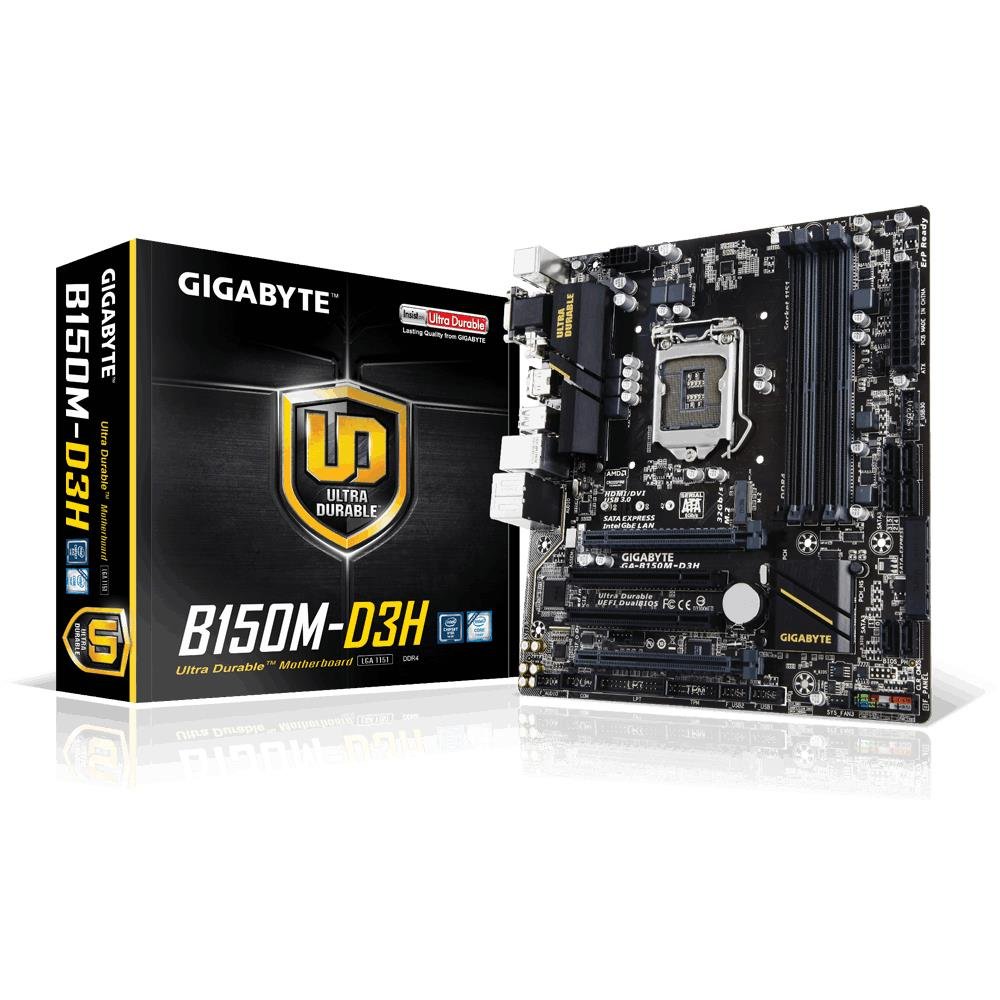
Image 1.1: GIGABYTE GA-B150M-D3H Micro ATX Motherboard. This image displays the overall layout of the motherboard, highlighting its compact Micro ATX form factor and various component slots.
2. Cov ntaub ntawv kev nyab xeeb
Observe the following safety precautions to prevent damage to the motherboard and injury to yourself:
- Ib txwm txiav lub hwj chim qaum ntawm lub qhov hluav taws xob ntawm phab ntsa ua ntej kov cov khoom.
- Hnav lub dab teg los tiv thaiv zoo li qub los yog nquag kov cov khoom siv hlau hauv av kom tawm hluav taws xob zoo li qub.
- Kov lub motherboard los ntawm nws cov npoo kom tsis txhob kov cov khoom rhiab.
- Khaws lub motherboard kom deb ntawm noo noo thiab kub heev.
- Xyuas kom muaj qhov cua kom zoo nyob rau hauv cov ntaub ntawv computer kom tsis txhob muaj cua sov.
3. Cov ntsiab lus ntawm pob
Xyuas kom tseeb tias txhua yam khoom muaj nyob rau hauv koj lub pob motherboard:
- GIGABYTE GA-B150M-D3H Motherboard
- Cov neeg siv phau ntawv
- I / O Ntaub thaiv npog
- SATA Cables
- Driver CD/DVD
Nco tseg: Cov ntsiab lus yuav txawv me ntsis nyob ntawm thaj tsam lossis kev kho dua tshiab.
4. Motherboard Layout
Familiarize yourself with the various components and connectors on the GA-B150M-D3H motherboard.
Image 4.1: GIGABYTE GA-B150M-D3H Motherboard Layout. This image provides a visual reference for the location of key components such as the CPU socket, DIMM slots, PCIe slots, SATA ports, and M.2 connector.
Cov ntsiab lus tseem ceeb:
- LGA 1151 CPU Socket: For 6th Generation Intel Core Processors.
- DDR4 DIMM Slots (4): Supports Dual Channel DDR4 memory up to 2133 MHz.
- PCIe Slots: Includes PCIe Gen3 x16 for graphics cards and PCIe x1 slots for expansion.
- M.2 Connector: Supports PCIe NVMe & SATA SSDs with up to 32Gb/s data transfer.
- SATA Express Connector: For up to 16Gb/s data transfer.
- SATA 6Gb/s Ports: For connecting traditional SATA storage devices.
- 24-Pin ATX Power Connector: Lub zog tseem ceeb.
- 8-Pin ATX 12V Power Connector: CPU power input.
- Pem hauv ntej Vaj Huam Sib Luag Headers: For power button, reset button, LED indicators, and USB ports.
- Audio Connectors: 8-channel HD Audio with high quality capacitors and Audio Noise Guard.
5. Kev teeb tsa thiab kev teeb tsa
Ua raws li cov kauj ruam no rau kev txhim kho kom zoo ntawm koj lub motherboard thiab cov khoom siv.
5.1. Txhim kho CPU
- Locate the LGA 1151 CPU socket.
- Qhib lub qhov (socket) CPU thiab nqa lub phaj thauj khoom.
- Carefully align the CPU with the socket, ensuring the gold triangle on the CPU matches the triangle on the socket. Do not force the CPU into the socket.
- Lower the load plate and secure it with the lever.
5.2. Kev teeb tsa lub CPU Cooler
Refer to your CPU cooler's instruction manual for specific installation steps. Ensure thermal paste is applied correctly between the CPU and cooler base.
5.3. Txhim kho Memory (RAM)
- Qhib cov clips ntawm ob qho kawg ntawm DDR4 DIMM qhov qhib.
- Teem lub cim xeeb module nrog lub qhov, kom ntseeg tau tias qhov thais ntawm lub module phim tus yuam sij hauv lub qhov.
- Nias cia rau ntawm ob qho kawg ntawm lub cim xeeb module kom txog thaum cov clips snap rau hauv qhov chaw.
- For dual-channel performance, install memory modules in matching colored slots (e.g., DIMM1 and DIMM2).
5.4. Installing Expansion Cards
- Remove the metal bracket from the desired PCIe slot on your computer case.
- Align the expansion card with the PCIe slot and press down firmly until it is seated correctly.
- Secure the card with a screw to the computer case.
5.5. Txuas Cov Khoom Siv Cia
- SATA Devices: Connect one end of the SATA data cable to a SATA 6Gb/s port on the motherboard and the other end to your hard drive or SSD. Connect the SATA power cable from your power supply to the device.
- M.2 SSD: Insert the M.2 SSD into the M.2 slot at an angle, then gently push it down and secure it with the provided screw.
- SATA Express: If using a SATA Express device, connect it to the designated SATA Express connector.
5.6. Txuas Pem Hauv Ntej Vaj Huam Sib Luag Connectors
Connect the cables from your computer case's front panel (power button, reset button, HDD LED, power LED, front USB, front audio) to the corresponding headers on the motherboard. Refer to the motherboard layout diagram for exact locations and pin assignments.
5.7. Txuas Kev Siv Hluav Taws Xob
- Connect the 24-pin ATX main power connector from your power supply to the 24-pin power socket on the motherboard.
- Connect the 8-pin ATX 12V CPU power connector to the 8-pin socket near the CPU.
- Xyuas kom tseeb tias txhua qhov kev sib txuas hluav taws xob ruaj ntseg.
6. Cov lus qhia ua haujlwm
6.1. Thawj khau raj
After assembling all components, connect your monitor, keyboard, and mouse. Power on the system. The system should display the GIGABYTE splash screen and then enter the BIOS/UEFI setup or attempt to boot from a connected storage device.
6.2. Kev teeb tsa BIOS / UEFI
To enter the BIOS/UEFI setup, press the DEL key repeatedly during the boot process when the GIGABYTE logo appears. Here you can configure system settings, boot order, and monitor hardware status. The GA-B150M-D3H features GIGABYTE UEFI Dual BIOS for enhanced reliability.
6.3. Kev teeb tsa tsav tsheb
After installing your operating system, install the necessary drivers for the motherboard components. These can be found on the included driver CD/DVD or downloaded from the official GIGABYTE website. Key drivers include chipset, audio (Realtek ALC892 codec), LAN, and any integrated graphics drivers.
6.4. Kev teeb tsa kev ua haujlwm
Insert your operating system installation media (USB drive or DVD) and configure the boot order in the BIOS/UEFI to boot from it. Follow the on-screen instructions to install your preferred operating system (e.g., Windows 8.1, Windows 10).
7. Kev tu
7.1. Kev ntxuav
Ntxuav sab hauv ntawm koj lub khoos phis tawj kom tsis txhob muaj hmoov av ntau dhau, uas yuav ua rau kub dhau. Siv cua compressed los tshem cov hmoov av ntawm cov kiv cua, cov heatsinks, thiab cov khoom ntawm motherboard. Xyuas kom tseeb tias lub kaw lus raug kaw thiab tshem tawm cov hlua ua ntej ntxuav.
7.2. BIOS Hloov tshiab
GIGABYTE periodically releases BIOS updates to improve system stability, compatibility, and performance. Visit the official GIGABYTE website for your motherboard model (GA-B150M-D3H) to check for the latest BIOS version and follow the provided instructions for updating. Exercise caution during BIOS updates, as an interruption can render the motherboard inoperable.
8. Kev daws teeb meem
Nqe lus no hais txog tej teeb meem uas koj yuav ntsib.
8.1. No Power / System Does Not Turn On
- Check if the power supply is connected correctly to the motherboard (24-pin and 8-pin connectors).
- Xyuas kom tseeb tias lub hwj chim hloov pauv nyob rau hauv txoj hauj lwm ON.
- Verify that the front panel power button cable is correctly connected to the motherboard header.
- Ntsuam xyuas lub hwj chim mov nrog rau lwm qhov system los yog lub hwj huam mov tester.
8.2. Tsis muaj cov khoom tso tawm
- Ensure the monitor is connected to the correct graphics output (either integrated graphics on the motherboard or a dedicated graphics card).
- Rov kho daim npav daim npav thiab nco modules.
- Sim khau raj nrog tsuas yog ib lub module nco ntsia.
- Check if the monitor is powered on and set to the correct input source.
8.3. Kev Tsis Ruaj Ntseg ntawm Lub System / Kev Sib Tsoo
- Tshawb xyuas CPU thiab GPU kub kom ntseeg tau tias lawv nyob hauv qhov kev txwv tsis pub khiav haujlwm.
- Verify that all drivers are installed and up to date.
- Khiav cov cuab yeej tshuaj ntsuam xyuas lub cim xeeb los xyuas seb puas muaj RAM.
- Xyuas kom tseeb tias lub hwj chim muab hluav taws xob txaus thiab ruaj khov rau txhua yam khoom.
9. Cov lus qhia tshwj xeeb
Detailed technical specifications for the GIGABYTE GA-B150M-D3H motherboard:
| Feature | Specification |
|---|---|
| Qauv Lub Npe | GA-B150M-D3H |
| Form Factor | Micro ATX (24.4 x 22.5 cm) |
| CPU Qhov (socket). | LWM 1151 |
| Compatible Processors | 6th Generation Intel Core Processors |
| Chipset | Intel B150 Express Chipset |
| Memory Technology | DDR 4 |
| Nco Slots | 4 x DDR4 DIMM sockets (Dual Channel) |
| Max Memory Capacity | 16 GB ua |
| Lub Clock Ceev | 2133 MHz |
| PCIe Qhov Ncauj | 1 x PCI Express x16, 1 x Total PCIe Ports |
| Cia Interfaces | PCIe Gen3 x4 M.2, SATA Express, SATA 6Gb/s |
| Audio Codec | Realtek ALC892 codec, 8-channel HD Audio |
| USB Ports | Total 8 USB Ports (including USB 2.0) |
| Lub Hwj Huam Loj Txuas | 24-Pin ATX |
| CPU fais fab txuas | 8-Pin ATX 12V |
| Cov yam ntxwv tshwj xeeb | GIGABYTE UEFI Dual BIOS, Audio Noise Guard with LED Trace Path Lighting, App Center (Easy Tune, Cloud Station) |
10. Warranty thiab Support
For warranty information, please refer to the warranty card included in your product package or visit the official GIGABYTE webqhov chaw. Warranty cov nqe lus thiab tej yam kev mob yuav txawv raws cheeb tsam.
For technical support, driver downloads, BIOS updates, and further product information, please visit the GIGABYTE official support webqhov chaw:
https://www.gigabyte.com/Support
When contacting support, please have your motherboard model (GA-B150M-D3H) and serial number ready.