
1. Khoom Tshajview
The Midiplus Studio M is a compact and high-performance USB audio interface designed for studio recording. It features one input and two outputs, supporting high-quality microphone input and 24-bit/192kHz high-precision sampling. The device is powered via PC USB and includes 48V phantom power for condenser microphones. Its small, exquisite design is compatible with both Mac and Windows operating systems, making it a versatile tool for musicians and producers.
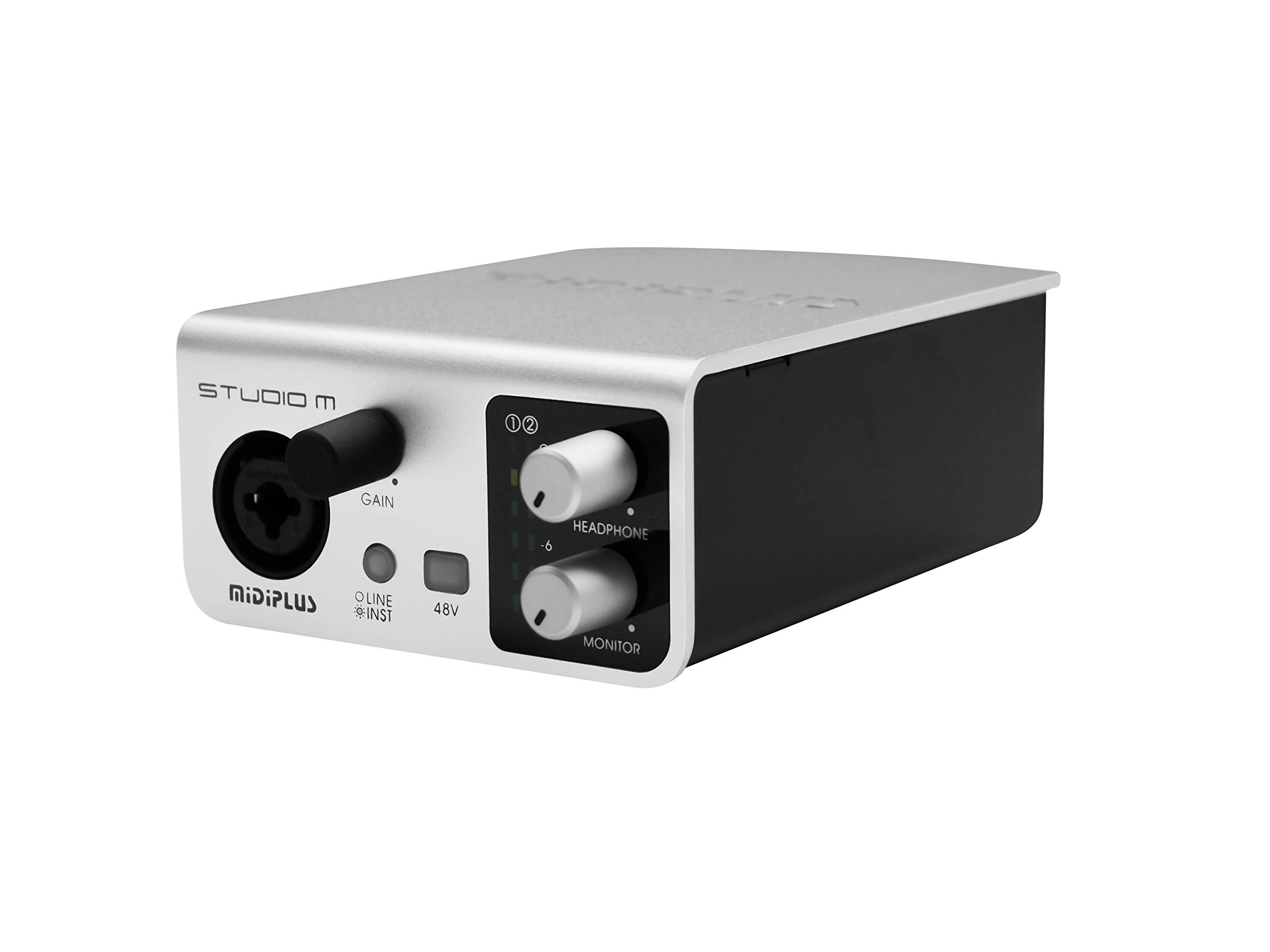
Daim duab 1: Pem hauv ntej thiab nram qab view of the Midiplus Studio M USB Audio Interface.
2. Teeb Qhia
2.1 Ntim Cov Ntsiab Lus
- Midiplus Studio M USB Audio Interface
- USB Cable
- Owner's Manual (cov ntaub ntawv no)
- Cov Ntawv Daim Ntawv
2.2 System Requirements
- Operating System: Windows, macOS
- Compatible Devices: Personal Computer with USB port
2.3 Txuas lub cuab yeej
- Connect the Midiplus Studio M to your computer using the provided USB cable. The device is USB-powered.
- Ensure your operating system (Windows or macOS) recognizes the device. Drivers may be required for optimal performance; refer to the Midiplus website rau qhov tseeb tsav tsheb downloads.
- Connect your microphone or instrument to the Input (MIC/Line/Hi-z) interface on the front panel.
- Connect your headphones to the headphone interface on the front panel, or your studio monitors to the Output interface (Left/Right) on the rear panel.

Figure 2: Midiplus Studio M connected to a computer, showing input and output cables.
3. Cov lus qhia ua haujlwm
3.1 Pem hauv ntej vaj huam sib luag tswj
- Input Gain Control Knob: Adjusts the input level for the connected microphone or instrument.
- Switch (Mic/Instrument) Button: Toggles between microphone and instrument input modes.
- 48V Phantom Power ON/OFF: Activates or deactivates 48V phantom power for condenser microphones.
- Headphone Volume Control Button: Adjusts the output volume for connected headphones.
- Output Volume Control Button: Adjusts the main output volume for connected studio monitors.

Figure 3: Midiplus Studio M in a studio setup, demonstrating its compact size and integration.
3.2 Rov qab vaj huam sib luag txuas
- USB interface: USB2.0 port for connection to your computer and power supply.
- Output Interface (Left/Right): Connects to your studio monitors or other output devices.
- Extensible Device Interface: Provides additional connectivity options for other devices.
4. Kev tu
- Siv daim ntaub mos mos thiab qhuav so lub cuab yeej kom huv si. Tsis txhob siv cov tshuaj lom neeg lossis cov khoom siv uas ua rau tawv.
- Ensure all cables are securely connected to prevent signal loss or damage.
- Khaws lub interface rau hauv qhov chaw txias, qhuav kom deb ntawm tshav ntuj ncaj qha thiab qhov kub thiab txias heev.
- Tsis txhob tso cov khoom hnyav rau saum lub tsev.
5. Kev daws teeb meem
5.1 Tsis muaj suab tso zis
- Check all cable connections (USB, input, output, headphones).
- Ensure the device is powered on and recognized by your computer.
- Verify that the output volume controls (headphone and main output) are turned up.
- Check your computer's sound settings to ensure the Midiplus Studio M is selected as the output device.
5.2 Input Signal Issues
- Adjust the Input Gain Control Knob.
- Ensure the correct input mode (Mic/Instrument) is selected.
- If using a condenser microphone, verify that 48V Phantom Power is enabled.
- Check the microphone/instrument cable for damage.
5.3 Ntaus Tsis Pom Zoo los ntawm Computer
- Sim txuas USB cable mus rau lwm qhov chaw nres nkoj USB ntawm koj lub computer.
- Restart koj lub computer.
- Ensure the latest drivers for the Midiplus Studio M are installed from the official Midiplus webqhov chaw.
- Kuaj nrog lwm tus USB cable yog tias muaj.
6. Kev qhia tshwj xeeb
| Feature | Paub meej |
|---|---|
| Qauv nab npawb | Studio M |
| Hom | Midiplus |
| Connectivity Technology | USB (USB2.0) |
| Suab daws teeb meem | 24-ntsis/192kHz |
| Cov tswv yim | 1 (MIC/Line/Hi-z) |
| Cov zis | 2 (Left/Right) |
| Phantom Lub Zog | 48V (hloov tau) |
| Compatible Operating Systems | Windows, macOS |
| Khoom Dimensions | 5.28 x 3.54 x 1.89 po |
| Yam Nyhav | 14.1 ooj (0.4 Kilograms) |
7. Warranty thiab Support
For warranty information and technical support, please refer to the official Midiplus website or contact your local dealer. Keep your purchase receipt as proof of purchase for any warranty claims.