
1. Taw qhia
This manual provides instructions for the proper setup, operation, and maintenance of your SUBSONIC Dual Charging Station for PlayStation 4 controllers. This charging station is designed to charge and store two DualShock 4 controllers simultaneously, compatible with PlayStation 4, PS4 Slim, and PS4 Pro consoles.
2. Cov ntsiab lus ntawm pob
- SUBSONIC Dual Charging Station
- USB Charging Cable
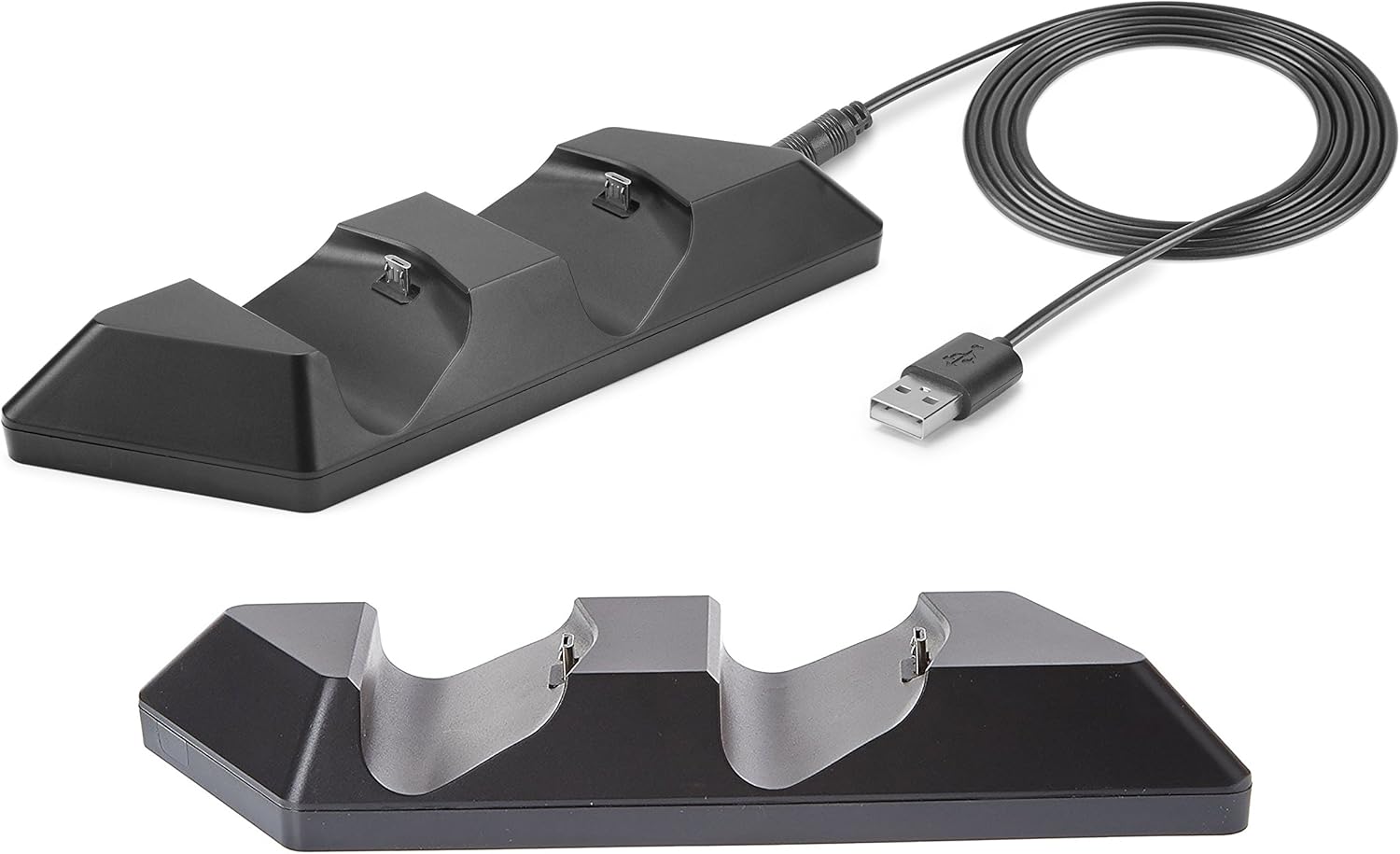
Image: The SUBSONIC Dual Charging Station and its included USB cable. The station features two controller slots and a USB port for connection.
3. Teeb cov lus qhia
- Connect the small end of the included USB charging cable to the USB port located on the back of the SUBSONIC Dual Charging Station.
- Connect the standard USB-A end of the cable to an available USB port on your PlayStation 4 console (PS4, PS4 Slim, or PS4 Pro). The charging station will power on.
- Carefully align your DualShock 4 controllers with the charging ports on the station and gently place them into the slots. Ensure a secure connection.

Image: The SUBSONIC Dual Charging Station connected to a PlayStation 4 console via USB, with two DualShock 4 controllers placed in the charging slots. The image highlights the 'FAST CHARGING' capability.
4. Cov lus qhia ua haujlwm
4.1 Charging Controllers
- Once controllers are placed correctly in the charging station and the station is connected to the console, charging will begin automatically.
- The light bar on your DualShock 4 controller will illuminate orange to indicate that it is currently charging.
- When the controller is fully charged, the orange light bar will turn off.
- The charging station provides ultra-fast charging directly from the console's USB port.
4.2 Cia Ua Haujlwm
The charging station also serves as a convenient storage base for your DualShock 4 controllers when not in use, keeping them organized and ready for gameplay.
5. Kev tu
- To clean the charging station, disconnect it from the power source and wipe it with a soft, dry cloth.
- Tsis txhob siv cov tshuaj abrasive los yog cov kuab tshuaj.
- Ensure the charging ports are free from dust and debris for optimal connection.
6. Kev daws teeb meem
- Tus maub los tsis them:
- Ensure the USB cable is securely connected to both the charging station and the PS4 console.
- Verify that the controller is properly seated in the charging slot.
- Try connecting the charging station to a different USB port on the console.
- Test the USB cable with another device to confirm it is functional.
- Kev them nyiaj qeeb:
- Ensure the PS4 console is powered on or in rest mode with USB power supply enabled.
- Avoid using USB hubs or extension cables that may reduce power delivery.
7. Cov lus qhia tshwj xeeb
| Qauv nab npawb | SIB 5356 |
| Khoom Dimensions | 20 x 15 x 4 cm |
| Qhov hnyav | 120 g ib |
| Kev sib haum xeeb | PlayStation 4, PS4 Slim, PS4 Pro DualShock 4 controllers |
8. Warranty thiab Support
For warranty information or technical support, please refer to the documentation provided with your purchase or contact SUBSONIC customer service through their official webqhov chaw. Khaws koj cov ntaub ntawv pov thawj ntawm kev yuav khoom rau kev lees paub.