
1. Taw qhia
The Centralite Pearl Thermostat is designed to provide precise temperature control with an intuitive touch interface. It integrates seamlessly with various smart home platforms using ZigBee connectivity, offering efficient management of residential HVAC systems. This manual provides essential information for installation, operation, and maintenance of your Pearl Thermostat.
2. Cov yam ntxwv tseem ceeb
- Compatible with SmartThings, Spectrum, Cox, Time Warner Cable, Vera, and ZigBee platforms.
- Supports up to 2-stage cua sov thiab 2-stage cool HVAC systems.
- Designed for quick installation, typically within 15 minutes.
- Features a built-in power amplifier for extended wireless range.
- Equipped with responsive touch controls for user interaction.
3. Cov ntsiab lus ntawm pob
Xyuas kom tseeb tias txhua yam khoom muaj nyob hauv koj pob:
- Pearl Thermostat
- Mounting Screws (4)
- Cov roj teeb AA (4)
- Phau Ntawv Qhia Pib Ceev
- Cov ntawv xov tooj
4. Kev teeb tsa
Before beginning installation, ensure the power to your HVAC system is turned off at the circuit breaker to prevent electrical shock.
4.1 Mounting the Backplate
- Carefully remove your old thermostat from the wall. Note the wiring connections before disconnecting.
- Mount the Pearl Thermostat backplate to the wall using the provided mounting screws. Ensure it is level.
4.2 Thaiv
The Pearl Thermostat features quick-connect terminals for tool-free wiring. Match the wires from your HVAC system to the corresponding terminals on the thermostat backplate. Use the included wiring labels for identification.

Daim duab 1: Hauv qab view of the Pearl Thermostat backplate, illustrating battery compartments and quick-connect wiring terminals for HVAC system connection.
Common wiring configurations include:
- R/Rc/Rh: 24V AC power (usually red wire)
- C: Common wire (for continuous 24V power, often blue or black)
- W/W1: Heat (usually white wire)
- Xyoo/Xyoo1: Cool (usually yellow wire)
- G: Fan (usually green wire)
- O / B: Reversing valve for heat pumps
Insert each stripped wire end into its corresponding terminal until it is securely held.
4.3 Kev teeb tsa roj teeb
Insert the four AA batteries into the designated compartments on the back of the thermostat unit. Ensure correct polarity.
4.4 Attaching the Thermostat
Align the thermostat unit with the mounted backplate and gently push until it clicks into place. Restore power to your HVAC system at the circuit breaker.
5. Cov lus qhia ua haujlwm
The Pearl Thermostat features a clear LCD display and intuitive touch controls for easy operation.

Daim duab 2: Pem hauv ntej view of the Pearl Thermostat, highlighting the digital display and touch-sensitive buttons for Mode, Hold, and Fan functions.
5.1 Kho Qhov Kub
Siv cov + thiab - touch areas on the right side of the thermostat to increase or decrease the desired temperature set point.
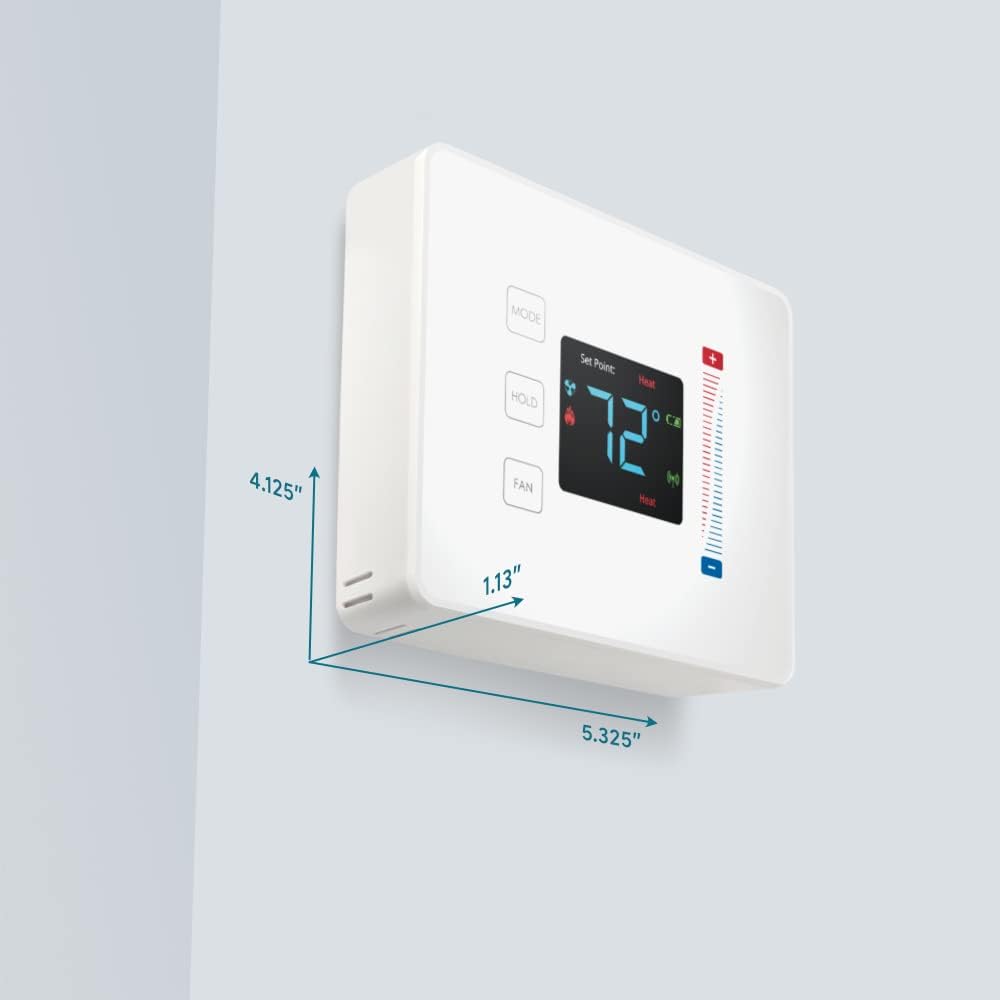
Figure 3: User interaction with the Pearl Thermostat's touch screen to modify temperature settings.
5.2 Hom Xaiv
Nias lub MODE button to cycle through available operating modes: Heat, Cool, Auto, Off.
5.3 Tuav Function
Nias lub THOV button to maintain the current temperature setting indefinitely, overriding any programmed schedules. Press again to release the hold and resume the schedule.
5.4 Ntxuam Control
Nias lub Kiv cua button to cycle through fan settings: Auto (fan runs only when heating or cooling) or On (fan runs continuously).
6. Kev tu
6.1 Hloov roj teeb
The Pearl Thermostat is powered by four AA batteries. When the battery level is low, a low battery indicator will appear on the display. To replace batteries:
- Gently pull the thermostat unit off its backplate.
- Remove the old AA batteries and dispose of them properly.
- Ntxig plaub lub roj teeb AA alkaline tshiab, xyuas kom meej tias polarity raug.
- Reattach the thermostat unit to the backplate.
Regular battery replacement ensures uninterrupted operation and maintains ZigBee connectivity.
6.2 Kev ntxuav
So lub thermostat qhov chaw nrog ib daim ntaub mos mos, damp cloth. Avoid using abrasive cleaners or solvents, as these can damage the display and finish.
7. Kev daws teeb meem
If you encounter issues with your Pearl Thermostat, refer to the following common troubleshooting steps:
- Tsis muaj Display/Power: Check if the AA batteries are correctly installed and fully charged. Ensure power to the HVAC system is on at the circuit breaker.
- Lub Tshuab HVAC Tsis Teb: Verify that the wiring connections to the backplate are secure. Confirm the thermostat is in the correct operating mode (Heat/Cool/Auto).
- Connectivity Issues (ZigBee): Ensure your smart home hub is powered on and within range. Refer to your smart home hub's instructions for device pairing. You may need to initiate a re-pairing process.
- Kev Nyeem Kub Tsis Yog: Xyuas kom lub thermostat tsis raug tshav ntuj ncaj qha, cua ntsawj, lossis cov cua sov uas yuav cuam tshuam rau nws lub sensor sab hauv.
- Thermostat Not Responding to Touch: Gently clean the screen surface. If the issue persists, try removing the thermostat from its backplate, waiting 30 seconds, and reattaching it to perform a soft reset.
8. Cov lus qhia tshwj xeeb

Figure 4: Dimensions of the Centralite Pearl Thermostat.
| Specification | Paub meej |
|---|---|
| Hom | Centralite |
| Qauv Lub Npe | Centralite Pearl Thermostat |
| Qauv nab npawb | 3000-wC |
| Hom tswj | SmartThings, Vera |
| Xim | Dawb |
| Kub tswj hom | Programmable, Cov |
| Connectivity Technology | ZigBee |
| Hwj chim Source | Battery Powered (4 AA batteries, included) |
| Yam Nyhav | 0.97 phaus (kwv yees 15.5 ooj) |
| Voltage | 230 Volts (HVAC system) |
| Khoom siv | Pearl |
| Hom zaub | LCD |
| Hom tiav | Satin |
| Tswj hom | Touchpad Tswj |
| Tswj Txoj Kev | App |
| Mounting Hom | Phab ntsa Mount |
| Backlight | Yog lawm |
| Khoom Dimensions (L x W x H) | 5.33 x 1.13 x 4.13 po |
| UPC | 812489022264 |
9. Warranty thiab Support
For warranty information and technical support, please refer to the documentation included with your product or visit the official Centralite webqhov chaw. Khaws koj daim ntawv yuav khoom ua pov thawj ntawm kev yuav khoom.