
Merkury Innovations 5962857069
Merkury EVO NEXT VR 360 Virtual Reality Headset User Manual
Qauv: 5962857069
Taw qhia
The Merkury EVO NEXT VR 360 Virtual Reality Headset provides an immersive experience for virtual reality games, movies, and 3D content directly from your smartphone. This headset is designed for universal compatibility with various smartphones, including iPhones and Android devices up to 6 inches in size. It offers a 360-degree panoramic view with a 90-degree field of view, featuring a lightweight design, soft cushioning, and an adjustable headband for comfort. This manual provides instructions for setup, operation, and maintenance of your VR headset and its accompanying Bluetooth controller.
Dab tsi nyob hauv lub thawv
- Merkury EVO NEXT VR 360 Virtual Reality Headset
- Adjustable Headstrap
- Bluetooth Maub Los
- Tus Neeg Siv Los Siv (cov ntawv no)
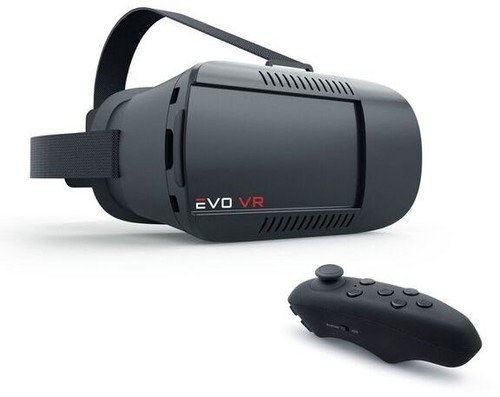
Image: Merkury EVO NEXT VR 360 Virtual Reality Headset with its adjustable headstrap and the included Bluetooth controller.
Teeb tsa
- Adjust the Headstrap: Attach the adjustable headstrap to the headset. Ensure it is securely fastened for a comfortable and stable fit. The straps are designed to be fully adjustable to accommodate various head sizes.
- Ntxig Koj Lub Xov Tooj Ntawm Tes:
- Open the front cover of the VR headset.
- Slide out the smartphone tray.
- Carefully place your smartphone (4-6 inches) into the tray, ensuring it is centered. The headset supports phones up to 6 inches.
- Slide the tray back into the headset and close the front cover securely. Ensure your phone's screen is clean for optimal viewhauv.
- Pair the Bluetooth Controller:
- Power on the Bluetooth controller (refer to the controller's specific instructions for power on/pairing mode).
- Hauv koj lub xov tooj ntse, mus rau Bluetooth settings thiab nrhiav cov khoom siv uas muaj.
- Select the controller from the list to pair. Once paired, the controller can be used for navigation and interaction within compatible VR applications.
- Download VR Applications: Access your smartphone's app store (e.g., Apple App Store, Google Play Store) and search for "VR" or "Virtual Reality" applications. Download and install compatible apps that support 360-degree content, 3D experiences, or augmented reality.
Cov lus qhia ua haujlwm
- Hnav lub Headset: Place the headset on your head and adjust the headstrap for a snug yet comfortable fit. Ensure the headset is centered over your eyes.
- Adjusting Lenses: The headset features adjustable lenses. Use the adjustment dials (typically located on the top or sides of the headset) to fine-tune the focus and interpupillary distance (IPD) for clear vision. This is especially useful for users with nearsightedness.
- Navigating with the Controller: Use the paired Bluetooth controller to navigate menus, select options, and interact within VR applications. Refer to the specific app's instructions for controller functionality.
- Using Accessible Ports: The headset design allows access to your smartphone's charging and headphone ports while in use. This enables extended play sessions and audio connectivity.
- Augmented Reality (AR) Support: For AR applications, ensure your smartphone's camera is unobstructed and the app is configured for AR mode.
Kev tu
- Ntxuav Lenses: Use a soft, dry microfiber cloth to gently clean the headset lenses. Avoid abrasive materials or chemical cleaners, which can scratch or damage the lenses.
- Cleaning Headset Lub Cev: So sab nraud ntawm lub mloog pob ntseg nrog me ntsis damp, soft cloth. Do not immerse the headset in water or use excessive moisture.
- Cia: Store the headset in a cool, dry place away from direct sunlight and extreme temperatures. Keep it free from dust and debris.
- Headstrap Care: The nylon headstrap can be gently hand-washed with mild soap and water if necessary. Allow it to air dry completely before reattaching.
Kev daws teeb meem
- No image or blurry image:
- Ensure your smartphone is correctly seated and centered in the tray.
- Adjust the headset's focus and IPD dials until the image is clear.
- Check that your smartphone screen is clean and free of smudges.
- Verify that the VR application is running correctly and displaying content in the correct split-screen format for VR.
- Bluetooth controller not connecting:
- Ensure the controller is powered on and in pairing mode.
- Check your smartphone's Bluetooth settings to ensure Bluetooth is enabled.
- Tsis txhob hnov qab lub cuab yeej hauv koj lub xov tooj qhov chaw Bluetooth thiab sim rov kho dua.
- Xyuas kom tus maub los muaj roj teeb txaus.
- Discomfort while wearing the headset:
- Adjust the headstrap to relieve pressure points.
- Ensure the headset's cushioning is properly positioned against your face.
- Take breaks during extended use to prevent eye strain or discomfort.
Specifications
| Hom | Kev Tsim Kho Merkury |
| Qauv nab npawb | 5962857069 |
| Compatible Devices | Smartphones (4-6 inches, including iPhone and Android) |
| Teb ntawm View | 90 Degree |
| Connectivity Technology | Bluetooth (for controller) |
| Tshwj xeeb nta | Lightweight design, Adjustable Lenses, Accessible charge/headphone ports |
| Khoom siv | Coated ABS & Nylon Strap |
| Yam Nyhav | 12 hli |
| Xim | Dub |
Warranty thiab Support
For warranty information or technical support, please refer to the official Merkury Innovations website lossis tiv tauj lawv cov neeg siv khoom ncaj qha. Khaws koj daim ntawv yuav khoom ua pov thawj ntawm kev yuav khoom rau txhua qhov kev lees paub.
Note: Specific warranty terms and conditions may vary and are subject to the manufacturer's policy at the time of purchase.