
CANDY HOUSE SESAMEUS2.0W
CANDY HOUSE Sesame Smart Lock Gen 2 Instruction Manual
Model: SESAMEUS2.0W
Taw qhia
Welcome to the CANDY HOUSE Sesame Smart Lock Gen 2. This manual provides detailed instructions for the installation, operation, maintenance, and troubleshooting of your new smart lock. The Sesame Smart Lock is designed to enhance your home security and convenience by allowing you to control your deadbolt using your smartphone.
Kev teeb tsa thiab kev teeb tsa
The Sesame Smart Lock Gen 2 is designed for quick and easy installation over your existing deadbolt. No tools are required for the basic installation.
1. Kev txheeb xyuas kev sib raug zoo
Sesame works with most single-turn deadbolt locks. Before installation, ensure your existing deadbolt meets the following dimensions:
- Sesame Width: 3.36 "/ 84mm
- Lock Height: 1.57 "/ 40mm
- Knob Length: 0.79"–2.16" / 20mm–55mm
- Knob Width: < 0.79" / 20mm
- Base Qhov siab: < 0.82" / 20.8mm
- Base Diameter: < 2.83" / 72mm
- Distance (from knob to edge): > 0.39" / 10mm
Note: Sesame is not compatible with multi-turn locks.
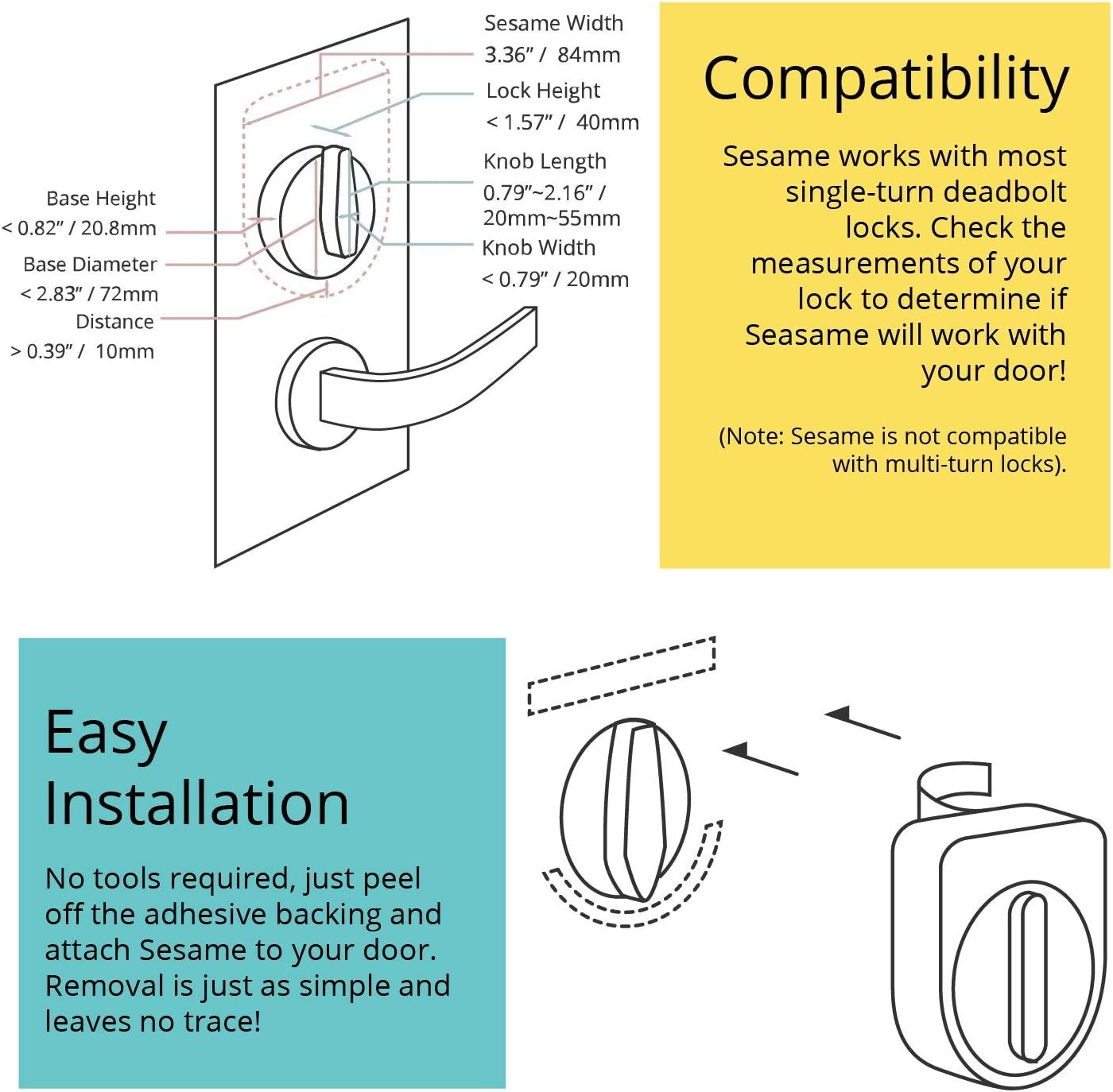
Image: Diagram illustrating the compatibility measurements for the Sesame Smart Lock with various deadbolt types.
2. Kev teeb tsa roj teeb
The Sesame Smart Lock requires two CR123A batteries (included). The average battery life is approximately 500 days. Ensure batteries are inserted with correct polarity.
3. Attaching the Sesame Smart Lock
Simply peel off the adhesive backing and attach the Sesame unit directly over your existing deadbolt's thumbturn. The patented design ensures a secure fit without the need for screws or complex modifications. Removal is also simple and leaves no trace.
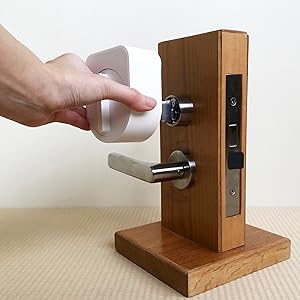
Image: Diagram showing the simple adhesive-based installation process of the Sesame Smart Lock over an existing deadbolt.

Image: The Sesame Smart Lock in Pearl White, installed on the interior side of a dark-colored door, covering the deadbolt's thumbturn.
4. App Download thiab Pairing
Download the official Sesame app from your smartphone's app store. Follow the in-app instructions to pair your Sesame Smart Lock via Bluetooth. This process involves setting the locking angles to ensure correct operation.
5. Optional Wi-Fi Access Point Setup
For remote access, Google Home, Amazon Alexa, and IFTTT integration, an optional Wi-Fi Access Point is required. Plug the access point into a wall outlet near your Sesame Smart Lock. The access point connects to your home Wi-Fi network and communicates with the Sesame lock via Bluetooth, allowing for extended functionality while conserving the lock's battery life.
Cov lus qhia ua haujlwm
1. Unlocking and Locking with the App
Open the Sesame app on your smartphone. The app will display the current status of your lock (Locked/Unlocked). Tap the corresponding icon to lock or unlock your door. The app provides a clear, intuitive interface for control.

Image: A person holding a smartphone displaying the Sesame app, with the lock status showing "Unlocked", next to a door with the Sesame Smart Lock installed.

Image: The Sesame Smart Lock in Pearl White next to a smartphone displaying the Sesame app, which shows the lock in a "Locked" state.
2. Auto-Lock and Auto-Unlock
Enable the auto-lock and auto-unlock features in the app for hands-free operation. Sesame can automatically unlock as you approach your door and lock behind you, providing convenience and security.
3. Share Access
Grant temporary or permanent access to friends, family, or service providers directly through the Sesame app. You can manage access permissions and schedules for each user.

Image: A smartphone screen showing the Sesame app interface for sharing access, with options to add users and manage permissions.
4. View Keeb kwm Log
The app maintains a detailed history log of all lock and unlock events, including who accessed the door and when. This feature allows you to monitor activity at your door.
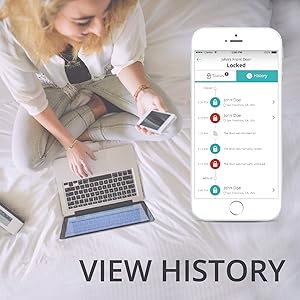
Image: A smartphone screen displaying the Sesame app's history log, showing a timeline of lock and unlock events with user details.
5. Official Product Video
Video: "Sesame. Your key, reinvented." This official video from CANDY HOUSE, Inc. demonstrates the key features and ease of use of the Sesame Smart Lock, including smartphone control, auto-unlock, and sharing access.
Kev tu
1. Hloov roj teeb
When the battery level is low, the Sesame app will notify you. Replace the two CR123A batteries promptly to ensure continuous operation. To replace, gently remove the Sesame unit from the door, open the battery compartment, and insert new batteries with the correct polarity. Reattach the unit to the door.
2. Kev ntxuav
Clean the exterior of your Sesame Smart Lock with a soft, dry cloth. Avoid using abrasive cleaners or solvents, as these may damage the finish.
Kev daws teeb meem
1. Teeb meem kev sib txuas
- Bluetooth Kev Txuas: Ensure your smartphone's Bluetooth is enabled and you are within close proximity to the lock. If issues persist, try restarting the app or your phone.
- Wi-Fi Connection (with Access Point): Verify that your Wi-Fi Access Point is plugged in, powered on, and connected to your home network. Ensure it is placed within Bluetooth range of the Sesame lock. Check your home Wi-Fi network status.
2. Lock Not Responding or Getting Stuck
- Roj teeb theem: Check the battery status in the app. Low batteries can affect performance.
- Obstructions: Ensure there are no physical obstructions preventing the deadbolt from turning smoothly.
- Kev sib tw: Verify that the Sesame unit is correctly aligned over the deadbolt's thumbturn and securely attached. The Gen 2 model features an improved motor and adjustable gripper to handle hard-to-turn locks more effectively.
- Recalibration: If the lock's turning angles seem incorrect, recalibrate the lock through the app's settings.
3. App Performance Issues
- App hloov tshiab: Ensure your Sesame app is updated to the latest version.
- Kev khiav hauj lwm System: Keep your smartphone's operating system updated.
- Restart App: Close and reopen the app to resolve minor glitches.
Specifications
| Chaw tsim tshuaj paus | CANDY HOUSE, Inc. |
| Qauv nab npawb | SESAMEUS2.0W |
| Tshooj Naj Npawb | SESAMEUS2.0W |
| Xim | Pearl Dawb |
| Yam Nyhav | 5.8 hli |
| Khoom Dimensions | 3.9 x 1.6 x 3.4 po |
| Roj teeb | 2 CR123A roj teeb (nrog) |
| Roj teeb Cell Hom | Lithium |
| Lub neej roj teeb nruab nrab | 500 hnub |
| Hwj chim Source | Roj teeb muaj zog |
| Mounting Hom | 3M Adhesive |
| Tshwj xeeb nta | Smart Lock, Google Home, Amazon Alexa, IFTTT Enabled (with optional Wi-Fi Access Point) |
| Thawj Hnub Muaj | Kaum Ob Hlis 30, 2016 |

Image: Diagram illustrating the physical dimensions of the Sesame Smart Lock, including width, height, side length, and total length.
Warranty thiab Support
For warranty information, technical support, or further assistance, please contact CANDY HOUSE, Inc. directly through their official website or the contact information provided with your product packaging. Keep your purchase receipt for warranty claims.
Ask a question about this manual
Ask about setup, troubleshooting, compatibility, parts, safety, or missing instructions. Manuals+ will review the question and use this page’s manual context to help answer it.