
1. Taw qhia
The DinoFire X16-DF-US is a rechargeable wireless presentation clicker designed to enhance your presentations. It offers a reliable 2.4GHz wireless connection, a bright red laser pointer, and intuitive controls for seamless navigation through slides. This manual provides detailed instructions for setup, operation, maintenance, and troubleshooting to ensure optimal performance of your device.

Image 1: DinoFire X16-DF-US Rechargeable Wireless Presentation Clicker. This image displays the sleek, black design of the presentation remote with its control buttons and red laser light emitting from the front.
2. Cov ntsiab lus ntawm pob
Thov xyuas kom meej tias txhua yam khoom muaj nyob hauv pob:
- 1 x Wireless Presenter Remote Control
- 1 x Wireless USB Receiver
- 1 x USB Charging Cable
- 1 x User Manual (cov ntaub ntawv no)
3. Khoom Tshajview
Familiarize yourself with the components and controls of your DinoFire presentation clicker.

Image 2: Detailed diagram of the DinoFire X16-DF-US presentation clicker. This image shows multiple views of the device, highlighting the 'Light Hole', 'Manage Volume' buttons, 'Page UP' and 'Page Down' buttons, 'Play/Full Screen' and 'Black Screen' functions, 'Charing Port', 'USB Receiver', 'Pointer Button', 'Switch on/off' slider, 'Switch Windows' button, 'Open the Hyperlink' button, and 'Select Hyperlink' button.
- Light Hole: Emits the red laser pointer.
- Manage Volume: Adjusts system volume (buttons labeled '+' and '-').
- Page UP: Navigates to the previous slide.
- Page Down: Navigates to the next slide.
- Play/Full Screen: Single press for Play, Press and Hold for Full Screen.
- Black Screen: Single press for Black Screen, Press and Hold for Black Screen.
- Charging Chaw nres nkoj: Micro USB port for recharging the device.
- USB Receiver: Stores securely within the presenter via magnetism.
- Pointer Button: Activates the red laser pointer.
- Qhib / Off: Power slider to turn the device on or off.
- Hloov Windows: Long press the TAB key button to switch between open windows.
- Open the Hyperlink: Double press the dedicated hyperlink button to open a selected hyperlink.
- Select Hyperlink: Single press the dedicated hyperlink button to select a hyperlink.
4. Teeb tsa
4.1 Charging the Presenter
The DinoFire X16-DF-US features a built-in rechargeable battery. Before first use, or when the low power indicator flashes, charge the device using the provided USB cable.
- Connect the micro USB end of the charging cable to the charging port on the side of the presenter.
- Txuas qhov kawg ntawm USB ntawm lub cable rau lub zog USB (piv txwv li, lub qhov rooj USB hauv computer, lub adapter USB phab ntsa).
- A full charge typically takes about one hour. The device can operate for more than one week on a single charge, depending on usage.

Image 3: The DinoFire X16-DF-US presentation clicker connected to a laptop via a USB charging cable. This image illustrates the charging process, highlighting the micro USB port on the device and the USB-A connector plugged into a laptop.
4.2 Txuas USB Receiver
The wireless receiver is stored magnetically within the presenter for convenience and to prevent loss.
- Gently pull out the USB receiver from the bottom end of the presenter.
- Ntxig lub USB receiver rau hauv qhov chaw nres nkoj USB uas muaj nyob rau ntawm koj lub computer lossis laptop.
- The system will automatically detect and install the necessary drivers. No manual driver installation is required.

Duab 4: Kaw-up view of the DinoFire X16-DF-US presentation clicker showing the magnetic storage for the USB receiver. The image demonstrates how the mini USB receiver is securely stored within the presenter's body, preventing it from being easily lost.
4.3 Hwj chim Rau/Tawm
Locate the ON/OFF switch on the side of the presenter. Slide it to the 'ON' position to power on the device before use, and to 'OFF' when not in use to conserve battery.
5. Cov lus qhia ua haujlwm
The DinoFire X16-DF-US offers a range of functions to control your presentation effectively.
5.1 Basic Presentation Controls
- Page Up (▲ button): Press to move to the previous slide.
- Page Down (▼ button): Press to move to the next slide.
- Play/Full Screen (□ button): Single press to start/resume presentation. Press and hold to enter full screen mode.
- Black Screen (□ button): Single press to black out the screen. Press and hold to black out the screen.
5.2 Advanced Functions
- Hyperlink Control:
- Single press the dedicated hyperlink button to select a hyperlink.
- Double press the dedicated hyperlink button to open the selected hyperlink.
- Volume Control: Use the '+' and '-' buttons on the side of the presenter to adjust the system volume.
- Hloov Windows: Long press the 'TAB' button (often integrated with another function button) to switch between open application windows on your computer.

Image 5: The DinoFire X16-DF-US presentation clicker demonstrating the 'Switch Windows' function. The image shows the presenter in front of a computer screen displaying multiple open application windows, illustrating the ability to switch between them.
5.3 Laser Pointer Operation
Press and hold the dedicated pointer button (often marked with a sun or star icon) to activate the red laser pointer. Release the button to turn it off.

Image 6: Close-up of the DinoFire X16-DF-US presentation clicker emitting a bright red laser beam. The image also includes a warning symbol against pointing the laser at eyes, emphasizing laser safety.
Safety Warning: Do not point the laser beam directly at people's eyes or at highly reflective surfaces. The laser is bright and can cause temporary vision impairment or eye damage.
The red laser light is effective against most backgrounds but is not recommended for use on LED, LCD, or TV screens.
5.4 Compatibility
The DinoFire X16-DF-US is widely compatible with various operating systems and presentation software:
- Operating Systems: Windows 2003, XP, Windows Vista, Windows 7, 8, 10, Linux, Android, Mac OS.
- Software: Microsoft PowerPoint, Keynote, Google Slides, Prezi, MS Word, Excel, ACD See, and web browser.
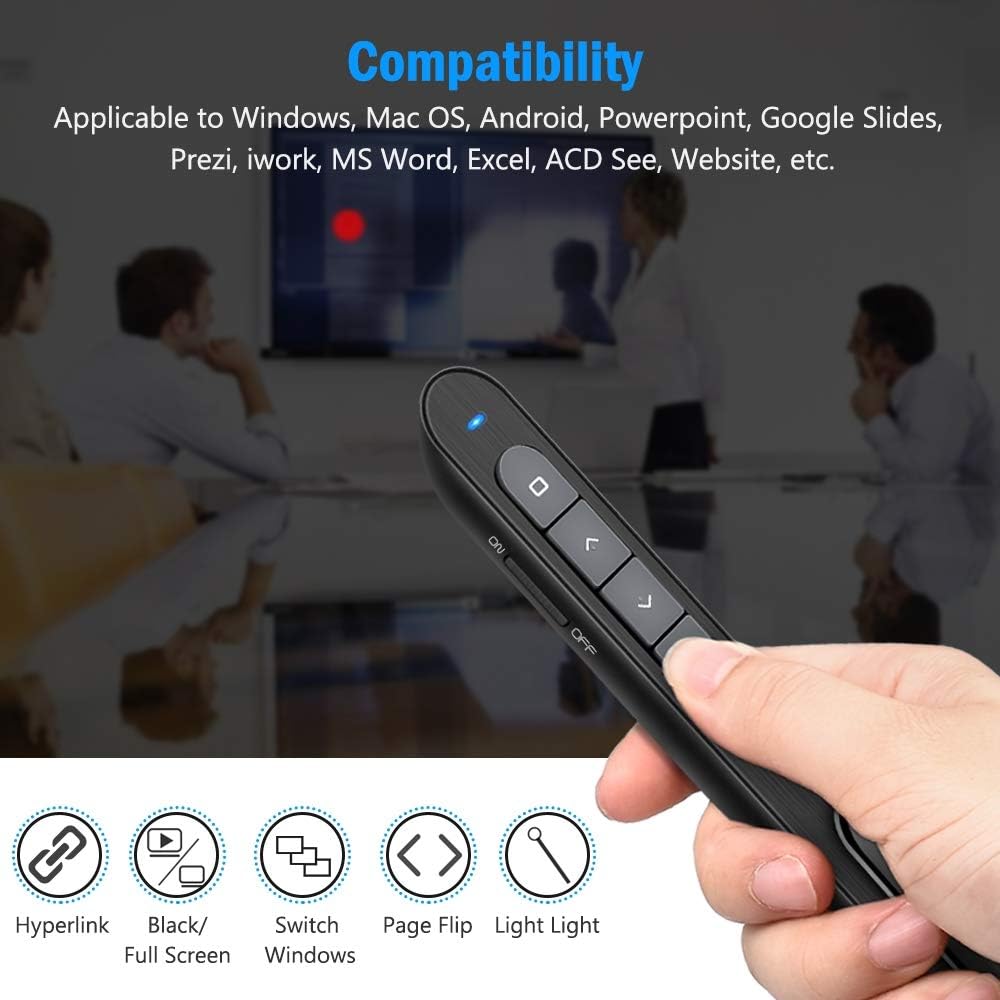
Image 7: The DinoFire X16-DF-US presentation clicker shown with various compatibility icons. This image highlights the device's compatibility with Windows, Mac OS, Android, PowerPoint, Google Slides, Prezi, iWork, MS Word, Excel, ACD See, and general website navigation.
5.5 Wireless Control Range
The presenter operates on a 2.4GHz RF frequency, providing a wireless control range of up to 100 feet (30 meters). The red laser light has a range of over 300 feet (90 meters).

Image 8: A person using the DinoFire X16-DF-US presentation clicker in a large room, pointing at a projected screen. The image emphasizes the long control range of the device, indicating a presenter control range of over 328ft and a red light range of over 656ft.
6. Kev tu
6.1 Roj Teeb Kho
- Them lub cuab yeej ua ntej siv thawj zaug.
- Tsis txhob tso lub roj teeb tas li kom ntev nws lub neej.
- Khaws lub cuab yeej rau hauv qhov chaw txias, qhuav thaum tsis siv rau lub sijhawm ntev.
6.2 Kev ntxuav
Siv daim ntaub mos mos thiab qhuav los so lub cuab yeej. Tsis txhob siv cov tshuaj lom neeg lossis cov tshuaj ntxuav uas ua rau tawv.
6.3 USB Receiver Storage
Always store the USB receiver inside the magnetic compartment of the presenter when not in use to prevent loss.
7. Kev daws teeb meem
- Presenter not responding:
- Ensure the presenter is powered on (ON/OFF switch).
- Check if the USB receiver is securely plugged into the computer's USB port.
- Verify the presenter's battery level. Recharge if the low power indicator is flashing.
- Sim ntsaws lub USB receiver rau hauv lwm qhov chaw nres nkoj USB.
- Restart koj lub computer.
- Laser pointer not working:
- Ensure the presenter is powered on.
- Press and hold the laser pointer button firmly.
- Txheeb xyuas qib roj teeb.
- Low Power Indicator:
- When the indicator light flashes continuously, it signifies low battery. Please charge the device immediately.
- The device will enter auto-sleep mode if unused for approximately 5 minutes to save energy.
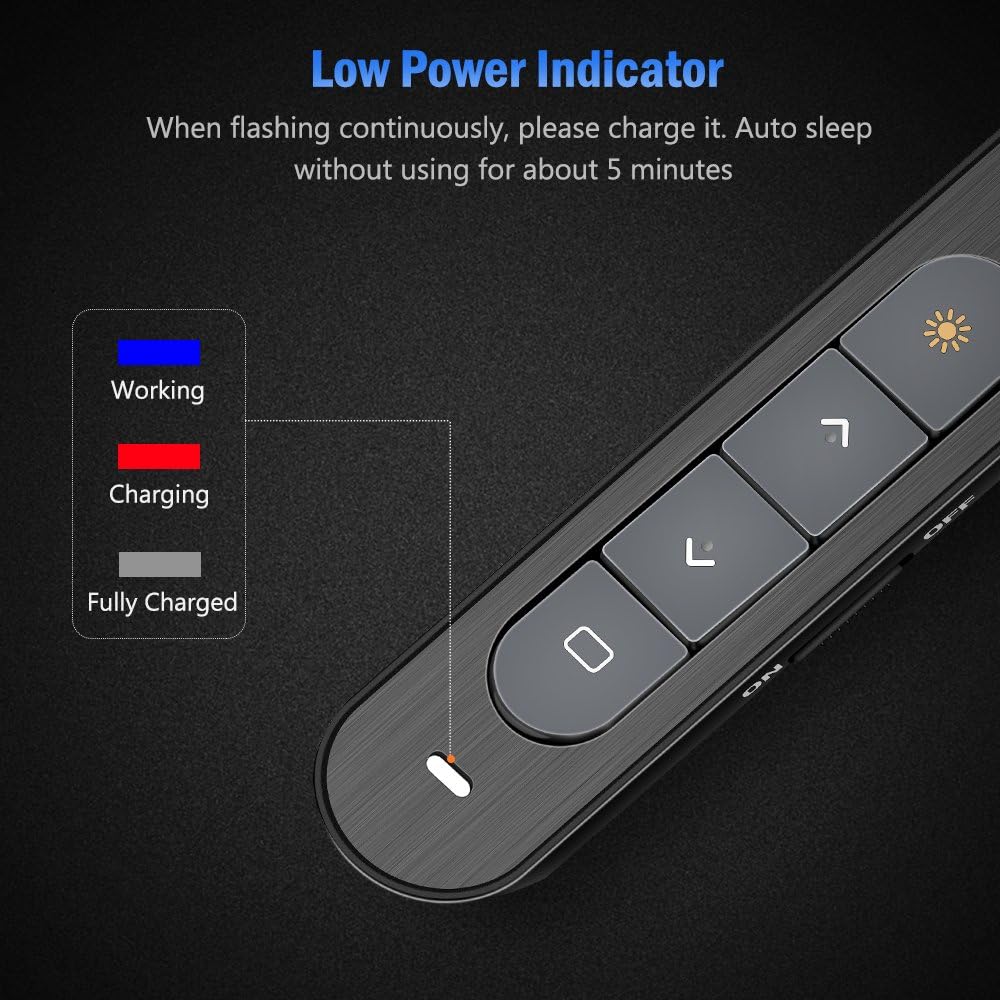
Image 9: Close-up of the DinoFire X16-DF-US presentation clicker showing the low power indicator light. The image displays a legend for the indicator light colors: blue for 'Working', red for 'Charging', and gray for 'Fully Charged', along with a visual representation of the indicator flashing when low on power.
8. Cov lus qhia tshwj xeeb
| Feature | Specification |
|---|---|
| Qauv nab npawb | X16-DF-US |
| Technology | Xov tooj cua Zaus (RF) |
| Ntau zaus | 2.4 GHz |
| Tswj nrug | Mus txog 100ft (30m) |
| Laser Lub Teeb Xim | Liab |
| Laser Light Distance | Over 300ft (90m) |
| Max Laser Tso zis | <5 mW |
| Hom roj teeb | 160 mAh Lithium Polymer |
| Them sij hawm | Kwv yees li. 1 hnu |
| Ua hauj lwm Voltage | 1.5v XNUMX |
| Pw Tam Sim No | Tsawg dua 10uA |
| Qhov ntev | 5.5 x 0.8 x 0.8 nti (kwv yees) |
| Yam Nyhav | 1.76 hli |
| USB Version | USB 1.1, tau tshaj USB 2.0, USB 3.0 |
| Compatible Operating Systems | Windows 2003/XP/Vista/7/8/10, Mac OS, Linux, Android |
9. Warranty thiab Support
DinoFire offers a commitment to product quality. If the USB receiver is lost within one year of purchase, a free replacement may be provided. For further support or inquiries, please refer to the DinoFire official website lossis tiv tauj lawv cov neeg siv khoom.