
1. Taw qhia
This manual provides detailed instructions for the Blackweb SDVD1183-BW Portable Blu-ray/DVD Player. Please read this manual thoroughly before using the device to ensure proper operation and to maximize your viewing and listening experience. Keep this manual for future reference.
2. Cov ntaub ntawv kev nyab xeeb
- Tsis txhob tso lub cuab yeej los nag, noo noo, lossis kub heev.
- Tsis txhob tso tseg lossis ua rau lub cuab yeej raug cuam tshuam.
- Tsis txhob sim rhuav lossis kho lub cuab yeej koj tus kheej. Xa cov neeg ua haujlwm tsim nyog los kho txhua yam khoom.
- Use only the provided power adapters and accessories.
- Xyuas kom muaj qhov cua kom zoo; tsis txhob thaiv qhov qhib qhov cua.
- Pov tseg cov roj teeb raws li cov cai hauv zos.
3. Cov ntsiab lus ntawm pob
Xyuas kom tseeb tias txhua yam khoom muaj nyob hauv koj pob:
- Dubweb SDVD1183-BW Portable Blu-ray/DVD Player
- AC Zog Adapter
- Tsheb Fais Fab Adapter
- A/V Cable
- Chaw taws teeb tswj
- Tus Neeg Siv Los Siv (cov ntawv no)
4. Khoom Tshajview
4.1 Pem Hauv Ntej View

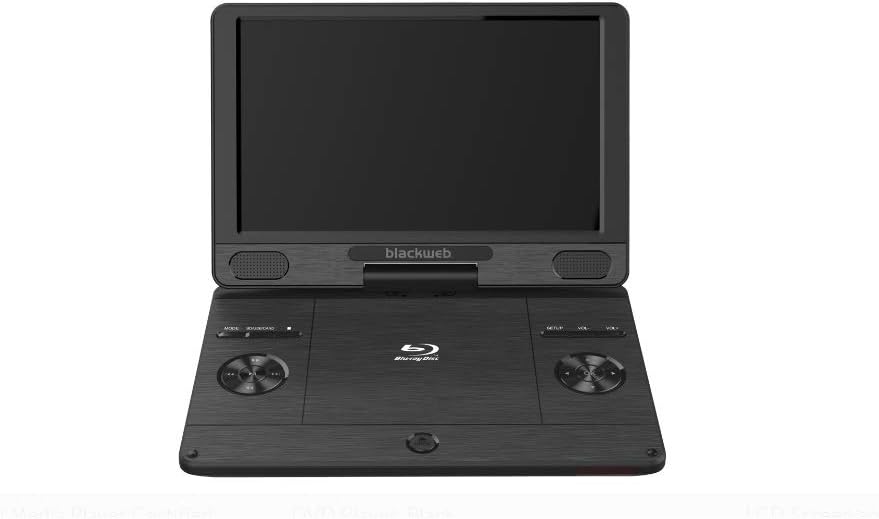
Duab: pem hauv ntej view ntawm tus Dubweb SDVD1183-BW Portable Blu-ray/DVD Player, showing the open 11.4-inch screen, integrated speakers, and control buttons on the base.
Pem hauv ntej view displays the 11.4-inch HD screen, stereo speakers, and essential control buttons on the player's base. These buttons typically include MODE, SOURCE/CARD, SETUP, and Volume controls (VOL+, VOL-).
4.2 Side/Rear View
Duab: Sab view ntawm tus Dubweb SDVD1183-BW Portable Blu-ray/DVD Player, closed, highlighting the various input/output ports.
The side and rear panels house various connectivity ports. These include the DC IN port for power, USB port for external storage, SD/MMC card slot, HDMI OUT for connecting to external displays, AV OUT for analog video/audio, a headphone jack, and an Ethernet port for network connectivity. A power ON/OFF switch is also located on the side.
5. Teeb tsa
5.1 Them lub roj teeb
Before first use, fully charge the player's internal Lithium Ion battery. Connect the AC power adapter to the DC IN port on the player and plug it into a wall outlet. The charging indicator light will illuminate, typically turning off or changing color when fully charged.
5.2 Hwj chim Rau/Tawm
To power on the player, slide the ON/OFF switch to the 'ON' position. To power off, slide the switch to the 'OFF' position.
5.3 Connecting to External Display (HDMI)
Rau view content on a larger screen, connect an HDMI cable (not included) from the player's HDMI OUT port to an HDMI input on your TV or monitor. Select the corresponding HDMI input on your external display.
5.4 Ntxig ib Disc
Gently open the disc compartment lid. Place a Blu-ray disc, DVD, or CD onto the spindle with the label side facing up. Press down gently on the center of the disc until it clicks into place. Close the lid firmly.
5.5 Using USB/SD Card
Insert a USB flash drive into the USB port or an SD/MMC card into the card slot. The player should automatically detect the media. If not, use the SOURCE/CARD button to select the appropriate input source.
6. Cov lus qhia ua haujlwm
6.1 Basic Playback
After inserting a disc or connecting USB/SD media, the player will typically begin playback automatically or display a menu. Use the navigation buttons on the player or remote control to select options and press the PLAY/PAUSE button to start or pause playback.
6.2 Siv Cov Chaw Taws Teeb
The included remote control provides full functionality for the player. Point the remote control directly at the player's IR sensor. Functions include: Play, Pause, Stop, Fast Forward, Rewind, Skip Track/Chapter, Menu, Setup, Volume Up/Down, and Mute.
6.3 Adjusting Volume and Screen
Use the VOL+ and VOL- buttons on the player or remote control to adjust the audio volume. Screen brightness, contrast, and other display settings can typically be adjusted through the SETUP menu.
6.4 Media Playback
The player supports a wide range of media formats, including:
- Discs: CD-R/RW, DVD±R/RW, CD, Video CD, BD-R, BD-RE, Blu-ray Disc
- Suab: WMA, DTS, Dolby Digital, Dolby Digital Plus, Dolby TrueHD
- Video: MPEG-1, MPEG-2, MPEG-4, WMV, H.264, VC-1
- Duab: GIF, JPEG, PNG
6.5 Network Connection (Ethernet)
Connect an Ethernet cable to the player's Ethernet port for wired network access. This feature may be used for firmware updates or accessing online content if supported by the player's software.
7. Kev tu
7.1 Ntxuav Cov Neeg Ua Si
Wipe the player's exterior with a soft, dry cloth. Do not use liquid cleaners, aerosols, or abrasive materials. For the screen, use a soft, lint-free cloth specifically designed for electronics displays.
7.2 Kev Saib Xyuas Disc
Siv cov discs los ntawm ntug kom tsis txhob muaj cov ntiv tes. Khaws cov discs kom huv si thiab tsis muaj khawb. Khaws cov discs rau hauv lawv lub thawv thaum tsis siv.
7.3 Roj Teeb Kho
To prolong battery life, avoid fully discharging the battery frequently. Charge the battery regularly, even if the player is not used for extended periods. Avoid exposing the player to extreme heat or cold, which can degrade battery performance.
8. Kev daws teeb meem
Yog tias koj ntsib teeb meem nrog koj lub player, saib cov teeb meem thiab kev daws teeb meem hauv qab no:
- Tsis muaj zog: Ensure the AC adapter is securely connected and plugged into a working outlet. Check if the battery is charged. Verify the ON/OFF switch is in the 'ON' position.
- Tsis muaj duab: If using an external display, ensure the HDMI cable is connected correctly and the TV/monitor is set to the correct input source. Check the player's screen brightness settings.
- Tsis muaj suab: Check the volume level on the player and any connected external audio devices. Ensure headphones are fully plugged in if used. Verify audio settings in the SETUP menu.
- Disc Not Playing: Ensure the disc is inserted correctly and is clean and free of scratches. Verify the disc format is supported by the player (e.g., Blu-ray, DVD, CD). Some Blu-ray discs may have region coding; ensure it matches the player's region.
- Tsis Paub Txog Daim Npav USB/SD: Ensure the USB drive or SD card is formatted to a compatible file system (e.g., FAT32). Reinsert the media. Try a different USB port or SD card slot if available.
9. Cov lus qhia tshwj xeeb
| Feature | Specification |
|---|---|
| Qauv nab npawb | SDVD1183-BW |
| Qhov Loj | 11.4cm ua |
| Hom Media | Blu-Ray, DVD, CD, USB, SD/MMC |
| Playable Formats | CD-R/RW, DVD±R/RW, CD, Video CD, BD-R, BD-RE, Blu-ray Disc, GIF, JPEG, PNG, WMA, DTS, MPEG-1, MPEG-2, MPEG-4, WMV, H.264, VC-1 |
| Connectivity Technology | Ethernet, HDMI, USB |
| Khoom Dimensions | 16 x 14.5 x 3.5 po |
| Yam Nyhav | 5.6 puj |
| Roj teeb | 1 Lithium Ion roj teeb yuav tsum tau |
| Xim | Dub |
10. Warranty Information
This Blackweb product comes with a limited manufacturer's warranty. Please refer to the warranty card included in your original product packaging for specific terms, conditions, and duration of coverage. Keep your purchase receipt as proof of purchase for any warranty claims.
11. Txhawb nqa
For technical assistance, troubleshooting beyond this manual, or customer service inquiries, please refer to the contact information provided in your product packaging or visit the official Blackweb kev txhawb nqa website. Have your model number (SDVD1183-BW) and purchase details ready when contacting support.