
1. Taw qhia
The Lexar JumpDrive Fingerprint F35 is a USB 3.0 flash drive designed to provide secure data storage through integrated fingerprint authentication and 256-bit AES encryption. This manual provides instructions for setting up, operating, maintaining, and troubleshooting your device to ensure optimal performance and data security.
2. Cov ntsiab lus ntawm pob
- Lexar JumpDrive Fingerprint F35 USB 3.0 Flash Drive
3. Khoom Tshajview
The Lexar JumpDrive Fingerprint F35 features a sleek design with a built-in fingerprint sensor for quick and secure access to your files. It includes a standard USB-A connector for broad compatibility.

Daim duab 1: Pem hauv ntej view of the Lexar JumpDrive Fingerprint F35.
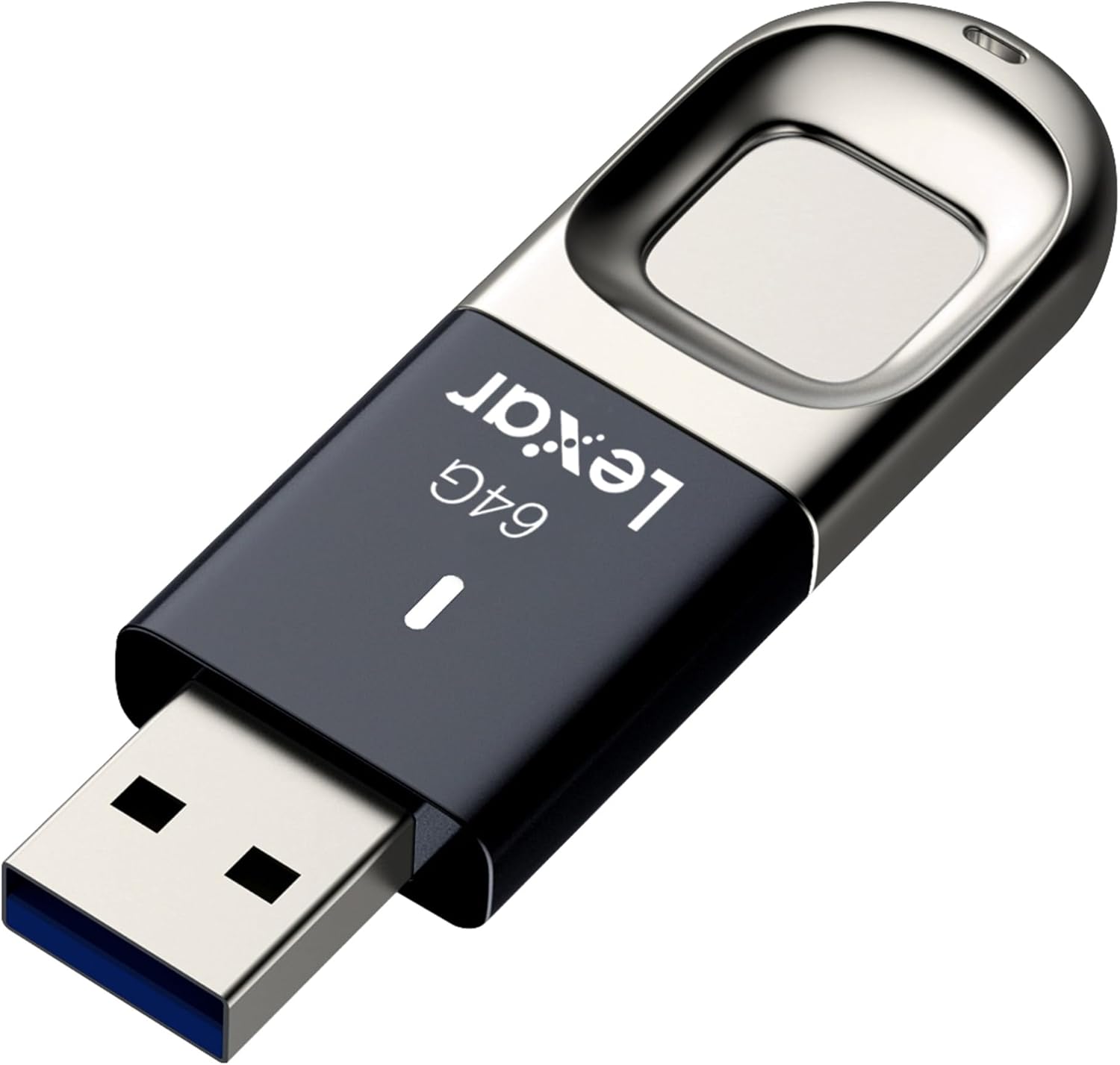
Daim duab 2: Angled view highlighting the fingerprint sensor.

Figure 3: Illustration of the fingerprint sensor location.

Figure 4: The drive features a convenient keychain loop for portability.
4. Teeb tsa
4.1 System Requirements
- Fingerprint Registration Software: Compatible with Windows XP, Vista, 7, 8, 10.
- Regular Flash Drive Use: Tau tshaj Windows, Linux, thiab Mac OS.
- Available USB 3.0 or USB 2.0 port.
4.2 Software Installation and Fingerprint Registration (Windows Only)
The fingerprint registration software is pre-loaded on the drive. This software is required to create/edit user accounts and adjust partition sizes. Once configured on a Windows PC, the secure partition can be accessed via fingerprint on compatible systems.
- Insert the Lexar JumpDrive F35 into an available USB port on your Windows computer.
- The drive will appear as a removable disk. Locate and run the setup executable for the fingerprint management software.
- Ua raws li cov lus qhia on-screen txhawm rau nruab software.
- Launch the fingerprint management software.
- Register your fingerprints. The software will guide you through scanning your finger multiple times from different angles to ensure accurate recognition. Up to 10 fingerprint IDs can be registered.
- Configure the public and private (secure) partitions as desired. The secure partition is protected by your registered fingerprints.
4.3 Mac and Linux Users
While the Lexar JumpDrive F35 is compatible with Mac OS and Linux for regular flash drive use, the fingerprint registration and management software is only compatible with Windows operating systems. To utilize the fingerprint security features, the initial setup and fingerprint registration must be performed on a Windows PC. Once configured, the secure partition can be accessed on Mac and Linux systems by presenting a registered fingerprint.
5. Kev khiav hauj lwm ntaus ntawv
5.1 Txuas lub Drive
Carefully insert the USB connector of the JumpDrive F35 into an available USB port on your computer. Ensure it is fully seated.
5.2 Accessing Partitions
- Public Partition: Upon insertion, the public partition of the drive will be automatically accessible, similar to a standard USB flash drive.
- Secure Partition: To access the secure partition, place a registered finger on the fingerprint sensor. The drive will recognize your fingerprint in less than one second, unlocking the secure partition.
5.3 Hloov cov ntaub ntawv
The JumpDrive F35 utilizes USB 3.0 technology, offering read speeds of up to 150MB/s. For optimal transfer speeds, connect the drive to a USB 3.0 compatible port on your computer. You can drag and drop files to and from the accessible partitions.
5.4 Tshem Tawm Lub Drive Kom Ruaj Ntseg
Always safely eject the drive before physically removing it from your computer to prevent data corruption. This can typically be done by right-clicking the drive icon in your operating system's file explorer and selecting "Eject" or "Safely Remove Hardware."
Video 1: Official Lexar video demonstrating the quick fingerprint recognition and secure data handling of the JumpDrive F35. This video highlights the ease of use and security features of the product.
6. Kev ruaj ntseg nta
- Fingerprint Authentication: Provides ultra-fast recognition in less than one second, allowing only authorized users access to the secure partition.
- 256-ntsis AES Encryption: Protects your sensitive files with advanced encryption standards, ensuring data confidentiality.
- Multiple Fingerprint IDs: Supports up to 10 unique fingerprint IDs, enabling shared access among trusted individuals if needed.
7. Kev tu
- Cleaning the Fingerprint Sensor: Gently wipe the sensor with a soft, dry, lint-free cloth to remove any dust or smudges that might affect recognition accuracy. Avoid using harsh chemicals or abrasive materials.
- Protecting the USB Connector: Keep the USB connector free from dust and debris. Use the included cap or a protective case when not in use.
- Cov ntaub ntawv thaub qab: Regularly back up important data stored on the drive to another secure location to prevent data loss from unforeseen circumstances.
8. Kev daws teeb meem
8.1 Tsav Tsis Paub
- Xyuas kom tseeb tias lub drive tau ntxig tag rau hauv qhov chaw nres nkoj USB.
- Sim lwm qhov chaw nres nkoj USB ntawm koj lub computer.
- Sim lub drive ntawm lwm lub computer kom paub seb puas muaj teeb meem tshwj xeeb rau lub computer.
- Check your computer's Device Manager (Windows) or System Information (Mac) to see if the drive is detected.
8.2 Tsis Paub Txog Tus Ntiv Tes
- Xyuas kom koj tus ntiv tes huv si thiab qhuav.
- Place your finger firmly and completely on the sensor.
- Try different angles or positions of your finger, similar to how you registered it.
- If recognition consistently fails, re-register your fingerprint using the management software on a Windows PC.
8.3 Kev hloov qeeb qeeb
- Ensure the drive is connected to a USB 3.0 port for optimal performance. USB 2.0 ports will result in slower speeds.
- Kaw cov ntawv thov tsis tsim nyog uas khiav hauv keeb kwm yav dhau uas yuav siv cov peev txheej ntawm lub system.
- Tsis txhob hloov ntau yam me me files simultaneously, as this can be slower than transferring a few large files.
8.4 Software Issues (Windows Only)
- Xyuas kom koj lub Windows operating system hloov tshiab.
- If the software is not functioning correctly, try uninstalling and reinstalling it from the drive.
- Verify that your Windows version is supported by the fingerprint registration software (XP, Vista, 7, 8, 10).
9. Cov lus qhia tshwj xeeb
| Muaj peev xwm | 64 GB ua |
| Interface | USB 3.0 (rov qab tau tshaj USB 2.0) |
| Nyeem Ceev | Mus txog 150 MB / s |
| Sau Ceev | 60 MB / s |
| Encryption | 256-ntsis AES |
| Ntiv tes IDs | Mus txog 10 |
| Qhov Loj (LxWxH) | 2.53 x 0.81 x 0.31 po |
| Qhov hnyav | 0.8 hli |
| Ua haujlwm kub | 0 ° C txog 60 ° C (32 ° F txog 140 ° F) |
| Cia Kub | -20 ° C txog 85 ° C (-4 ° F txog 185 ° F) |
10. Warranty thiab Support
10.1 Warranty Information
Lexar products are designed for reliability and performance. This product is covered by a limited warranty. For specific warranty terms and conditions applicable to your region, please refer to the official Lexar weblub vev xaib lossis daim npav lav uas suav nrog koj qhov kev yuav khoom.
10.2 Kev Pabcuam Cov Neeg Siv Khoom
If you encounter any issues or have questions regarding your Lexar JumpDrive Fingerprint F35, please visit the official Lexar support website for FAQs, driver downloads, and contact information. You can typically find support resources at www.lexar.com/support.