
Taw qhia
Thank you for choosing the MARVO KG925G Mechanical Gaming Keyboard. This manual provides essential information for setting up, operating, maintaining, and troubleshooting your new keyboard. Please read this manual carefully before use to ensure optimal performance and longevity of your device.
Ntim Cov Ntsiab Lus
Xyuas kom tseeb tias txhua yam khoom muaj nyob hauv pob:
- MARVO KG925G Mechanical Gaming Keyboard
- Tus Neeg Siv Los Siv (cov ntawv no)
Teeb tsa
Cov Kev Xav Tau
- Operating System: Windows 8 lossis tom qab ntawd
- Muaj USB 2.0 chaw nres nkoj
Txuas lub Keyboard
- Nrhiav ib qho chaw nres nkoj USB 2.0 uas siv tau ntawm koj lub computer.
- Plug the USB connector of the MARVO KG925G keyboard into the USB port.
- Lub operating system yuav cia li ntes thiab nruab cov tsav tsheb tsim nyog. Cov txheej txheem no yuav siv sij hawm ob peb lub sijhawm.
- Once the drivers are installed, the keyboard's backlighting will illuminate, indicating it is ready for use.
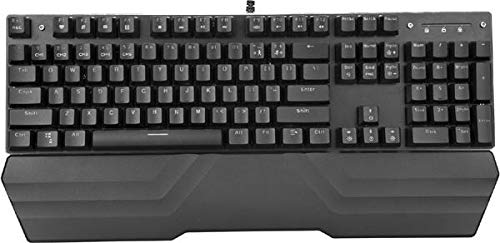
Image: The MARVO KG925G Mechanical Gaming Keyboard with its USB cable connected, ready for use. The keyboard features a wrist rest and illuminated keys.
Cov lus qhia ua haujlwm
Cov Haujlwm Tseem Ceeb ntawm Keyboard
The MARVO KG925G functions as a standard QWERTY keyboard for typing and general computer use.
Multimedia Keys
The keyboard includes dedicated multimedia functions, typically accessed via the Fn key combined with the F-keys (F1-F12). Refer to the keycap legends for specific functions such as volume control, media playback, and launching applications.
- Fn + F1-F12: Access various multimedia and system functions.
Kev Tswj Xyuas Teeb Pom Kev Zoo
The MARVO KG925G features customizable backlighting. Specific key combinations are used to change lighting modes, brightness, and speed. Consult the keyboard's keycap legends or the manufacturer's website for detailed instructions on advanced lighting customization.
- Hom teeb pom kev zoo: Typically cycled using a dedicated key or Fn + a specific key (e.g., Scroll Lock, Pause Break, or a dedicated lighting key).
- Kev hloov Brightness: Often controlled by Fn + Up/Down arrow keys.
Kev tu thiab tu
Kev saib xyuas kom zoo ua kom koj lub keyboard siv tau ntev thiab ua haujlwm tau zoo.
- Ntxuav: Use a soft, dry cloth to wipe the keyboard surface. For deeper cleaning, use a can of compressed air to remove dust and debris from between the keycaps. Avoid using harsh chemicals or abrasive materials.
- Kev nchuav: In case of liquid spills, immediately unplug the keyboard from your computer. Turn it upside down to drain any liquid and allow it to dry completely for at least 24-48 hours before reconnecting. Do not attempt to use the keyboard while it is wet.
- Cia: Khaws cov keyboard rau hauv qhov chaw txias, qhuav kom deb ntawm tshav ntuj ncaj qha thiab kub heev.
Kev daws teeb meem
If you encounter issues with your MARVO KG925G keyboard, refer to the following common solutions:
| Teeb meem | Kev daws teeb meem |
|---|---|
| Keyboard tsis teb. |
|
| Backlighting is not working. |
|
| Keys are not registering correctly. |
|
Specifications
- Qauv: wb 925g
- Hom Tshuaj: MARVO
- Kev sib txuas: USB 2.0
- Hom Keyboard: Neeg Kho Tshuab Gaming Keyboard
- Nta: Illumination, Wrist Rest, Multimedia Keys
- Tau tshaj OS: Windows 8 thiab saum toj no
- Qhov Loj: 47.5 x 18.7 x 8.4 cm (18.7 x 7.4 x 3.3 po)
Warranty thiab Support
For warranty information and technical support, please refer to the warranty card included with your product or visit the official MARVO webqhov chaw. Khaws koj cov ntaub ntawv pov thawj ntawm kev yuav khoom rau kev lees paub.