
Taw qhia
This manual provides essential instructions for the safe operation, setup, and maintenance of your Protocol Director HD Foldable Drone. Please read this manual thoroughly before operating the drone to ensure proper function and to prevent damage or injury.
The Protocol Director HD is a foldable drone equipped with a live streaming HD camera, designed for capturing aerial video and photos. It features an intuitive 2.4 GHz remote control, an altitude sensor for stable flight, and a free downloadable app for enhanced camera control and flight path drawing.
Kev Tiv Thaiv Kev Nyab Xeeb
- Ib txwm siv lub drone rau hauv qhov chaw qhib, tsis muaj kev thaiv, deb ntawm tib neeg, tsiaj txhu, thiab kev cuam tshuam.
- Do not operate near airports, restricted airspace, or sensitive facilities.
- Maintain a safe distance from power lines, trees, and water bodies.
- Ensure all propellers are securely attached and undamaged before each flight.
- Tsis txhob ya thaum muaj cua hlob lossis huab cua tsis zoo.
- Khaws cov ntiv tes thiab cov plaub hau kom deb ntawm cov kiv cua uas tig.
- Adult supervision is recommended for users under 18 years of age. Recommended age for operation is 14 years and up.
- Only use original Protocol replacement parts and accessories.
- Do not attempt to modify the drone or its components.
- Turn off the drone and remote control when not in use.
Ntim Cov Ntsiab Lus
Xyuas kom tseeb tias txhua yam khoom muaj nyob hauv pob:
- Protocol Director HD Foldable Drone with Camera
- Remote Control with Phone Mount
- USB Charging Cable
- 2 x Drone Batteries
- Hnab mus txawv tebchaws
- Instruction Manual (cov ntaub ntawv no)
- Spare Parts: Blades, Screwdriver

Image: The Protocol Director HD Foldable Drone, showcasing its compact design with propellers extended and camera visible at the front.
Teeb tsa
1. Them lub roj teeb Drone
- Insert one of the drone batteries into the USB charging cable.
- Txuas lub USB charging cable rau lub USB fais fab (piv txwv li, lub computer USB port, USB wall adapter).
- The charging indicator light on the USB cable will illuminate during charging and turn off when fully charged.
- Kev them nyiaj feem ntau yuav siv li 60-90 feeb. Tsis txhob overcharge.
2. Txhim kho cov roj teeb tswj chaw taws teeb
- Qhib lub roj teeb hauv qab ntawm lub chaw taws teeb tswj.
- Ntxig 4 lub roj teeb AA (tsis suav nrog), xyuas kom meej tias polarity raug (+/-).
- Kaw lub roj teeb kom ruaj ntseg.

Image: The drone's remote control with a smartphone securely mounted, displaying a live feed from the drone's camera.
3. Unfolding lub Drone
- Gently unfold each of the four rotor arms until they click into place.
- Ensure all arms are fully extended and locked before flight.
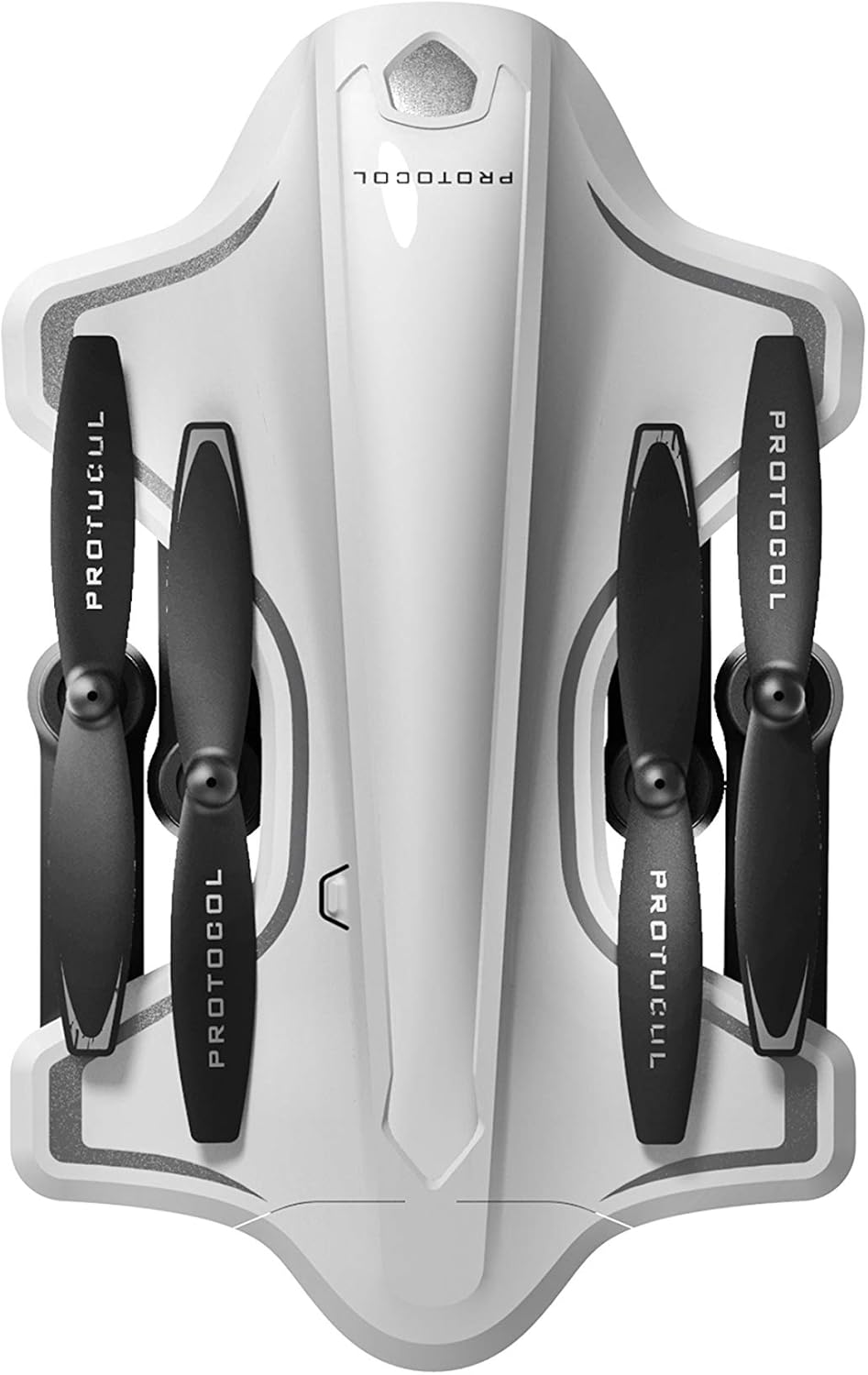
Image: The Protocol Director HD Foldable Drone in its compact, folded configuration, ready for transport.
4. Installing the Drone Battery
- Nrhiav lub roj teeb lub thawv ntawm lub drone.
- Insert the fully charged drone battery, ensuring it is securely seated.
- Kaw lub roj teeb lub hau npog.
5. Downloading the App (Optional for Camera Features)
- Nrhiav rau the "Protocol Director HD" app in your smartphone's app store (iOS or Android).
- Download and install the free application.
- Mount your smartphone onto the remote control's phone mount.
Cov lus qhia ua haujlwm
1. Fais fab rau thiab Pairing
- Tso lub drone rau ntawm ib tiaj tiaj, qib theem.
- Turn on the drone by pressing the power button. The drone's lights will flash.
- Qhib cov chaw taws teeb tswj.
- Push the left joystick (throttle) all the way up, then all the way down. The drone's lights will become solid, indicating successful pairing.
2. Calibrating the Gyroscope
After pairing, it is recommended to calibrate the gyroscope for stable flight:
- With the drone on a flat surface, push both joysticks down and to the right simultaneously for a few seconds.
- The drone's lights will flash rapidly and then become solid, indicating calibration is complete.
3. Basic Flight Controls
The Protocol Director HD features auto launch, hover, and land functions due to its altitude sensor.
- Auto Launch: Press the dedicated auto launch button on the remote. The drone will ascend to a stable hovering altitude.
- Throttle (Left Joystick):
- Push up: Increase altitude
- Push down: Decrease altitude
- Push left/right: Rotate drone left/right (yaw)
- Kev tswj kev taw qhia (Right Joystick):
- Push up: Fly forward
- Push down: Fly backward
- Push left: Fly left (strafe)
- Push right: Fly right (strafe)
- Auto Land: Press the dedicated auto land button. The drone will slowly descend and land.
- Kev xaiv ceev: Use the speed button on the remote to cycle through three selectable speeds (low, medium, high).
4. Camera and App Features
Connect your smartphone to the drone's Wi-Fi network (usually named "Protocol_Drone_XXXXXX") to access live streaming and advanced camera functions via the app.
- Live Streaming: View the drone's camera feed in real-time on your smartphone.
- Video Recording: Initiate and stop video recording (480p resolution) through the app.
- Yees Duab: Take still images through the app.
- Multiple Camera Angles: The app supports three different camera angles (Aerial, POV, Selfie) for varied content creation.
- Kev kaw suab: The app allows for audio recording alongside video.
- Draw Your Own Flight Path: Utilize the app's feature to draw a flight path on your screen, and the drone will follow it.
- VR Capability: The app is VR capable; VR goggles are sold separately.
Kev tu
- Propeller Inspection: Regularly check propellers for cracks, bends, or damage. Replace any damaged propellers using the provided spare parts and screwdriver.
- Ntxuav: Use a soft, dry cloth to clean the drone and remote control. Avoid using liquids or harsh chemicals.
- Kev kho roj teeb:
- Tsis txhob overcharge roj teeb.
- Khaws cov roj teeb hauv qhov chaw txias, qhuav.
- Remove batteries from the drone and remote control during long periods of non-use.
- Cia: Fold the drone arms for compact storage in the provided travel bag when not in use. Store in a cool, dry environment.
Kev daws teeb meem
| Teeb meem | Ua Tau | Kev daws |
|---|---|---|
| Drone tsis muaj zog. | Lub roj teeb tsis them lossis raug teeb tsa tsis raug. | Xyuas kom lub roj teeb tau them tag nrho thiab muab tso rau kom raug. |
| Cov chaw taws teeb tswj tsis muaj hluav taws xob. | AA batteries are dead or incorrectly installed. | Replace AA batteries, checking polarity. |
| Drone thiab tej thaj chaw deb tsis ua khub. | Tsis tau ua raws li qhov kev sib txuas ua ke kom raug. | Ensure drone is on, then remote. Push left joystick up then down completely. |
| Drone drifts thaum ya davhlau. | Gyroscope needs calibration; uneven surface at launch. | Land the drone, place on a flat surface, and recalibrate the gyroscope (both joysticks down and right). |
| One propeller does not spin. | Propeller damaged or motor issue. | Check for obstructions. Replace damaged propeller. If issue persists, contact support. |
| Tsis muaj kev tshaj tawm video nyob rau ntawm lub xov tooj ntawm tes. | Not connected to drone's Wi-Fi; app not open. | Ensure smartphone is connected to the drone's Wi-Fi network and the app is running. |
Specifications
| Hom | raws tu qauv |
| Qauv Lub Npe | Director HD |
| Qauv nab npawb | 6182-7RCHA |
| Qhov ntev (Folded) | Approximately 4.75 inches (length) |
| Dimensions (Extended) | Approximately 9 inches (length, including blades) |
| Qhov hnyav | 0.94kg (940g) |
| Lub koob yees duab daws teeb meem | 480p (Video Capture) |
| Kev sib txuas | Wi-Fi (for app control and live streaming), 2.4 GHz (for remote control) |
| Stabilization | 6-axis motion-sensitive auto stabilizers, Altitude sensor |
| Cov Qauv Ceev | Three selectable speeds |
| Drone Roj teeb | Rechargeable (2 included) |
| Chaw taws teeb tswj roj teeb | 4 x AA roj teeb (tsis suav nrog) |
| Khoom siv | Plastic (Crash-resistant) |
| Pom zoo hnub nyoog | 14 xyoo thiab nce |
Warranty thiab Support
For warranty information, technical support, or to purchase replacement parts, please visit the official Protocol website lossis hu rau lawv lub chaw pabcuam neeg siv khoom. Khaws koj daim ntawv yuav khoom ua pov thawj ntawm kev yuav khoom.
Webqhov chaw: www.protocolny.com (Ex ibample link, qhov link tiag yuav txawv)
Hu rau: Refer to the Protocol website for contact details, including phone numbers or email support.