
1. Taw qhia
This manual provides essential instructions for the safe and efficient use of your KOAMTAC KDC280 Barcode Data Collector. The KDC280 is a compact and versatile device designed for collecting 1D and 2D barcode data, offering flexible connectivity options via Bluetooth and USB. Please read this manual thoroughly before operating the device and retain it for future reference.
2. Cov ntaub ntawv kev nyab xeeb
- Do not expose the device to extreme temperatures, moisture, or corrosive substances.
- Tsis txhob tso tseg lossis raug lub cuab yeej ua rau muaj kev cuam tshuam loj heev.
- Tsis txhob sim rhuav lossis hloov kho lub cuab yeej. Qhov no yuav ua rau daim ntawv pov thawj lav tsis siv tau thiab tej zaum yuav ua rau puas tsuaj.
- Use only the charging cradle and accessories provided or approved by KOAMTAC.
- Khaws lub cuab yeej kom deb ntawm qhov muaj zog sib nqus.
- Pov tseg cov roj teeb raws li cov cai hauv zos.
3. Cov ntsiab lus ntawm pob
Verify that all items are present in your KDC280 package:
- KOAMTAC KDC280 Barcode Data Collector
- USB Bluetooth Dongle
- Charge Cradle
- USB Cable
- Lanyard
- Phau ntawv ceev

Image: The KOAMTAC KDC280 data collector shown with its charging cradle, USB Bluetooth dongle, and lanyard.
4. Khoom Tshajview
The KDC280 is a miniature barcode data collector capable of reading both 1D and 2D barcodes. It features a small display for user feedback and navigation buttons. Its primary function is to scan and store barcode data or transmit it in real-time to a host device via Bluetooth or USB.
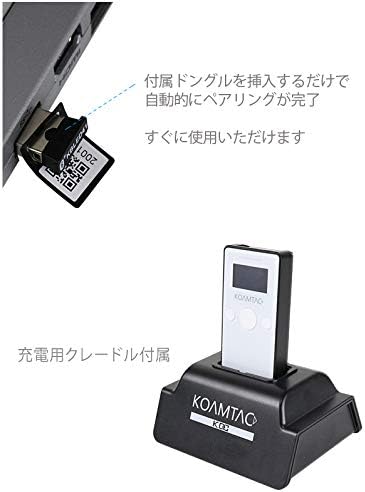
Image: Ib qho kev sib ze view of the KDC280 device, its charging cradle, and the USB Bluetooth dongle.
5. Teeb tsa
5.1. Charging the KDC280
Before initial use, fully charge the KDC280 battery. Place the KDC280 into the charging cradle. Connect the USB cable to the charging cradle and then to a power source (e.g., computer USB port or USB wall adapter). The device's display will indicate charging status.
5.2. Connecting via USB Bluetooth Dongle
For quick and automatic pairing with a host device, use the included USB Bluetooth dongle.
- Insert the USB Bluetooth dongle into an available USB port on your computer or host device.
- Power on the KDC280.
- The KDC280 will automatically detect and pair with the dongle. A confirmation message will appear on the KDC280's display once pairing is successful. The device is then ready for immediate use.

Image: Illustration showing the USB Bluetooth dongle being inserted into a port, enabling automatic pairing with the KDC280. The charging cradle is also visible.
5.3. Connecting via Standard Bluetooth
To connect to a host device without the dongle, follow the standard Bluetooth pairing procedure:
- Ensure Bluetooth is enabled on your host device (e.g., smartphone, tablet, computer).
- On the KDC280, navigate to the Bluetooth menu and select 'Pairing Mode'.
- On your host device, search for available Bluetooth devices. Select 'KDC280' from the list.
- Ua raws li cov lus qhia ntawm on-screen kom ua tiav cov txheej txheem ua khub.
6. Operating the KDC280
6.1. Fais fab rau / tawm
- To power on: Press and hold the power button until the display illuminates.
- To power off: Press and hold the power button until the 'Power Off' option appears on the display, then confirm.
6.2. Luam theej duab Barcodes
- Point the KDC280's scanner window at the barcode.
- Press the scan button. A successful scan will typically be indicated by a beep and/or a green LED light.
- The scanned data will appear on the KDC280's display and/or be transmitted to the connected host device.
6.3. Hloov ntaub ntawv
When connected via Bluetooth, scanned data is typically transmitted in real-time to the host application. If operating in batch mode (data stored internally), connect the KDC280 via USB to a computer and use the provided utility software to download the stored data.
7. Kev tu
7.1. Kev ntxuav
- So lub cuab yeej nrog lub mos, damp daim ntaub. Tsis txhob siv cov tshuaj hnyav los yog cov tshuaj abrasive.
- Ensure the scanner window is clean and free of dust or smudges for optimal scanning performance.
7.2. Kev kho roj teeb
- Tsis txhob tso lub roj teeb tas li ntau zaus.
- Khaws cov khoom siv rau hauv qhov chaw txias thiab qhuav yog tias tsis siv ntev.
- If the battery performance significantly degrades, contact support for replacement options.
8. Kev daws teeb meem
8.1. Ntaus tsis muaj hwj chim rau
- Ensure the battery is charged. Connect the device to the charging cradle and a power source.
- Xyuas kom tseeb tias lub pob hluav taws xob tau nias thiab tuav kom raug.
8.2. Unable to Scan Barcodes
- Check if the scanner window is clean and unobstructed.
- Ensure the barcode is not damaged or poorly printed.
- Verify the device is in the correct scanning mode.
8.3. Connection Issues (Bluetooth/USB)
- Bluetooth: Ensure the KDC280 is in pairing mode or already paired. Check Bluetooth settings on the host device. Restart both devices.
- USB Dongle: Ensure the dongle is fully inserted and recognized by the host device. Restart the KDC280 and reinsert the dongle.
- USB Cable: Try a different USB port or cable. Ensure drivers are correctly installed if required by your operating system.
9. Cov lus qhia tshwj xeeb
| Hom | Koamtac |
| Qauv | KDC 280 |
| Barcode Compatibility | 1D and 2D Barcodes |
| Kev sib txuas | Bluetooth, USB Cable |
| Hwj chim Source | Roj teeb-powered |
| Xws li Accessories | USB Bluetooth Dongle, Charging Cradle |
10. Warranty thiab Support
For warranty information, technical support, or service inquiries, please refer to the warranty card included with your product or visit the official KOAMTAC website. Contact details for customer support are typically available on the manufacturer's webqhov chaw.