
1. Taw qhia
This manual provides essential information for the setup, operation, and maintenance of your Blackweb BWC18SB001 2.0 Channel Google Assistant Smart Soundbar. Please read these instructions carefully before using the product to ensure proper functionality and to maximize your audio experience. This smart soundbar integrates speaker functionality with Google Assistant capabilities, enhancing your home entertainment system.
2. Dab tsi hauv lub thawv
Xyuas kom tseeb tias tag nrho cov khoom muaj nyob rau thaum unpacking:
- Dubweb BWC18SB001 2.0 Channel Google Assistant Smart Soundbar
- Chaw taws teeb tswj
- Fais fab Adapter
- Relevant Audio Cables (e.g., Optical, Aux)
- Tus Neeg Siv Los Siv (cov ntawv no)
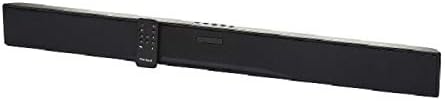
Duab: Tus Dubweb BWC18SB001 Smart Soundbar, shown with its included remote control. The soundbar is black and rectangular, designed to sit beneath a television.
3. Khoom Nta
- 2.0 Lub Suab Channel: Delivers clear stereo sound for an enhanced listening experience.
- Integrated Google Assistant: Control your soundbar and smart home devices using voice commands.
- Ntau yam kev xaiv kev sib txuas: Supports HDMI, Optical, AUX, and Bluetooth for versatile audio input.
- Tswj txoj kev: Features on-device buttons and a dedicated remote control for easy operation.
- Compact Design: Designed to fit seamlessly into your home theater setup.
4. Teeb tsa
4.1 Qhov chaw
Place the soundbar on a stable, flat surface directly in front of your television or mount it on a wall (mounting hardware not included). Ensure there is adequate ventilation around the unit.
4.2 Kev sib txuas fais fab
- Connect the power adapter to the DC IN port on the back of the soundbar.
- Txuas lwm qhov kawg ntawm lub hwj chim adapter rau hauv lub qhov hluav taws xob phab ntsa.
4.3 Suab Txuas
Xaiv ib txoj hauv kev hauv qab no los txuas koj lub soundbar rau koj lub TV lossis lwm qhov chaw suab:
- HDMI (Pom zoo): Connect an HDMI cable (not included) from the HDMI ARC port on your TV to the HDMI ARC port on the soundbar. This allows for high-quality audio and control via your TV remote.
- Optical: Connect an Optical cable (included) from the OPTICAL OUT port on your TV to the OPTICAL IN port on the soundbar.
- AUX: Connect a 3.5mm audio cable (included) from the AUX OUT port on your TV or audio device to the AUX IN port on the soundbar.
5. Cov lus qhia ua haujlwm
5.1 Fais fab / Off
- Nias lub pob Fais (U) on the soundbar or the remote control to turn the unit on or off.
- A green indicator light on the soundbar signifies that it is powered on.
5.2 Volume Control
- Siv lub Volume Up (VOL+) thiab Volume Down (VOL-) buttons on the soundbar or remote control to adjust the volume.
- Nias lub Mute (X) on the remote to mute or unmute the sound.
5.3 Input Xaiv
Nias lub khawm input (M) on the soundbar or the corresponding input buttons (AUX, OPTICAL, HDMI, Bluetooth) on the remote control to switch between audio sources.
6. Google Assistant Integration
Koj Tus Dubweb soundbar features integrated Google Assistant. To activate, ensure the soundbar is connected to your home Wi-Fi network (refer to the separate Google Home app setup guide for detailed instructions). Once connected, you can use voice commands:
- Say "Hey Google" or "Ok Google" followed by your command.
- Examples: "Hey Google, play music," "Ok Google, what's the weather?" "Hey Google, turn up the volume."
You can also mute the Google Assistant microphone using the dedicated button on the soundbar or remote control if you prefer privacy.
7. Kev sib txuas Bluetooth
Txhawm rau txuas lub cuab yeej Bluetooth:
- Nias lub khawm Bluetooth (BT) on the remote control or cycle through inputs on the soundbar until "BT" is displayed or indicated. The soundbar will enter pairing mode.
- Ntawm koj lub xov tooj ntawm tes (smartphone, ntsiav tshuaj, laptop), qhib Bluetooth thiab tshawb nrhiav cov khoom siv muaj.
- Xaiv "Dubweb BWC18SB001" from the list of devices.
- Thaum twg koj txuas tau lawm, lub soundbar yuav qhia tias koj txuas tau zoo, thiab koj tuaj yeem ua si suab los ntawm koj lub cuab yeej.
Bluetooth nrug deb li ntawm 10 meters (33 feet).
8. Kev tu
Yuav kom ntseeg tau tias koj lub soundbar siv tau ntev thiab ua haujlwm tau zoo tshaj plaws:
- Ntxuav: Use a soft, dry cloth to wipe the exterior of the soundbar. Do not use liquid cleaners or abrasive materials.
- Qhov cua: Xyuas kom tseeb tias cov qhov cua tsis raug thaiv.
- Ib puag ncig: Tsis txhob muab lub soundbar tso rau qhov kub thiab txias heev, av noo, lossis tshav ntuj ncaj qha.
9. Kev daws teeb meem
- Tsis muaj zog: Ensure the power adapter is securely connected to both the soundbar and a working wall outlet.
- Tsis muaj suab:
- Check that the soundbar is powered on and not muted.
- Xyuas kom tseeb tias qhov kev tawm tswv yim raug raug xaiv ntawm lub soundbar.
- Ensure audio cables (HDMI, Optical, AUX) are securely connected to both the soundbar and your TV/audio source.
- Adjust the volume on both the soundbar and your TV/audio source.
- Bluetooth Tsis Txuas:
- Xyuas kom lub soundbar nyob rau hauv Bluetooth pairing hom.
- Xyuas kom tseeb tias koj lub cuab yeej Bluetooth tau qhib thiab nyob hauv thaj chaw uas muaj teeb meem.
- Sim unpairing thiab re-pairing lub cuab yeej.
- Google Assistant Tsis Teb:
- Tshawb xyuas koj qhov kev sib txuas Wi-Fi.
- Ensure the Google Assistant microphone is not muted.
- Verify the soundbar is properly set up in the Google Home app.
10. Cov lus qhia tshwj xeeb
| Feature | Specification |
|---|---|
| Qauv Lub Npe | BWC18SB001 |
| Hom hais lus | Soundbar |
| Surround Sound Channel Configuration | 2.0 |
| Tswj Txoj Kev | Voice, Remote, On-device Buttons |
| Connectivity Technology | HDMI, Optical, AUX, Bluetooth |
| Bluetooth Ntau | 10m ua |
| Speaker Maximum Output Power | 150 Watts |
| Suab Tso Tawm Hom | Stereo, Surround |
| Hwj chim Source | Corded Electric |
| Khoom Dimensions | 32 x 2.77 x 3.26 po |
| Yam Nyhav | 3.97 puj |
| UPC | 681131237703 |
11. Warranty thiab Support
For warranty information and technical support, please refer to the documentation provided at the time of purchase or visit the official Blackweb webqhov chaw. Khaws koj cov ntaub ntawv pov thawj ntawm kev yuav khoom rau kev lees paub.