
Taw qhia
This user manual provides comprehensive instructions for the setup, operation, maintenance, and troubleshooting of your Alienware M15 Gaming Laptop. Please read this manual thoroughly to ensure optimal performance and longevity of your device. For additional support, refer to the official Alienware support resources.
Khoom Tshajview
Cov yam ntxwv tseem ceeb
- 8th Generation Intel Core i7-8750H (6-Core, 9MB Cache, up to 4.1GHz w/ Turbo Boost)
- 15.6" FHD (1920 x 1080) 60Hz Anti-glare IPS, 300-nits 72% Color gamut, narrow-border Display
- 16GB, 2x8GB, DDR4, 2666MHz RAM
- 128GB PCIe M.2 SSD + 1TB (+8GB SSHD) Hybrid Drive
- Nvidia GeForce GTX 1060 with 6GB GDDR5 Graphics Card
- Windows 10 Kev Ua Haujlwm Hauv Tsev
Cov Cheebtsam Lub Cev

Daim duab 1: Pem hauv ntej view of the Alienware M15 laptop, showcasing the display with the Alienware logo.

Daim duab 2: Saum-down view of the open Alienware M15 laptop, highlighting the keyboard layout and touchpad.

Daim duab 3: Sab laug view of the Alienware M15 laptop, showing various ports such as USB 3.0.
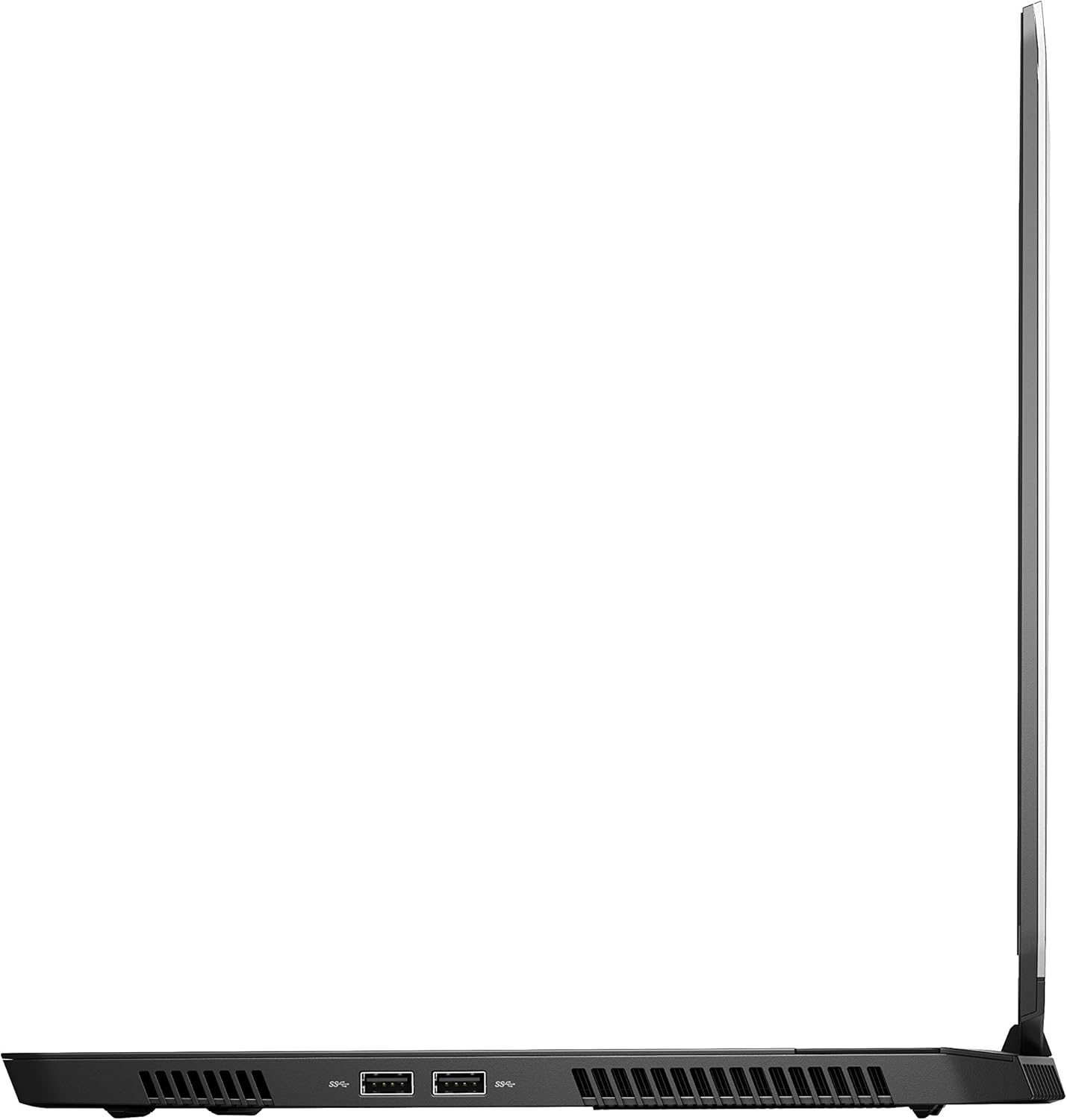
Daim duab 4: Sab xis view of the Alienware M15 laptop, displaying additional ports and ventilation.

Daim duab 5: tawg view illustrating the internal cooling system of the Alienware M15 laptop, including fans and heat sinks.
Teeb tsa
Unpacking
Ua tib zoo tshem tag nrho cov khoom ntawm lub ntim. Xyuas kom meej tias muaj cov khoom hauv qab no:
- Alienware M15 Gaming Laptop
- Hwj chim Cord
- 180W Hwj Hwj Adapter
Thaum pib Power-On
- Txuas lub hwj chim adapter rau lub laptop lub hwj chim input chaw nres nkoj.
- Txuas lub hwj chim qaum rau hauv lub qhov hluav taws xob phab ntsa.
- Open the laptop lid and press the power button, typically located on the top right of the keyboard deck or a dedicated button on the chassis.
- Follow the on-screen instructions to complete the Windows 10 Home setup process, including language selection, network connection, and user account creation.
Cov lus qhia ua haujlwm
Kev ua haujlwm yooj yim
Your Alienware M15 laptop runs on Windows 10 Home. Familiarize yourself with the operating system's interface. The keyboard features customizable backlighting via Alienware's software. The touchpad supports multi-touch gestures for navigation.
Kev Ua Si Kev Ua Si
The Alienware M15 is designed for high-performance gaming. For optimal gaming experience, ensure the laptop is connected to the power adapter. This allows the system to utilize its full power capabilities for the CPU and GPU. While gaming, the laptop may generate significant heat; this is normal for high-performance hardware. Consider using a cooling pad for extended gaming sessions to enhance thermal management.
Kev tu
Ntxuav
- Screen: Siv cov ntaub mos mos, tsis muaj lint-dawb me ntsis dampnpog nrog dej los yog ib lub tshuab ntxhua khaub ncaws. Zam cov tshuaj hnyav.
- Keyboard thiab Chassis: Use a soft brush or compressed air to remove dust from keys and vents. Wipe surfaces with a microfiber cloth.
- Chaw nres nkoj: Use compressed air to clear dust from USB, HDMI, and other ports.
Hloov tshiab software
Regularly update your Windows operating system, graphics drivers (NVIDIA GeForce), and Alienware software. Updates often include performance improvements, security patches, and bug fixes. Access Windows updates through Settings > Update & Security. Graphics drivers can be updated via the NVIDIA GeForce Experience application.
Roj teeb Care
To maximize battery lifespan, avoid consistently discharging the battery completely. For prolonged use while plugged in, consider using battery management features (if available in Alienware Command Center) to limit charging to 80-90% capacity.
Kev daws teeb meem
This section addresses common issues you might encounter with your Alienware M15 laptop.
| Teeb meem | Ua Tau / Kev daws teeb meem |
|---|---|
| Laptop gets excessively hot during use. | High-performance components generate heat. Ensure ventilation vents are clear. Use a cooling pad. Update graphics drivers. |
| "No media present" error or SSD/HDD not detected. | This can sometimes be a temporary software glitch. Try restarting the laptop. If persistent, ensure the power cable is securely connected and try a hard reboot (unplug power, hold power button for 15 seconds, then reconnect and power on). If the issue persists, contact support. |
| Wi-Fi connection drops frequently. | Ensure Wi-Fi drivers are up to date. Check for interference from other devices. Restart your router and the laptop. If the issue persists, consider reinstalling Wi-Fi drivers or contacting support. |
| System performance is slow or lagging. | Ensure the laptop is plugged into power for full performance. Close unnecessary background applications. Check for malware. Ensure sufficient free space on the SSD/HDD. |
Specifications
Detailed technical specifications for the Alienware M15 Gaming Laptop (Model: AWM15-7830SLV-PUS).
| Feature | Paub meej |
|---|---|
| Sawv ntsug cov zaub kom pom loj | 15.6 Nws |
| Screen daws teeb meem | 1920 x 1080 px |
| Max Screen daws teeb meem | 1920 x 1080 pixels |
| Processor | 4.1 GHz core_i7_8750h |
| RAM | 16 GB DDR4 |
| Nco ceev | 2666 MHz |
| Hard Drive | 1000 GB 128GB PCIe M.2 SSD + 1TB (+8GB SSHD) Hybrid Drive |
| Graphics Coprocessor | NVIDIA GeForce GTX 1060 |
| Chipset Hom | NVIDIA |
| Daim npav piav qhia | Muab siab rau |
| Graphics Card Ram Loj | 6 GB ua |
| Hom Wireless | 802.11a/b/g/n |
| Tus lej ntawm USB 3.0 Ports | 3 |
| Hom | Alienware |
| Series | AWm15-7830SLV-PUS |
| Yam khoom naj npawb | AWM15-7830SLV-PUS |
| Kev Ua Haujlwm | Windows 10 Tsev |
| Yam Nyhav | 4.8 puj |
| Khoom Dimensions | 10.8 x 14.3 x 0.8 po |
| Xim | Dub |
| Processor Hom | Intel |
| Number of Processors | 6 |
| Computer Memory Hom | DDR4 SDRAM |
| Flash Memory Size | 16 |
| Hard Drive Interface | Lub Xeev |
| Hard Drive Rotational ceev | 5400 RPM |
| Optical Drive Hom | No Optical Drive |
| Voltage | 240 Volts |
| Roj teeb | 1 Lithium hlau roj teeb yuav tsum tau. (nrog) |
| Hnub Ua Ntej Muaj | Lub Ib Hlis 5, 2019 |
| Qauv Lub Npe | AWm15-7830SLV-PUS |
| Qhov Loj | 15.6 Nws |
| Hard Disk Loj | 1000 GB ua |
| CPU Model | Core i7 8750H |
| Ram Memory Installed Size | 16 GB ua |
| Tshwj xeeb Feature | Anti Glare Txheej |
Warranty thiab Support
For detailed warranty information, please refer to the documentation included with your purchase or visit the official Alienware support website. For technical assistance, driver downloads, and further resources, please visit the Alienware support portal.
Phau Ntawv Qhia Tus Neeg Siv (PDF) tseem muaj rau rub tawm: Download User Manual PDF