
1. Taw qhia
This manual provides detailed instructions for the installation, operation, and maintenance of your Everycom EC801B 80mm Thermal Printer. Please read this manual thoroughly before using the printer to ensure proper function and longevity of the device. The EC801B is a high-speed thermal receipt printer equipped with an auto-cutter and versatile connectivity options including USB and LAN.
2. Cov ntaub ntawv kev nyab xeeb
- DO NOT DISASSEMBLE THE PRINTER PERSONALLY. For any service-related queries, please contact Everycom support.
- The printer should be installed on a flat and solid surface to avoid vibration or impact damage.
- Ensure the power supply matches the printer's requirements to prevent electrical damage.
- Keep the printer away from water, dust, and direct sunlight.
3. Cov ntsiab lus ntawm pob
Thov xyuas kom meej tias txhua yam khoom teev hauv qab no suav nrog hauv koj pob:
- 1 x Everycom EC801B Thermal Receipt Printer
- 1 x Fais fab Adapter
- 1 x USB Data Cable
- 1 x Paper Roll (Sample)
- 1 x User Manual
- 1 x Tsav CD

Image: Contents of the Everycom EC801B printer package, including the printer unit, power adapter, USB cable, sample paper roll, user manual, and driver CD.
4. Khoom Tshajview
Familiarize yourself with the various parts of your Everycom EC801B thermal printer.
4.1 Pem Hauv Ntej thiab Sab Saum Toj View

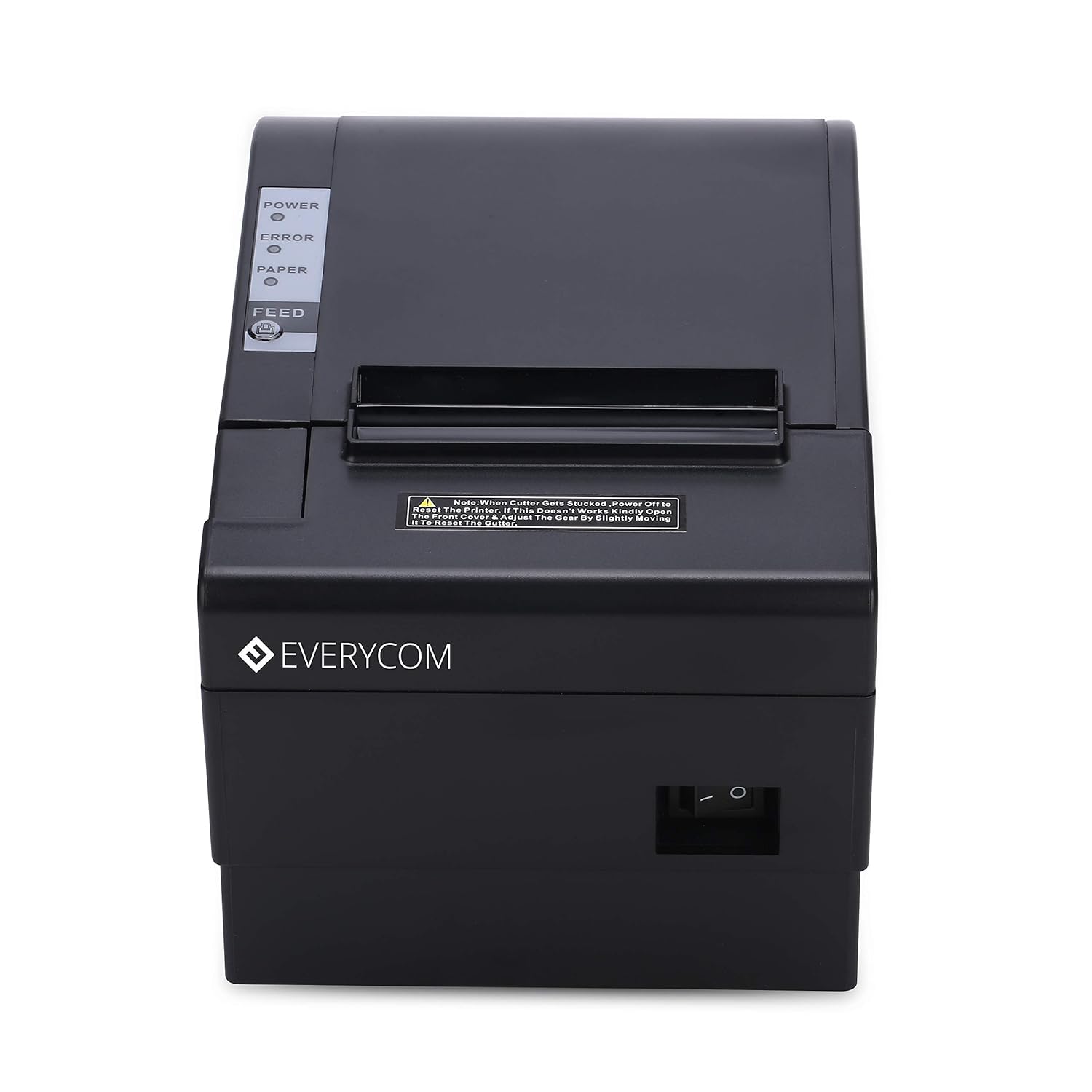
Duab: pem hauv ntej view of the Everycom EC801B thermal printer, showing the paper output slot and control panel.

Duab: Sab saum toj view of the Everycom EC801B thermal printer, highlighting the control panel with POWER, ERROR, PAPER indicators, and the FEED button.
4.2 Tswj Vaj Huam Sib Luag
- POWER Indicator: Illuminates when the printer is powered on.
- Qhov taw qhia yuam kev: Flashes or illuminates to indicate an error (e.g., paper out, cover open).
- PAPER Indicator: Illuminates when paper is present, flashes when paper is low.
- Pub khawm: Press to advance paper. Hold to print a self-test page.
4.3 Rear Panel (Connectivity Ports)

Duab: Rov qab view of the Everycom EC801B thermal printer, showing the power port, cash drawer port, Ethernet (LAN) port, and USB port.
- POWER Port: Txuas rau lub hwj chim adapter.
- CASH Drawer Port: Connects to a compatible cash drawer.
- LAN (Ethernet) Chaw nres nkoj: Connects to a network for network printing.
- USB Chaw nres nkoj: Connects to a computer via USB cable.
5. Teeb tsa
5.1 Kev Tso Chaw Nyob
Place the printer on a stable, flat surface. Ensure there is adequate space around the printer for ventilation and easy access to ports and paper loading.
5.2 Txuas Cables
- Kev sib txuas fais fab: Connect the power adapter to the printer's POWER port and then plug the adapter into a power outlet.
- Data Connection (Choose one):
- USB: Connect the USB data cable from the printer's USB port to an available USB port on your computer.
- LAN: Connect an Ethernet cable from the printer's LAN port to your network router or switch.
- Cash Drawer (Optional): If using a cash drawer, connect its cable to the printer's CASH Drawer port.
5.3 Chaw thau khoom
- Open the printer cover by pushing the cover open lever (if present) or lifting the top cover.
- Insert the 80mm thermal paper roll into the compartment, ensuring the paper feeds from the bottom and the leading edge extends out of the printer.
- Close the printer cover firmly until it clicks into place. Ensure there is no slack in the paper.

Duab: Sab saum toj view of the Everycom EC801B printer with the cover open, revealing the paper roll compartment.
5.4 Kev teeb tsa tsav tsheb
For the printer to communicate with your computer, drivers must be installed.
- Insert the provided Driver CD into your computer's CD-ROM drive.
- Follow the on-screen instructions to install the printer drivers. If your computer does not have a CD drive, drivers can typically be downloaded from the Everycom official webqhov chaw.
- After installation, configure the printer settings through your operating system's printer management tools.
6. Cov lus qhia ua haujlwm
6.1 Hwj chim Rau/Tawm
To power on the printer, ensure the power adapter is connected and press the power switch located on the side or rear of the printer. The POWER indicator light will illuminate. To power off, press the power switch again.
Duab: pem hauv ntej view of the Everycom EC801B printer, showing the location of the power switch on the side.
6.2 Luam Ib Nplooj Ntawv Ntsuas Tus Kheej
A self-test page can confirm basic printer functionality and print quality without requiring a computer connection.
- Ensure the printer is powered off and paper is loaded.
- Nias thiab tuav lub NYIAJ khawm.
- Thaum tuav lub NYIAJ button, turn on the printer.
- Tso lub NYIAJ button once the printer starts printing. A self-test page will print, showing printer information and a sample print.

Image: Everycom EC801B printer actively printing a self-test receipt with a QR code and text.
6.3 Basic Printing Operation
Once drivers are installed and the printer is connected, you can print from any application that supports printing. Select the Everycom EC801B from your list of available printers and initiate the print command.
6.4 Auto Cutter Function
The EC801B features an automatic cutter that will cut the receipt paper after each print job, or as configured in your printer settings/software.
7. Kev tu
7.1 Ntxuav lub tshuab luam ntawv
Kev tu tsis tu ncua pab tswj kev luam ntawv zoo thiab ua kom lub tshuab luam ntawv ntev dua.
- Lub taub hau luam: Siv paj rwb swab maj mam dampened with isopropyl alcohol to gently wipe the thermal print head. Allow it to dry completely before use.
- Paper Txoj Kev: Use a soft, dry cloth to remove any paper dust or debris from the paper path.
- Sab nrauv: So sab nrauv nrog mos, damp daim ntaub. Tsis txhob siv cov tshuaj hnyav los yog cov tshuaj abrasive.
7.2 Daim Ntawv Yob Hloov
When the PAPER indicator flashes or printing becomes faint, it's time to replace the paper roll. Follow the steps in Section 5.3 to load a new 80mm thermal paper roll.
8. Kev daws teeb meem
Yog tias koj ntsib teeb meem nrog koj lub tshuab luam ntawv, saib cov teeb meem thiab kev daws teeb meem hauv qab no:
| Teeb meem | Ua Tau | Kev daws |
|---|---|---|
| Lub tshuab luam ntawv tsis muaj zog | No power, faulty adapter | Check power cable connection, ensure outlet is working, try another adapter if available. |
| No printing / Blank output | Paper loaded incorrectly, no paper, print head issue, driver issue | Reload paper correctly (thermal side facing print head), replace paper roll, clean print head, reinstall drivers. |
| ERROR indicator on/flashing | Paper out, cover open, print head overheat | Check paper, close cover firmly, allow printer to cool down. |
| Kev luam ntawv tsis zoo | Dirty print head, low quality paper, old paper roll | Clean print head, use high-quality thermal paper, replace old paper. |
| Lub computer tsis paub lub tshuab luam ntawv | Driver not installed, incorrect cable, port issue | Install/reinstall drivers, check USB/LAN cable connection, try a different port. |
If the problem persists after attempting these solutions, please contact Everycom customer support.
9. Cov lus qhia tshwj xeeb
Key technical specifications for the Everycom EC801B Thermal Printer:
| Feature | Paub meej |
|---|---|
| Qauv | SIB 801B |
| Tshuab luam ntawv | Thermal Line Printing |
| Luam nrawm | 220mm / s |
| Daim ntawv dav | 80 hli |
| Kev sib txuas | USB, LAN (Ethernet) |
| Auto Cutter | Yog lawm |
| Lub tshuab luam ntawv tso zis | Monochrome |
| Qhov Loj (LxWxH) | 18.6 x 14.5 x 13.3 cm |
| Yam Nyhav | 1.2, XNUMX kg |
| Chaw tsim tshuaj paus | Everycom Electronics (Made in India) |
10. Warranty thiab Support
The Everycom EC801B Thermal Printer comes with a 1-Xyoo Warranty txij hnub ntawm kev yuav khoom. Qhov kev lees paub no suav nrog kev tsim khoom tsis raug thiab ua haujlwm tsis zoo raws li kev siv ib txwm siv.
For technical assistance, troubleshooting, or warranty claims, please contact Everycom Customer Support:
- Tus nab npawb hu dawb: 1800 121 4480 ib
- Customer Support Working Hours: Monday - Saturday, 10:00 AM - 6:30 PM (Except on Public Holidays)

Image: Everycom customer service contact details, including the toll-free number and working hours.