
1. Taw qhia
Thank you for choosing the SECUKEY SF2 Biometric and PIN Access Control System. This device is designed to provide secure and reliable access management for various environments, featuring advanced biometric fingerprint recognition and PIN code entry. Its robust, anti-vandal design and IP66 rating make it suitable for outdoor installations. This manual provides essential information for the proper installation, configuration, operation, and maintenance of your SF2 system. Please read it thoroughly before use.
Cov yam ntxwv tseem ceeb
- Optical Biometric Fingerprint Reader with 500DPI resolution.
- Fast Identification Time: Approximately 1 second.
- User Capacity: Up to 3,000 users (1,000 fingerprint users, 2,000 PIN users).
- Two "Authorizer" users for enabling/disabling other users.
- IP66 Rated for Outdoor Protection: Resistant to dust and powerful water jets.
- Anti-Vandal Zinc Alloy Casing.
- Programmable Relay Output (NO, NC, Common) with adjustable time (1-99 seconds, default 5 seconds).
- Access Modes: Fingerprint, PIN code, or Card (Wiegand 26-44 bit output).
- Wiegand 26-44 bit output for integration with external controllers (e.g., SBOARD, SBOARD-II).
- Interlock Functionality: Manage two doors with two SF2 devices.
- Operating Temperature Range: -30°C to 60°C (-22°F to 140°F).
- Humidity Range: 10% RH txog 99% RH.
- Power Supply: 12-24V AC/DC.
2. Cov ntaub ntawv kev nyab xeeb
- Xyuas kom lub hwj huam mov yog disconnected ua ntej installation los yog txij nkawm.
- Use only the specified power supply (12-24V AC/DC).
- Do not expose the device to extreme temperatures outside the specified operating range.
- Tsis txhob siv cov tshuaj hnyav los yog cov tshuaj abrasive ntxuav ntawm lub cuab yeej.
- Installation should be performed by qualified personnel to ensure proper wiring and functionality.
- Khaws lub sensor ntiv tes kom huv thiab qhuav rau kev ua haujlwm zoo tshaj plaws.
3. Khoom Tshajview
3.1 Pem Hauv Ntej View
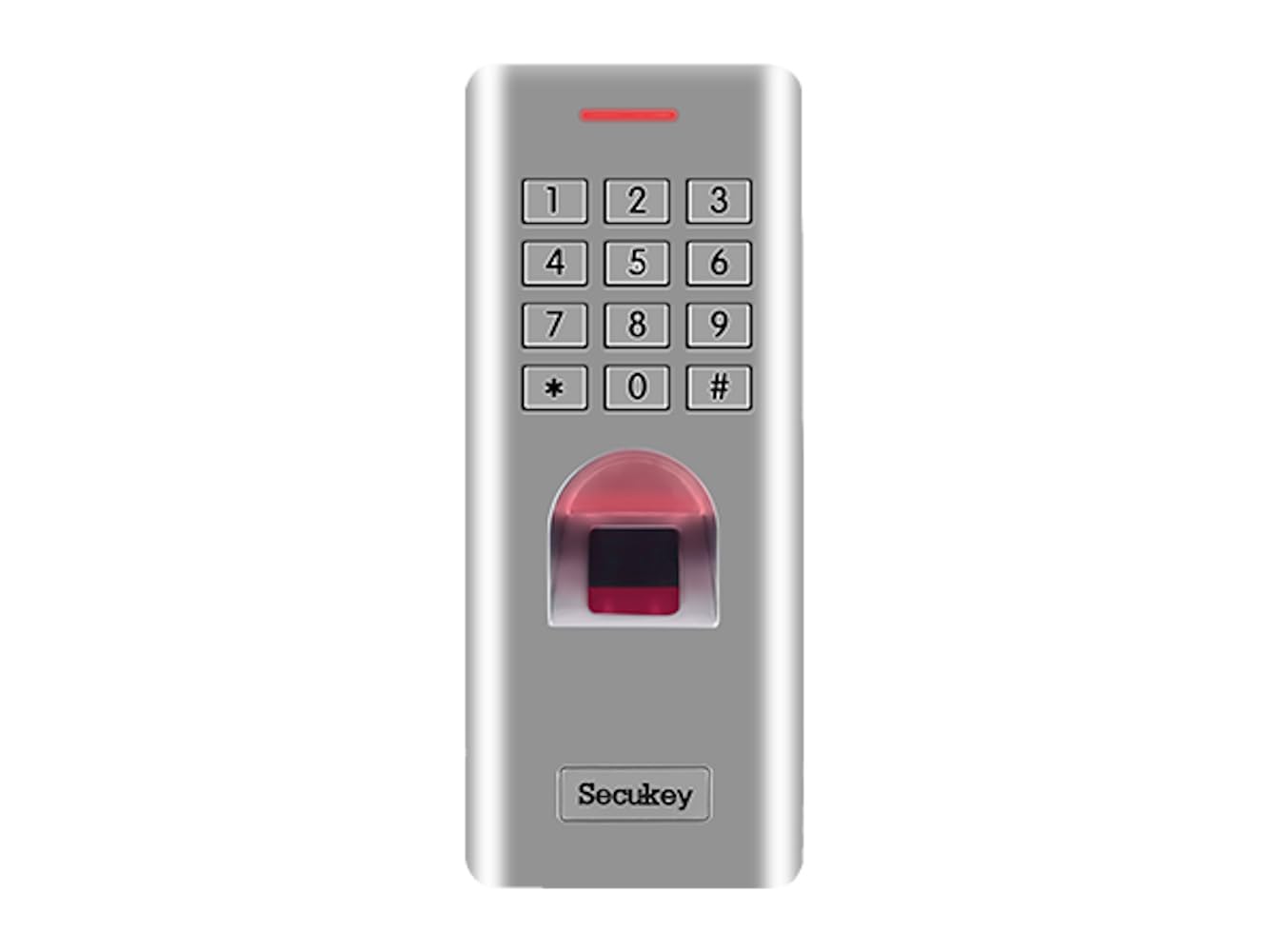
3.2 Rov qab View thiab Kev Sib Txuas
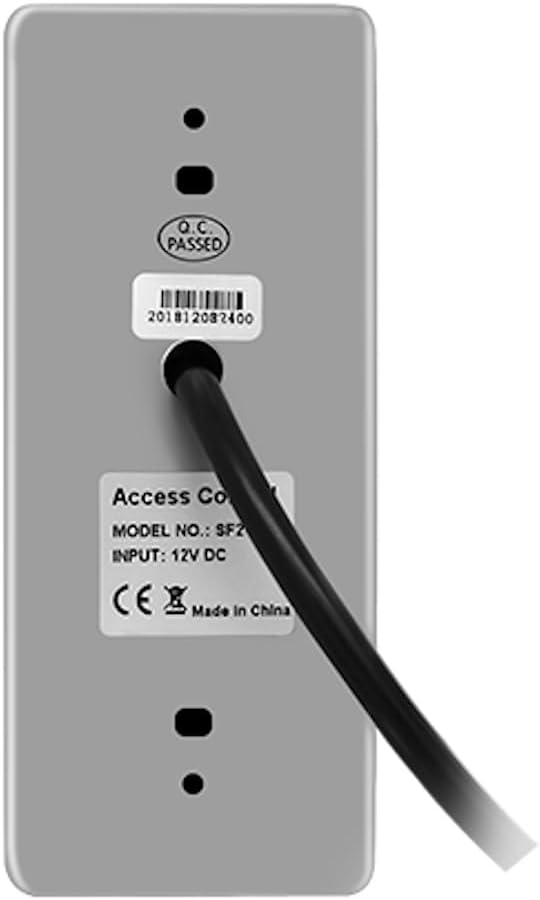
3.3 Cov yam ntxwv ntawm lub cev
- Anti-Vandal Design: The SF2 features a robust metal casing designed to withstand tampering and physical impact, ensuring durability in challenging environments.

Daim duab 3: Illustration demonstrating the anti-vandal metal case of the SECUKEY SF2, designed for enhanced durability and protection. - IP66 Waterproof ntsuas: This rating ensures the device is protected against dust ingress and powerful water jets, making it suitable for outdoor installation without concern for weather conditions.
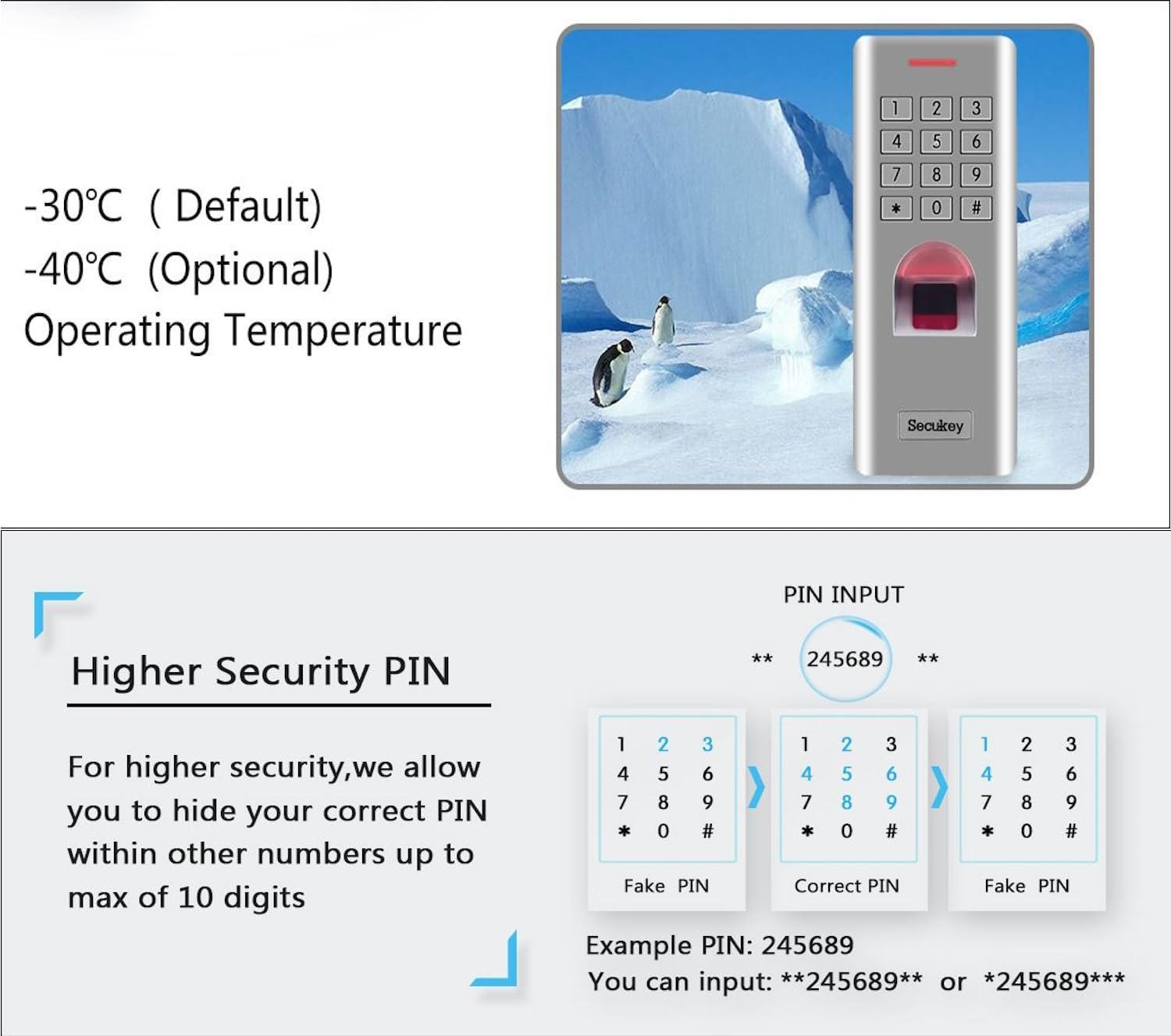
Daim duab 4: Visual representation of the SECUKEY SF2's IP66 waterproof capability, showing it submerged in water. - Ua haujlwm kub: The device is designed to operate reliably across a wide temperature range, from -30°C (default) to 60°C. An optional -40°C operating temperature may be available depending on the specific model variant.
- Higher Security PIN: The system supports a feature allowing users to hide their correct PIN within a longer sequence of numbers (up to 10 digits) for enhanced security against shoulder surfing. For example, if the PIN is 245689, a user could input **245689** or *245689***.
4. Kev teeb tsa
4.1 Mounting
The SECUKEY SF2 should be mounted on a flat, stable surface at an appropriate height for user access. Ensure the mounting location is secure and allows for proper cable routing. Use appropriate screws and anchors for the wall material.
4.2 Thaiv
The SF2 supports two primary working modes: standalone and as a slave reader. Proper wiring is crucial for correct operation. Refer to the detailed wiring diagram provided in the product packaging or the manufacturer's official documentation for specific connections.

Hom Standalone: In this mode, the SF2 directly controls the lock, door sensor, and exit button. It acts as a complete access control unit.
Slave Reader Mode: When operating as a slave reader, the SF2 connects to an external access control panel (controller) via Wiegand 26-44 bit output. The controller then manages the lock and other peripherals.
Ensure all connections are secure and insulated. Incorrect wiring can damage the device or connected components.
5. Teeb tsa
5.1 Pib Power-Up
- After completing all wiring, connect the power supply (12-24V AC/DC).
- The device will power on and perform a self-test.
- The default administrator PIN is typically 123456 (refer to specific product documentation for confirmation).
5.2 Kev Tswj Xyuas Neeg Siv
The SF2 allows for the registration of up to 3,000 users, including 1,000 fingerprint users and 2,000 PIN users. It also supports two "Authorizer" users who can enable or disable other users.
Ntxiv tus Thawj Coj
Follow the on-screen prompts or refer to the detailed programming guide to set up the initial administrator PIN and/or fingerprint. This is crucial for managing other users and system settings.
Sau npe ntiv tes
- Enter administrator mode.
- Select the option to add a new fingerprint user.
- Place the user's finger on the sensor multiple times as instructed to ensure accurate registration.
- Assign a user ID to the registered fingerprint.
Registering PIN Codes
- Enter administrator mode.
- Select the option to add a new PIN user.
- Enter the desired PIN code (typically 4-6 digits) and confirm it.
- Assign a user ID to the registered PIN.
Authorizer Users
The SF2 supports two special "Authorizer" users. These users have the unique ability to enable or disable other standard users without full administrator privileges. This feature is useful for delegated management of user access.
6. Cov lus qhia ua haujlwm
6.1 Access Modes
The SECUKEY SF2 offers multiple ways for authorized users to gain access:
- Fingerprint Access: Place a registered finger on the optical sensor. The system will verify the fingerprint and grant access if authorized.
- PIN Code Access: Enter your registered PIN code on the keypad, followed by the '#' key. For enhanced security, you can embed your PIN within a longer sequence of numbers (e.g., if PIN is 1234, you can enter 987123456#).
- Card Access (Wiegand): If configured with an external Wiegand card reader, present your authorized RFID card to the reader. The SF2 will output the Wiegand data to the controller for verification.
6.2 Interlock Function
When two SF2 devices are installed, they can be configured to manage an interlock system between two doors. This ensures that the second door cannot be opened until the first door is securely closed, enhancing security in sensitive areas. Refer to the advanced programming guide for interlock setup instructions.
7. Kev tu
- Ntxuav: Regularly wipe the fingerprint sensor and keypad with a soft, dry, lint-free cloth. Do not use abrasive materials or chemical cleaners.
- Hloov tshiab Firmware: Xyuas cov chaw tsim khoom website periodically for any available firmware updates to ensure optimal performance and security.
- User Database Management: Tsis tu ncua review and update the user database, removing access for terminated personnel or adding new users as required.
- Fais fab mov Check: Xyuas kom lub hwj huam mov ruaj khov thiab tsis pub dhau lub voltage ntau yam (12-24V AC / DC).
8. Kev daws teeb meem
| Teeb meem | Ua Tau | Kev daws |
|---|---|---|
| Cov cuab yeej tsis siv hluav taws xob. | No power supply or incorrect wiring. | Check power connections and ensure the power supply is within 12-24V AC/DC. Verify wiring according to the diagram. |
| Tus ntiv tes tsis paub. | Finger is dirty, wet, or improperly placed; fingerprint not registered; sensor is dirty. | Ensure finger is clean and dry. Place the entire pad of the finger firmly on the sensor. Clean the sensor surface. Re-register the fingerprint if necessary. |
| PIN code not accepted. | Incorrect PIN entered; PIN not registered. | Verify the PIN code. Ensure the '#' key is pressed after entering the PIN. Register the PIN if it's a new user. |
| Lub qhov rooj tsis qhib tom qab kev lees paub tiav. | Lock wiring issue; relay setting incorrect; lock malfunction. | Check wiring to the lock. Verify relay output time and mode (NO/NC). Test the lock independently. |
| Ntaus ntawv tsis teb. | System crash; power fluctuation. | Disconnect power for 30 seconds, then reconnect. If the issue persists, contact technical support. |
9. Cov lus qhia tshwj xeeb
| Parameter | Tus nqi |
|---|---|
| Qauv nab npawb | SIB 2 |
| Biometric Reader Type | Kho qhov muag |
| Kev daws teeb meem | 500 DPI |
| Lub Sijhawm Qhia Tawm | <1 vib nas this |
| FAR (False Acceptance Rate) | 0.001% |
| FRR (False Rejection Rate) | 0.01% |
| Tus neeg siv peev xwm | 3,000 (1,000 Fingerprint, 2,000 PIN) |
| Authorizer Users | 2 |
| Kev tiv thaiv ntsuas | IP66 (Outdoor, Anti-Vandal) |
| Relay tso zis | 1 programmable (NO, NC, Common) |
| Rau Lub Sij Hawm | 1 to 99 seconds (Default: 5 seconds) |
| Nkag mus rau hom | Fingerprint, PIN, Card (Wiegand) |
| Wiegand Tso zis | 26-44 ib |
| Fais fab mov | 12-24V AC / DC |
| Xauv Tawm Tawm Load | 2 Amp siab kawg |
| Ua haujlwm kub | -30°C to 60°C (-22°F to 140°F) (Optional -40°C) |
| Kev khiav dej num | 10% RH rau 99% RH |
| Casing Khoom siv | Zinc Alloy |
| Xim | Nyiaj |
| Qhov ntev | 13.7 x 5.8 x 2.6 cm |
| Qhov hnyav | 400 g ib |
10. Warranty thiab Support
For warranty information and technical support, please refer to the documentation included with your purchase or visit the official SECUKEY webqhov chaw. Khaws koj daim ntawv yuav khoom ua pov thawj ntawm kev yuav khoom rau kev lees paub.
Information regarding spare parts availability and software updates is not explicitly provided in the product details. Please contact SECUKEY customer service for the most current information.