1. Taw qhia
The Savetek Professional Voice Activated Digital Audio Recorder 16GB (Model GS-R07) is a versatile device designed for high-quality audio recording, MP3 playback, and secure data storage. This manual provides essential information for setting up, operating, maintaining, and troubleshooting your device to ensure a seamless user experience.

Image: Savetek Professional Voice Activated Digital Audio Recorder 16GB.
2. Khoom Tshajview
The Savetek GS-R07 recorder features a durable metal casing, a color display, and intuitive controls. It is equipped with dual stereo microphones for clear audio capture and offers various functionalities beyond basic recording.
2.1 Ntim Cov Ntsiab Lus
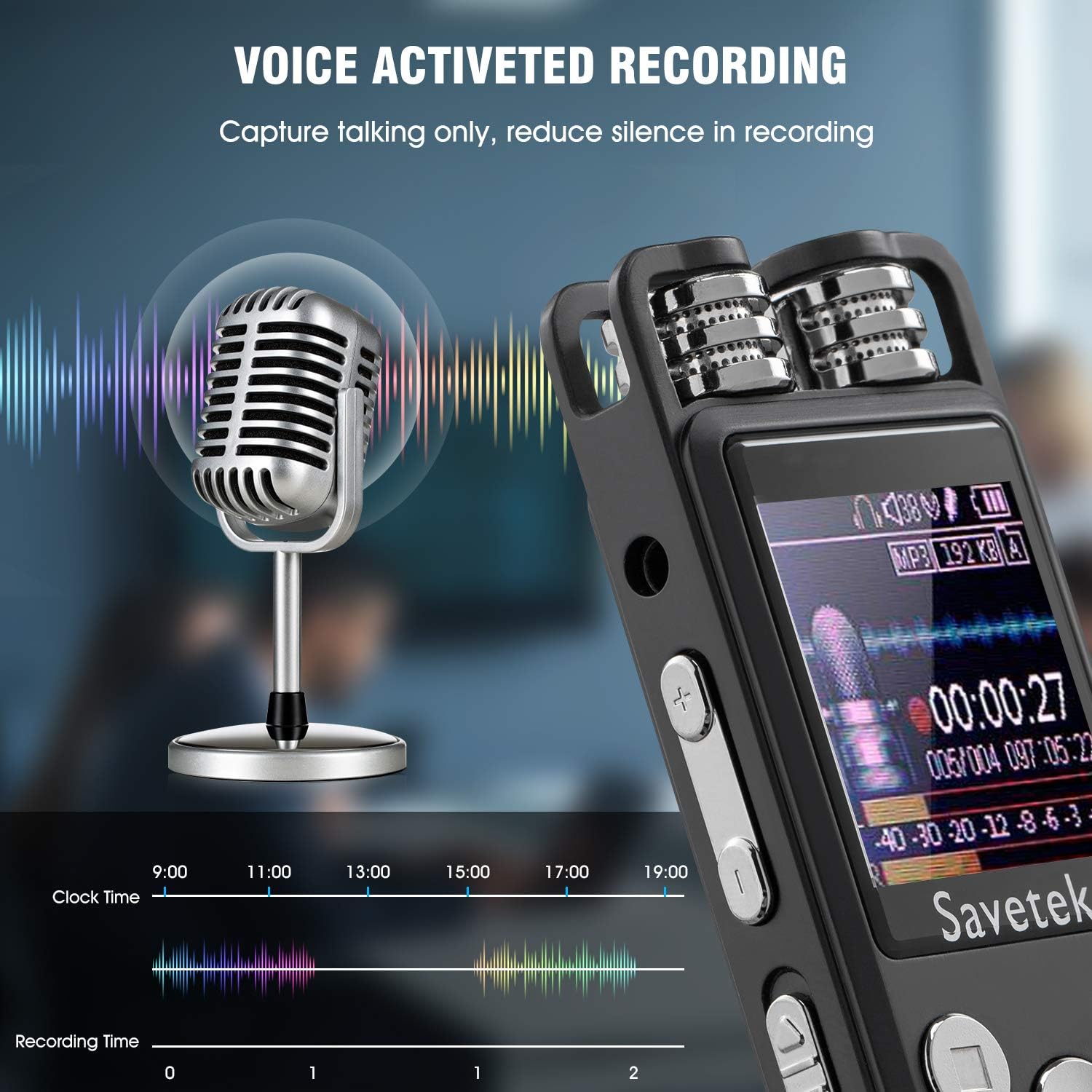
Image: Savetek Digital Voice Recorder with included accessories: headphones, USB cable, and user manual.
Thaum unboxing, thov xyuas kom meej tias tag nrho cov khoom muaj nyob:
- Savetek Digital Voice Recorder (Model GS-R07)
- USB Charging / Data Cable
- Pob ntseg
- Cov neeg siv phau ntawv
2.2 Cov yam ntxwv tseem ceeb

Image: Savetek voice recorder displaying icons representing its various functions.
- Ib-khawm Recording: Simple operation for instant recording.
- Voice-Activated Recording (AVR): Automatically records when sound is detected, saving storage space.
- Intelligent Noise Reduction: Enhances human voice and filters background noise for clear audio.
- Mass Storage & Expandability: Built-in 16GB memory, supports TF card expansion up to 128GB.
- Kev tiv thaiv tus password: Secures your recordings and files.
- Lossless MP3 Player: Supports MP3, FLAC, APE formats with built-in speakers.
- Scheduled/Time Recording: Set specific times for automatic recording.
- Sijhawm St.amp: Automatically names files by date and time for easy organization.
3. Teeb tsa
3.1 Kev them nyiaj yug ntaus ntawv
Before first use, fully charge the recorder. Connect the device to a computer's USB port or a USB wall adapter (not included) using the provided USB cable. The battery indicator on the screen will show charging status. A full charge typically takes a few hours.
3.2 Fais fab / Off
- To power on, slide the power switch to the 'ON' position.
- Yuav kom tua hluav taws xob, txav lub pob hluav taws xob mus rau qhov chaw 'OFF'.
3.3 Cov Chaw Pib (Hnub Tim thiab Sijhawm)
It is recommended to set the correct date and time upon first use. This ensures that your recordings are accurately time-stamped. Refer to the on-screen menu for 'System Settings' to adjust these parameters.

Image: Close-up of the Savetek voice recorder's color display and control buttons.
4. Cov lus qhia ua haujlwm
4.1 Cov ntaub ntawv yooj yim
- Xyuas kom tseeb tias lub cuab yeej yog powered.
- Nias lub "REC" button to start recording. The recording indicator will illuminate.
- Txhawm rau ncua kev kaw cia, nias lub "PAUSE" khawm. Nias dua kom rov pib dua.
- To stop recording and save the file, nias lub "STOP" khawm. Cov file will be automatically named with the date and time.
4.2 Voice-Activated Recording (AVR)
The AVR function allows the recorder to start recording automatically when sound is detected and pause when there is silence, optimizing storage space.

Image: Savetek voice recorder display showing voice activated recording feature.
- Navigate to the recording settings menu.
- Locate and enable the 'AVR' or 'Voice Activated Recording' option.
- Adjust the sensitivity level if available (higher sensitivity detects quieter sounds).
- Start recording as usual; the device will now operate in voice-activated mode.
4.3 Kev Txo Suab Nrov Ntsig
This feature helps to filter out background noise, resulting in clearer recordings, especially in noisy environments.

Image: Savetek voice recorder display illustrating noise reduction effect.
- Access the recording settings menu.
- Find the 'Noise Reduction' option and ensure it is enabled.
4.4 Kev Tiv Thaiv Tus Kheej
To protect your sensitive recordings, you can set a password for the device.
- Go to 'System Settings' in the main menu.
- Select 'Password Setting' or similar option.
- Follow the on-screen prompts to set your desired password.
- The device will require this password upon startup and when connected to a computer via USB.
4.5 Scheduled/Time Recording
Set the recorder to automatically power on and start recording at a specified time.
- In the main menu, navigate to 'Time Record' or 'Scheduled Recording'.
- Set the desired start time and end time for the recording.
- Ensure the device has sufficient battery life for the scheduled recording duration.
4.6 MP3 Player Functionality
The device can also function as a lossless MP3 player, supporting MP3, FLAC, and APE audio formats.

Image: Savetek voice recorder screen showing MP3 playback interface.
- Transferring Music: Connect the recorder to your computer via USB. Drag and drop music files into the designated 'Music' folder on the device.
- Playback: Select 'Music' from the main menu. Browse and select your desired audio file. Use the control buttons for play, pause, skip, and volume adjustment.
- AB Repeat: During playback, activate the A-B repeat function to loop a specific segment of an audio file.

Image: Savetek voice recorder illustrating the A-B repeat function.
4.7 File Kev tswj hwm
Recordings are automatically named with a date and time stamp for easy organization.

Image: Savetek voice recorder showing file names with date and time stamps.
- Connect the device to a computer using the USB cable.
- Cov cuab yeej yuav tshwm sim raws li tshem tau disk.
- You can transfer, delete, or organize your recording and music files directly from your computer.
5. Kev tu
- Ntxuav: Siv ib daim ntaub mos, qhuav los ntxuav lub cuab yeej. Tsis txhob siv cov tshuaj ntxuav kua los yog cov khoom siv abrasive.
- Kev kho roj teeb: Txhawm rau kom lub roj teeb lub neej ntev, tsis txhob tso tawm lub cuab yeej tas li. Them nws tsis tu ncua, txawm tias tsis siv rau lub sijhawm ntev.
- Cia: Khaws cov cuab yeej hauv qhov chaw txias, qhuav kom deb ntawm tshav ntuj ncaj qha thiab qhov kub thiab txias.
- Cov ntaub ntawv thaub qab: Regularly back up important recordings to a computer or external storage device to prevent data loss.
6. Kev daws teeb meem
| Teeb meem | Kev daws teeb meem |
|---|---|
| Cov cuab yeej tsis siv hluav taws xob. |
|
| Buttons feel loose or rattle. |
|
| Menu navigation is difficult. |
|
| Cov ntaubntawv povthawj tsis zoo. |
|
| Txuas tsis tau rau lub computer. |
|
7. Cov lus qhia tshwj xeeb
| Hom | Savetek |
| Qauv | Qauv: GS-R07 |
| Memory Storage Capacity | 16 GB ua |
| Qhov Loj | 1.44 Nws |
| Lub Neej Roj Teeb (Kev Kaw Suab) | Mus txog 50 Teev |
| Hom roj teeb | 1 Lithium Ion roj teeb yuav tsum tau |
| Khoom Dimensions | 10 x 3.7 x 1.2 cm; 160g ua |
| Kev Kho Vajtse Interface | USB, USB 2.0 |
| Microphone Form Factor | Built-In, Stereo |
| Lub mloog pob ntseg Jack | 3.5 hli |
| Txhawb suab tawm tswv yim | MP3, WAV, WMA, FLAC, APE |
| Sau Bitrate | Mus txog 1536Kbps |

Image: Savetek voice recorder in various usage scenarios.
8. Warranty thiab Support
For warranty information or technical support, please refer to the documentation included with your purchase or contact the seller directly. Keep your purchase receipt as proof of purchase.