
LucidSound LS15X UAS
LucidSound LS15X Wireless Gaming Headset User Manual
Model: LS15X | Brand: LucidSound
Taw qhia
The LucidSound LS15X Wireless Gaming Headset is officially licensed for use on Xbox, offering an immersive audio experience for gamers. Designed for comfort and performance, this headset features intuitive on-earcup controls, low-latency wireless connectivity, and a versatile dual-mic system. Enjoy crystal-clear communication and rich audio across Xbox One, Xbox Series X|S, Nintendo Switch, PC, and mobile devices.
Dab tsi nyob hauv lub thawv
- Wireless Headset
- Tshem tau Boom Mic
- Micro-USB Charging Cable
- USB Wireless Transmitter
- Phau Ntawv Qhia Pib Ceev
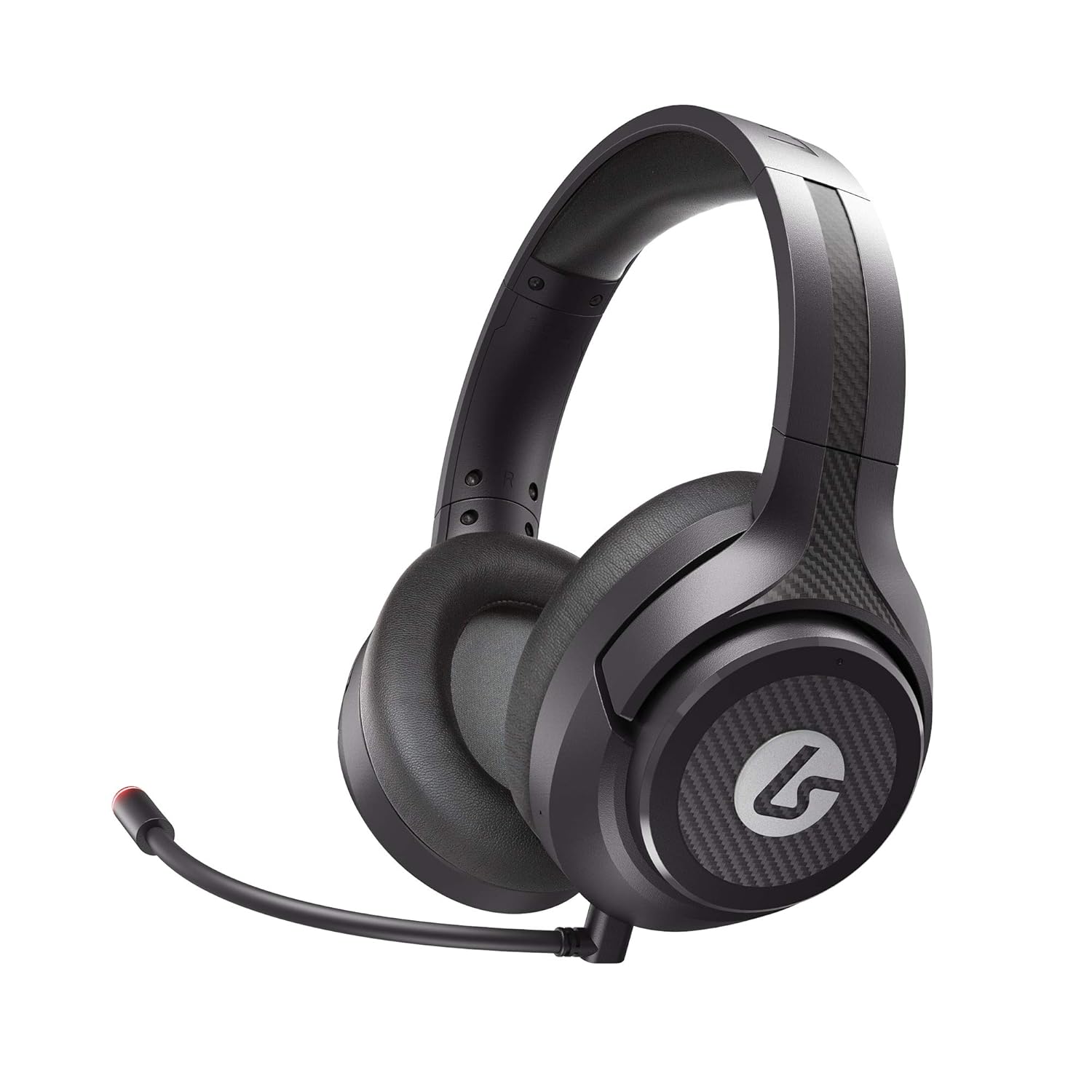
Image: LucidSound LS15X Wireless Gaming Headset, showing the main product.
Khoom nta
- Quick Access Audio Controls: Easily adjust headset volume, game/chat balance, mic mute, game audio mute, and mic monitoring via on-earcup controls.
- Seamless Wireless Connectivity: Low latency, interference-free wireless provides a strong connection even in crowded Wi-Fi environments. Quick and easy to set up.
- Tsim los rau Comfort: Ultra-lightweight frame and memory foam earpads allow for hours of comfortable gaming.
- Premium Audio: Custom-tuned 50mm drivers and 3 EQ modes (Signature, Bass Boost, Neutral) enhance positional awareness. Supports spatial sound with Windows Sonic.
- Dual-Mic System: Features a flexible boom mic with an LED mute indicator for precision chat. Detach the boom mic to activate the built-in backup mic.
- Mic Monitoring: Hear your own voice in the headset to manage your output. Can be disabled by holding the button on the right earcup for 3 seconds.
- Rechargeable Roj teeb: Provides up to 15 hours of use on a single charge. Check battery level by holding the button on the left earcup for 3 seconds.
Teeb Qhia
1. Tus nqi pib
Before first use, fully charge your LS15X headset using the provided Micro-USB charging cable. Connect the cable to the headset's charging port and a USB power source. The LED indicator will show charging status.
2. Connecting to Xbox
- Insert the USB Wireless Transmitter into an available USB port on your Xbox console.
- Power on the headset by holding the power button on the left earcup.
- The headset will automatically pair with the transmitter. A solid LED on both the headset and transmitter indicates a successful connection.
3. Connecting to PC/Nintendo Switch/Mobile
For PC, Nintendo Switch (docked mode), or other compatible devices, insert the USB Wireless Transmitter into an available USB port. The headset will connect automatically. For mobile devices, the headset can be used via a 3.5mm audio cable (not included) if wireless is not preferred or supported.
Video: Official LucidSound LS15X Surround Sound overview, demonstrating key features and setup.
Cov lus qhia ua haujlwm
Headset Controls
- Sab laug Earcup:
- Rotate the outer ring to adjust headset volume.
- Nias lub khawm nruab nrab rau mute game audio.
- Hold the center button for 3 seconds to check roj teeb theem.
- Txoj cai Earcup:
- Rotate the outer ring to adjust game/chat balance.
- Nias lub khawm nruab nrab rau suab microphone. The boom mic LED will illuminate red when muted.
- Hold the center button for 3 seconds to toggle mic monitoring on/off.
- EQ Hom: The headset features 3 EQ modes. Press the dedicated EQ button (location varies slightly by model, typically near the power button) to cycle through Signature, Bass Boost, and Neutral modes.

Image: LucidSound LS15X Headset with the removable boom microphone attached.

Image: Close-up of the LucidSound LS15X earcup, highlighting the intuitive control layout.
Kev tu
- Ntxuav: Siv daim ntaub mos mos thiab qhuav los ntxuav lub mloog pob ntseg. Tsis txhob siv cov tshuaj lom neeg lossis cov khoom siv sib txhuam.
- Cia: Khaws lub mloog pob ntseg hauv qhov chaw txias, qhuav kom deb ntawm tshav ntuj ncaj qha thiab qhov kub thiab txias.
- Kev kho roj teeb: Yuav kom lub roj teeb siv tau ntev, tsis txhob siv lub roj teeb ntau zaus. Them lub mloog pob ntseg tsis tu ncua, txawm tias tsis siv ntev los xij.
Kev daws teeb meem
Tsis Muaj Suab / Disconnection
- Xyuas kom lub headset yog powered thiab them tag nrho.
- Verify the USB Wireless Transmitter is securely plugged into the console/PC.
- Re-pair the headset by powering both off and on again.
- Check console/PC audio settings to ensure the headset is selected as the output device.
Teeb meem Microphone
- Ensure the boom mic is securely attached.
- Check if the microphone is muted (red LED on boom mic indicates mute). Press the mic mute button on the right earcup to unmute.
- Verify mic monitoring is enabled if you wish to hear your own voice.
- Check console/PC audio settings for microphone input levels.
Specifications
| Feature | Paub meej |
|---|---|
| Qauv nab npawb | LS 15 X |
| Connectivity Technology | Wireless (Wi-Fi) |
| Lub mloog pob ntseg Jack | 3.5 mm Jack |
| Khoom siv | Memory Foam |
| Yam Nyhav | 12.5 ooj (0.78 phaus) |
| Khoom Dimensions | 3.94 x 7.87 x 7.87 po |
| Roj teeb | 1 Lithium Polymer roj teeb (nrog) |
| Chaw tsim tshuaj paus | Hwj chim |
Warranty thiab Support
For warranty information and technical support, please refer to the official LucidSound website lossis tiv tauj lawv cov neeg siv khoom ncaj qha. Khaws koj cov ntaub ntawv pov thawj ntawm kev yuav khoom rau txhua qhov kev lees paub.
Ask a question about this manual
Ask about setup, troubleshooting, compatibility, parts, safety, or missing instructions. Manuals+ will review the question and use this page’s manual context to help answer it.