
Conceptronic AMDIS04_3
Conceptronic AMDIS04 1080P Tag Nrho HD Webcam neeg siv phau ntawv
Model: AMDIS04_3
Taw qhia
The Conceptronic AMDIS04 1080P Full HD Webcam with Microphone is designed to provide high-quality video and audio for various communication needs. It offers 1080P Full HD resolution at 30 frames per second, ensuring clear and smooth video playback. Equipped with a built-in microphone featuring noise reduction, this webcam is suitable for video conferencing, online courses, gaming, and live streaming. Its plug-and-play USB 2.0 interface ensures easy setup with most mainstream operating systems.
Ntim Cov Ntsiab Lus

Image: The AMDIS04 webcam shown alongside its retail box, highlighting key features like 1080P resolution, USB plug & play, and noise-reduction microphone.
Thov xyuas cov ntsiab lus ntawm pob thaum unboxing kom paub meej tias txhua yam khoom muaj nyob:
- Conceptronic AMDIS04 1080P Tag Nrho HD Webcam with integrated USB cable
- Npog ntiag tug
Teeb tsa
Follow these steps to set up your Conceptronic AMDIS04 webcam:
- Mounting lub Webcam:
Cov webcam features a versatile stand that can be placed on a flat surface or clipped onto the top edge of a monitor or laptop screen. Adjust the stand to achieve the desired angle and stability.
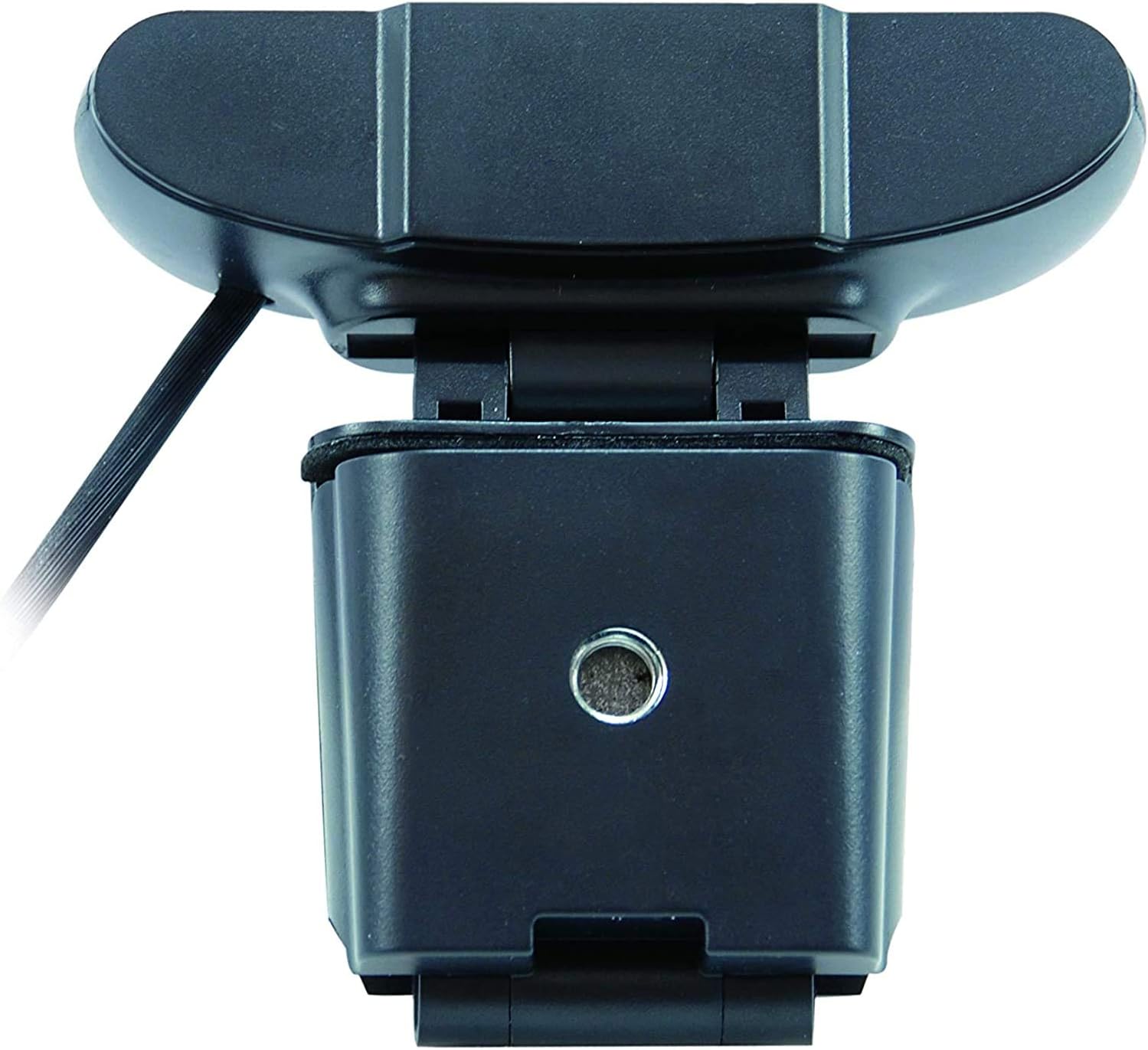
Image: The adjustable base of the AMDIS04 webcam, designed for stable placement on a desk or attachment to a monitor.
- Txuas rau koj lub computer:
Locate an available USB 2.0 port on your computer. Plug the USB cable from the weblub koob yees duab rau hauv qhov chaw nres nkoj USB. Lub webcam is plug-and-play, meaning no additional drivers are typically required for Windows, macOS, or Android operating systems.

Image: The AMDIS04 webcam with its integrated USB cable, ready for connection to a computer.
- Privacy Cover Installation:
The included privacy cover can be attached over the webcam lens when not in use to ensure privacy. Align the cover with the webcam lens and gently press it into place.

Image: The AMDIS04 webcam with the privacy cover slid over the lens, providing physical privacy when the camera is not in use.
- Kev Paub Txog Software:
Once connected, your operating system should automatically detect the webcam. You can then open any video conferencing application (e.g., Zoom, Skype, Microsoft Teams) or camera application to select the "Conceptronic AMDIS04" as your video and audio input device.
Kev ua haujlwm ntawm Webcam

Duab: pem hauv ntej view of the AMDIS04 webcam, showing the lens and "FHD 1080P" indicators.
The Conceptronic AMDIS04 webcam is designed for ease of use with minimal manual controls. Most functions are managed through your computer's operating system or the specific application you are using.
- Video Capture:
Open your preferred video application (e.g., camera app, video conferencing software). Select the Conceptronic AMDIS04 as your primary camera. The webcam will automatically adjust focus and exposure for optimal image quality.
- Suab Capture:
The built-in microphone with noise reduction will automatically be detected. Ensure it is selected as your audio input device in your application settings for clear voice transmission.
- Tsis pub twg paub:
Utilize the included privacy cover to physically block the camera lens when it is not in use, providing an additional layer of security and peace of mind.
Kev tu
Kev saib xyuas kom zoo ua kom koj lub neej ntev thiab ua haujlwm tau zoo tshaj plaws webcam:
- Ntxuav lub Lens:
Maj mam so lub webcam lens with a soft, lint-free cloth. For stubborn smudges, use a small amount of lens cleaning solution applied to the cloth, not directly to the lens.
- Kev Tu Nthuav dav:
Clean the body of the webcam with a dry or slightly damp daim ntaub. Tsis txhob siv cov tshuaj hnyav hnyav lossis cov tshuaj abrasive.
- Cia:
When not in use, especially during travel, store the webcam in a protective pouch or its original packaging to prevent scratches and damage. Always use the privacy cover.
Kev daws teeb meem
If you encounter issues with your Conceptronic AMDIS04 webcam, refer to the following common solutions:
| Teeb meem | Ua Tau / Kev daws teeb meem |
|---|---|
| Webcam tsis pom los ntawm lub computer. |
|
| Tsis muaj video tso zis. |
|
| No audio from microphone. |
|
| Poor video quality (blurry, dark, grainy). |
|
Specifications
| Feature | Paub meej |
|---|---|
| Qauv nab npawb | AMDIS04_3 |
| Video daws teeb meem | 1920 x 1080 pixels (Full HD) daws teeb meem |
| Ncej tus nqi | 30 fps (thav duab ib ob) |
| ViewHauv Angle (Horizontal) | 65° Nws |
| Interface | USB 2.0 |
| Microphone | Built-in with Noise Reduction |
| Xim | Dub |
| Mounting Hom | Stand (Clip/Desk) |
| Cable Ntev | 1.5m ua |
| Qhov Loj (W x D x H) | 75 hli x 33 hli x 110 hli (kwv yees 2.95 x 1.30 x 4.33 nti) |
| Qhov hnyav | 86 g (kwv yees 3.03 oz) |
| Txhawb OS | Windows 7/8/8.1/10, macOS (10.6 to 10.15), Android |
Warranty thiab Support
For warranty information and technical support, please refer to the official Conceptronic website lossis tiv tauj lawv cov neeg siv khoom. Khaws koj daim ntawv yuav khoom ua pov thawj ntawm kev yuav khoom rau kev lees paub.
Lus Cim: Cov nqe lus lav tshwj xeeb yuav txawv ntawm thaj chaw thiab tus muag khoom.
Ask a question about this manual
Ask about setup, troubleshooting, compatibility, parts, safety, or missing instructions. Manuals+ will review the question and use this page’s manual context to help answer it.