
Taw qhia
Welcome to the AEEZO Kids Tablet TK701 user manual. This guide provides essential information for setting up, operating, maintaining, and troubleshooting your new tablet. Designed for children, this 7-inch tablet features a Full HD IPS touch screen, Android 10 operating system, and pre-installed Kidoz for a safe and engaging experience.
Khoom Tshajview
Cov khoom siv ntsiav tshuaj

Duab piav qhia: A detailed diagram of the AEEZO Kids Tablet TK701, highlighting its various ports and buttons. The tablet is shown from the front, side, and top views, with numbers indicating specific components.
- Rov Pib Dua: Qhov me me rau kev pib dua lub cuab yeej.
- Fais fab on/off: Button to turn the tablet on or off.
- Volume +: Button to increase volume.
- Ntim- Khawm kom txo qhov ntim.
- Lub koob yees duab pem hauv ntej: Camera located on the front of the tablet.
- Lub mloog pob ntseg Nkaus: 3.5mm port for headphones.
- SD daim npav qhov: Slot for inserting a microSD card for expanded storage.
- Hom C Chaw nres nkoj: USB Type-C port for charging and data transfer.
- Lub Koob Yees Duab: Camera located on the back of the tablet.
- Hais lus: Audio output speaker.
- Microphone: Built-in microphone.
Cov yam ntxwv tseem ceeb

Duab piav qhia: An image comparing 1080p FHD image quality (right, showing Red from Angry Birds clearly) with a lower resolution (left, showing a blurry green pig), illustrating the superior display of the AEEZO tablet.
- Zaub: 7-inch FHD IPS Touch Screen with 1920x1200 resolution, 323 PPI, offering a 178° wide viewlub kaum sab xis.
- Kev khiav hauj lwm System: GMS-certified Android 10.0.
- Processor: 1.6 GHz Quad-Core processor.
- Nco & Cia: 2GB RAM, 32GB ROM (expandable up to 128GB via microSD card, not included).
- Lub koob yees duab: Dual cameras (2MP front, 5MP rear).
- Roj teeb: 2,600mAh battery, providing approximately 4 hours of average use.
- Kev sib txuas: WiFi.
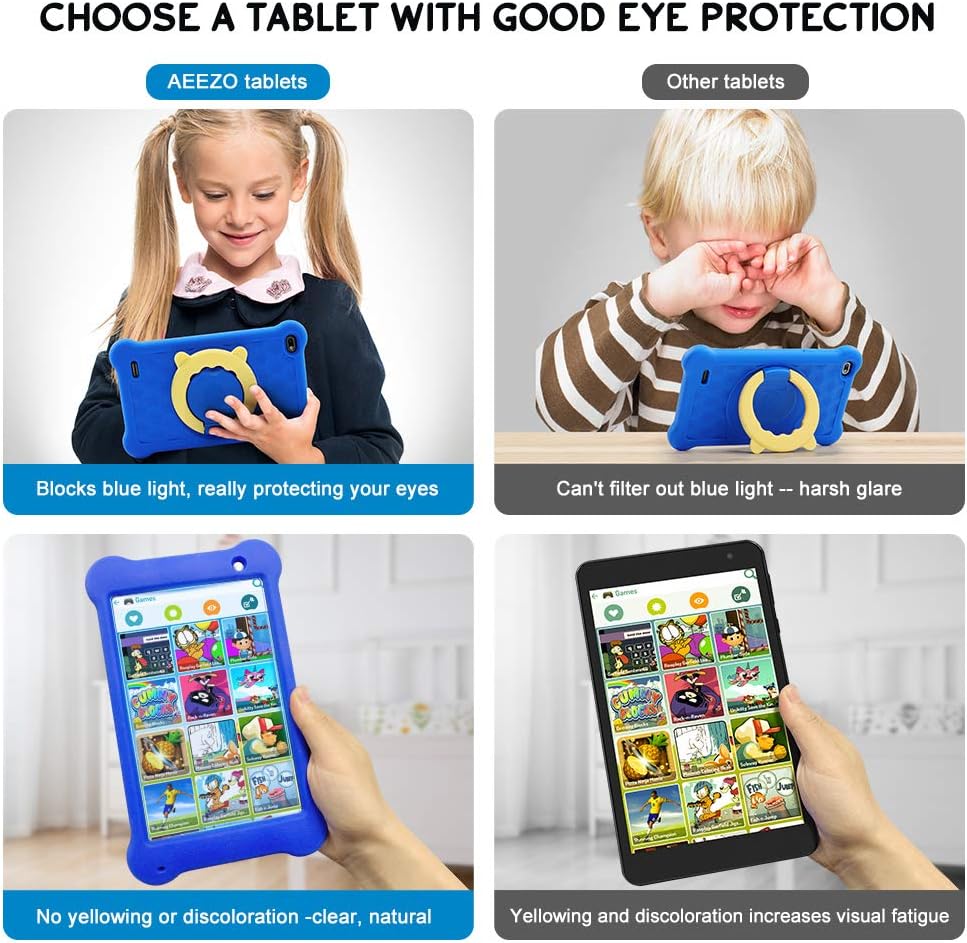
Duab piav qhia: A four-panel image demonstrating the AEEZO tablet's eye protection features. Two top panels show a child comfortably using an AEEZO tablet (blocking blue light) versus a child squinting at another tablet (harsh glare). Two bottom panels show the AEEZO tablet's clear display versus another tablet's yellowed display, highlighting the absence of discoloration.
- Cov yam ntxwv tiv thaiv: Food-grade silicone cover designed to prevent damage from falls and collisions, and a pre-applied screen protection film that blocks harmful blue light for eye protection. The cover includes a 360-degree adjustable ring stand.
- Child-Friendly Software: Pre-installed Kidoz app, a COPPA-certified platform for kids, with parental controls.
Teeb tsa
1. Kev them nqi pib
Before first use, fully charge the tablet. Connect the provided USB Type-C cable to the tablet's Type C Port (8) and to a compatible 5V 2A charger (not included). The charging indicator will show the charging status.
2. Fais fab rau / tawm
- Txhawm rau Fais Fab: Press and hold the Power on/off button (2) until the screen lights up.
- Mus Faib Tawm: Press and hold the Power on/off button (2) until a power-off menu appears. Select "Power off" to shut down the device.
3. Pib Teeb Wizard
Upon first power-on, follow the on-screen instructions to complete the initial setup. This includes selecting your language, connecting to a Wi-Fi network, and setting up your Google account.
4. Ntxig MicroSD Card (yeem)
To expand storage, insert a microSD card (up to 128GB, not included) into the SD Card Slot (7). Ensure the tablet is powered off before inserting or removing the card.
Cov lus qhia ua haujlwm
Basic Navigation
- Kov Screen: Navigate the tablet by tapping, swiping, and pinching on the screen.
- Tsev Screen: Access apps and widgets from the main home screen.
- Kev ceeb toom: Swipe down los ntawm sab saum toj ntawm qhov screen mus view ceeb toom thiab ceev ceev.
Using Google Play

Duab piav qhia: A young child smiling next to the AEEZO tablet, surrounded by icons for Google Play, Kidoz, Family Link, and FamilyGroup, indicating the tablet's software capabilities.
The tablet provides full access to Google services, including the Google Play Store. Parents can download a wide range of educational apps, games, and other content suitable for children. Ensure your Google account is set up and parental controls are configured within Google Play for content filtering.
Kidoz App

Duab piav qhia: The AEEZO Kids Tablet, encased in its blue protective cover, displays the colorful Kidoz app interface. Various icons representing kid-friendly games, videos, and creative tools are shown floating above the tablet.
Kidoz is a pre-installed, COPPA-certified application designed for children. It offers a curated selection of age-appropriate content. Navigate through Kidoz to find games, videos, and educational activities.
Kev Tswj Niam Txiv

Duab piav qhia: A mother and child are comfortably seated on a sofa, with the child holding the AEEZO Kids Tablet. On the right side of the image, three circular icons represent key parental control features: Child Lock, Content Filter, and Time Limits.
The AEEZO Kids Tablet is equipped with robust parental control features to ensure a safe digital environment for children.
- Kidoz Parental Control: The pre-installed Kidoz app includes an advanced parental control system. Parents can set up a password to manage access to content, filter age-inappropriate material, and monitor usage.
- Cov ntsiab lus lim: Utilize the age filter within Kidoz to ensure children only access content suitable for their age group.
- Sijhawm Txwv: Set daily time limits for tablet usage to promote healthy screen habits.
- App Management: Control which applications your child can access.
- Google Family Link: For more comprehensive device management, consider using Google Family Link, which allows parents to manage app downloads, screen time, and device location from their own device.
Kev tu
- Ntxuav: Use a soft, lint-free cloth to clean the screen and tablet body. Avoid abrasive cleaners or solvents.
- Kev kho roj teeb: To prolong battery life, avoid extreme temperatures. Do not allow the battery to fully discharge frequently. Charge the tablet regularly.
- Software hloov tshiab: Periodically check for system updates in the tablet's settings to ensure optimal performance and security.
- Kev tiv thaiv npog: The food-grade silicone cover provides protection against drops and impacts. Keep it clean and ensure it is properly fitted.
- Screen tiv thaiv: The pre-applied screen protection film helps block harmful blue light and protects the screen. If it becomes damaged, consider replacing it with a similar eye-protective film.
Kev daws teeb meem
Tablet Tsis Tig
- Ensure the tablet is sufficiently charged. Connect it to a power source for at least 30 minutes.
- Press and hold the Power on/off button (2) for 10-15 seconds.
- If unresponsive, use a thin object (like a paperclip) to press the Reset button (1) and then attempt to power on.
Ua haujlwm qeeb
- Kaw cov ntawv thov tsis siv uas khiav hauv keeb kwm yav dhau.
- Tshem cov ntaub ntawv cache rau cov apps siv ntau zaus.
- Ensure there is sufficient storage space. Uninstall unnecessary apps or move files mus rau SD daim npav.
- Rov pib lub ntsiav tshuaj.
Cov teeb meem kev sib txuas ntawm Wi-Fi
- Ensure Wi-Fi is enabled in the tablet's settings.
- Restart koj Wi-Fi router.
- Tsis txhob hnov qab lub network thiab rov txuas dua, sau tus password dua.
- Ensure the tablet is within range of the Wi-Fi signal.
Roj teeb Drains sai
- Txo qhov screen brightness.
- Close background apps and disable unnecessary notifications.
- Turn off Wi-Fi or Bluetooth when not in use.
- Check for apps consuming excessive battery in settings.
Specifications
| Feature | Paub meej |
|---|---|
| Qauv Lub Npe | TIAB SA 701 |
| Qhov Loj | 7 Nws |
| Screen daws teeb meem | 1920 x 1200 (FHD IPS) |
| Processor | 1.6 GHz Quad-Core (ARM) |
| RAM | 2 GB ua |
| Internal Storage | 32 GB ua |
| Expandable Cia | Up to 128 GB (MicroSD, not included) |
| Kev Ua Haujlwm | Android 10.0 (GMS Certified) |
| Qab Webcam daws teeb meem | 5 MP |
| Lub koob yees duab pem hauv ntej | 2 MP |
| Roj teeb | 2,600mAh Lithium Ion |
| Lub neej roj teeb nruab nrab | Kwv yees li 4 teev |
| Kev sib txuas | WiFi |
| Yam Nyhav | 1.43 phaus (kwv yees 648g) |
| Khoom Dimensions | 9.06 x 6.69 x 1.97 po |
| Xim | Xiav |
Warranty thiab Support
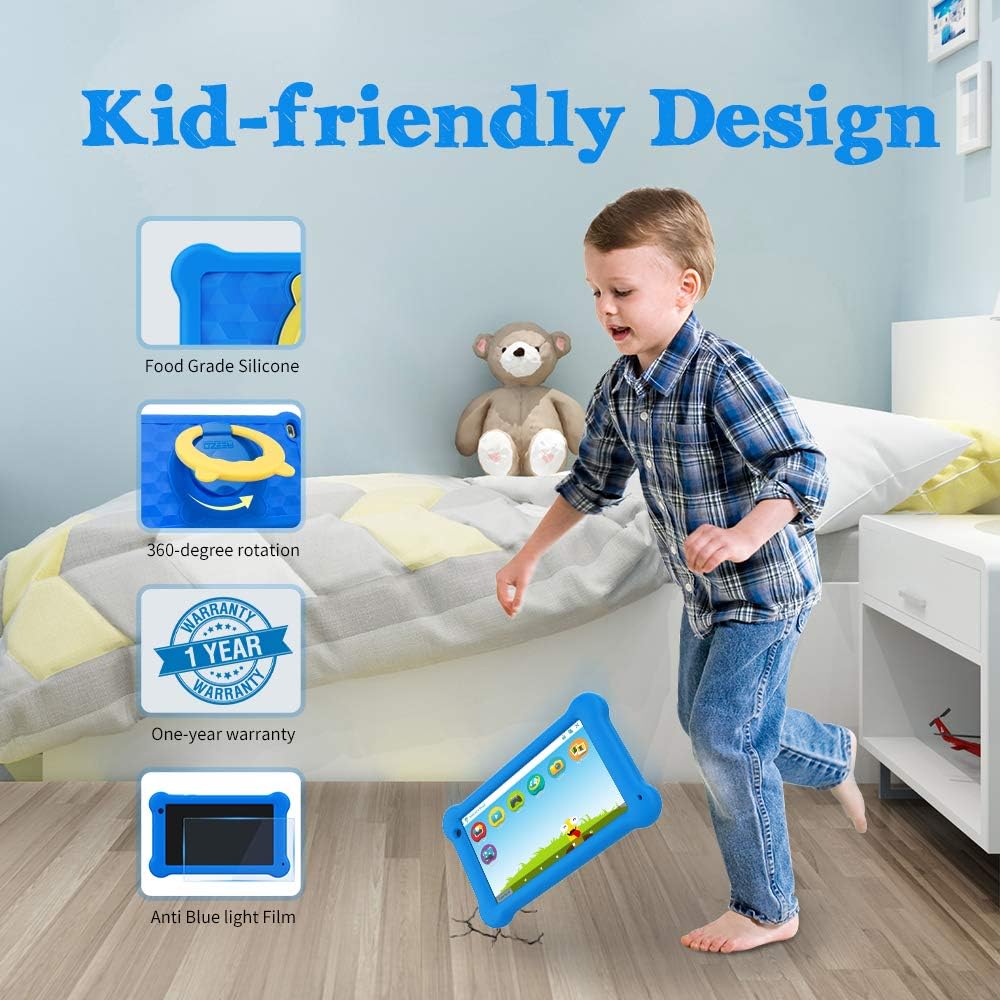
Duab piav qhia: A young boy is shown playing with the AEEZO Kids Tablet, which is protected by a blue silicone case and features a yellow rotating stand. Insets highlight key features: Food Grade Silicone, 360-degree rotation, a "1 Year Warranty" badge, and "Anti Blue Light Film."
The AEEZO Kids Tablet TK701 comes with a 1 xyoo warranty txij hnub ntawm kev yuav khoom. Qhov kev lees paub no suav nrog kev tsim khoom tsis raug raws li kev siv ib txwm. Thov khaws koj cov ntaub ntawv pov thawj ntawm kev yuav khoom rau kev lees paub.
For technical support, warranty service, or any questions regarding your tablet, please contact AEEZO customer service through the retailer where you purchased the product or visit the official AEEZO website rau cov ntaub ntawv tiv tauj.