
1. Taw qhia
Welcome to the user manual for your new Alienware m15 R4 Gaming Laptop. This powerful machine is designed to deliver an immersive gaming experience with its high-performance components. Featuring an Intel Core i7-10870H processor, NVIDIA GeForce RTX 3070 graphics, a 15.6-inch Full HD 300Hz display, and a 1TB PCIe SSD, this laptop is built for speed and responsiveness. This manual provides essential information on setting up, operating, maintaining, and troubleshooting your device to ensure optimal performance and longevity.
2. Dab tsi hauv lub thawv
Upon unboxing your Alienware m15 R4, please verify that all the following items are included:
- Alienware m15 R4 Notebook
- Hwj chim Cord
- Fais fab Adapter
- Tus Neeg Siv Los Siv (cov ntawv no)
3. Khoom Tshajview
Familiarize yourself with the key features and components of your Alienware m15 R4 gaming laptop.
3.1 Pem Hauv Ntej View
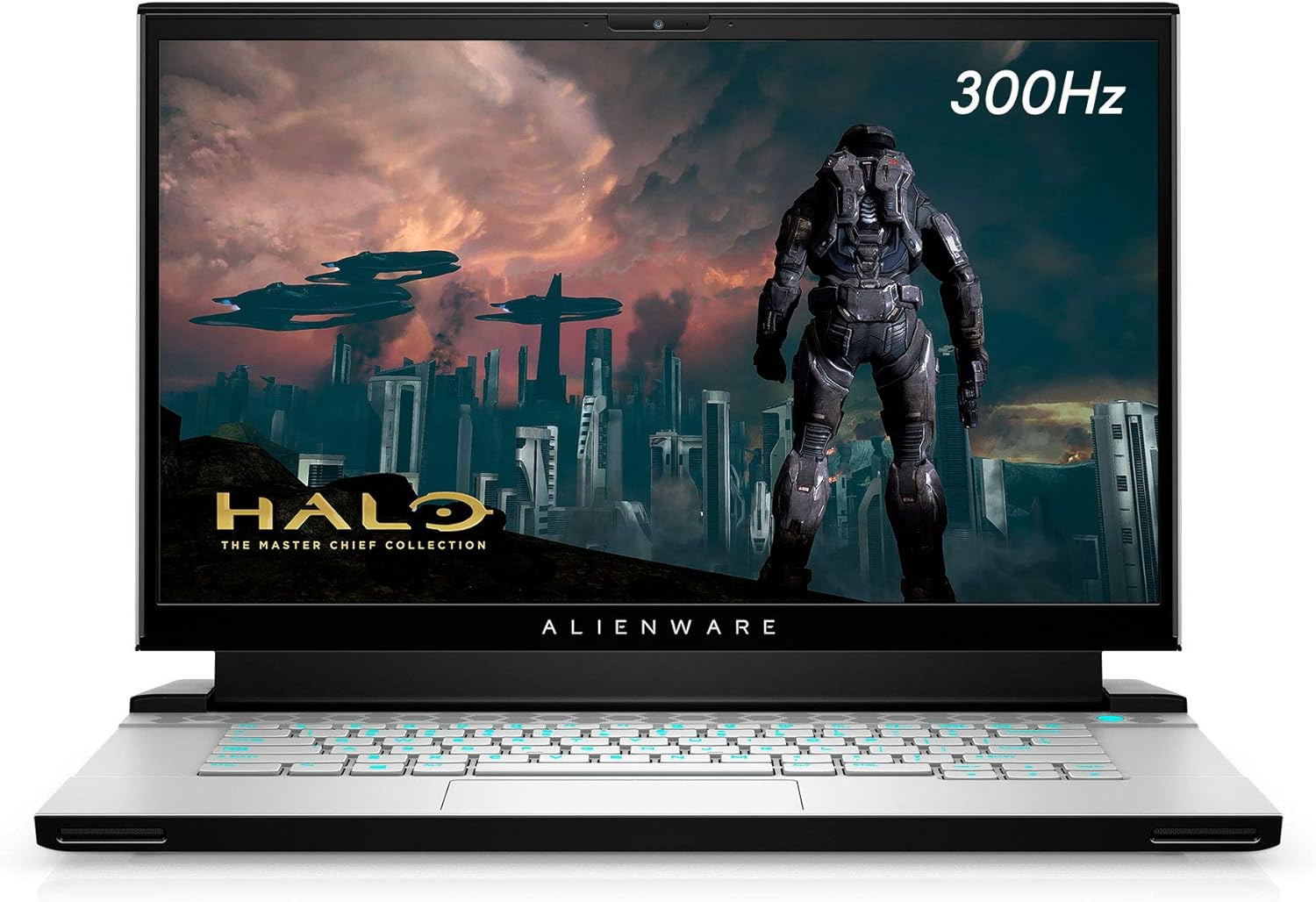
Daim duab 3.1: Pem hauv ntej view of the Alienware m15 R4 laptop, showcasing the 15.6-inch Full HD display with a 300Hz refresh rate, ideal for immersive gaming. The Alienware logo is visible below the screen.
3.2 Left Side Ports

Daim duab 3.2: Left side of the laptop, featuring a USB 3.0 Type-A port, an Ethernet port for wired network connectivity, and a 3.5mm audio jack for headphones or headsets.
3.3 Right Side Ports

Daim duab 3.3: Right side of the laptop, equipped with two USB 3.0 Type-A ports and an SD card reader for convenient data transfer from memory cards.
3.4 Rear Ports and Cooling

Daim duab 3.4: Qab view of the laptop, highlighting the robust cooling vents and essential ports including HDMI, Mini-DisplayPort, Thunderbolt 3 (USB-C), and the power adapter input. This design optimizes airflow and connectivity.
3.5 Keyboard thiab Touchpad

Daim duab 3.5: Saum-down view of the Alienware m15 R4's keyboard and touchpad. The keyboard features per-key RGB lighting and a comfortable layout for gaming and typing. The precision touchpad offers smooth navigation.
3.6 Laptop Back and Alienware Logo

Daim duab 3.6: The back of the Alienware m15 R4 laptop, featuring the iconic illuminated Alienware head logo. The sleek design and Lunar Light finish are prominent.
3.7 Cov yam ntxwv tseem ceeb
- Zaub: 15.6-inch FHD (1920 x 1080) 300Hz 3ms 300-nits 100% sRGB color gamut for fluid visuals.
- Processor: 10th Generation Intel Core i7-10870H (8-Core, 16MB Cache, up to 5.0GHz Max Turbo Frequency).
- Nco: 16GB 2933MHz DDR4 RAM (Note: RAM is soldered and not user-upgradeable on some configurations).
- Cia: 1TB PCIe SSD for fast boot times and game loading.
- Graphics: NVIDIA GeForce RTX 3070 8GB GDDR6 for high-fidelity gaming.
- Kev sib txuas: Killer Wi-Fi 6 AX1650i 802.11ax 2x2 Wireless LAN + Bluetooth 5.1.
- Kev khiav hauj lwm System: Windows 10 Home (upgradeable to Windows 11).
4. Teeb Qhia
Follow these steps to set up your Alienware m15 R4 for the first time.
- Txuas lub zog: Plug the power adapter into the laptop's power input port (located at the rear) and then into a wall outlet.
- Initial Boot: Open the laptop lid and press the power button (located on the top right of the keyboard deck). The Alienware logo will illuminate, and the system will begin its initial boot sequence.
- Kev teeb tsa Windows: Follow the on-screen instructions to complete the Windows 10 Home setup. This includes selecting your region, language, creating a user account, and connecting to a Wi-Fi network.
- Driver Updates: After Windows setup, it is recommended to connect to the internet and allow Windows Update to download and install the latest drivers and security patches. You can also visit the official Alienware support website for the latest specific drivers for your model.
- Alienware Command Center: Explore the pre-installed Alienware Command Center software to customize lighting, power profiles, and monitor system performance.
5. Cov lus qhia ua haujlwm
This section covers basic operation and usage tips for your Alienware m15 R4.
5.1 Tswj fais fab
- Fais fab / Off: Press the power button to turn on the laptop. To turn off, go to Start > Power > Shut down in Windows.
- Hom pw tsaug zog: Close the lid or select Sleep from the Start > Power menu to put the laptop into a low-power state.
- Rov pib dua: Select Restart from the Start > Power menu to reboot the system.
5.2 Keyboard thiab Touchpad
- Keyboard Backlighting: Customize the per-key RGB lighting effects using the Alienware Command Center.
- Function Keys: Siv cov Fn key in combination with the F1-F12 keys for quick access to features like volume control, screen brightness, and external display switching.
- Touchpad Gestures: The precision touchpad supports multi-touch gestures for scrolling, zooming, and switching applications. Refer to Windows settings for customization.
5.3 Kev Ua Si Zoo
- Hom kev ua si: Windows 10 includes a Game Mode feature that optimizes system resources for gaming. Enable it via Windows Settings > Gaming > Game Mode.
- Alienware Command Center: Utilize the Command Center to create custom performance profiles for your games, manage fan speeds, and monitor temperatures.
- Sab nrauv zaub: For an enhanced gaming experience, connect to an external high-refresh-rate monitor using the HDMI or Mini-DisplayPort.
6. Kev tu
Regular maintenance helps ensure the longevity and optimal performance of your laptop.
- Ntxuav:
- Siv daim ntaub mos mos uas tsis muaj plaub los ntxuav lub vijtsam thiab sab nraud. Tsis txhob siv cov tshuaj lom neeg hnyav.
- Use compressed air to clear dust from cooling vents periodically to maintain airflow.
- Software hloov tshiab:
- Regularly check for Windows Updates to ensure your operating system is secure and up-to-date.
- Update graphics drivers (NVIDIA GeForce Experience) and other system drivers (Alienware Update or Dell SupportAssist) for best performance.
- Kev kho roj teeb:
- Tsis txhob tso lub roj teeb tas li ntau zaus.
- Yog tias khaws lub laptop ntev, xyuas kom lub roj teeb tau them txog li 50-80%.
- Kev Tswj Xyuas Cia: Tsis tas li ntawd, tsis tas yuav ntxuav kom huv si files and uninstall unused programs to free up disk space and maintain system speed.
7. Kev daws teeb meem
This section addresses common issues you might encounter with your Alienware m15 R4.
7.1 Performance Issues (Lag, Slowdowns)
- Tshawb xyuas cov txheej txheem keeb kwm yav dhau los: Open Task Manager (Ctrl+Shift+Esc) to identify and close resource-intensive applications.
- Hloov tshiab tsav tsheb: Ensure your graphics drivers and chipset drivers are up-to-date.
- Cua txias: Ensure cooling vents are not obstructed. Excessive heat can lead to performance throttling. Consider using Alienware Command Center to adjust fan profiles.
- Hwj chim hom: Ensure the laptop is set to a "High Performance" or "Balanced" power plan, especially when gaming.
7.2 Overheating
- Qhov cua: Ensure the laptop is on a hard, flat surface to allow proper airflow. Avoid using it on soft surfaces like beds or couches.
- Lub qhov dej huv: Use compressed air to clear dust from the intake and exhaust vents.
- Ntxuam Ceev: Adjust fan curves in Alienware Command Center to increase cooling during intense workloads.
7.3 Display Issues (No Image, Flickering)
- Sab nraud Monitor: Connect an external monitor to check if the issue is with the laptop's display or the graphics card.
- Rov nruab tsav tsheb dua: Reinstall graphics drivers.
- Brightness: Ensure display brightness is not set to minimum.
7.4 Keyboard/Touchpad Unresponsive
- Rov pib dua: A simple restart can often resolve temporary unresponsiveness.
- Tsav Tsheb: Ensure keyboard and touchpad drivers are correctly installed and up-to-date in Device Manager.
- Cov khoom siv sab nraud: Disconnect any external keyboards or mice to rule out conflicts.
8. Cov lus qhia tshwj xeeb
Detailed technical specifications for the Alienware m15 R4 (Model: AWM15R4-7689WHT-PUS).
| Feature | Specification |
|---|---|
| Hom | Alienware |
| Qauv Lub Npe | Alienware m15 R4 |
| Yam khoom Model Number | AWM15R4-7689WHT-PUS |
| Qhov Loj | 15.6 Nws |
| Screen daws teeb meem | 1920 x 1080 pixels (FHD) daws teeb meem |
| Zaub Refresh Rate | 300 Hz |
| Processor | Intel Core i7-10870H (8-Core, up to 5.0GHz) |
| RAM | 16 GB DDR4 (2933 MHz) |
| Hard Drive | 1 TB PCI SSD |
| Graphics Coprocessor | NVIDIA GeForce RTX 3070 |
| Graphics Card RAM Loj | 8 GB GDDR6 |
| Kev Ua Haujlwm | Windows 10 Tsev |
| Hom Wireless | Killer Wi-Fi 6 AX1650i 802.11ax, Bluetooth 5.1 |
| USB 3.0 Ports | 3 |
| Yam Nyhav | 5.5 puj |
| Khoom Dimensions (LxWxH) | 14.19 x 10.86 x 0.78 po |
| Xim | Lunar Light (White) |
| Roj teeb | 1 Lithium Ion roj teeb (nrog) |
9. Warranty thiab Support
Your Alienware m15 R4 laptop comes with a standard manufacturer's warranty. For detailed information regarding warranty coverage, terms, and conditions, please refer to the warranty documentation included with your purchase or visit the official Dell/Alienware support webqhov chaw.
Kev pab txhawb nqa:
- For technical assistance, driver downloads, and troubleshooting guides, please visit the Dell Txhawb webqhov chaw.
- You can also contact Alienware customer support directly through their website for personalized assistance.
Please have your service tag or express service code ready when contacting support, as this will help expedite the process.