
1. Khoom Tshajview
The Rocketek 65W Dell Laptop Charger is designed to provide reliable power to compatible Dell laptops. It features an input voltage range of 100-240V and an output of 19.5V at 3.34A, delivering 65W of power. The charger is also compatible with devices requiring 45W (19V, 2.31A). The connector size is 4.5mm outer diameter with a 3.0mm inner diameter.
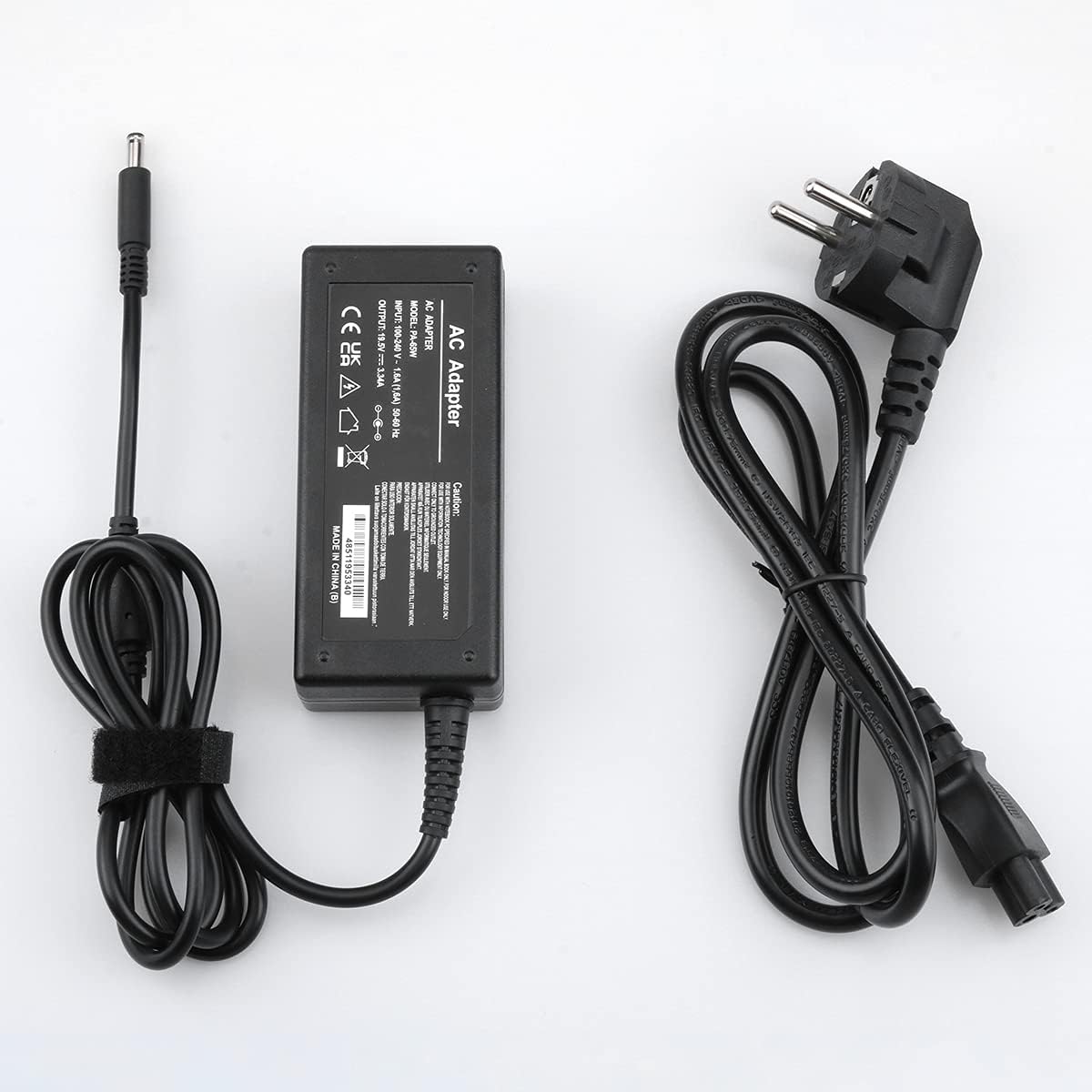
Image 1.1: The Rocketek 65W Dell Laptop Charger includes the AC adapter unit and a detachable power cable.
2. Teeb cov lus qhia
Follow these steps to set up your Rocketek laptop charger:
- Connect the AC Power Cable: Insert the AC power cable into the adapter unit. Ensure it is firmly seated.
- Plug rau hauv Power Outlet: Connect the other end of the AC power cable into a standard wall power outlet (100-240V).
- Txuas rau Laptop: Insert the DC connector (the round plug) from the adapter into the power input port on your Dell laptop. Ensure the connection is secure.
- Tshawb xyuas kev them nqi: Confirm that your laptop indicates it is receiving power and charging.
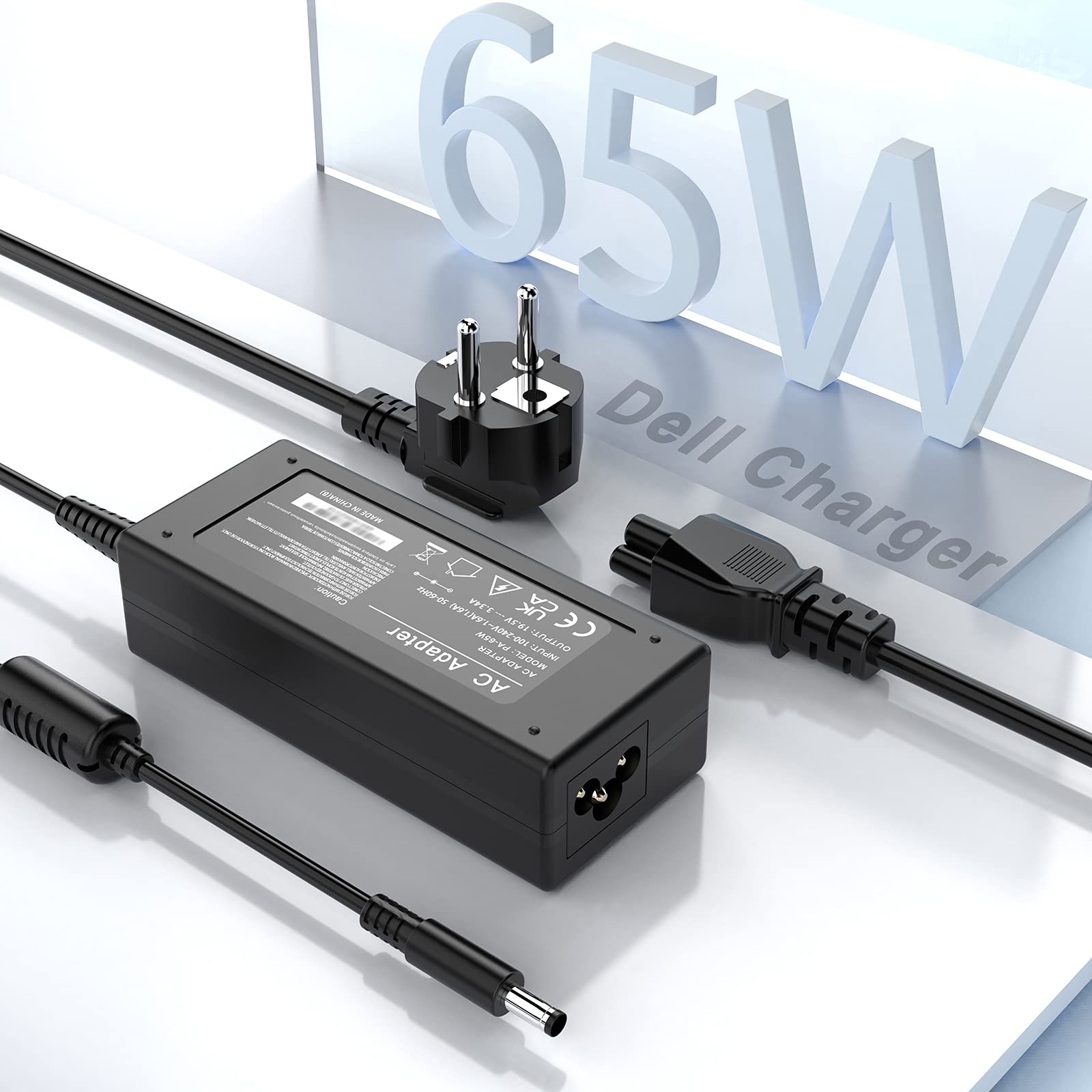
Image 2.1: The charger connected to a Dell laptop and a power strip, illustrating a typical setup.
Lus Cim Tseem Ceeb: Before connecting, always verify that your laptop's power requirements (voltage, amperage, thiab wattage) and the DC connector size match the specifications of this charger. This charger is designed for Dell laptops requiring 19.5V, 3.34A (65W) or 19V, 2.31A (45W) with a 4.5mm x 3.0mm connector.
3. Cov lus qhia ua haujlwm
Once connected, the charger will automatically begin supplying power to your laptop and charging its battery. The charger is equipped with multiple safety features to protect your device:
- Kev tiv thaiv tshaj: Prevents battery damage from excessive charging.
- Kev tiv thaiv overcurrent: Safeguards against damage from current surges.
- Overvoltage Kev Tiv Thaiv: Protects against damage from voltage kev hloov pauv.
- Short-circuiting Protection: Automatically cuts power in case of a short circuit.
- Over-Power Protection: Ensures the charger operates within safe wattage txwv.
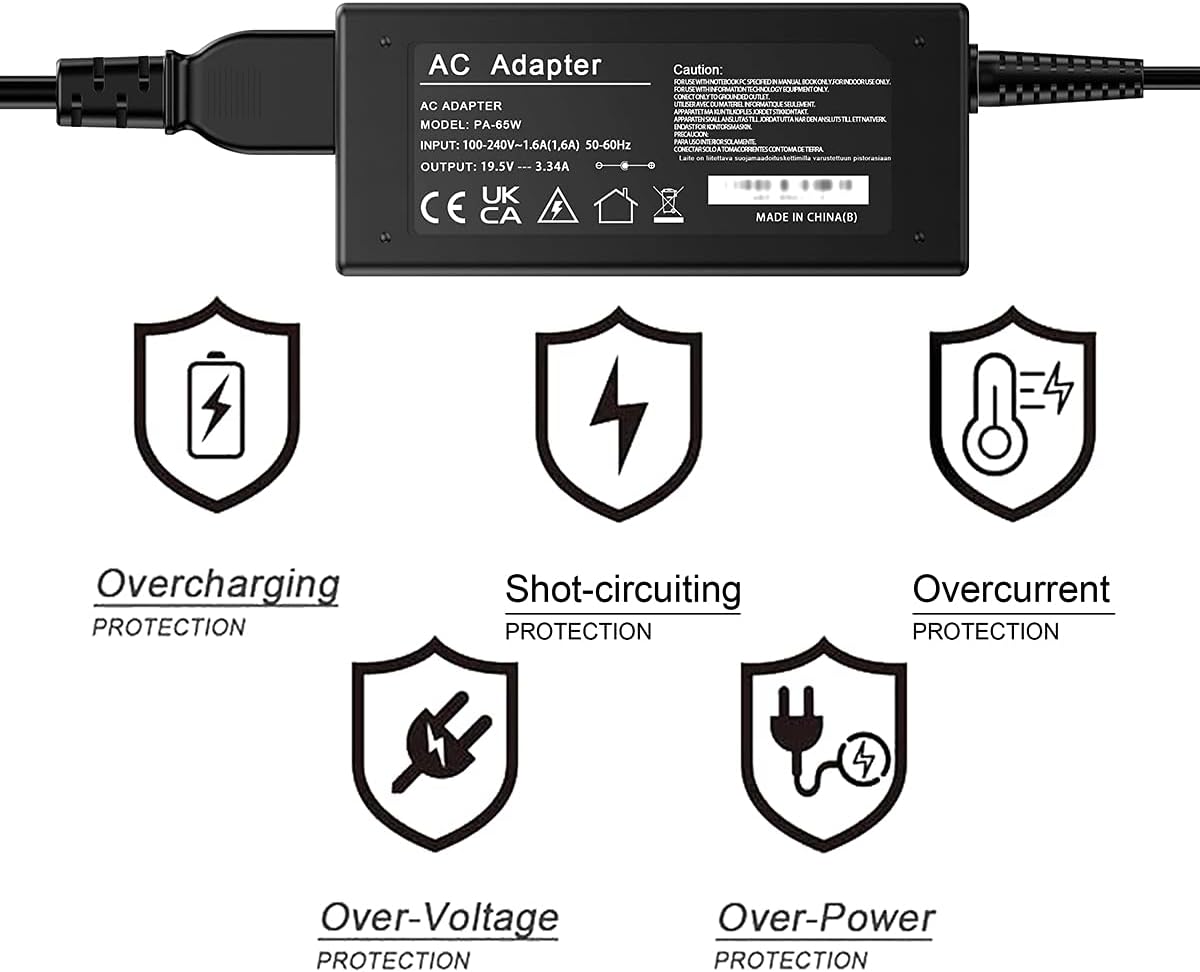
Image 3.1: Visual representation of the multi-protection features integrated into the charger.
4. Kev tu
To ensure the longevity and optimal performance of your Rocketek charger, follow these maintenance guidelines:
- Khaws huv si: Regularly wipe the charger and cables with a dry, soft cloth to remove dust and dirt.
- Tsis txhob muaj xwm txheej heev: Do not expose the charger to extreme temperatures, high humidity, or direct sunlight.
- Kov Cables Ua tib zoo: Avoid bending or twisting the cables sharply, especially near the connectors, to prevent internal wire damage.
- Khaws kom zoo: When not in use, store the charger in a cool, dry place. Avoid wrapping cables too tightly around the adapter.
5. Kev daws teeb meem
If you encounter issues with your charger, refer to the following troubleshooting tips:
- Charger Not Supplying Power:
- Ensure all cable connections are secure at both the wall outlet and the laptop.
- Try plugging the charger into a different wall outlet to rule out a faulty socket.
- Check if the power indicator light (if present) on the adapter is on.
- Lub laptop tsis them:
- Verify that the charger's specifications (voltage, ampxav, wattage) and connector size (4.5mm x 3.0mm) precisely match your laptop's requirements. An incorrect connector size or power rating will prevent charging.
- Restart koj lub laptop.
- Inspect the DC connector for any physical damage or debris.
- Overheating:
- Ensure the charger is placed in a well-ventilated area and not covered by objects that could trap heat.
- Yog tias tseem kub dhau, tsum tsis txhob siv thiab hu rau kev pabcuam.

Image 5.1: Illustration of correct (4.5mm x 3.0mm) versus incorrect (7.4mm x 5.0mm) DC connector types. Always ensure your laptop's connector matches the charger.
6. Cov lus qhia tshwj xeeb
| Feature | Specification |
|---|---|
| Cov lus qhia Voltage | AC 100-240V, 1.6A, 50-60Hz |
| Tso zis Voltage/Tam sim no | DC19.5V, 3.34A |
| Fais fab tso zis | 65W (Compatible with 45W, 19V, 2.31A) |
| DC Connector Size | Outer Diameter: 4.5mm; Inner Diameter: 3.0mm |
| DC Cable Length | 120 cm (47.2 nti) |
| AC Cable Length | 120 cm (47.2 nti) |
| Cov ntawv pov thawj | CE, FCC, RoHS |
| Dimensions (Adapter) | Approx. 10.6 cm x 4.7 cm x 3 cm (4.2 in x 1.8 in x 1.2 in) |

Image 6.1: Detailed dimensions of the adapter unit and lengths of the DC and AC cables.
Compatible Dell Laptop Series (Partial List):
- Dell XPS 12, XPS 13, XPS 15
- Dell Inspiron 11, 12, 13, 14, 15, 17 series (e.g., 3000, 5000, 7000 series)
- Dell Vostro 14, 15 series
- Dell Latitude 3490, 3590
- Dell Chromebook 13 7310
Nco tseg: This list is illustrative. Always confirm your specific laptop model's power requirements and connector type against the charger's specifications.
7. Warranty thiab Support
Rocketek provides the following warranty and support for this product:
- Replacement or Refund: Free replacement or refund within 3 months of purchase for quality issues.
- Chaw tsim tshuaj paus Warranty: 12-month manufacturer's warranty from the date of purchase.
For any quality issues or support inquiries, please contact Rocketek customer service through your purchase platform. Provide your order number and a detailed description of the issue for prompt assistance.