
blucoil Portable USB Audio Interface
Blucoil Portable USB Audio Interface User Manual
Model: Portable USB Audio Interface
Brand: Blucoil
1. Khoom Tshajview
The Blucoil Portable USB Audio Interface is designed to deliver high-quality audio resolution for various applications including home studio recording, streaming, gaming, and podcasting. This compact device supports 24-bit/48kHz resolution and is compatible with both Windows and Mac operating systems. It features versatile input/output options and low-latency direct monitoring capabilities, making it an essential tool for capturing clear and precise audio.

Pem hauv ntej view of the Blucoil Portable USB Audio Interface, showing the microphone input, instrument input, and output controls.

The Blucoil Portable USB Audio Interface set up on a desk, ready for recording or streaming high-quality audio.
2. Teeb Qhia
2.1 System Requirements
- Operating System: Windows or Mac OS
- Muaj USB Port
- Compatible recording software (e.g., Audacity, GarageBand)
2.2 Txuas lub interface
- Connect the USB cable from the interface to an available USB port on your computer. The interface is USB bus-powered, so no external power supply is needed.
- For microphone input, plug your condenser microphone into the XLR-1/4" combo input. Ensure the +48V phantom power button is engaged if your microphone requires it.
- For instrument input, connect your instrument (e.g., guitar, keyboard) to the 1/4" TRS input.
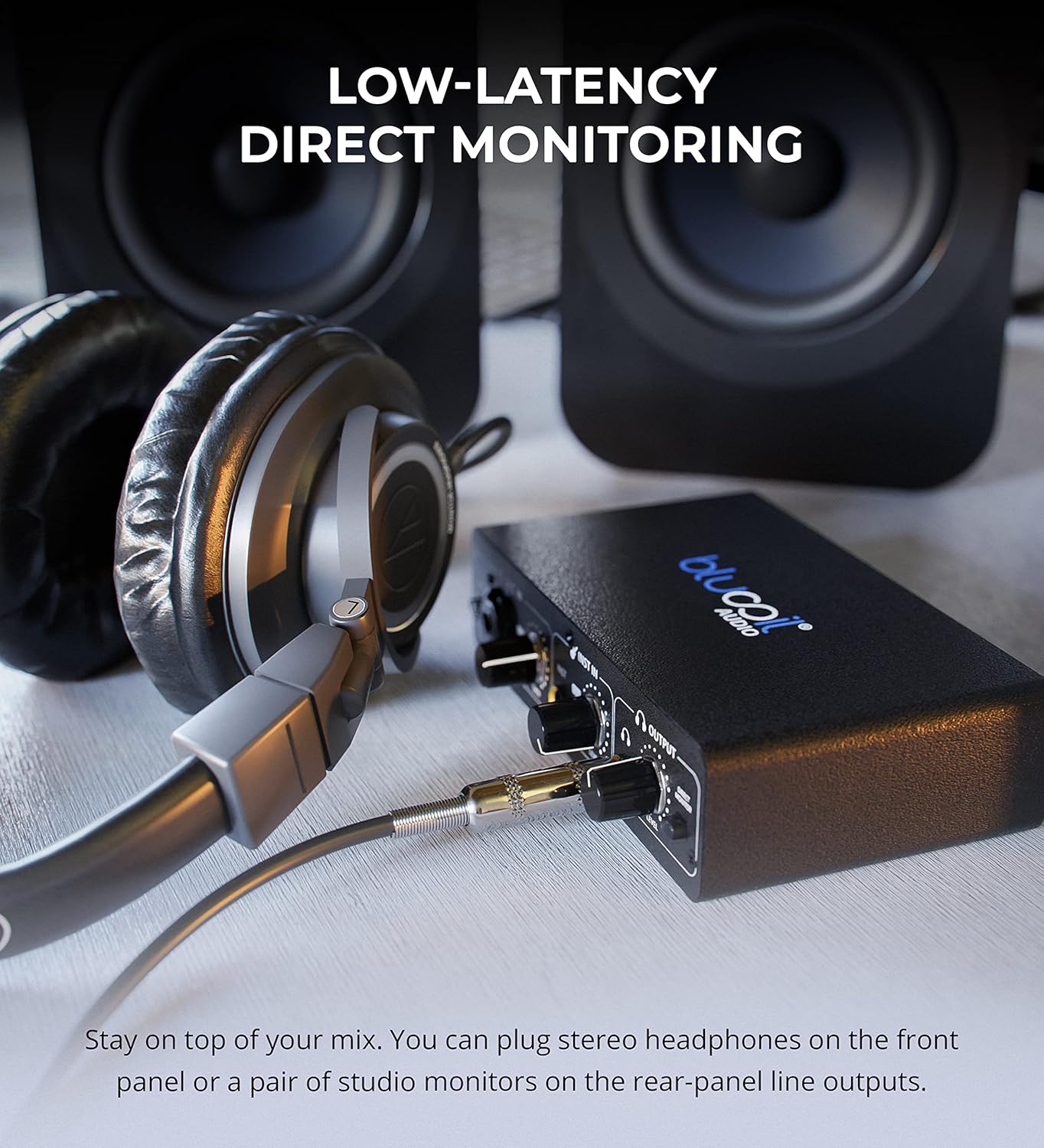
- Connect your studio monitors or speakers to the main outputs on the rear panel. Alternatively, plug headphones into the 1/4" stereo headphone jack on the front panel for monitoring.

The Blucoil Audio Interface connected to a laptop, demonstrating reliable connections for recording.
The interface accommodates various microphone types, including condenser microphones requiring 48V phantom power.
3. Cov lus qhia ua haujlwm
3.1 Adjusting Input Levels
- Siv cov Tau txais knob for the microphone input to set the input level.
- Siv cov Qib knob for the instrument input to set its input level.
- Monitor the Clip and Signal Indicators for each channel. A green light indicates a signal, while a red light indicates clipping (signal distortion). Adjust the gain/level knobs to prevent clipping.

Kaw-up view of the interface controls, showing gain and level knobs for fine-tuning your sound.

A hand adjusting one of the input level knobs, demonstrating how to prevent signal clipping by observing the LED indicators.
3.2 Kev saib xyuas ncaj qha
- Engage the Saib Xyuas ncaj qha button to hear your input signals directly through your headphones or main outputs with zero latency. This allows you to monitor your performance without delay from your computer's processing.

Headphones connected to the Blucoil Audio Interface, enabling low-latency direct monitoring of input signals.
3.3 Kev Tswj Qhov Ntim Tawm
- Siv cov Qib Qib knob in the Output section to control the overall output volume for both headphones and main outputs.
4. Kev tu thiab tu
- Khaws lub cuab yeej kom huv si los ntawm kev so nrog ib daim ntaub mos, qhuav. Tsis txhob siv cov tshuaj ntxuav kua los yog cov kuab tshuaj.
- Khaws lub interface rau hauv qhov chaw txias, qhuav kom deb ntawm tshav ntuj ncaj qha thiab qhov kub thiab txias heev.
- Tsis txhob tso tseg lossis ua rau lub cuab yeej raug cuam tshuam.
- Ensure all cables are connected securely but without excessive force to prevent damage to ports.
5. Kev daws teeb meem
| Teeb meem | Ua Tau | Kev daws |
|---|---|---|
| Tsis muaj suab nrov | Incorrect volume settings, incorrect output selection in software, loose cables. | Check the Output Volume knob. Ensure the interface is selected as the output device in your computer's sound settings and recording software. Verify all cables are securely connected. |
| Input signal clipping (red light) | Input gain/level is too high. | Reduce the Gain or Level knob for the respective input until the red Clip indicator no longer illuminates. |
| Lub microphone tsis ua haujlwm (condenser mic) | 48V phantom power not enabled. | Press the +48V button to enable phantom power for condenser microphones. |
| No sound from instrument input | Instrument level too low, incorrect cable. | Increase the Level knob for the instrument input. Ensure you are using a proper 1/4" TS or TRS instrument cable. |
| Interface not recognized by computer | USB cable issue, driver issue (rare for class-compliant devices), faulty USB port. | Try a different USB port or cable. Restart your computer. While typically plug-and-play, ensure your operating system is up to date. |
6. Cov lus qhia tshwj xeeb
- Yam khoom hnyav: 1 puj
- Khoom Dimensions: 3.94 x 6.69 x 1.73 po
- ASIN: B096ZRJSX6
- Compatible Devices: Laptop
- Hom Connector: 1/4" Jack, USB Port, XLR-TRS Combo Connector
- Hardware Interface: USB
- Txhawb Software: Windows audio recording and editing software (also compatible with Mac OS software like GarageBand)
- Kev khiav hauj lwm System: Windows (also compatible with Mac OS)
- Hom Tshuaj: bluecoil
- Connectivity Technology: USB
- Number of Channels: 4 (implied by inputs and outputs, 2 input channels, 2 output channels)
7. Warranty thiab Support
For detailed warranty information and customer support, please refer to the official Blucoil website lossis tiv tauj lawv cov neeg siv khoom ncaj qha. Khaws koj daim ntawv txais yuav khoom rau kev lees paub.
Ask a question about this manual
Ask about setup, troubleshooting, compatibility, parts, safety, or missing instructions. Manuals+ will review the question and use this page’s manual context to help answer it.