
Taw qhia
The FreedConn T-COMVB Bluetooth Helmet Headset is designed to provide wireless communication for motorcyclists. This system allows for hands-free phone calls, music listening, FM radio, GPS voice prompts, and intercom communication between riders. It features Bluetooth 5.0 technology, noise cancellation, and a waterproof design for various riding conditions.
Dab tsi nyob hauv lub thawv
Xyuas kom tseeb tias tag nrho cov khoom muaj nyob hauv koj pob:
- FreedConn T-COMVB Bluetooth Headset Unit (x2 for 2-pack)
- Stereo Speakers
- Boom Microphone (for open-face/modular helmets)
- Soft-Wire Microphone (for full-face helmets)
- Helmet Mount Bracket (clip-on and adhesive options)
- USB Charging Cable
- Cov neeg siv phau ntawv
- Velcro Pads for Speakers and Microphone
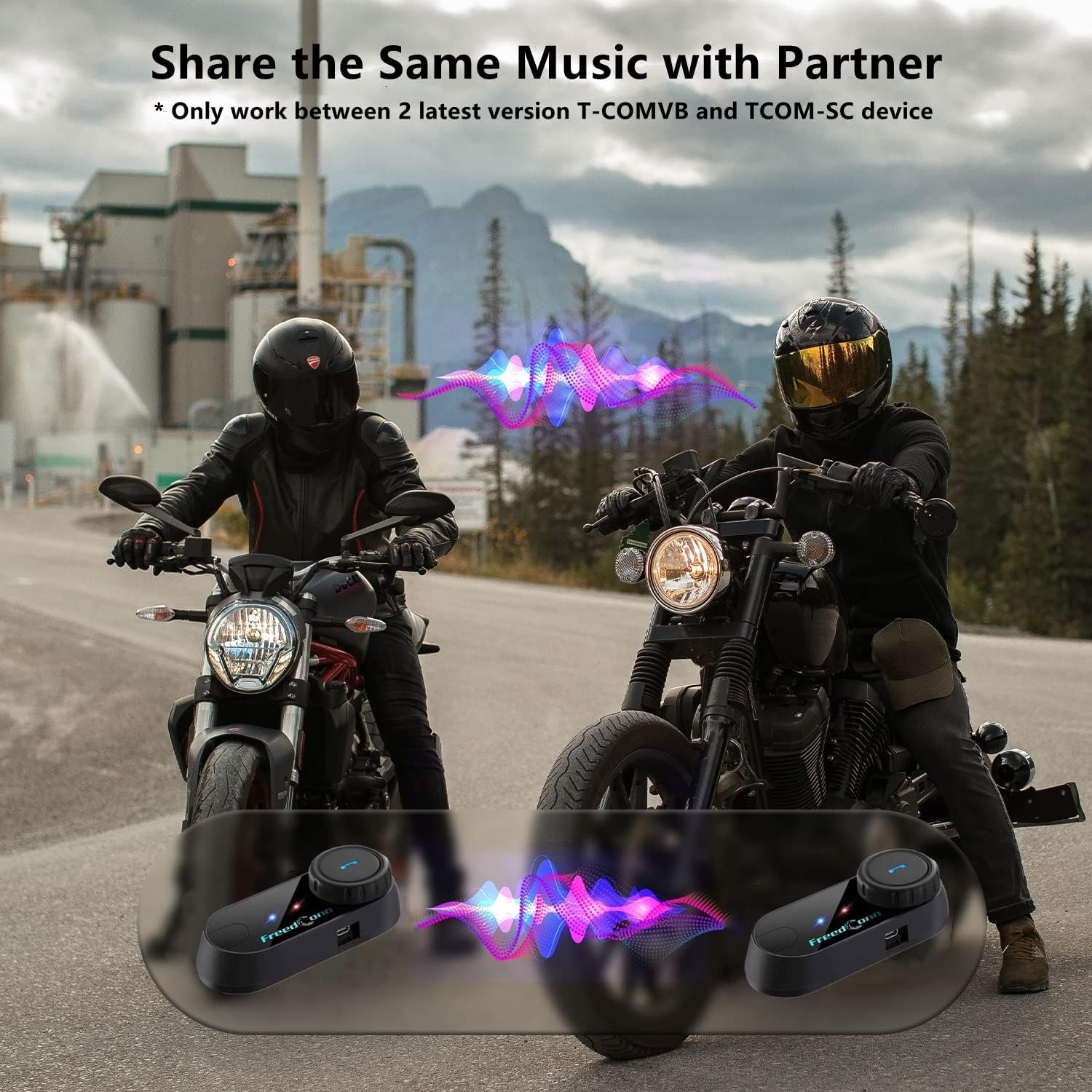
Image: Package contents for the FreedConn T-COMVB Bluetooth Helmet Headset 2-pack, showing all included accessories.
Teeb tsa
1. Kev them nyiaj yug ntaus ntawv
Before first use, fully charge the T-COMVB unit. Connect the USB charging cable to the headset's charging port and a USB power source. The indicator light will show charging status.
- Lub sij hawm them nqi: Kwv yees li 3-4 teev.
- Roj teeb lub neej: Up to 7-8 hours of intercom, 10 hours of phone calls/music, 300 hours standby.

Image: Visual representation of the 400mAh battery capacity and estimated usage times for intercom, phone calls, and standby.
2. Microphone Selection
Choose the appropriate microphone for your helmet type:
- Lub microphone nrov: Recommended for open-face, half, and modular flip-up helmets.
- Soft-Wire Microphone: Recommended for full-face and off-road helmets.
Connect the chosen microphone and speakers to the corresponding ports on the headset unit.
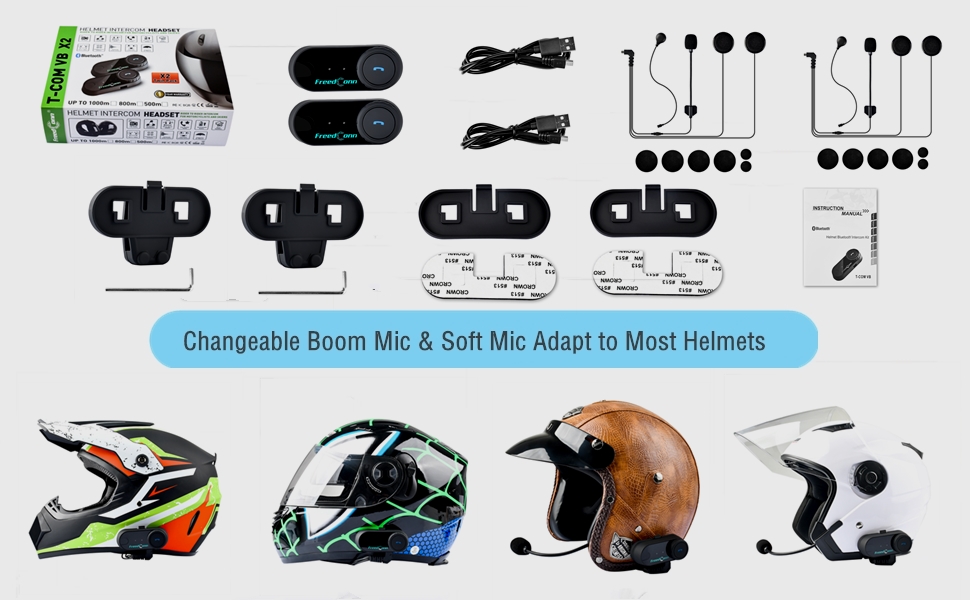
Image: Illustration demonstrating the compatibility of boom and soft-wire microphones with various helmet styles.
3. Helmet Installation
Mount the T-COMVB unit to the side of your helmet using either the clip-on bracket or the adhesive bracket. Ensure the unit is securely attached and the speakers are positioned correctly inside the helmet for optimal audio.

Image: A FreedConn T-COMVB unit securely installed on the exterior of a motorcycle helmet.
Cov lus qhia ua haujlwm
1. Fais fab / Off
- Hwj chim On: Press and hold the Power button until the indicator light flashes.
- Fais fab tawm: Nias thiab tuav lub khawm Fais Fab kom txog thaum lub teeb qhia qhov teeb ci ntsa iab.
2. Bluetooth Pairing (with Phone/GPS)
To connect your T-COMVB to a Bluetooth-enabled device (phone, GPS):
- Ensure the T-COMVB is off.
- Press and hold the Power button for approximately 5-7 seconds until the indicator light flashes red and blue alternately, indicating pairing mode.
- On your phone or GPS, enable Bluetooth and search for available devices.
- Select "FreedConn T-COMVB" from the list. If prompted, enter "0000" as the PIN.
- Thaum ua khub, qhov taw qhia lub teeb yuav nyem xiav maj mam.

Image: The T-COMVB headset demonstrating its Bluetooth 5.0 and universal connectivity with different devices and helmet types.
3. Intercom Communication (Rider to Rider)
The T-COMVB supports intercom communication with other T-COMVB or TCOM-SC units.
- Ensure both units are powered on and not connected to other Bluetooth devices.
- On one unit, press and hold the Intercom button until the indicator light flashes red and blue alternately.
- On the second unit, press the Intercom button once.
- The units will automatically search and pair. Once connected, the indicator lights will flash blue slowly.
- To initiate intercom, press the Intercom button once. To end, press it again.
4. Music Playback and Sharing
Once paired with your phone, you can play music. Music sharing is supported between two latest version T-COMVB and TCOM-SC devices.
- Ua si / Pause: Nias lub Multi-function khawm ib zaug.
- Next Track: Rotate the Multi-function button clockwise.
- Yav dhau los khiav: Rotate the Multi-function button counter-clockwise.
- Kev Sib Koom Music: While music is playing, press and hold the Intercom button on both units to initiate music sharing.

Image: Two riders sharing music through their FreedConn T-COMVB headsets, highlighting the music sharing feature.
5. Xov tooj cua FM
To activate the built-in FM radio:
- Turn On FM: Press the FM button once.
- Scan Channels: Rotate the Multi-function button to scan for stations.
- Turn Off FM: Press the FM button again.
6. Xov Tooj Hu
When paired with your phone, the T-COMVB allows for hands-free calls.
- Teb Hu rau: Nias lub Multi-function khawm ib zaug.
- Xaus Hu: Nias lub khawm Multi-function ib zaug thaum hu.
- Tsis kam hu: Nias thiab tuav lub Multi-function khawm rau 2 vib nas this.
- Rov qab tus lej xeem: Ob npaug nias lub khawm Multi-function.
- Voice Assistant (Siri/Google Voice): Press the Voice Assistant button to activate your phone's voice assistant.

Image: Icons representing voice assistant activation (Siri, Google Voice) for hands-free calling functionality.
Kev tu
- Ntxuav: Siv lub mos, damp cloth to clean the unit. Do not use harsh chemicals or solvents.
- Dej tsis kam: The unit is waterproof, but avoid submerging it in water. Ensure all ports are securely closed when exposed to rain.
- Kev kho roj teeb: If the device is not used for an extended period, charge it at least once a month to preserve battery life.

Image: The FreedConn T-COMVB headset on a helmet, illustrating its waterproof feature in rainy conditions.
Kev daws teeb meem
- Tsis muaj zog: Ensure the unit is fully charged. Connect to a power source and check the charging indicator.
- Tsis tuaj yeem txuas Bluetooth: Ensure the unit is in pairing mode (red and blue flashing light). Make sure other Bluetooth devices are disconnected. Try restarting both the headset and your phone/GPS.
- Tsis muaj suab los ntawm cov neeg hais lus: Check that the speakers are securely plugged into the headset unit. Ensure volume is not set to minimum.
- Intercom Not Connecting: Ensure both units are T-COMVB or TCOM-SC models and are in intercom pairing mode. Keep units within range (up to 800 meters).
- Poor Audio Quality/Noise: Ensure the microphone is positioned correctly, close to your mouth. The T-COMVB features advanced noise cancellation technology.

Image: A visual representation of the advanced noise cancellation technology, demonstrating its effect on sound quality.
Specifications
| Qauv | T-COV |
| Bluetooth Version | 5.0 + EDR |
| Intercom Range | Up to 800 meters (2-3 riders) |
| Roj teeb muaj peev xwm | 400 mAh |
| Them sij hawm | 3-4 teev |
| Lub sijhawm Intercom | 7-8 teev |
| Phone Call/Music Time | 10 hnu |
| Standby Sijhawm | 300 hnu |
| Dej tsis kam | Waterproof |
| Tswj Txoj Kev | Voice, Manual Buttons |
| Tshwj xeeb nta | Microphone Included, Noise Cancellation, FM Radio |
| Khoom siv | Polymer |
| Yam Nyhav | Approximately 1.15 pounds (for 2 units) |
Warranty thiab Support
For warranty information, technical support, or service inquiries, please refer to the contact details provided with your purchase or visit the official FreedConn webqhov chaw. Khaws koj cov ntaub ntawv pov thawj ntawm kev yuav khoom rau kev lees paub.