
Taw qhia
This manual provides comprehensive instructions for the Symcode 3300DW 2D Fixed USB Barcode Scanner. It covers product features, setup procedures, operating guidelines, maintenance tips, troubleshooting solutions, and detailed technical specifications. Please read this manual carefully before using the device to ensure proper operation and to maximize its lifespan.
Khoom nta
- Super Decoding Capability: The Symcode 3300DW barcode scanner efficiently and accurately captures both 1D and 2D barcodes from various surfaces, including labels, paper, mobile phone screens, and computer displays. It supports a wide range of barcode types.
- Automatic Infrared Detection: Equipped with an automatic detection function, the scanner initiates scanning when a barcode approaches its window, even if the device is in sleep mode. This hands-free operation enhances efficiency by allowing users to handle items without needing to manually activate the scanner.
- Plug thiab Play Connectivity: This scanner requires no driver installation, additional software, or applications. Simply connect it to your device via the provided USB cable. It is compatible with Windows XP/7/8/10, Mac OS, and Linux operating systems.
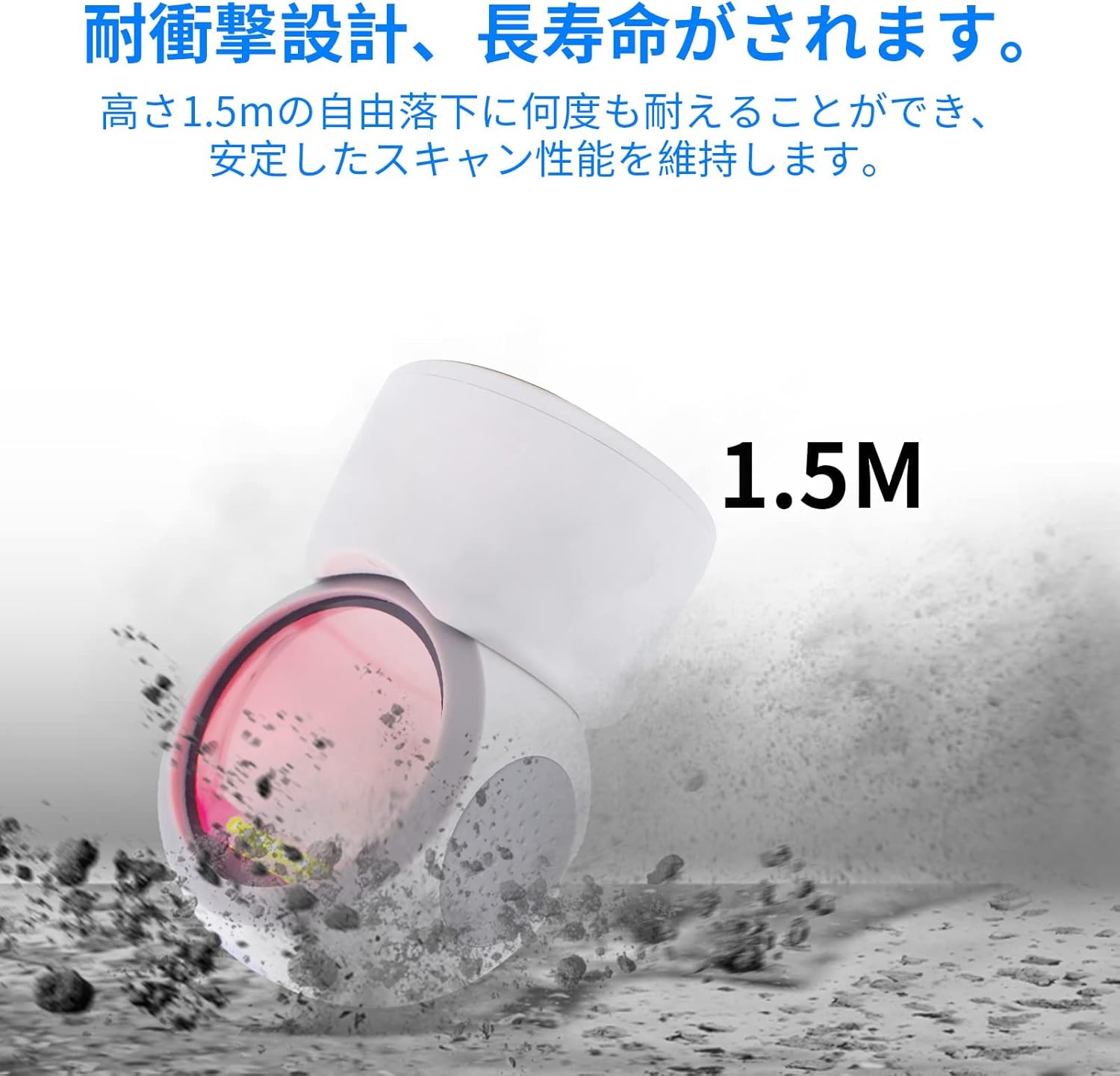
- Robust Design: Engineered for durability, the scanner can withstand drops from a height of up to 1.5 meters, ensuring reliable performance in demanding environments.
- Omnidirectional Scanning: The scanner is designed to read 1D and 2D codes from various angles, providing flexibility and ease of use.
- Adjustable Lub kaum ntse ntse: The scanning head can be adjusted by 30 degrees, allowing for convenient positioning to suit different scanning needs.
- Anti-slip Design: Features anti-slip pads on both sides and the base to prevent movement and protect desktop surfaces.
Teeb tsa
- Qhib lub Scanner: Carefully remove the Symcode 3300DW barcode scanner and its USB cable from the packaging.
- Txuas rau Host Device: Insert the RJ45-like connector of the USB cable into the port on the back of the scanner. Then, plug the USB Type-A end of the cable into an available USB port on your computer or host device.
- Kev lees paub qhov system: The scanner is plug-and-play. Your operating system (Windows, Mac OS, Linux) should automatically detect and install the necessary drivers. This process usually takes a few seconds.
- Txheeb xyuas qhov txuas: Once connected, the scanner will enter standby mode. You can test the connection by opening a text editor (like Notepad or Word) and scanning a barcode. The barcode data should appear in the text editor.

Cov lus qhia ua haujlwm
Basic Scanning
The Symcode 3300DW scanner operates in an automatic detection mode. To scan a barcode:
- Ensure the scanner is connected to your host device and powered on.
- Muab lub barcode tso rau hauv daim teb ntawm lub scanner view. The scanner will automatically detect the barcode and emit a light to read it.
- A successful scan is typically indicated by an audible beep and/or a visual confirmation light. The scanned data will be transmitted to your active application (e.g., a text editor, POS software).

Omnidirectional Scanning
The scanner is designed to read barcodes regardless of their orientation. Simply present the barcode to the scanning window, and the device will decode it.

Adjusting the Scan Angle
The scanner head can be tilted up to 30 degrees to optimize the scanning angle for different items or setups. Gently adjust the head to the desired position.

Txhawb hom Barcode
The Symcode 3300DW supports a comprehensive range of 1D and 2D barcode symbologies:
- 1D Barcodes: Cov EAN-8, EAN-13, Codabar, CODE 39, CODE 93, CODE 128, China Post, GS1-128, UPC-A, UPC-E, ISBN/ISSN, ISBT, Interleaved 2 of 5, Standard 2 of 5, Matrix 2 of 5, Industrial 2 of 5, MSI, RSS, ITF14, Telepen.
- 2D Barcodes: Cov QR Code, Micro QR Code, Data Matrix, PDF417, Micro PDF417, Maxicode, Aztec, Hanxin.

Kev tu
To ensure the longevity and optimal performance of your Symcode 3300DW barcode scanner, follow these maintenance guidelines:
- Ntxuav lub Qhov rai Scan: Regularly clean the scan window with a soft, lint-free cloth. If necessary, use a mild, non-abrasive cleaning solution. Avoid harsh chemicals or abrasive materials that could scratch the window.
- Kev Tu Nthuav dav: Wipe the exterior of the scanner with a soft, damp cloth. Do not immerse the scanner in water or any cleaning liquid.
- Cable Care: Inspect the USB cable periodically for any signs of damage. Avoid bending or twisting the cable excessively.
- Cia: Thaum tsis siv, khaws lub scanner rau hauv qhov chaw huv si, qhuav kom deb ntawm tshav ntuj ncaj qha thiab qhov kub thiab txias.
- Anti-slip Pads: Ensure the anti-slip pads on the base and sides are clean and intact to maintain stability and prevent desktop scratches.
Kev daws teeb meem
If you encounter issues with your Symcode 3300DW barcode scanner, refer to the following common problems and solutions:
- Lub tshuab luam ntawv tsis teb:
- Check if the USB cable is securely connected to both the scanner and the host device.
- Sim txuas lub scanner rau lwm qhov chaw nres nkoj USB ntawm koj lub computer.
- Restart your computer and reconnect the scanner.
- No Data Output After Scanning:
- Ensure that an application (e.g., text editor, spreadsheet, POS software) is open and has focus to receive the scanned data.
- Verify that the barcode is not damaged or poorly printed.
- Check if the scanner's light is activating when a barcode is presented. If not, ensure the scanner is properly powered.
- Incorrect Data Output:
- Ensure the correct keyboard layout is selected on your computer (e.g., US English).
- Some barcodes may require specific settings. Refer to the product's advanced configuration guide (if available) for specific barcode type settings.
- Scanner Beeps Continuously or Emits Error Sounds:
- This may indicate a configuration error or a hardware issue. Try resetting the scanner to factory defaults (if a reset barcode is provided in a separate guide).
- Yog tias qhov teeb meem tshwm sim, hu rau cov neeg siv khoom txhawb nqa.
Specifications
| Feature | Specification |
|---|---|
| Qauv | 3300 DW |
| Hom | 2D CMOS Fixed Barcode Scanner |
| Kev sib txuas | USB Wired (USB Cable) |
| Qhov hnyav | 480 g |
| Dimensions (Scanner) | 71.5mm x 108mm x 150mm |
| Khoom siv | ABS |
| Lub teeb Source | 617nm LED, 6500K Illumination |
| Duab Sensor | 640 * 480 CMOS |
| Processor | ARM32-bit |
| Scan Rate | 200 scans/second |
| Lub zog nkag | DC 5V |
| Tam sim no | 400mA ± 5% |
| Tso Resistance | Withstands drops from 1.5m |
| Txhawb OS | Windows XP/7/8/10, Mac OS, Linux |
| UPC | 762027975166 |
| Xim | Dawb |
Cov ntaub ntawv kev nyab xeeb
Thov ua raws li kev ceev faj txog kev nyab xeeb hauv qab no:
- Do not look directly into the scanner's light source.
- Khaws lub cuab yeej kom deb ntawm dej thiab lwm yam kua.
- Avoid dropping or subjecting the scanner to severe impacts, despite its robust design.
- Do not attempt to disassemble or repair the scanner yourself. Refer all servicing to qualified personnel.
- Use only the provided USB cable for connection.
Warranty thiab Support
For warranty information, technical support, or service inquiries regarding your Symcode 3300DW barcode scanner, please refer to the documentation included with your purchase or contact the seller directly. Keep your purchase receipt as proof of purchase for warranty claims.