
1. Taw qhia thiab tshajview
The Alienware X17 R2 is a high-performance VR Ready Gaming Laptop designed for demanding tasks such as gaming, video editing, and graphic design. It features a 17.3-inch Full HD display with a 360Hz refresh rate and 1ms response time, powered by a 12th Gen Intel Core i7-12700H processor and NVIDIA GeForce RTX 3070 Ti graphics with 8GB GDDR6 memory. This manual provides essential information for setting up, operating, maintaining, and troubleshooting your device.
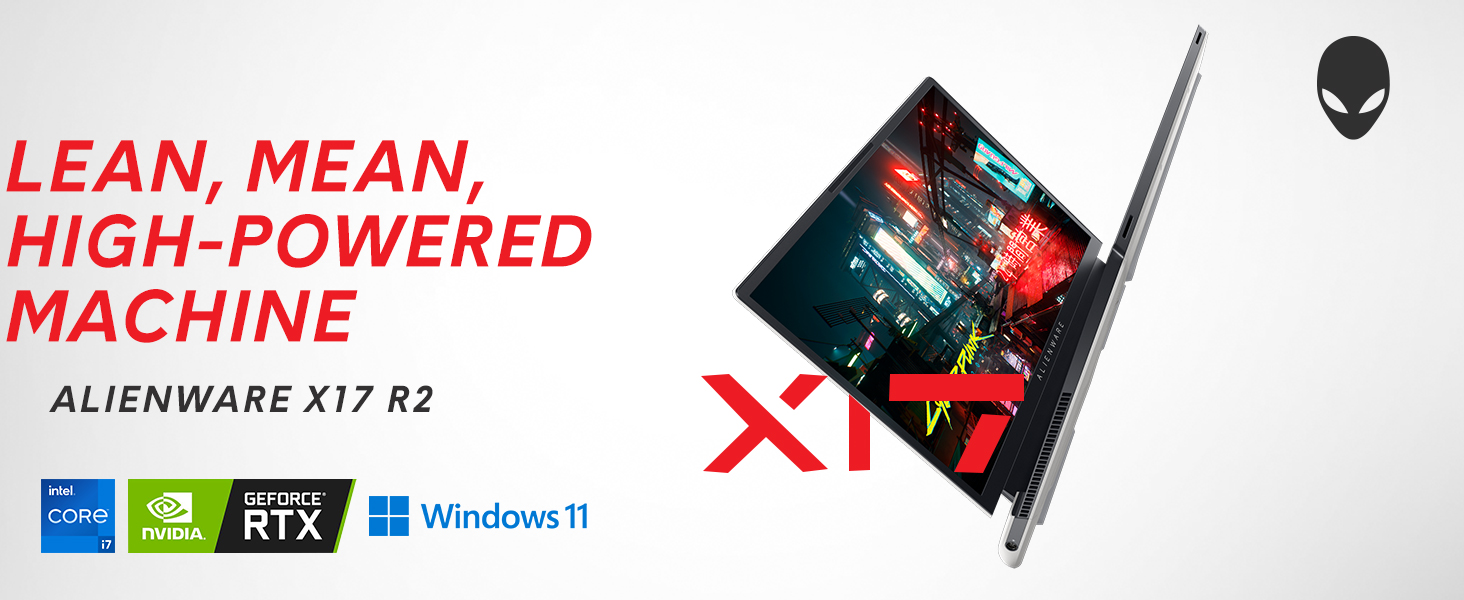
Image: Alienware X17 R2 showcasing its powerful components and sleek design.
2. Dab tsi hauv lub thawv
Upon unboxing your Alienware X17 R2, ensure all the following components are present:
- Alienware X17 R2 Notebook
- Power Adapter (240W Small Form Factor)
- Hwj chim Cord
- Cov ntaub ntawv (nrog rau phau ntawv no)
3. Teeb tsa
3.1 Pib Fais Fab
- Connect the power adapter to the laptop's power/DC-in port and then to a power outlet.
- Qhib lub laptop lub hau.
- Press the Alienware head power button located on the keyboard deck to turn on the laptop.
- Ua raws li cov lus qhia ntawm qhov screen kom ua tiav qhov kev teeb tsa Windows 11 Home.
3.2 Txuas Peripherals
Utilize the various ports available for connecting external devices:
- USB 3.2 Gen 1 Hom-A: Rau standard USB li.
- USB 3.2 Gen 2 Type-C with Power Delivery: For high-speed data transfer and charging compatible devices.
- Thunderbolt 4 / USB 3.2 Gen 2 Type-C with Power Delivery: For ultra-fast data transfer, display output, and power delivery.
- HDMI 2.1: Connect to external displays or TVs.
- Mini Display Port 1.4: Connect to external displays.
- Killer E3100 RJ-45 2.5G Ethernet: Rau kev sib txuas ntawm lub network.
- Global Headset Jack: Rau audio input/output.
- Micro SD Card Qhov: Rau kev nthuav dav cia lossis hloov chaw files.
Duab: Paub meej view of the Alienware X17 R2's rear and side ports.
4. Ua haujlwm ntawm koj lub laptop
4.1 Zaub nta
The 17.3-inch Full HD display offers a 360Hz refresh rate and 1ms response time for smooth visuals. It also features ComfortView Plus technology to reduce blue light emissions, enhancing viewing comfort during extended use. Dolby Vision support provides an authentic visual experience with enhanced color profiles.
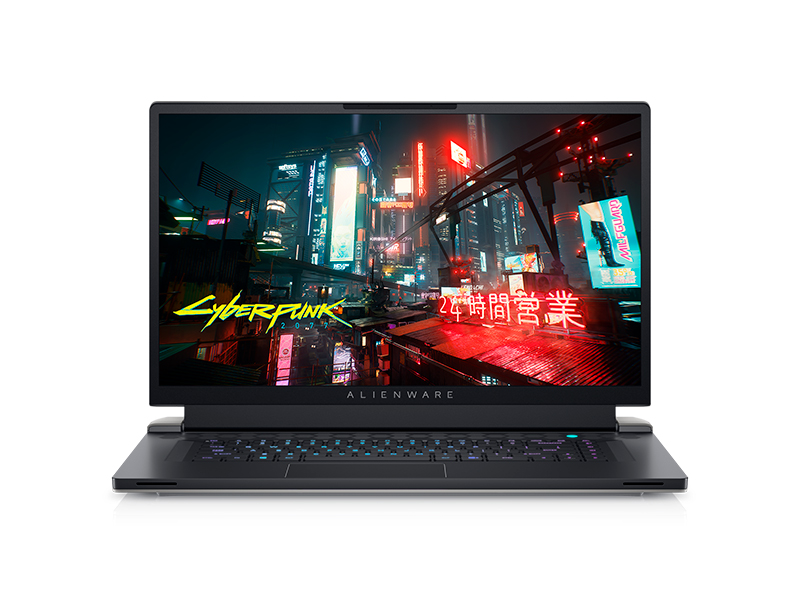
Image: Laptop screen showing vibrant game graphics with Dolby Vision and Atmos branding.
4.2 Keyboard and Lighting
The Alienware X17 R2 features an AlienFX keyboard with customizable backlighting, supporting 16.8 million colors. You can personalize the lighting effects, including wave patterns or solid colors, through the Alienware Command Center software. The power button, shaped like the Alienware head, also illuminates and can be customized.
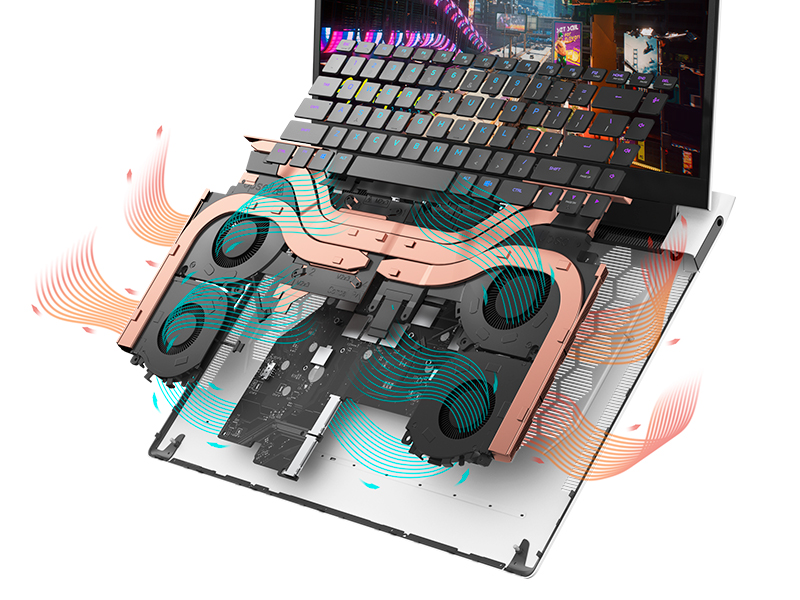
Image: The Alienware X17 R2 keyboard with customizable RGB lighting.
4.3 Audio System
The laptop is equipped with stereo speakers, including two 2W tweeters and two 2W woofers, totaling 8W for rich audio output. Dolby Atmos support further enhances the immersive sound experience.
4.4 Kev sib txuas
Enjoy high-speed wireless connectivity with Wi-Fi 6 (802.11ax) and Bluetooth. The USB 3.2 Gen 2 Type-C ports offer data transfer speeds up to 40Gbps, ensuring rapid file transfers and peripheral performance.

Duab: Rov qab view of the Alienware X17 R2 showing connectivity options and lighting.
5. Kev tu
5.1 Thermal Management
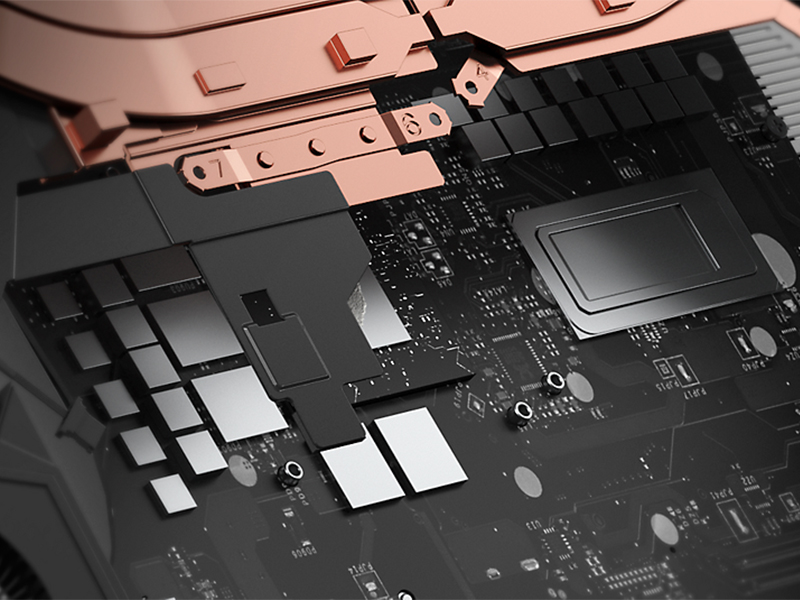
The Alienware X17 R2 features an advanced thermal design utilizing Element 31, an encapsulated gallium-silicone thermal interface material. This system maximizes airflow by expelling warm air through side vents and drawing in cooler air from the top of the keyboard, helping to keep the laptop cool during intensive use.
Duab: Sab hauv view of the Alienware X17 R2's cooling technology.
5.2 Kev Tu thiab Tu
- Regularly clean the screen with a soft, lint-free cloth and a screen-safe cleaning solution.
- Use compressed air to clear dust from the keyboard and ventilation ports.
- Avoid placing heavy objects on the laptop or exposing it to extreme temperatures.
6. Kev daws teeb meem
If you encounter issues with your Alienware X17 R2, consider the following general troubleshooting steps:
- Tsis muaj zog: Ensure the power adapter is securely connected to both the laptop and the power outlet. Try a different outlet if necessary.
- Cov teeb meem pom: If the screen is black, try connecting an external monitor to determine if the issue is with the laptop's display or graphics card. Restart the laptop.
- Kev ua haujlwm qeeb: Close unnecessary applications, check for background processes, and ensure your system drivers are up to date. Overheating can also cause slowdowns; ensure vents are clear.
- Teeb meem kev sib txuas: For Wi-Fi issues, restart your router and the laptop. For Bluetooth, ensure the device is discoverable and within range.
- Software Glitches: Restart the laptop. If problems persist, check for Windows updates or consider reinstalling problematic software.
For more detailed troubleshooting or persistent issues, refer to the official Alienware support website lossis hu rau cov neeg siv khoom.
7. Cov lus qhia tshwj xeeb
| Feature | Specification |
|---|---|
| Standing Screen Display Loj | 17.3 Nws |
| Screen daws teeb meem | 1920 x 1080 px |
| Max Screen daws teeb meem | 1920 x 1080 pixels |
| Processor | 4.7 GHz core_i7_family (Intel Core i7-12700H) |
| RAM | 16 GB DDR5 (4800 MHz) |
| Hard Drive | 1 TB SSD (M.2 PCIe NVMe) |
| Graphics Coprocessor | NVIDIA GeForce RTX 3070 Ti |
| Graphics Card Ram Loj | 8 GB GDDR6 |
| Hom Wireless | 802.11ax (Wi-Fi 6), Bluetooth |
| Tus lej ntawm USB 3.0 Ports | 3 |
| Kev Ua Haujlwm | Windows 11 Tsev |
| Yam Nyhav | 6.82 puj |
| Khoom Dimensions | 11.79 x 15.72 x 0.82 po |
| Xim | Lunar Teeb |
| Hwj chim Source | Roj teeb Powered |
| Roj teeb | 1 Lithium Ion roj teeb yuav tsum tau (nrog) |
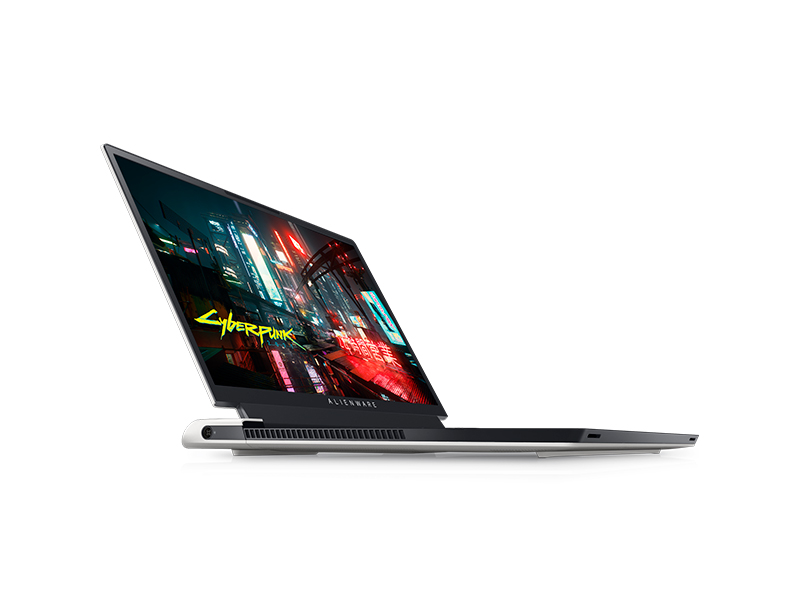
Image: Key specifications of the Alienware X17 R2.
8. Warranty thiab Support
Your Alienware X17 R2 laptop comes with a manufacturer's warranty. Please refer to the included warranty documentation for details on coverage, terms, and conditions. For technical support, driver downloads, or service requests, visit the official Alienware support website lossis hu rau lawv lub chaw pabcuam neeg siv khoom.