
NUCOUN VC-7G
NUCOUN VC-7G Mixed Denomination Money Counter Machine Instruction Manual
Model: VC-7G
1. Taw qhia
This manual provides detailed instructions for the setup, operation, maintenance, and troubleshooting of your NUCOUN VC-7G Mixed Denomination Money Counter Machine. Please read this manual thoroughly before operating the device to ensure proper function and longevity.

Duab: pem hauv ntej view of the NUCOUN VC-7G Mixed Denomination Money Counter Machine, showcasing nws cov qauv tsim compact thiab cov neeg siv interface.
2. Teeb tsa
2.1 Unpacking thiab tso
- Carefully remove the money counter from its packaging.
- Place the machine on a stable, flat surface, ensuring adequate ventilation.
- Keep the machine away from direct sunlight, high temperatures, and excessive humidity.
2.2 Kev sib txuas fais fab
- Connect the power cord to the machine's power input.
- Txuas lwm qhov kawg ntawm txoj hlua hluav taws xob rau hauv lub qhov hluav taws xob tsim nyog.
- Turn on the power switch located at the rear of the machine.
3. Cov lus qhia ua haujlwm
3.1 Tus neeg siv interface dhauview
The NUCOUN VC-7G features a user-friendly TFT touch screen and minimal key buttons for intuitive operation.
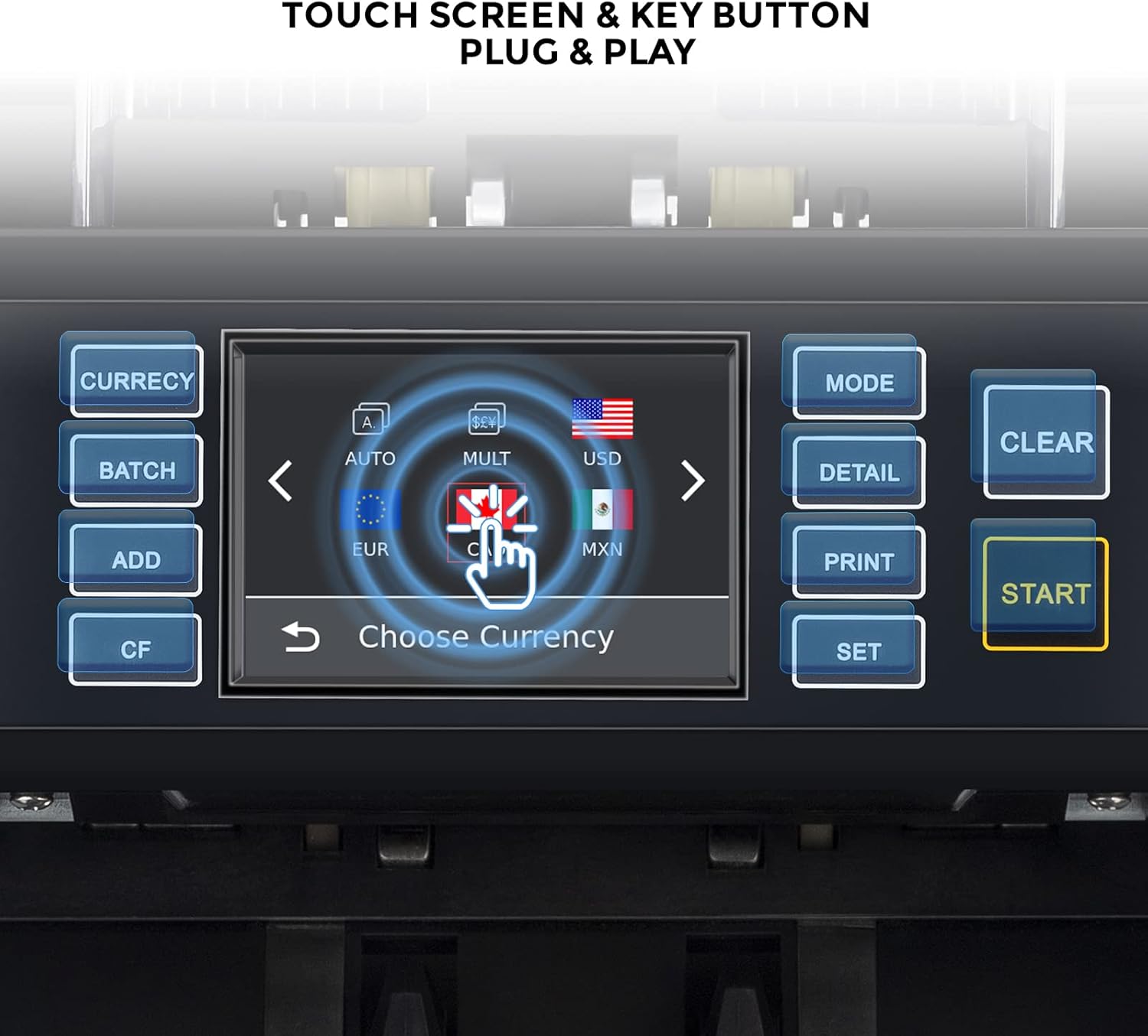
Image: Close-up of the NUCOUN VC-7G's touch screen and key buttons, highlighting the intuitive interface.
3.2 Basic Counting Operations
- Mixed Denomination suav: Place a stack of mixed denomination bills into the hopper. The machine will automatically count and calculate the total value.
- Single Denomination Counting: Select the desired denomination. The machine will count bills of that specific denomination.
- Auto Currency Recognition: The machine can automatically detect and process various currencies.
- Multi-Currency Counting: The device supports counting multiple currencies simultaneously, providing a detailed breakdown.
- Daim ntawv suav: Counts the number of bills without regard to their denomination.
- Serial Number Record: Activate this function to record and display the serial numbers of counted bills.

Image: Visual representation of the various working modes of the NUCOUN VC-7G, including mixed denomination, sorting, auto recognition, multi-currency, serial number record, and piece counting.
The NUCOUN VC-7G is designed to handle both polymer and cotton notes, including new and worn bills, ensuring accurate counting in various conditions.

Image: Illustration showing the NUCOUN VC-7G handling various types of banknotes, including old, polymer, paper, and new notes, highlighting its versatility.
4. Kev txheeb xyuas cuav
The VC-7G is equipped with advanced counterfeit detection technologies to ensure the authenticity of bills.
- 2CIS (Contact Image Sensor): Scans both sides of the bill for detailed image analysis.
- UV (Ultraviolet): Detects UV features present in genuine banknotes.
- MG (Magnetic): Verifies magnetic ink patterns.
- IR (Infrared): Checks for infrared security features.
- MT (Magnetic Thread): Detects magnetic security threads.
- SN (Serial Number) Recognition: Records and verifies serial numbers.
- Size Detection: Identifies bills with incorrect dimensions.

Image: Diagram illustrating the various counterfeit detection methods employed by the NUCOUN VC-7G, including SN recognition, UV, MG, IR, 2CIS, and size detection.
5. Kev tu
5.1 Ntxuav lub tshuab
Regular cleaning ensures optimal performance and extends the lifespan of your money counter. Use the provided brush to gently remove dust and debris from the bill path and sensors.
Video: This video demonstrates how to clean the NUCOUN VC-7G money counter machine using a brush, focusing on the bill feeding area and internal components. (Relevant segment starts at 02:21)
5.2 Cleaning the CIS Sensors
The CIS sensors are crucial for accurate denomination and counterfeit detection. Open the rear cover of the machine and gently wipe the CIS sensors with a soft, lint-free cloth or a specialized cleaning card.
Video: This video illustrates the process of cleaning the CIS sensors within the NUCOUN VC-7G, emphasizing careful handling and the use of appropriate cleaning materials. (Relevant segment starts at 02:51)
6. Software Hloov Kho Tshiab
To ensure your machine is up-to-date with the latest currency features and security enhancements, software updates can be performed via USB.
- Obtain the latest software update file from the official NUCOUN website or support.
- Luam qhov hloov tshiab file mus rau USB flash drive.
- Insert the USB flash drive into the USB port on the rear of the machine.
- Follow the on-screen instructions to initiate the upgrade process.
- Once the upgrade is complete, unplug the USB and restart the machine.
Video: This video guides you on how to update the software of the NUCOUN VC-7G using a USB drive, showing the connection and on-screen prompts. (Relevant segment starts at 03:31)
7. Data Export and Printing
7.1 Connecting to a Printer
The NUCOUN VC-7G can connect to an 80mm or 58mm receipt printer to print counting lists and serial numbers.
- Use a compatible serial cable to connect the machine to the printer.
- Connect the printer to its power source and turn it on.
- After counting in MULTI or MIX mode, press the "PRINT" button on the machine to print the counting list.
- The machine also supports printing serial numbers of bills.
Video: This video provides instructions on connecting the NUCOUN VC-7G to an 80mm or 58mm receipt printer and printing counting results, including serial numbers. (Relevant segment starts at 00:33)
7.2 Exporting Data to PC
Counting data, including denomination details and serial numbers, can be exported to a PC for record-keeping and analysis.
- Connect the machine to your PC using a USB to 232 serial cable.
- Install the necessary drivers on your PC (if not already installed).
- Access the machine's settings to select "PC" as the device choice and ensure the baud rate is set to 115200.
- Use the provided PC software to upload and save counting data in formats like Excel or PDF.
Video: This video offers detailed steps on connecting the NUCOUN VC-7G to a PC to export counting data, including driver installation and software usage. (Relevant segment starts at 04:28)
8. Cov lus qhia tshwj xeeb
| Feature | Paub meej |
|---|---|
| Hom | NUCOUN |
| Qauv | VC-7G |
| Khoom siv | Polycarbonate |
| Chaw tsim tshuaj paus | AICASH |
| Kev txheeb xyuas cuav | 2CIS, UV, MG, IR, MT, SN Recognition, Size Detection |
| Kev suav hom | Mixed Denomination, Single Denomination, Multi-Currency, Piece Counting, Sorting |
| Txhawb Cov Nyiaj Txiag | 32 currencies (covering 90% American countries) |
| Suav Ceev | Txog li 1500 daim nqi / feeb |
| Zaub | TFT Touch Screen |
| Kev sib txuas | USB, Serial Port (for printer/PC) |
| Thawj Hnub Muaj | Lub Ob Hlis 14, 2022 |
9. Kev daws teeb meem
- Error Message "Suspected Note": This indicates a potential counterfeit bill or a bill that does not match the selected denomination. Remove the bill and inspect it. If genuine, try counting it again.
- Bills Jamming: Ensure bills are neatly stacked and not folded or torn. Clean the bill path and sensors regularly.
- Inaccurate Counts: Perform regular cleaning of sensors. Ensure bills are properly aligned in the hopper.
- Lub tshuab tsis muaj zog: Check the power cord connection and the power switch. Ensure the power outlet is functional.
- Lub tshuab luam ntawv tsis teb: Verify the cable connection between the machine and the printer. Ensure the printer is powered on and has paper. Check baud rate settings in the machine's menu.
- Software Update Failure: Ensure the USB drive contains the correct update file and is properly inserted. Restart the machine and try again.
10. Warranty thiab Support
NUCOUN offers a three-year quality protection warranty for the VC-7G money counter. This includes lifetime software upgrade and maintenance support.
For technical assistance, software updates, or any inquiries, please contact our dedicated support team. Our US-based support team aims to answer your questions within 12 hours.
- Email: service@nucoun.com
- Xov tooj: +1-206-406-7653

Image: Graphic indicating 24/7 support and a dedicated US-based support team for NUCOUN products.
Ask a question about this manual
Ask about setup, troubleshooting, compatibility, parts, safety, or missing instructions. Manuals+ will review the question and use this page’s manual context to help answer it.