
Taw qhia
Thank you for choosing the Bewinner T11 Smart Voice Language Translator. This device is designed to facilitate seamless communication across language barriers, offering real-time two-way translation for a wide range of languages, both online and offline. This manual provides essential information on setting up, operating, and maintaining your translator to ensure optimal performance.
Khoom Tshajview
The Bewinner T11 is a compact and portable smart translator featuring a 2.4-inch touchscreen. It supports up to 138 online and 14 offline languages with high accuracy. Key features include voice recognition, photo translation via a 500W pixel camera, dual noise-canceling microphones, and a long-lasting 1500mAh battery.
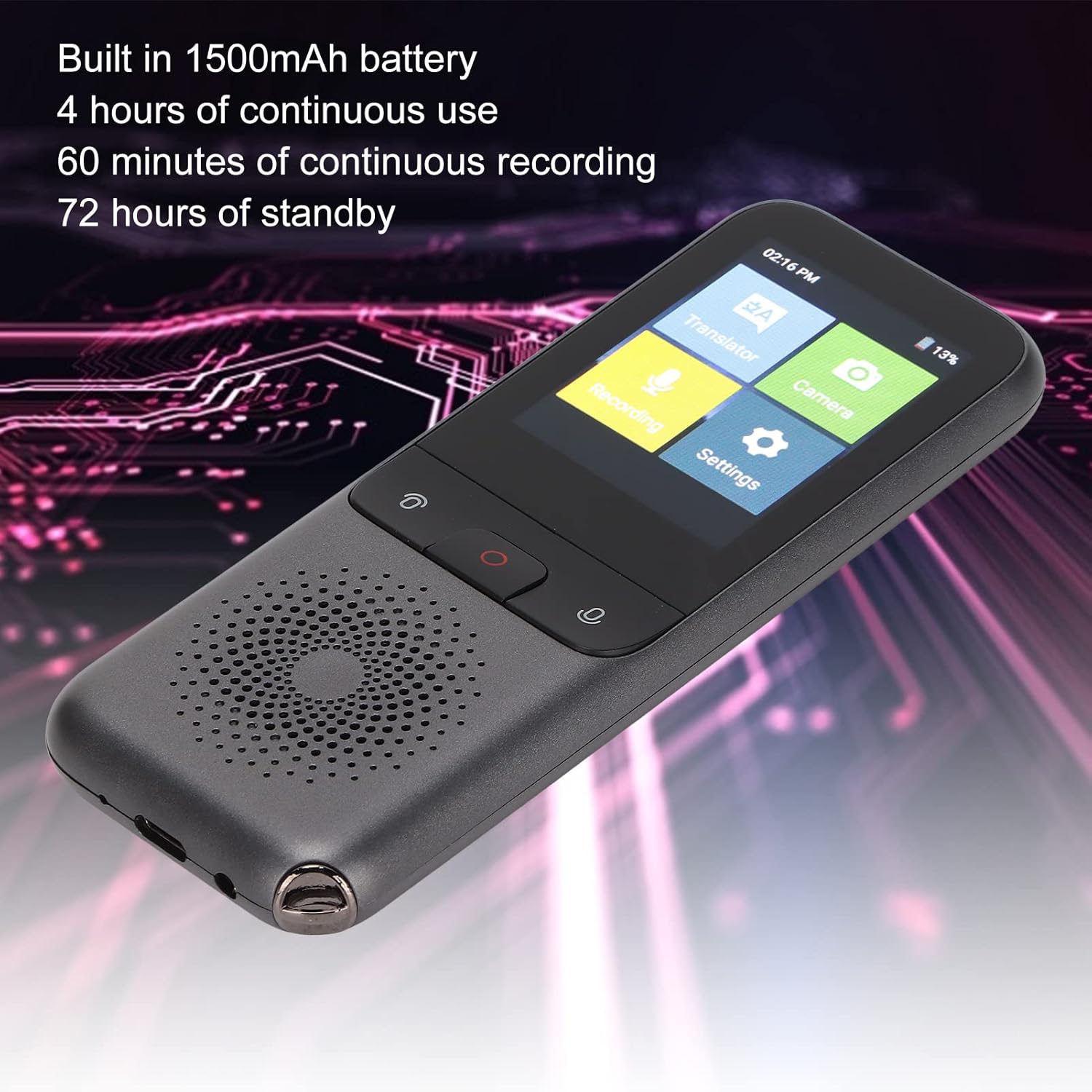
The Bewinner T11 translator is shown displaying its primary function menu on the 2.4-inch touchscreen. Icons for Translator, Recording, Settings, and Camera are visible, indicating the device's versatile capabilities. The image also highlights the device's sleek design and speaker.
Teeb tsa
1. Kev them nyiaj yug ntaus ntawv
Before first use, fully charge the translator. Connect the provided USB-C cable to the device's charging port and the other end to a compatible USB power adapter (not included) or a computer's USB port.
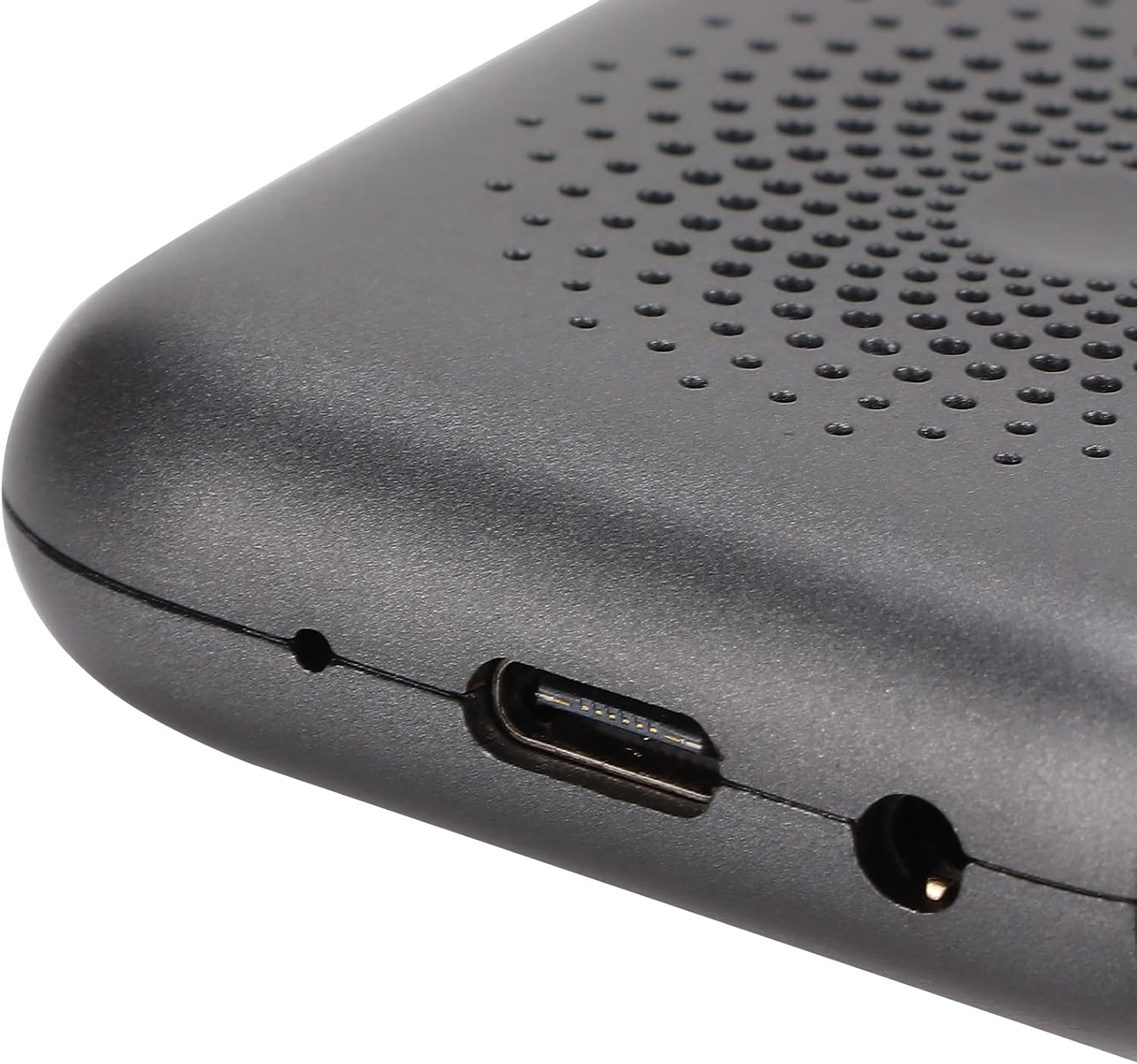
Cov ncauj lus kom ntxaws view of the Bewinner T11 translator's bottom edge, clearly showing the USB-C port for charging and data transfer, alongside a 3.5mm headphone jack. This allows for private listening during translation or recording.
2. Fais fab rau / tawm
- Txhawm rau Fais Fab: Press and hold the power button (usually the central button or indicated by a power symbol) for approximately 3 seconds until the screen illuminates.
- Mus Faib Tawm: Press and hold the power button for approximately 3 seconds. A power-off confirmation prompt will appear on the screen. Select 'Power Off' to shut down the device.
3. Kev sib txuas network (Wi-Fi)
For online translation, a stable Wi-Fi connection is required.
- From the main menu, tap on 'Settings'.
- Select 'Wi-Fi'.
- Toggle the Wi-Fi switch to 'On'.
- Xaiv qhov koj xav tau Wi-Fi network los ntawm cov npe.
- Nkag mus rau tus password yog tias tau nug thiab coj mus rhaub 'Txuas'.
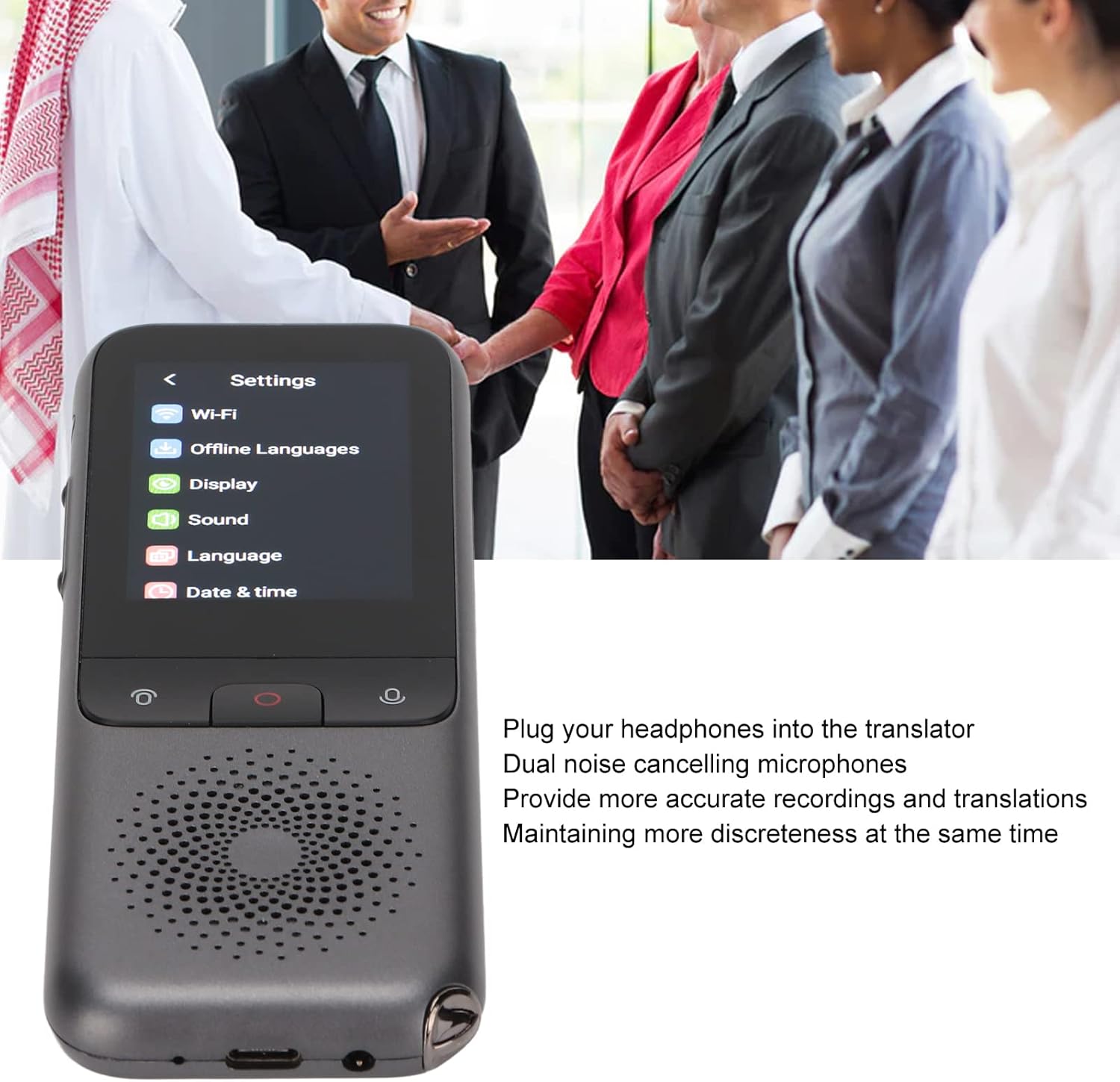
This image shows the Bewinner T11 Smart Voice Language Translator held in hand, with its 2.4-inch touchscreen displaying the main settings menu, including options for Wi-Fi, Offline Languages, Display, Sound, Language, and Date & Time. The device features a speaker grille at the bottom.
Cov lus qhia ua haujlwm
1. Voice Translation (Online/Offline)
The device supports two-way voice translation. Ensure your desired source and target languages are selected in the 'Language' settings.
- From the main menu, tap 'Translator'.
- Select the source and target languages by tapping on the language indicators at the top of the screen.
- Press and hold the designated voice input button (often a large central button or indicated by a microphone icon) and speak clearly into the device.
- Release the button once you have finished speaking. The device will process and translate your speech, displaying the text and playing the audio translation.
For offline translation, ensure the required language packs are downloaded via the 'Offline Languages' setting when connected to Wi-Fi.
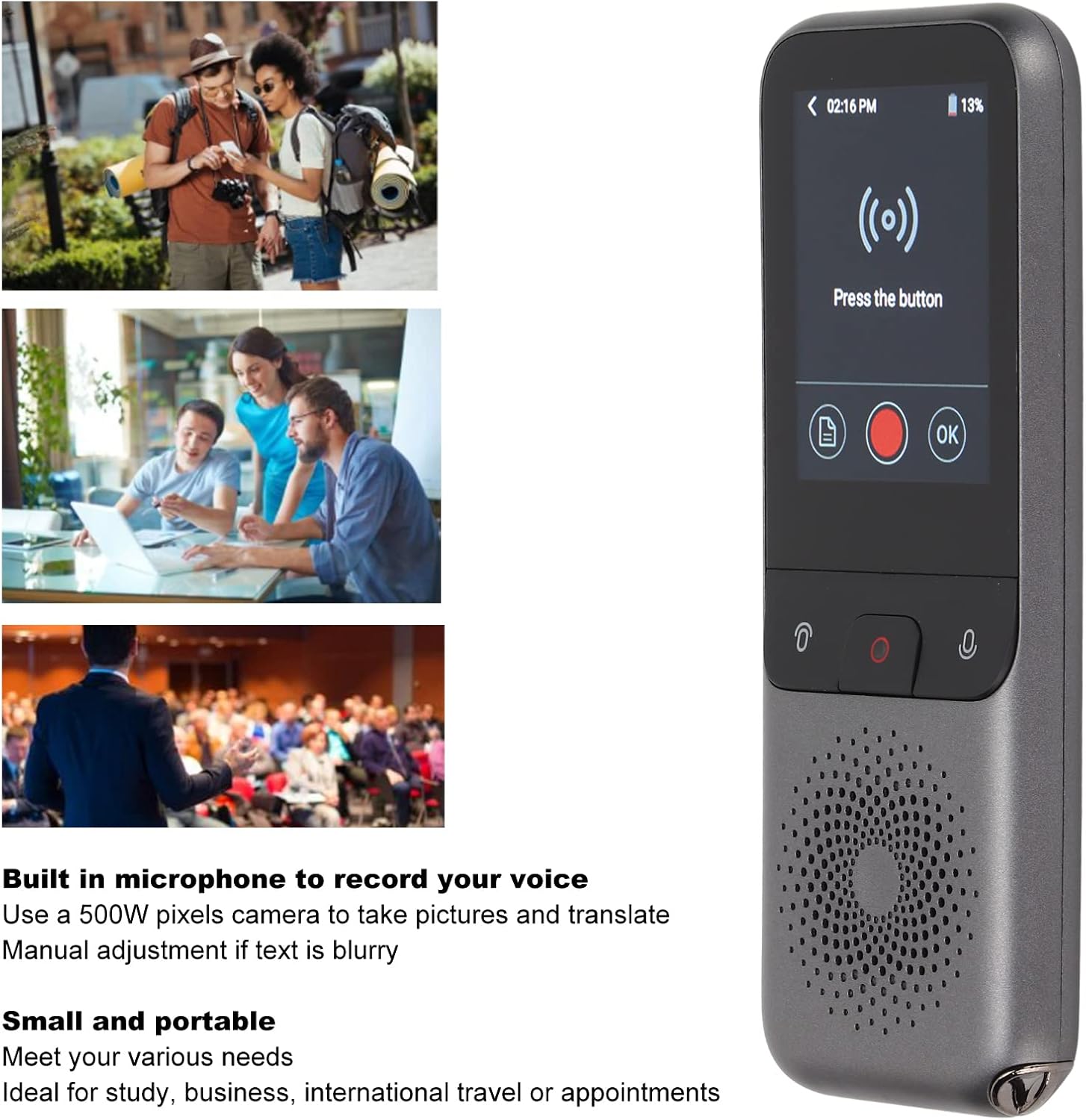
This image illustrates the Bewinner T11 translator's voice input screen, prompting the user to "Press the button" for translation. Accompanying lifestyle images depict various scenarios where the translator can be used, such as during travel, business meetings, or educational settings, emphasizing its utility for study, business, international travel, or appointments.
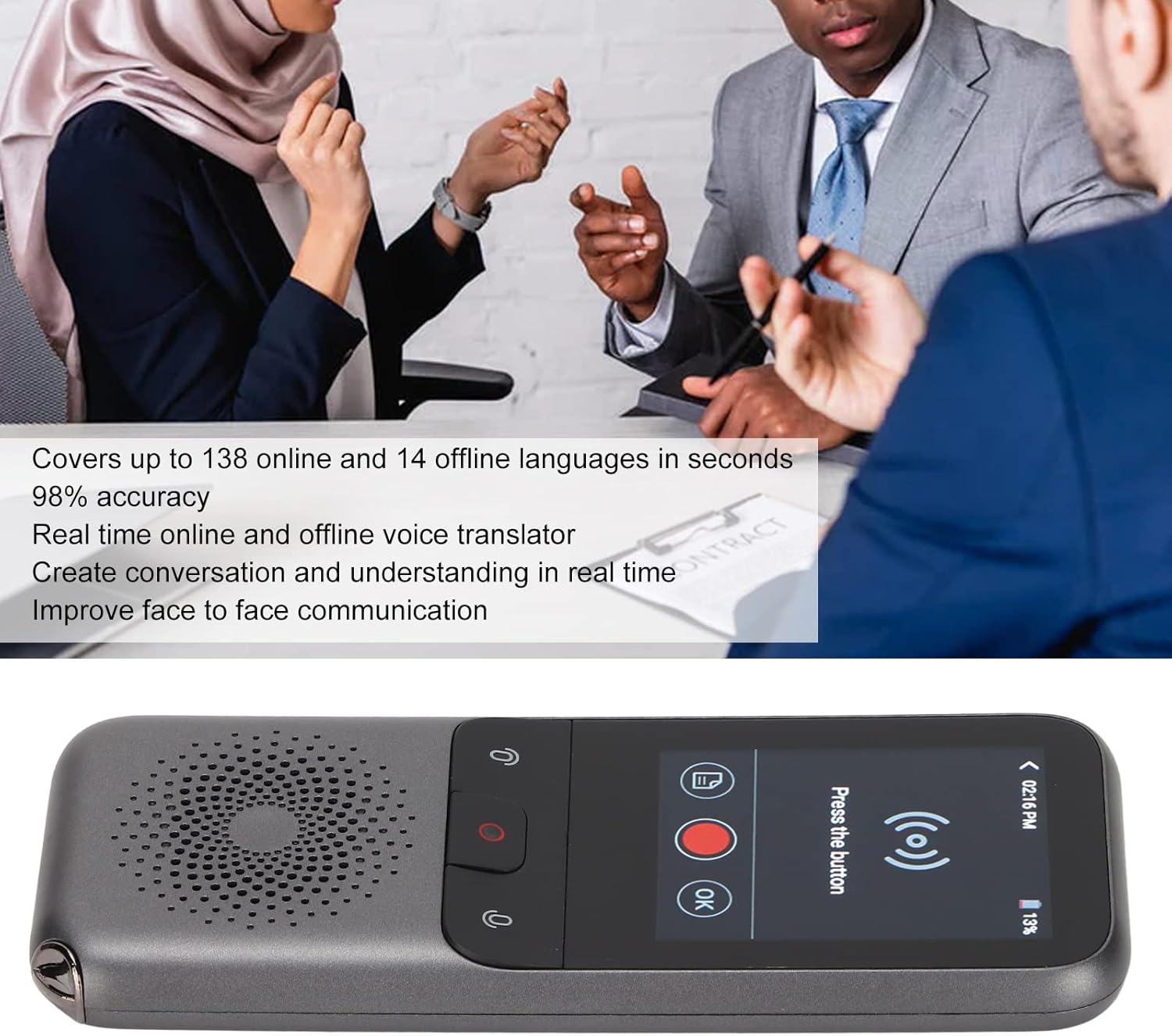
The Bewinner T11 translator is shown in action, displaying a translation on its screen. In the background, people are engaged in conversation, symbolizing the device's ability to facilitate real-time, two-way communication across up to 138 online and 14 offline languages with 98% accuracy.
2. Kev txhais Duab
The built-in 500W pixel camera allows for translation of text from images.
- From the main menu, tap 'Camera'.
- Point the camera at the text you wish to translate. Ensure the text is well-lit and clear.
- Tap the capture button on the screen.
- The device will process the image and display the translated text. If the text is blurry, manual adjustment may be required on-screen.
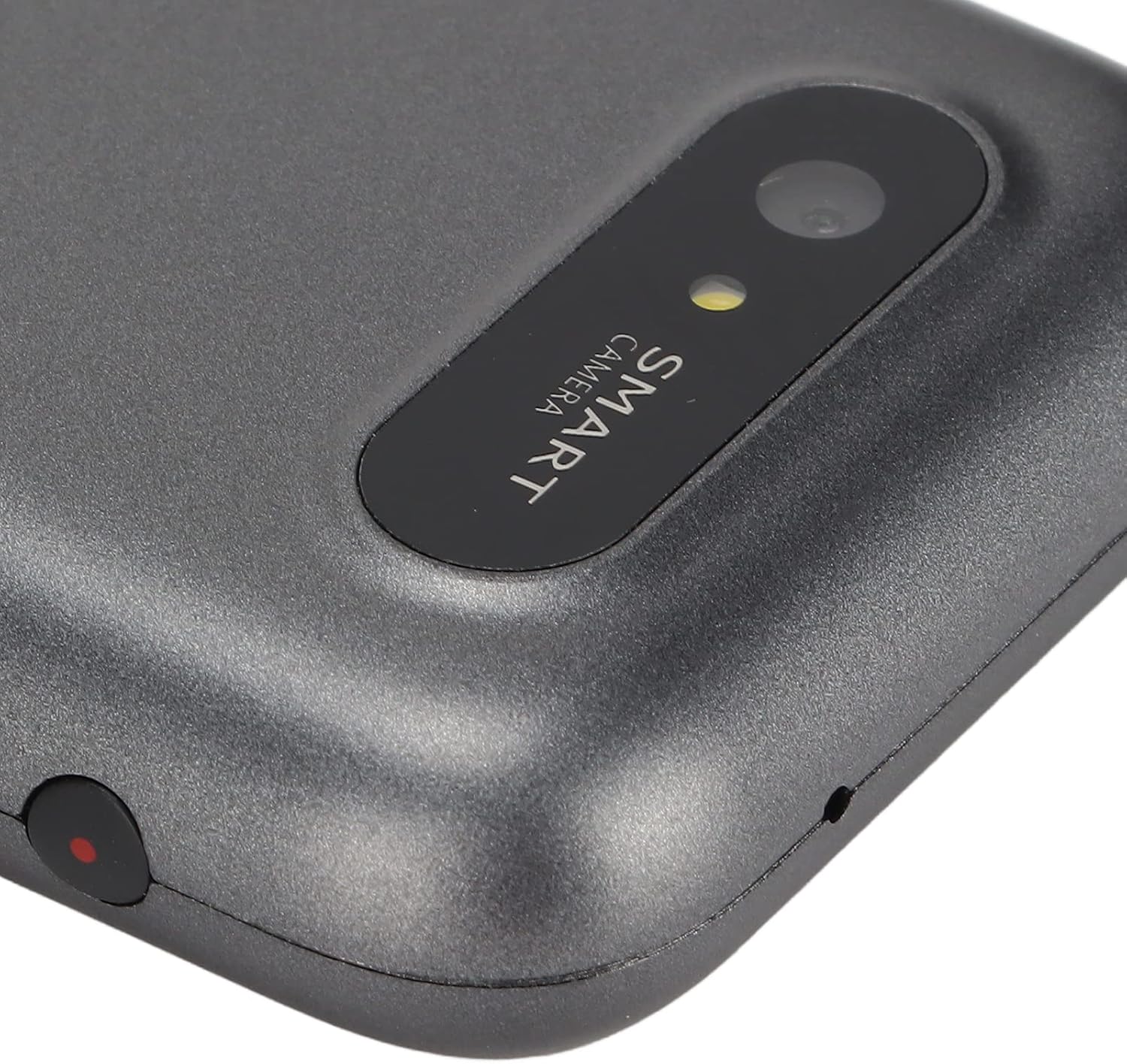
A close-up shot of the Bewinner T11 translator's integrated 500W pixel smart camera, located on the rear of the device. This camera enables photo translation, allowing users to capture text from signs or documents and have it translated.
3. Kev Sau Npe
The device can record audio, which can then be translated.
- From the main menu, tap 'Recording'.
- Tap the record button to start recording.
- Tap the stop button to end the recording.
- Recorded audio can be played back or selected for translation.
4. Siv lub mloog pob ntseg
For private listening or more accurate recordings in noisy environments, plug headphones into the 3.5mm jack. The dual noise-canceling microphones will enhance recording clarity.
Kev tu
- Siv daim ntaub mos mos thiab qhuav so lub cuab yeej kom huv si. Tsis txhob siv cov tshuaj ntxuav uas ua rau tawv los yog cov tshuaj yaj.
- Tiv thaiv qhov screen ntawm khawb los ntawm kev siv cov khoom tiv thaiv screen yog tias muaj.
- Tsis txhob tso lub cuab yeej rau qhov kub thiab txias, ncaj qha tshav ntuj, lossis noo noo.
- Khaws lub cuab yeej rau hauv qhov chaw txias, qhuav thaum tsis siv.
- Regularly charge the battery to maintain its health, even if the device is not used frequently.
Kev daws teeb meem
| Teeb meem | Ua Tau | Kev daws |
|---|---|---|
| Cov cuab yeej tsis siv hluav taws xob. | Tsawg roj teeb; khoom khov. | Charge the device for at least 30 minutes. If still unresponsive, perform a hard reset (refer to manufacturer support if no reset button is visible). |
| Kev txhais lus tsis raug lossis qeeb. | Poor Wi-Fi connection; unclear speech; language settings incorrect. | Ensure a strong Wi-Fi signal. Speak clearly and at a moderate pace. Verify that the correct source and target languages are selected. |
| Offline translation not working. | Language packs not downloaded. | Connect to Wi-Fi and download the necessary offline language packs from the 'Offline Languages' menu in Settings. |
| Photo translation is blurry. | Insufficient lighting; camera not focused; text too small. | Ensure adequate lighting. Hold the device steady. Adjust the camera focus manually if the option is available. Try to capture larger text. |
| Roj teeb ntws sai sai. | High screen brightness; continuous Wi-Fi use; background apps. | Reduce screen brightness. Turn off Wi-Fi when not needed. Close unused applications. |
Specifications
- Qauv: T11
- Khoom siv: ABS
- Roj teeb muaj peev xwm: 1500 mAh (Built-in Lithium Battery)
- Operating Memory (RAM): 2 GB ua
- Cia Muaj Peev Xwm: 32 GB ua
- Screen Loj: 2.4-nti Touchscreen
- Kev daws teeb meem: 240 x 320
- Networking Method: Wi-nkaus
- Lub koob yees duab: 500W Pixels
- Cov Ntaub Ntawv Sib Txuas: Hom-C
- Kev siv txuas ntxiv: Mus txog 4 teev
- Cov Ntaubntawv Nruam Nruam: 60 feeb
- Standby Sijhawm: 72 hnu
- Online Languages: Mus txog 138
- Offline Languages: 14
- Translation Accuracy: 98%

The Bewinner T11 Smart Voice Language Translator is displayed alongside its accompanying USB charging cable, illustrating the complete product package.
Warranty thiab Support
Bewinner is committed to providing high-quality products and excellent customer service. If you encounter any issues or have questions regarding your Bewinner T11 Smart Voice Language Translator, please refer to the retailer's return policy or contact Bewinner customer support for assistance. We strive to resolve any problems to ensure your satisfaction.