
1. Taw qhia
This manual provides instructions for the installation, operation, and maintenance of your WiZ Smart LED Imageo Spotlight Plate. This smart lighting system offers versatile illumination with adjustable white and colored light, motion detection via SpaceSense technology, and voice control capabilities.

Daim duab 1: WiZ Smart LED Imageo Spotlight Plate with three GU10 bulbs and its product packaging.
2. Cov ntsiab lus ntawm pob
- 1x WiZ Smart LED Imageo Spotlight Plate (White)
- 3x GU10 5W Smart LED Bulbs
- Installation Hardware (screws, wall plugs)
- Tus Neeg Siv Los Siv (cov ntawv no)
3. Cov ntaub ntawv kev nyab xeeb
- Xyuas kom lub zog raug txiav ua ntej kev teeb tsa lossis kev saib xyuas.
- Yog tias koj tsis paub meej, tus kws kho hluav taws xob uas tsim nyog yuav tsum tau ua qhov kev teeb tsa.
- Tsis txhob cia cov khoom raug dej los yog noo noo ntau dhau.
- Use only GU10 bulbs as specified.
4. Kev teeb tsa
- Fais fab tawm: Tua lub hwj chim tseem ceeb ntawm lub circuit breaker ua ntej pib teeb tsa.
- Mounting the Plate: Secure the circular ceiling plate to your desired location using the provided screws and wall plugs. Ensure the mounting surface is suitable to support the fixture's weight.
- Kev xaim: Connect the electrical wires from your ceiling to the terminal block on the spotlight plate. Follow local electrical codes and ensure proper grounding.
- Insert Noob: Gently insert the three GU10 smart LED bulbs into the spotlight sockets.
- Kho cov teeb pom kev zoo: Adjust the direction of each spotlight as needed.
- Hwj chim On: Restore power at the circuit breaker. The lights should turn on.

Daim duab 2: Visual guide for installing WiZ smart lights and downloading the app.
5. Kev Teeb Tsa Thawj Zaug thiab Kev Txuas App
- Rub tawm WiZ App: Download the WiZ app from the Apple App Store or Google Play Store.
- Tsim ib tus account: Open the app and follow the on-screen instructions to create a new WiZ account or log in to an existing one.
- Pairing: In the app, select "Add Device" and follow the pairing process. Ensure your Wi-Fi network is active and your phone is connected to the 2.4GHz band during setup.
- Room Assignment: Assign your new spotlight plate to a room within the app for organized control.
6. Operating Your WiZ Smart LED Spotlight
6.1. Basic Control (WiZ App)
- On/off: Toggle the lights on or off directly from the app.
- Dhuav: Adjust the brightness level using the dimmer slider in the app.
- Kev kho lub teeb dawb: Change the white light from warm (yellowish) to cool (bluish) tones to suit your preference or time of day.
- Xim xaiv: Choose from millions of colors to create various ambiances.
- Preset Scenes: Utilize pre-programmed lighting scenes for different activities or moods.

Daim duab 3: The WiZ spotlight plate can produce light from warm white to cool white.

Daim duab 4: The WiZ spotlight plate offers millions of color options for personalized lighting.
6.2. SpaceSense Motion Detection
The WiZ SpaceSense technology uses Wi-Fi signals to detect movement in a room without requiring additional sensors. This allows your lights to turn on automatically when you enter and off when you leave.
- Qhib qhib: Enable SpaceSense in the WiZ app for the desired room.
- Kev kho qhov siab: Adjust the sensitivity settings in the app to fine-tune motion detection. You can set it to detect all movement or only human movement, ignoring pets.
- No Extra Sensors: This feature works using the existing WiZ lights and your Wi-Fi network, eliminating the need for separate motion sensors or batteries.
Clip 1: Demonstration of WiZ SpaceSense technology, showing lights automatically turning on and off based on movement detection.
6.3. Lub suab tswj
The WiZ Smart LED Spotlight Plate is compatible with popular voice assistants, allowing for hands-free control.
- Txhawb Platforms: Works with Amazon Alexa, Apple HomeKit, and Google Home.
- Kev teeb tsa: Link your WiZ account to your preferred voice assistant app (e.g., Alexa app, Google Home app).
- Cov lus txib: Use voice commands such as "Alexa, turn on the living room lights," "Hey Google, dim the kitchen spotlights to 50%," or "Siri, set the bedroom lights to blue."
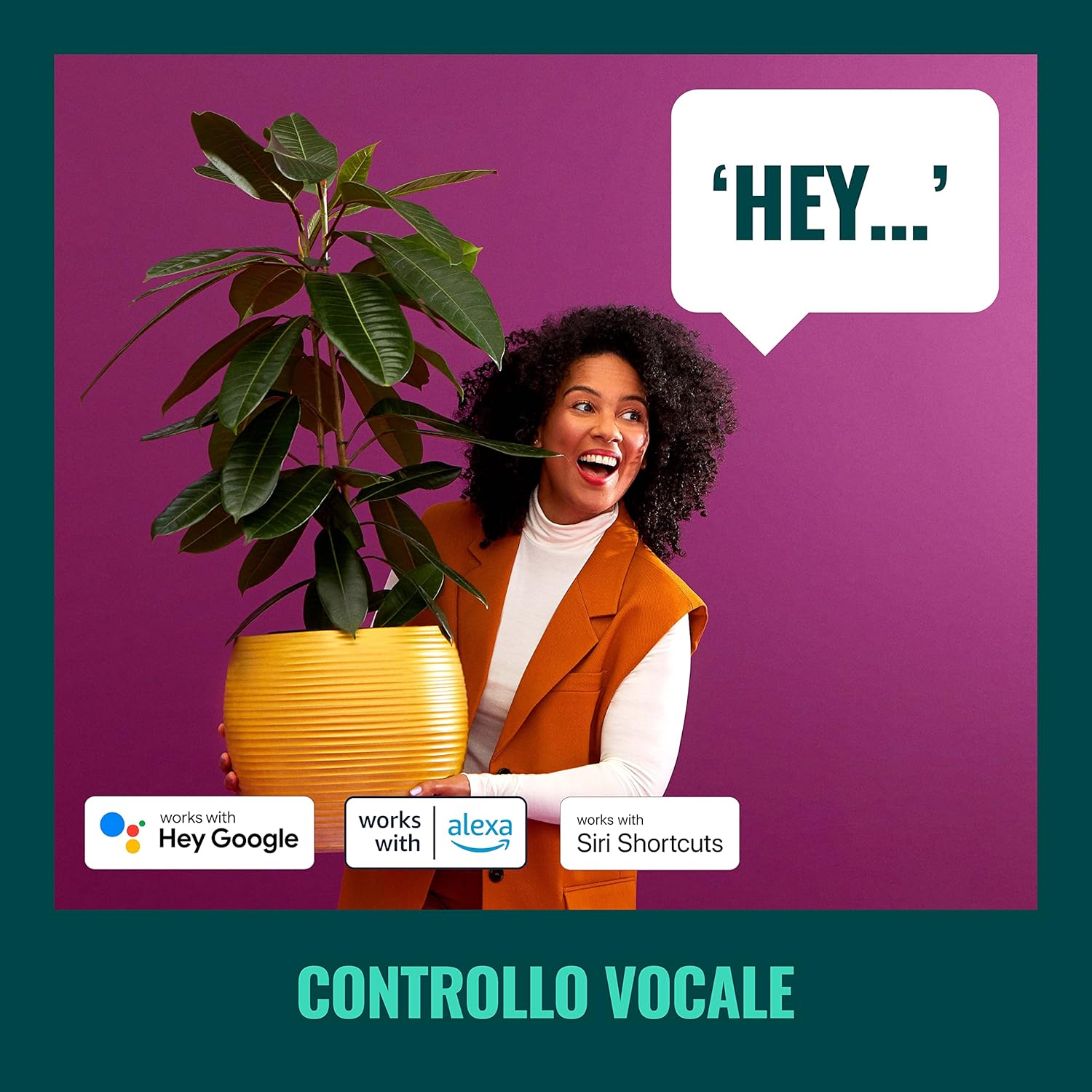
Daim duab 5: The WiZ system supports voice control via popular smart home platforms.
6.4. Schedules and Routines
Automate your lighting to fit your daily routine.
- Teem sijhawm: Set specific times for lights to turn on/off, change brightness, or alter color.
- Circadian Rhythm: Enable Circadian Rhythm to automatically adjust light color and brightness throughout the day to mimic natural light patterns, promoting well-being.

Daim duab 6: Tshajview of advanced control features including scene personalization, remote control, scheduling, and circadian rhythm.
7. Kev tu
- Ntxuav: Tua lub hwj chim ua ntej ntxuav. So lub teeb nrog daim ntaub mos mos thiab qhuav. Tsis txhob siv cov tshuaj ntxuav lossis cov tshuaj yaj.
- Hloov qhov muag teev: Ensure power is off. Allow bulbs to cool before handling. Twist and pull to remove old GU10 bulbs, then insert new ones by aligning and twisting.
- Software hloov tshiab: Regularly check the WiZ app for firmware updates to ensure optimal performance and access to new features.
8. Kev daws teeb meem
- Lub teeb tsis teb:
- Check if the main power switch is on.
- Xyuas kom tseeb tias koj lub network Wi-nkaus ua haujlwm thiab ruaj khov.
- Verify that the WiZ app is connected to the correct Wi-Fi network.
- Try power cycling the spotlight plate (turn off for 10 seconds, then on).
- Kev sib txuas nyuaj:
- Ensure your phone is connected to a 2.4GHz Wi-Fi network during pairing.
- Txav mus ze rau koj lub Wi-Fi router.
- Reset the bulbs by turning them on/off three times (on for 1-2 seconds, off for 1-2 seconds) until they flash.
- SpaceSense Not Detecting Movement:
- Increase the sensitivity setting in the WiZ app.
- Ensure there are at least two WiZ lights in the room for optimal detection.
- Check for obstructions that might block Wi-Fi signals.
- Lub Suab Tswj Teeb Meem:
- Confirm that your WiZ account is correctly linked to your voice assistant.
- Tshawb xyuas koj qhov kev sib txuas hauv internet.
- Ensure the device name in the WiZ app matches the name used in voice commands.
9. Cov lus qhia tshwj xeeb
| Feature | Specification |
|---|---|
| Hom | WiZ |
| Qauv nab npawb | 929003210801 |
| Khoom Dimensions | 12 x 11 x 26 cm |
| Qhov hnyav | 1, XNUMX kg |
| Xim | Dawb |
| Khoom siv | Metal (fixture), Plastic (shade) |
| Style | Kawm paub |
| Number of Lights | 3 |
| Noob Hom | LED |
| Bulb Base | GU10 |
| Wattage (rau lub teeb) | 5 XNUMX w |
| Luminous Flux | 1350 lumens (total) |
| Voltage | 230 Volt (AC) |
| Kev ntsuas IP | IP20 |
| Nruab Nrab Lifespan | 15,000 teev |
| Tshwj xeeb nta | Dimmable, Energy Saving, SpaceSense Technology, Voice Control |
10. Warranty thiab Support
For warranty information and technical support, please refer to the official WiZ website lossis tiv tauj lawv cov neeg siv khoom. Khaws koj daim ntawv yuav khoom ua pov thawj ntawm kev yuav khoom.
Cov ntaub ntawv online: Mus saib lub WiZ Brand Store rau cov ntaub ntawv khoom ntxiv thiab kev txhawb nqa.