
Taw qhia
Phau ntawv qhia no muab cov lus qhia ntxaws ntxaws rau kev teeb tsa, kev ua haujlwm, thiab kev saib xyuas ntawm koj lub weBoost for Business Office 200 (75 Ohm) Cell Phone Signal Booster. This system is designed to enhance cellular signal strength within your business environment, supporting 5G and 4G LTE networks across all major U.S. carriers. Please read this manual thoroughly before beginning installation to ensure optimal performance and safety.
Khoom Tshajview

Image: The complete weBoost Office 200 system components.
Cov yam ntxwv tseem ceeb
- Enhances 5G and 4G LTE signals for all major U.S. carriers (Verizon, AT&T, T-Mobile, UScellular).
- Provides up to 72 dB maximum gain (FCC ID PWO460047).
- Designed for DIY installation with 75 Ohm cables.
- Supports multiple cellular devices including smartphones, tablets, and POS systems.
- FCC approved for safe and compliant operation.
Ntim Cov Ntsiab Lus
Cov weBoost Office 200 package includes the following components:
- Office 200 Booster Unit
- Outside Omni Antenna
- Inside Ceiling Antenna
- Fais fab mov
- Coaxial Cables
- Lightning Surge Protector

Image: Illustration emphasizing the quality of components.
Kev teeb tsa thiab kev teeb tsa
Cov weBoost Office 200 is designed for DIY installation. Basic tools are required. For detailed, step-by-step guidance, it is highly recommended to use the official weBoost App, which provides video tutorials and an antenna positioning guide.
Pre-Installation Check
Before installing, verify that you have at least one bar of cellular service outside your business location. This system amplifies existing signal; it does not create signal where none exists.

Image: Visual reminder to check outdoor signal strength.
Installation kauj ruam dhauview
- Locate the Strongest Outdoor Signal: Siv cov weBoost App's antenna positioning guide to find the optimal location for the Outside Omni Antenna, typically on the roof or an exterior wall, where the signal is strongest.
- Install Outside Antenna: Mount the Outside Omni Antenna securely. Ensure it has a clear line of sight to the nearest cell tower if possible.
- Install Inside Antenna: Mount the Inside Ceiling Antenna in the central area where signal improvement is desired. Ensure adequate separation (vertical and horizontal) between the inside and outside antennas to prevent oscillation.
- Txuas Cables: Run the provided coaxial cables from the Outside Antenna to the Lightning Surge Protector, then to the Booster Unit. Connect the Inside Antenna to the Booster Unit.
- Txuas lub zog: Plug the Power Supply into the Booster Unit and then into a power outlet. The booster will power on automatically.
- Tshawb xyuas kev ua haujlwm: Check the indicator lights on the booster unit. Refer to the weBoost App for signal readings and to confirm proper operation.

Duab: Tus weBoost App assists with installation and troubleshooting.
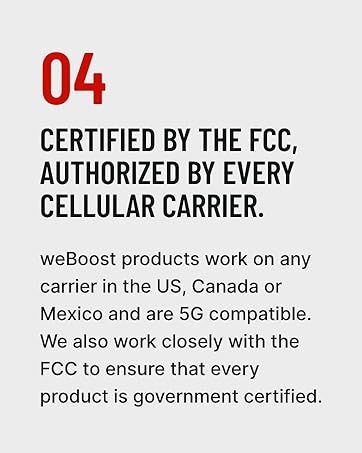
Image: Confirmation of FCC certification and carrier authorization.
Cov lus qhia ua haujlwm
Once properly installed and powered on, the weBoost Office 200 operates automatically. It continuously monitors and amplifies cellular signals to provide improved coverage within its designated area.
- Hwj chim On: The booster powers on automatically when connected to a power source.
- Qhov taw qhia teeb liab: The booster unit features a display that shows signal strength per band. Green lights typically indicate proper operation. Refer to the weBoost App or the full user guide for detailed explanations of indicator lights.
- Cov cheeb tsam npog: The system is designed to cover up to 10,000 sq ft, depending on the strength of the outside signal and building materials.

Image: Representation of enhanced 5G signal coverage within a business environment.
Kev tu
Cov weBoost Office 200 system requires minimal maintenance. Follow these guidelines to ensure continued optimal performance:
- Khaws cov Cheebtsam huv si: Periodically wipe down the booster unit and antennas with a dry, soft cloth. Avoid using harsh chemicals or abrasive cleaners.
- Tshawb xyuas kev sib txuas: Ensure all coaxial cable connections are secure and free from damage. Loose connections can degrade performance.
- Tshawb xyuas Antennas: Regularly check the outdoor antenna for any obstructions, damage from weather, or changes in orientation.
- Ib puag ncig tej yam kev mob: Ensure the booster unit is kept in a dry, well-ventilated area, away from extreme temperatures.
Kev daws teeb meem
Yog tias koj ntsib teeb meem nrog koj weBoost Office 200, consult the following common troubleshooting steps:
- No Signal Improvement:
- Verify the booster is powered on and indicator lights are green.
- Ensure sufficient separation between the indoor and outdoor antennas. Increase separation if oscillation (red lights) is indicated.
- Check all cable connections for tightness and proper seating.
- Confirm there is at least one bar of usable signal outside the building.
- Weak Signal Improvement:
- Re-evaluate the placement of the Outside Omni Antenna to ensure it is in the location with the strongest available signal.
- Adjust the direction of the Outside Omni Antenna using the weBoost App's signal compass.
- Ensure the Inside Ceiling Antenna is centrally located within the desired coverage area.
- Red Indicator Lights:
- Red lights typically indicate oscillation (feedback) between the antennas. Increase the physical separation between the Inside and Outside Antennas.
- Ensure the antennas are not pointing directly at each other.
For more advanced troubleshooting or persistent issues, refer to the weBoost App or contact customer support.
Specifications
| Yam ntxwv | Paub meej |
|---|---|
| Qauv nab npawb | 471047 |
| Hom | weBsab hnub tuaj |
| Max nce | 72dB ua |
| FCC ID | PWO 460047 |
| Khoom Dimensions | 19 x 13 x 13 po |
| Yam Nyhav | 21.4 puj |
| Compatible Devices | Smartphones, Tablets, POS Systems |
| Txhawb Networks | 5G, 4G LTE |
| Txhawb nqa nqa | All major U.S., Canada, and Mexico carriers (Verizon, AT&T, T-Mobile, Dish, US Cellular) |
Warranty thiab Support
weBoost stands by the quality of its products and offers comprehensive support.
- Warranty: Cov weBoost Office 200 comes with a 3-year manufacturer's warranty.
- Kev Pab Txhawb Cov Neeg Siv Khoom: Expert U.S.-based customer support is available through the weBoost App, online chat, phone, or email.
- Nyiaj-Back Guarantee: weBoost offers a 30-day money-back guarantee.
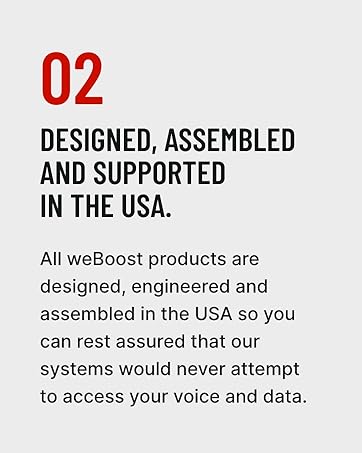
Image: Emphasizing weBoost's USA-based design, assembly, and support.
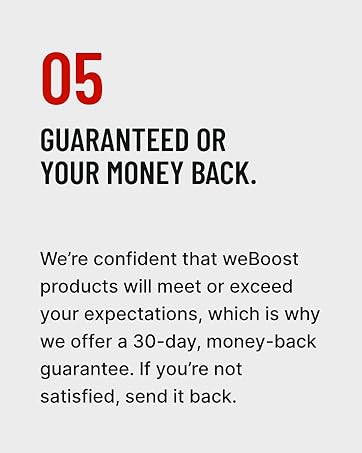
Image: Information about the money-back guarantee.