
NYXI SP5248LED-BK
NYXI Wireless Controller rau Nintendo Hloov, Hloov Lite, thiab Hloov OLED - Phau Ntawv Qhia Siv
Model: SP5248LED-BK
1. Taw qhia
Ua tsaug rau kev yuav khoomasing the NYXI Wireless Controller. This controller is designed to enhance your gaming experience on Nintendo Switch, Switch Lite, and Switch OLED consoles. It features advanced functionalities such as customizable LED lighting, programmable back buttons, adjustable vibration, a 6-axis gyro sensor, and a TURBO function.
Please read this manual carefully before use to ensure proper operation and to fully utilize all features of your new controller.

Duab 1.1: Pem hauv ntej view of the NYXI Wireless Controller, showcasing its ergonomic design and illuminated joysticks.
2. Cov ntsiab lus ntawm pob
Xyuas kom tseeb tias txhua yam khoom muaj nyob hauv pob:
- NYXI Wireless Controller x 1
- Hom-C Charging Cable x 1
- Phau ntawv qhia x 1

Image 2.1: The NYXI Wireless Controller and its retail packaging.
3. Khoom Nta
- Muaj yeeb yuj LED teeb: Features 9 LED colors (Red, Orange, Green, Cyan, Blue, Purple, Pink, Rainbow) and 3 lighting modes to customize your gaming atmosphere.
- Customizable Back Buttons: Equipped with 4 programmable back buttons (M1, M2, M3, M4) that can be assigned to various functions, simplifying complex in-game actions.
- Adjustable Vibration & 6-Axis Gyro: Offers 4 levels of vibration intensity for immersive feedback and a 6-axis gyro sensor for precise motion control.
- TURBO muaj nuj nqi: Includes a TURBO button for continuous firing, with 3 adjustable speed settings (5, 12, or 20 shots per second), reducing hand fatigue during prolonged gameplay.
- Lub neej roj teeb ntev: Built-in 600mAh battery provides approximately 10 hours of gameplay on a 2-hour charge. Supports both wireless and wired connections.
- Wake-up Function: Pressing the Home button can wake up the Nintendo Switch console from sleep mode.
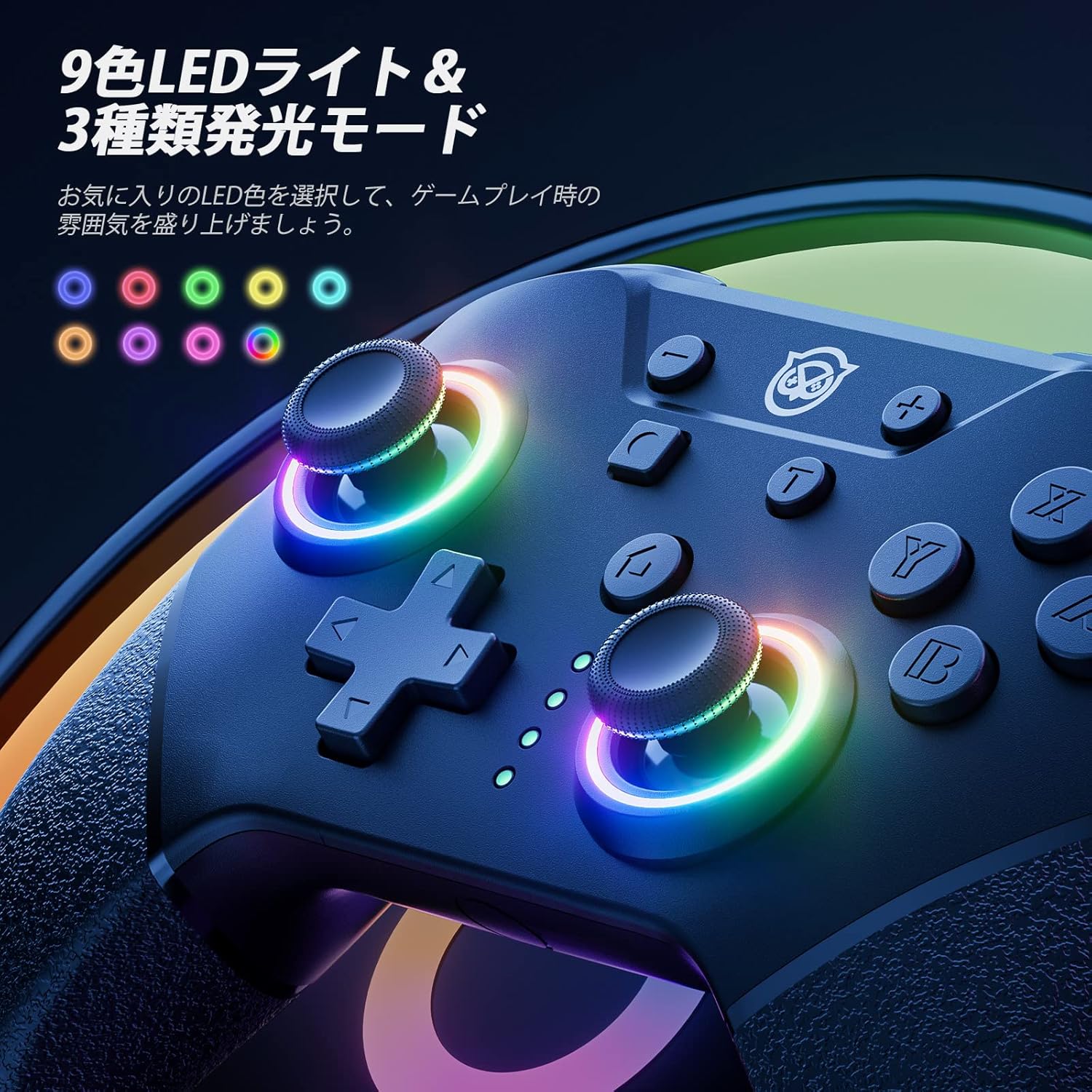
Image 3.1: The controller's joysticks displaying various LED colors and lighting effects.

Image 3.2: The rear of the controller, showing the strategically placed and customizable M1, M2, M3, and M4 buttons.
4. Kev teeb tsa thiab kev sib txuas
4.1 Wireless Pairing with Nintendo Switch
- Ntawm koj lub Nintendo Switch console, mus rau HOME Menu.
- Xaiv "Cov Tswj" > "Hloov Qhov Tuav/Txiav Txim".
- Press and hold the Sync button on the back of the NYXI controller for 3-5 seconds until the LED indicators start flashing rapidly.
- Once the controller is successfully paired, the player LED(s) on the controller will light up solid.
4.2 Qhov Kev Txuas Hlau Txuas
To use the controller in wired mode, connect the Type-C charging cable from the controller to a USB port on the Nintendo Switch dock. Ensure that "Pro Controller Wired Communication" is enabled in the Switch System Settings.
4.3 Waking Up the Console
When the Switch console is in sleep mode, you can press the Home button on the NYXI controller to wake it up, provided the controller is already paired wirelessly.
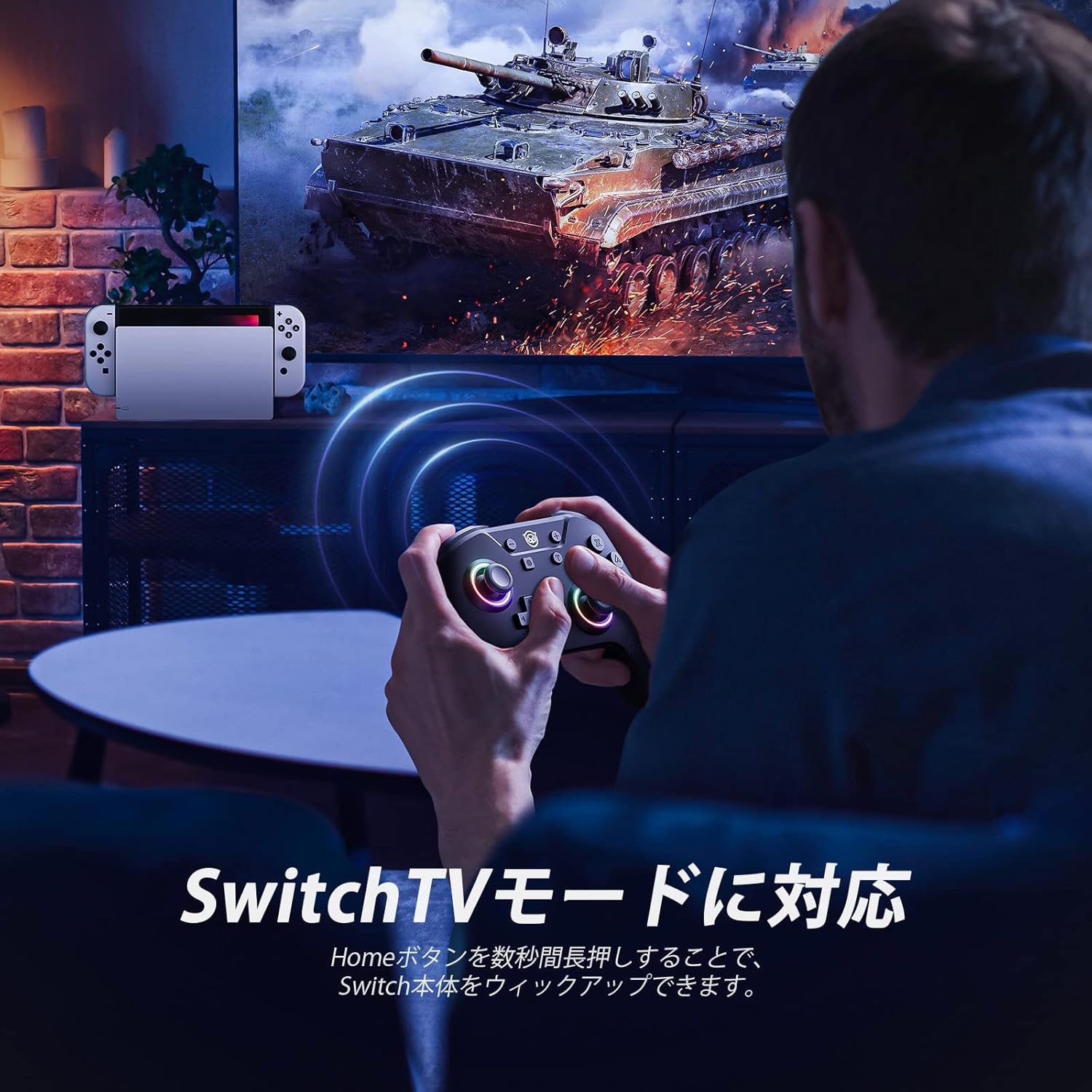
Image 4.1: The controller in use with a Nintendo Switch console connected to a television.
5. Cov lus qhia ua haujlwm
5.1 LED teeb hom
The controller features 9 LED colors and 3 lighting modes. Use the dedicated LED button (often located near the Home button) to cycle through colors and modes. The available modes typically include:
- Standard Mode (solid color)
- Breathing Mode (fading in and out)
- Rainbow Mode (cycling through colors)
5.2 Customizing Back Buttons (M1-M4)
The 4 back buttons (M1, M2, M3, M4) can be programmed to replicate other button inputs or sequences. Refer to the detailed instructions in the included manual for specific programming steps. This feature allows for single button assignments or macro sequences.
5.3 Kev hloov kho kev vibration
The controller offers 4 levels of vibration intensity: 0% (off), 30%, 70%, and 100%. To adjust, press and hold the Vibration button (or a designated combination, refer to the manual) and use the D-pad or joystick to select your preferred intensity.
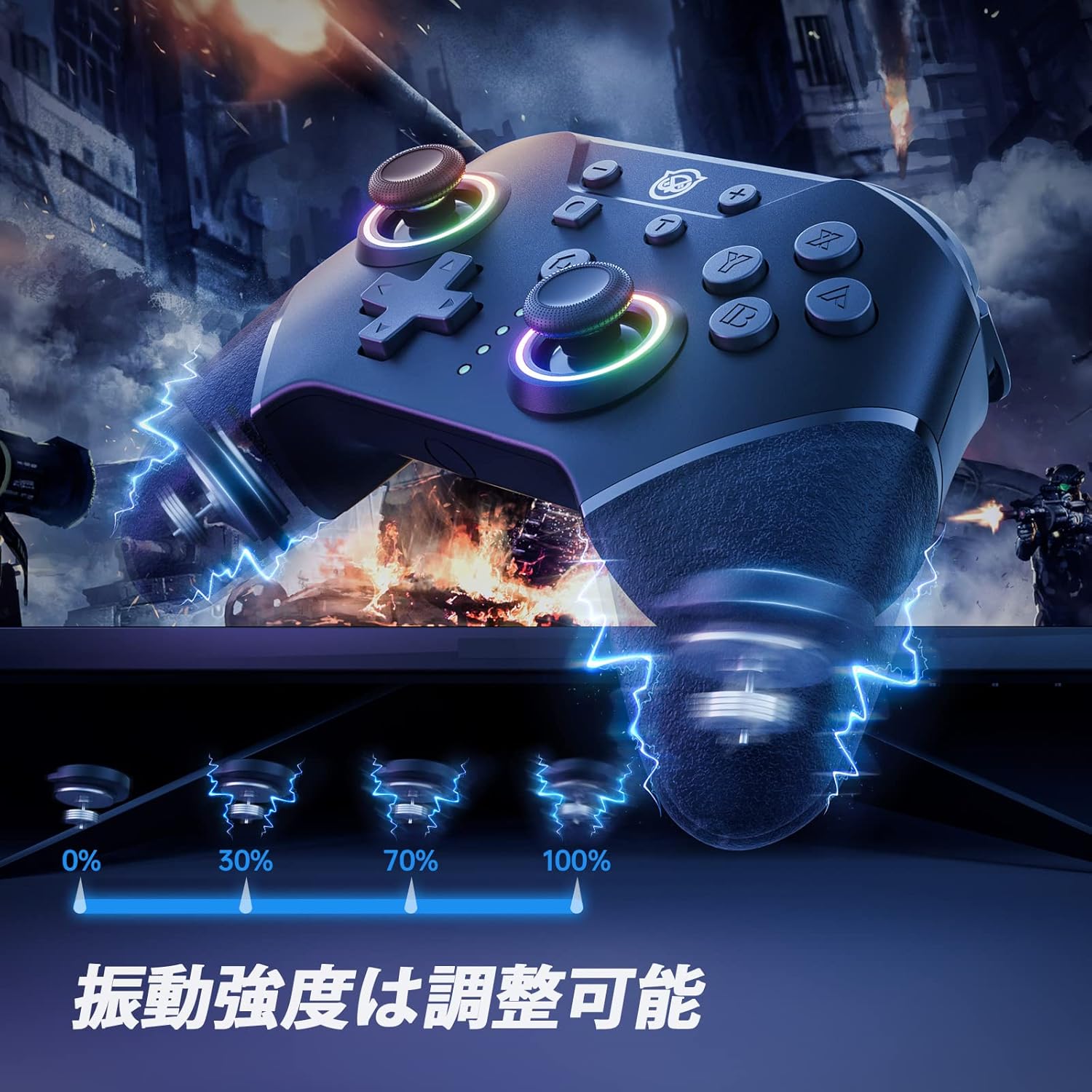
Image 5.1: Visual representation of the four adjustable vibration intensity levels.
5.4 TURBO muaj nuj nqi
The TURBO function allows for rapid, continuous input of a selected button. It has 3 adjustable speeds: 5, 12, and 20 shots per second.
- To activate TURBO: Press and hold the TURBO button, then press the button you wish to set for continuous fire (e.g., A, B, X, Y, L, R, ZL, ZR).
- Txhawm rau kho TURBO ceev: While holding the TURBO button, move the Right Analog Stick Up or Down to cycle through the 3 speed settings.
- To deactivate TURBO: Repeat the activation step (hold TURBO, then press the assigned button) or hold the TURBO button for 5 seconds.

Image 5.2: The controller illustrating the TURBO function and its three speed levels.
5.5 Kev them nyiaj rau tus tswj
Connect the provided Type-C charging cable to the controller's charging port and the other end to a USB power source (e.g., Switch dock, USB wall adapter, computer USB port). The LED indicators will show charging status and turn off when fully charged. A full charge takes approximately 2 hours and provides about 10 hours of gameplay.
6. KeyLinker App Customization
The NYXI controller supports customization via the dedicated "KeyLinker" mobile application. This app allows for advanced configuration of various controller settings, including:
- Button remapping
- Adjusting joystick dead zones
- Fine-tuning vibration intensity
- Configuring TURBO function settings
- Programming back buttons (M1-M4)
- Advanced LED light adjustments (e.g., RGB values)
Download the "KeyLinker" app from your mobile device's app store and follow the in-app instructions to connect and customize your controller.
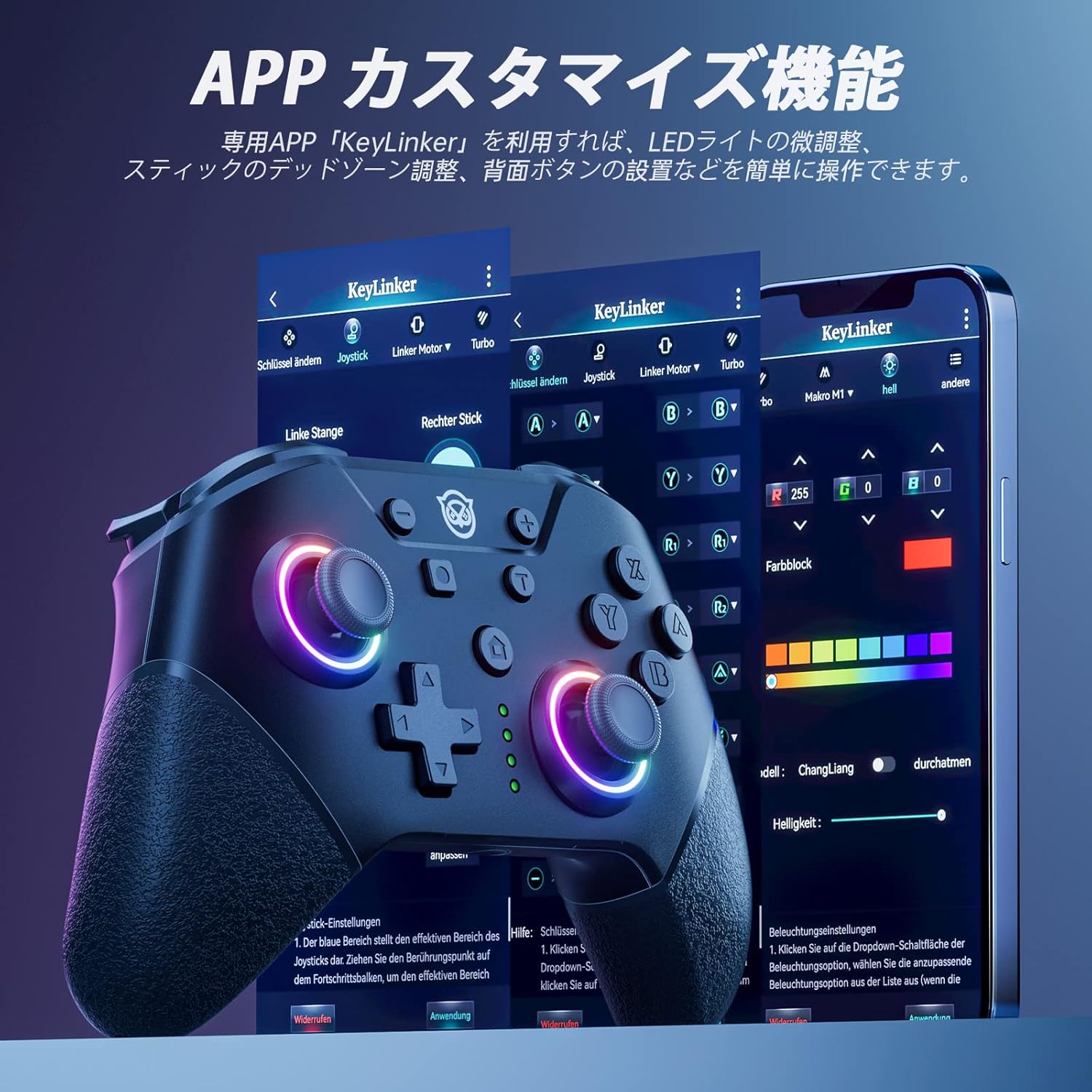
Image 6.1: The KeyLinker mobile application interface, showing various customization options for the controller.
7. Kev tu
- Keep the controller dry and away from extreme temperatures.
- Clean the controller with a soft, dry cloth. Do not use harsh chemicals or abrasive materials.
- Tsis txhob tso tus maub los lossis ua rau nws muaj kev cuam tshuam zoo.
- Store the controller in a safe place when not in use to prevent damage.
8. Kev daws teeb meem
8.1 Tus Tswj Xyuas Tsis Txuas / Sib Koom Tes
- Xyuas kom tus maub los tau them.
- Verify that the Switch console is updated to the latest system version.
- Try re-pairing the controller by following the steps in Section 4.1.
- If multiple controllers are paired, try disconnecting others or resetting the Switch's Bluetooth connections.
- Ensure the controller is within range of the Switch console.
8.2 Joystick Drift or Unresponsive Buttons
- Calibrate the joysticks and buttons through the Nintendo Switch System Settings: HOME Menu > System Settings > Controllers and Sensors > Calibrate Control Sticks / Calibrate Buttons.
- Clean around the joysticks and buttons to remove any dust or debris.
- If using the KeyLinker App, check for any dead zone settings that might be causing issues.
- Consider resetting the controller to factory settings (refer to the full manual for specific button combinations).
8.3 Settings Reset After Power Off
Some settings, particularly macros or LED configurations, might reset if the controller is completely powered off or if the KeyLinker app connection is unstable. Ensure settings are saved correctly within the app and that the controller maintains a charge.
9. Cov lus qhia tshwj xeeb
| Feature | Paub meej |
|---|---|
| Hom | NYXI |
| Qauv nab npawb | SP5248LED-BK |
| Kev sib haum xeeb | Nintendo Hloov, Hloov Lite, Hloov OLED |
| Kev sib txuas | Wireless (Bluetooth), Wired (USB Type-C) |
| Roj teeb muaj peev xwm | 600 mAh |
| Them sij hawm | Kwv yees li. 2 teev |
| Lub sijhawm ua haujlwm | Kwv yees li. 10 teev |
| Kev vibration | 4-theem adjustable |
| Motion Sensor | 6-axis Gyro Sensor |
| LED Teeb | 9 xim, 3 hom |
| Programmable Khawm | 4 back buttons (M1-M4) |
| TURBO Muaj nuj nqi | 3 adjustable ceev |
| Qhov ntev | 15.7 x 13.6 x 7.3 cm |
| Qhov hnyav | 228 g ib |
10. Warranty thiab Support
Cov khoom no los nrog a 1 xyoo warranty from the date of purchase. In the unlikely event of a product defect, please contact the seller directly for assistance. We offer new product exchanges for defective units.
For further support or inquiries, please refer to the contact information provided with your purchase or visit the official NYXI webqhov chaw.
Cov ntaub ntawv ntsig txog - SP5248LED-BK
 |
NYXI Wizard Controller Tus Neeg Siv Phau Ntawv Qhia: Teeb, Nta, thiab Kev daws teeb meem Cov neeg siv phau ntawv qhia rau NYXI Wizard gaming maub los. Kawm yuav ua li cas txuas, hloov kho turbo thiab macro zog, kho kev co, thiab ua calibration rau koj Nintendo Hloov. Xws li cov khoom specifications thiab txhawb kev sib cuag. |
 |
NYXI Warrior Bluetooth Controller: Phau Ntawv Qhia Siv & Phau Ntawv Qhia Teeb tsa Explore the NYXI Warrior Bluetooth Controller with this comprehensive user manual. Learn how to connect and use the controller with Nintendo Switch, Wii, Windows, Android, and iOS. Features include Turbo mode and programmable buttons. |
 |
NYXI Hyperion 2 Wireless Controller User Manual Cov lus qhia dav dav rau NYXI Hyperion 2 Wireless Controller, suav nrog kev teeb tsa, nta, calibration, RGB teeb pom kev zoo, turbo functions, macro programming, vibration settings, charging, thiab reset the process for Nintendo Switch. |
 |
NYXI FLEXI Wireless Controller User Manual Comprehensive guide for the NYXI FLEXI Wireless Controller, detailing compatibility with Windows, Android, iOS, and NS, technical specifications, setup instructions, and safety precautions. Features include wireless connectivity, ergonomic design, and multiple platform support. |
 |
NYXI HYPERION3 Magnetic Split Controller for NS2 - User Manual Comprehensive user manual for the NYXI HYPERION3 Magnetic Split Controller for Nintendo Switch 2, covering setup, features, connection, and troubleshooting. |
 |
NYXI Flexi Wireless Controller Tus neeg siv phau ntawv thiab Specifications Cov ntaub ntawv no muab cov ntaub ntawv nthuav dav ntawm NYXI Flexi Wireless Controller, suav nrog cov ntsiab lus sib raug rau Windows, Android, iOS, thiab Nintendo Hloov, teeb tsa cov lus qhia, kev qhia tshwj xeeb, thiab kev ceev faj txog kev nyab xeeb. |
Ask a question about this manual
Ask about setup, troubleshooting, compatibility, parts, safety, or missing instructions. Manuals+ will review the question and use this page’s manual context to help answer it.