
beeprt BY-480BT
BEEPRT BY-480BT Bluetooth Shipping Label Printer User Manual
Model: BY-480BT | Brand: beeprt
Taw qhia
This manual provides comprehensive instructions for setting up, operating, and maintaining your BEEPRT BY-480BT Bluetooth Shipping Label Printer. Designed for efficiency and ease of use, this thermal label printer is compatible with various e-commerce platforms and operating systems, making it an ideal solution for shipping packages and managing labels for small businesses.
Dab tsi nyob hauv lub thawv
Upon unboxing your BEEPRT BY-480BT printer, please ensure all the following components are present:
- BEEPRT BY-480BT Thermal Label tshuab luam ntawv
- USB Cable
- Fais fab Adapter
- Label Holder
- Quick Start Guide / User Manual
- Sample Thermal Labels
- USB-A to USB-C Adapter (for Mac users)
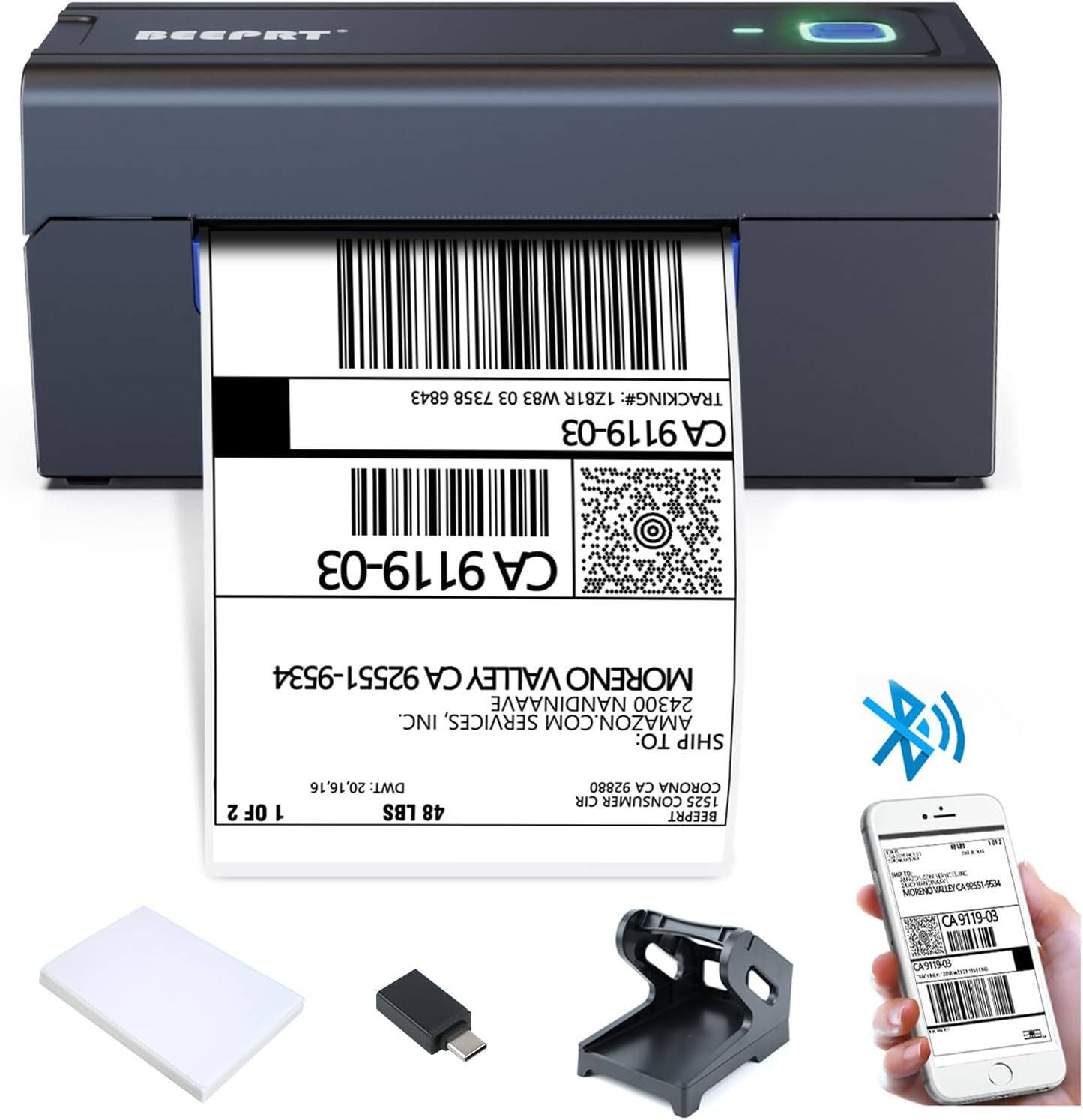
The BEEPRT BY-480BT printer shown with its essential accessories, including the label holder, USB cable, and sample npe.

Ua tiav lawmview of all items included in the BEEPRT BY-480BT printer package, neatly arranged.
Teeb Qhia
1. Chaw thau khoom
The BEEPRT BY-480BT printer supports various thermal label sizes, from 1.57" to 4.3" wide. Ensure you are using direct thermal labels, as this printer does not require ink.
- Open the printer lid by pressing the release latches on the sides.
- Place the thermal labels into the label compartment. Ensure the print side (usually the smoother, brighter side) is facing upwards.
- Adjust the movable guides to fit the width of your labels snugly, without creasing lawv.
- Close the printer lid securely. The printer will automatically detect the label size and calibrate.

Properly loading thermal labels into the BEEPRT BY-480BT printer for optimal printing.
This video demonstrates the process of loading labels into the BEEPRT BY-480BT printer, showing how the paper feeds and aligns automatically.
2. Txuas lub tshuab luam ntawv
Your BEEPRT BY-480BT printer offers multiple connectivity options:
USB Connection (Windows, Mac OS, Chrome OS)
- Txuas lub tshuab luam ntawv rau koj lub computer siv USB cable.
- Turn on the printer using the power switch located at the back.
- Install the printer driver from the included USB drive or download it from the official BEEPRT webqhov chaw.
- Ua raws li cov lus qhia on-screen kom tiav cov tsav tsheb installation.

The printer connected to a laptop via USB, highlighting its broad operating system compatibility.
This video provides a step-by-step guide on how to set up the BEEPRT BY-480BT printer for Chromebook via USB connection, including extension installation.
This video demonstrates the installation process for the BEEPRT printer driver on Mac OS, guiding users through the necessary steps for successful setup.
Bluetooth Connection (Windows, iOS, Android)
For wireless printing, ensure your device has Bluetooth enabled.
- Turn on the printer. The Bluetooth indicator light should be blinking or solid blue.
- On your device (smartphone or PC), go to Bluetooth settings and search for available devices.
- Select "BY-480BT" or a similar name from the list. You may be prompted to enter a PIN (usually "0000").
- For iOS/Android, download the "Shipping Printer Pro" app from your app store. This app is required for printing via Bluetooth on mobile devices.
- For Windows, after pairing, you may need to check the COM port settings in Printer Properties to ensure it matches the Bluetooth port.

The printer connected wirelessly to both a laptop and a smartphone, demonstrating Bluetooth printing capabilities.
This video illustrates how to connect the BEEPRT BY-480BT printer via Bluetooth on a Windows computer, including pairing and port configuration.
Daim vis dis aus no qhia txog qhov dav davview of the BEEPRT Bluetooth label printer, showcasing its features and ease of use for various label printing needs.
Cov lus qhia ua haujlwm
Luam Ntawv Ntawv
Once your printer is connected and labels are loaded, you can begin printing:
- Qhib daim ntawv lossis daim ntawv lo file you wish to print (e.g., PDF, image).
- Xaiv "Print" los ntawm koj daim ntawv thov cov ntawv qhia zaub mov.
- Choose "BEEPRT BY-480BT" as your printer.
- In the print settings, ensure the paper size is set to match your labels (e.g., 4x6 inches). For optimal quality, select "Actual Size" or "100% Scale" to prevent scaling issues.
- Adjust print density and speed if necessary (higher density for darker prints, lower speed for better quality).
- Click "Print". The label will feed out automatically.

Examples of different label sizes and types compatible with the BEEPRT BY-480BT printer, showcasing nws versatility.
This video demonstrates the printer in action, showing how it feeds and prints labels quickly and efficiently.
Kev tu
Regular maintenance ensures optimal performance and extends the lifespan of your printer:
- Ntxuav lub taub hau Printing: Use an alcohol wipe or a specialized print head cleaning pen to gently wipe the print head surface. Do this regularly to prevent residue buildup and ensure clear prints.
- Ntxuav cov Rollers: Periodically clean the rubber rollers with a damp, lint-free cloth to remove dust or adhesive residue that might affect paper feeding.
- Kev tshem tawm plua plav: Keep the printer free from dust and debris. Use compressed air to clean hard-to-reach areas.
- Cia kom zoo: When not in use, store the printer in a clean, dry environment away from direct sunlight and extreme temperatures.
Kev daws teeb meem
Nov yog cov kev daws teeb meem uas koj yuav ntsib:
| Teeb meem | Ua Tau | Kev daws |
|---|---|---|
| Lub tshuab luam ntawv tsis teb | Power off, loose cable, driver issue, Bluetooth not connected. | Ensure printer is on and connected. Reinstall driver. Re-pair Bluetooth. |
| Blank labels / Faint prints | Labels loaded incorrectly, low print density, dirty print head. | Reload labels with print side up. Increase print density in settings. Clean print head. |
| Daim ntawv jam | Misaligned labels, foreign object. | Open lid, remove jammed labels carefully. Ensure guides are properly set. |
| Cov ntawv tsis pub noj kom raug | Labels not thermal, misaligned guides, dirty rollers. | Use direct thermal labels. Adjust guides. Clean rollers. |
| Bluetooth connection issues on Mac/iPhone | Incorrect app usage, security settings. | Ensure "Shipping Printer Pro" app is used for mobile. Check System Preferences > Security & Privacy for driver installation. |
For more detailed troubleshooting, refer to the official user manual PDF available on the product page or contact BEEPRT support.
Specifications
| Feature | Paub meej |
|---|---|
| Hom | beeprt |
| Qauv Lub Npe | IB-480 BT |
| Connectivity Technology | USB, Bluetooth |
| Tshuab luam ntawv | Kub |
| Sau Media | Daim ntawv lo |
| Max Input Sheet Muaj peev xwm | 72 |
| Compatible Devices | Smartphones, PC |
| Daim Ntawv Loj | 4x6 inches (supports 1.57" - 4.3" wide) |
| Maximum Dub thiab Dawb Print Resolution | 203dpi ib |
| Yam Nyhav | 4 Ib |
| Khoom Dimensions | 6 x 9 x 6.5 po |
| Cov Cheebtsam suav nrog | Lub tshuab luam ntawv, USB Cable |
Warranty thiab Support
The BEEPRT BY-480BT printer comes with a limited warranty. For specific warranty terms and conditions, please refer to the documentation included with your product or contact the manufacturer directly.
Kev Pab Txhawb Cov Neeg Siv Khoom
If you encounter any issues or have questions not covered in this manual, please reach out to BEEPRT customer support. You can often find support contact information on the manufacturer's official website or through the seller's contact details on the platform where you purchased the product.
- Chaw tsim tshuaj paus: BEEPRT
- Tus neeg muag khoom: BEEPRT-US
- Tus neeg siv phau ntawv (PDF): Download PDF Phau Ntawv Qhia
Ask a question about this manual
Ask about setup, troubleshooting, compatibility, parts, safety, or missing instructions. Manuals+ will review the question and use this page’s manual context to help answer it.