
1. Khoom Tshajview
The Bewinner Mini Body Camera CS02 is a compact and portable 1080p WiFi action camera designed for various applications including security, cycling, and vlogging. It features a high-definition night vision lens, one-click recording, and automatic loop recording. Its lightweight and ergonomic design make it easy to carry and clip onto clothing or bags.
Cov yam ntxwv tseem ceeb:
- HD Hmo Ntuj Pom Kev: Equipped with 6 high-strength night vision lights for clear imaging in low-light conditions.
- One-Click Operation: Simple one-button control to power on and initiate recording.
- Kev Sib Tham Microphone: Built-in microphone for synchronized audio recording.
- Portable Design: Ergonomic, lightweight, and features a detachable clip for easy attachment.
- Lub Sijhawm Standby Ntev: Built-in 900mAh high-capacity battery supports extended use.
- Automatic Loop Recording: Intelligently overwrites older footage to ensure continuous recording without missing frames.
- Kev sib txuas WiFi: Allows for remote control and viewing via a dedicated application.

Duab: pem hauv ntej view of the Bewinner Mini Body Camera CS02, highlighting its WiFi Action Camera capabilities. The background shows security personnel, indicating its use in law enforcement or security.

Duab: Sab view of the camera with its detachable clip, illustrating its night vision lens, simple one-button power, and ergonomic design for easy portability.
2. Teeb Qhia
2.1 Kev them nyiaj yug ntaus ntawv
Before first use, fully charge the camera. Connect the provided USB data cable to the camera's USB port and a standard USB power adapter (not included) or a computer's USB port. The charging indicator will show the charging status. A full charge typically takes a few hours.

Image: The Bewinner Mini Body Camera CS02 shown alongside its USB charging cable, indicating the connection for power.
2.2 Ntxig ib daim npav nco
The camera supports memory cards up to 256GB (not included). Locate the memory card slot on the device. Gently insert the memory card with the contacts facing the correct direction until it clicks into place. Ensure the card is properly seated before operating the camera.
2.3 App Installation thiab txuas
To utilize the camera's WiFi features and advanced settings, download the corresponding application. Scan the QR code provided in the physical manual (if available) or search for the 'Bewinner' app in your device's app store. Follow the in-app instructions to connect your camera via WiFi and configure settings.
3. Cov lus qhia ua haujlwm
3.1 Power On/Off and Recording
- Hwj chim On: Press and hold the power button (usually indicated by a power symbol) for a few seconds until the indicator light illuminates.
- Pib Sau: Once powered on, a single press of the designated recording button will start video recording. The indicator light will change to confirm recording is active.
- Nres Cov Ntaub Ntawv: Press the recording button again to stop recording. The indicator light will change back to standby mode.
- Fais fab tawm: Press and hold the power button for a few seconds until the indicator light turns off.
3.2 Hmo Ntuj Pom Kev Hom
The camera automatically activates its night vision capabilities in low-light environments. The 6 infrared lights will assist in capturing clear images without visible illumination.
3.3 Loop Recording
The camera features automatic loop recording. When the memory card is full, the camera will automatically overwrite the oldest video files to continue recording. Video segments are typically saved in 5-minute intervals to manage file sizes efficiently.
3.4 Hloov cov ntaub ntawv
Nkag mus tau kaw files, connect the camera to a computer using the USB data cable. The camera will appear as a removable storage device, allowing you to copy files. Alternatively, remove the memory card and insert it into a card reader connected to a computer.
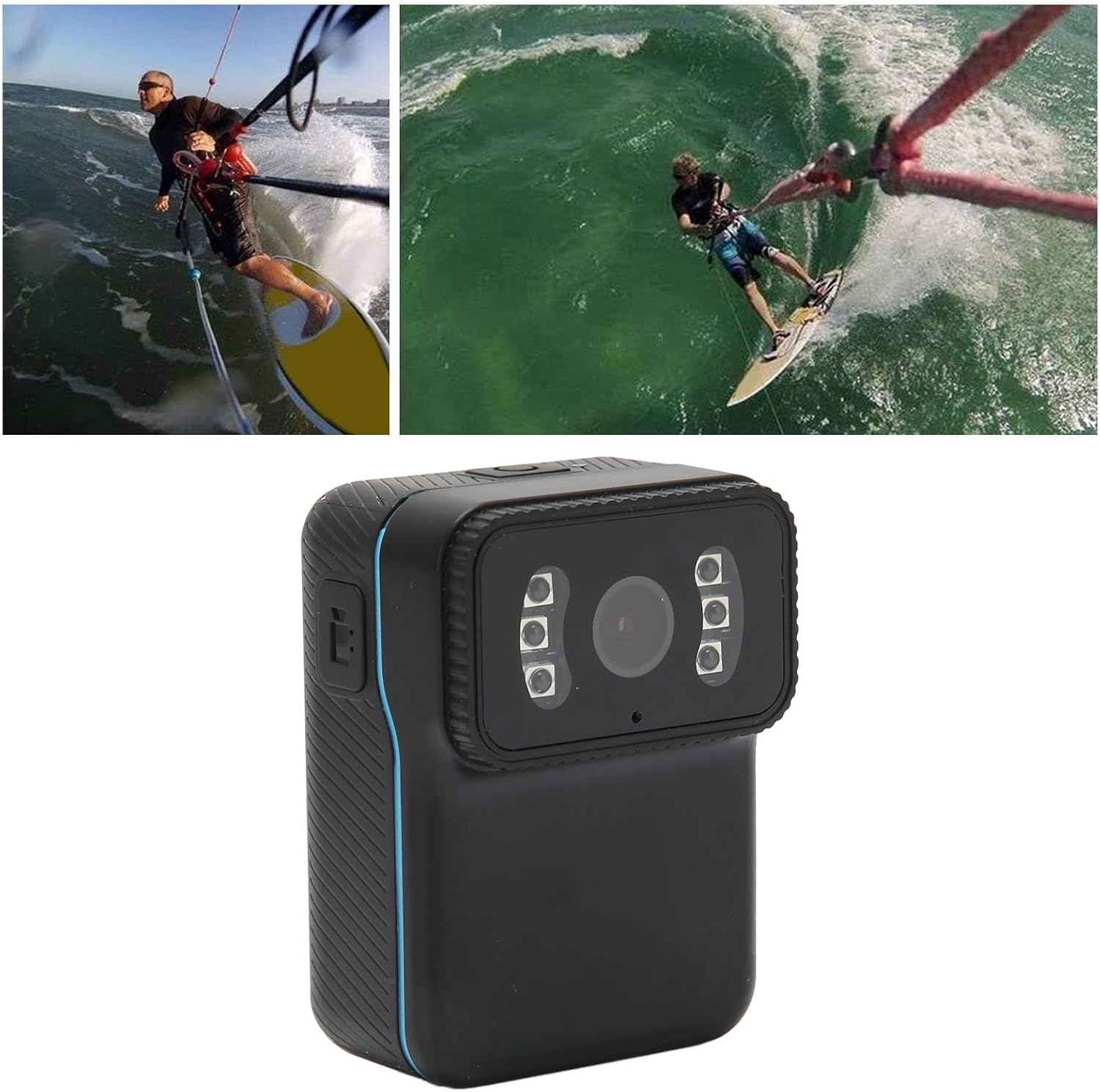
Image: The camera shown in an action scenario during water sports, highlighting its suitability for dynamic activities.

Image: The camera attached to a person while cycling, demonstrating its application as a portable bike camera for recording rides.
4. Kev tu
4.1 Kev ntxuav
Wipe the camera body with a soft, dry cloth. Do not use liquid cleaners or solvents, as these may damage the device. Keep the lens clean for optimal image quality.
4.2 Cia khoom
Store the camera in a cool, dry place away from direct sunlight, extreme temperatures, and high humidity. Remove the memory card if storing for extended periods.
4.3 Roj Teeb Kho
To prolong battery life, avoid fully discharging the battery frequently. If the camera will not be used for a long time, charge it to about 50% every few months.
4.4 Memory Card Management
Regularly back up important recordings to a computer or external storage. Periodically format the memory card (via the camera settings or computer) to maintain optimal performance and prevent data corruption.
5. Kev daws teeb meem
- Lub koob yees duab tsis muaj zog rau: Ensure the battery is charged. Connect the camera to a power source and try again. If the issue persists, contact support.
- Camera does not record: Check if a memory card is inserted and has sufficient free space. Format the memory card if necessary.
- Poor video/image quality: Ensure the lens is clean and free from smudges. Check lighting conditions; while the camera has night vision, extreme darkness may still affect quality.
- Cov teeb meem kev txuas WiFi: Ensure the camera's WiFi is enabled and you are within range of your mobile device. Restart both the camera and your mobile device. Verify the app is up to date.
- Camera records in 5-minute segments: This is a normal function of the automatic loop recording feature, designed to manage file sizes and ensure continuous recording. It is not an error.
- Lub computer tsis lees paub lub cuab yeej: Try a different USB port or cable. Ensure the camera is powered on when connected.
6. Cov lus qhia tshwj xeeb
| Feature | Specification |
|---|---|
| Qauv | TIAB SA 02 |
| Video Format | MP4 |
| Video encoding | H264 |
| Video daws teeb meem | 1920 x 1080p (Effective 1080 Pixels) |
| Video Ncej Rate | 25fps ua |
| Aspect Ratio | 16:9 ua |
| Duab daws teeb meem | 4032 x 3024 |
| Duab hom | JPG |
| Hom roj teeb | Built-in 900 mAh Lithium-ion battery |
| Cia Media | Memory card up to 256 GB (not included) |
| Txhawb Cov Txheej Txheem | Windows, OS X, Linux |
| Kev sib txuas | Wi-nkaus |
| Tshwj xeeb nta | Lightweight, Night Vision |
| Qhov ntev | 13.4 x 9.4 x 6.4 cm |
| Qhov hnyav | 180g ua |
| Tshuab Technology | CMOS |
| Hom tsom | Kho kom haum |
| Pom zoo siv | Sports, Vlogging, Security, General Use |
7. Warranty thiab Support
Specific warranty information is not provided in this manual. Please refer to the product packaging or the Bewinner official website rau cov ncauj lus kom ntxaws warranty cov nqe lus thiab tej yam kev mob.
For technical support, troubleshooting assistance, or any product-related inquiries, please contact Bewinner customer service through their official channels. Contact information can typically be found on the product packaging or the manufacturer's webqhov chaw.