
1. Introduction to Sphero RVR+
The Sphero RVR+ is an advanced programmable robot designed for learning and exploration in coding, robotics, and artificial intelligence. It is fully assembled and ready for immediate use, offering a versatile platform for both beginners and advanced programmers. RVR+ features a robust design, a suite of programmable sensors, and expandability options for third-party hardware integration.

2. Kev teeb tsa thiab siv thawj zaug
2.1 Unboxing thiab Initial Inspection
Upon opening the package, ensure all components are present. The Sphero RVR+ comes fully assembled. The package typically includes the RVR+ robot, a removable cover plate, a rechargeable battery, a micro USB charger, a battery key, and color cards.

2.2 Kev teeb tsa thiab kev them nqi roj teeb
- Locate the battery compartment on the RVR+ robot.
- Insert the rechargeable battery into the compartment. Ensure it clicks securely into place.
- Connect the micro USB charger to the battery port.
- Plug the charger into a power source. The battery indicator light will show charging status.
- Allow the battery to fully charge before first use. A full charge ensures optimal performance.

2.3 App Txuas
The Sphero RVR+ is controlled and programmed via the Sphero Edu app. This app is available on iOS, Android, Windows, macOS, ChromeOS, and web browsers. No account or installation is needed for web browser nkag.
- Download and install the Sphero Edu app on your device, or navigate to the web-raws li version.
- Ensure your RVR+ is powered on and within Bluetooth range of your device.
- Open the Sphero Edu app and follow the on-screen prompts to connect to your RVR+.
3. Operating Your RVR+
3.1 Driving and Basic Control
Once connected to the Sphero Edu app, you can use the drive interface to manually control your RVR+. This allows for immediate interaction and familiarization with the robot's movement capabilities.

3.2 Programming Fundamentals
The Sphero Edu app supports various programming levels:
- Block Coding: Ideal for beginners, allowing users to drag and drop visual blocks to create programs.
- JavaScript and Python: For more advanced users, enabling text-based coding.
The Sphero AI Assistant, 'Explain My Program', can assist in understanding code logic.

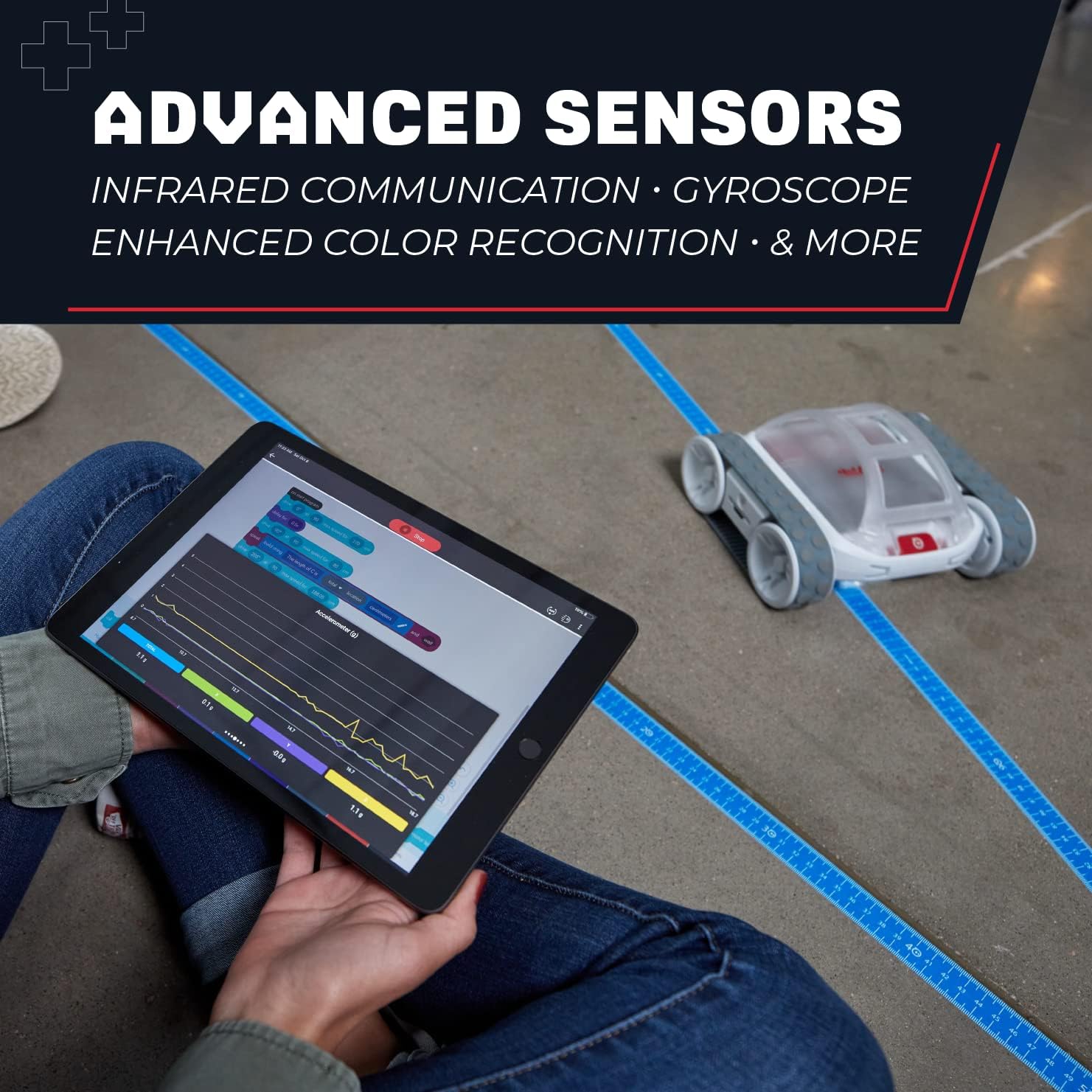
3.3 Utilizing Sensors
RVR+ is equipped with multiple sensors to gather real-time data and interact with its environment:
- Xim Sensor: Detects and reacts to different colors.
- Lub teeb Sensor: Ntsuas ambient light level.
- Infrared Sensor: For communication and obstacle detection.
- Gyroscope and Accelerometer: Provides data on orientation and movement.
These sensors enable RVR+ to react to its surroundings, bridging coding with systems thinking.
3.4 Advanced Expansion
RVR+ supports integration with third-party hardware through its Public SDK. This allows for advanced projects using platforms like Raspberry Pi and micro:bit, expanding its capabilities beyond its core features.

4. Kev tu
4.1 Roj Teeb Kho
- Always use the provided charger for the rechargeable battery.
- Tsis txhob tso tawm lub roj teeb ntau zaus kom nws lub neej ntev.
- Store the RVR+ and its battery in a cool, dry place when not in use.
4.2 Kev ntxuav
To clean your RVR+, use a soft, dry cloth. Avoid using harsh chemicals or abrasive materials, as these can damage the robot's surface or internal components. Ensure no moisture enters the electronic components.
5. Kev daws teeb meem
If you encounter issues with your Sphero RVR+, consider the following common troubleshooting steps:
- Cov teeb meem kev sib txuas: Ensure RVR+ is powered on and fully charged. Verify Bluetooth is enabled on your device and that the Sphero Edu app has necessary permissions. Try restarting both the RVR+ and your device.
- Teeb meem them nqi: Check that the charging cable is securely connected to both the battery and the power source. Ensure the power source is active.
- Tus cwj pwm tsis zoo: If RVR+ is not responding as expected to commands or programs, check your code for errors. Ensure the robot's sensors are clean and unobstructed. A factory reset (refer to Sphero support resources for instructions) may resolve persistent software issues.
For more detailed troubleshooting guides, please visit the official Sphero support webqhov chaw.
6. Cov lus qhia tshwj xeeb
| Feature | Paub meej |
|---|---|
| Khoom Dimensions | 1.97 x 1.57 x 874.8 po |
| Yam Nyhav | 3.5 puj |
| Yam khoom Model Number | 940-0601 : kuv |
| Chaw tsim tshuaj paus pom zoo hnub nyoog | 8 lub hlis - 8 xyoos |
| Roj teeb | 1 A battery required (rechargeable, included) |
| Chaw tsim tshuaj paus | Sphero |
7. Warranty Information
For detailed warranty information regarding your Sphero RVR+, please refer to the documentation included with your product or visit the official Sphero webqhov chaw. Warranty cov nqe lus thiab tej yam kev mob yuav txawv raws cheeb tsam thiab hnub yuav khoom.
8. Kev them nyiaj yug thiab Resources
Sphero provides extensive resources to help you get the most out of your RVR+:
- Sphero Edu App: The primary interface for controlling and programming RVR+. Available on multiple platforms.
- Sphero Central: Explore lessons, activities, and educational resources for RVR+ and other Sphero products. Visit www.sphero.com yog xav paub ntxiv.
- Kev them nyiaj yug hauv internet: Access FAQs, troubleshooting guides, and contact customer support through the official Sphero webqhov chaw.