
1. Khoom Tshajview
The GIGABYTE G24F 2 is a 23.8-inch gaming monitor designed for an immersive visual experience. It features a Super Speed IPS panel, Full HD (1920 x 1080) resolution, and a high refresh rate for smooth gameplay.

Daim duab 1.1: Pem hauv ntej view of the GIGABYTE G24F 2 gaming monitor.
Cov yam ntxwv tseem ceeb:
- Vaj Huam Sib Luag Loj: 23.8-inch SS IPS display
- Kev daws teeb meem: 1920 x 1080 (FHD)
- Lub sij hawm teb: 1ms MPRT
- Refresh Rate: 165Hz (Overclockable to 180Hz)
- Xim Saturation: 95% DCI-P3, 125% sRGB
- Brightness: 300 cd / m2 (TYP)
- Qhov sib piv piv: 1100:1 ua
- Kev sib txuas: 2 x HDMI 2.0, 1 x DisplayPort 1.2 (HDR capable), 2 x USB 3.2 Gen 1 Downstream, 1 x USB 3.2 Gen 1 Upstream, 1 x Earphone Jack
- Tshwj xeeb nta: OSD Sidekick, Aim Stabilizer, Black Equalizer, Dashboard, Crosshair, Timer, Counter, Auto-Update, Smart OD, HDR Ready, Flicker-free, Kensington lock
2. Cov ntaub ntawv kev nyab xeeb
Please read all instructions carefully before using the monitor. Keep this manual for future reference.
- Tsis txhob cia lub monitor raug nag los yog dej noo kom tsis txhob muaj hluav taws lossis kev poob siab.
- Tsis txhob qhib lub monitor casing. Tsis muaj cov neeg siv-serviceable seem hauv. Xa tag nrho cov kev pabcuam rau cov neeg ua haujlwm tsim nyog.
- Muab tus saib rau ntawm qhov chaw ruaj khov, tiaj tus kom tsis txhob ntog.
- Xyuas kom muaj cua tshuab nyob ib ncig ntawm lub monitor. Tsis txhob thaiv qhov qhib qhov cua.
- Siv tsuas yog lub adapter fais fab thiab cov cables uas lub chaw tsim khoom muab.
- Tshem lub monitor ntawm lub qhov hluav taws xob thaum muaj cua daj cua dub lossis thaum tsis siv ntev.
- Clean the screen with a soft, lint-free cloth. Avoid using liquid cleaners directly on the screen.
3. Cov ntsiab lus ntawm pob
Xyuas kom tseeb tias txhua yam khoom muaj nyob hauv koj pob:
- GIGABYTE G24F 2 Monitor
- Monitor Stand (Lub hauv paus thiab caj dab)
- Fais fab Cable
- HDMI Cable
- USB Cable (Upstream)
- Phau Ntawv Qhia Pib Pib (QSG)
- Warranty Card

Daim duab 3.1: Hauv qab view of the monitor, illustrating the stand attachment area.
4. Teeb tsa
4.1 Sib sau ua ke sawv ntsug
- Ua tib zoo tshem tawm cov saib thiab cov khoom sawv ntsug ntawm lub ntim.
- Attach the stand neck to the monitor panel. Ensure it clicks securely into place or is fastened with screws if provided.
- Txuas lub hauv paus sawv ntsug rau ntawm lub caj dab sawv ntsug. Nias lub hau ntswj lossis cov ntsia hlau ntawm qab ntawm lub hauv paus kom nruj.
- Muab cov khoom sib dhos rau ntawm qhov chaw ruaj khov, tiaj tus.
4.2 Txuas lub Monitor
Connect the monitor to your computer and other devices using the appropriate cables.

Daim Duab 4.1: Cov chaw txuas ntawm lub monitor.
- Kev sib txuas fais fab: Txuas lub xov hluav taws xob rau lub qhov hluav taws xob ntawm lub monitor thiab tom qab ntawd rau lub qhov hluav taws xob.
- Kev sib txuas Video:
- For optimal performance, use the DisplayPort 1.2 cable to connect to your computer's graphics card.
- Alternatively, use one of the two HDMI 2.0 ports.
- USB Upstream Connection: Connect the provided USB 3.2 Gen 1 Upstream cable from your computer to the monitor's upstream USB port to enable the monitor's downstream USB ports.
- USB Downstream Connections: Connect USB devices (e.g., keyboard, mouse) to the monitor's two USB 3.2 Gen 1 Downstream ports.
- Audio Output: Connect headphones or external speakers to the Earphone Jack.
5. Kev khiav hauj lwm saib xyuas
5.1 Fais fab / Off
Press the power button, usually located on the bottom or rear of the monitor, to turn the monitor on or off. The power indicator light will show the monitor's status.
5.2 On-Screen Display (OSD) Menu
The OSD menu allows you to adjust various monitor settings. Navigate the OSD using the joystick or buttons typically found on the rear of the monitor.

Figure 5.1: OSD Sidekick software for convenient monitor control.
For advanced control, install the OSD Sidekick software on your PC. This utility allows you to adjust monitor settings directly from your desktop.
5.3 Gaming Nta
The GIGABYTE G24F 2 includes several features to enhance your gaming experience:
- Aim Stabilizer: Reduces motion blur and improves visual clarity in fast-paced games.
- Dub Equalizer: Enhances visibility in dark areas of the game without overexposing bright areas.

Figure 5.2: Black Equalizer in action.
- Dashboard: Displays real-time hardware information (e.g., CPU/GPU temperature, usage) directly on the screen.

Figure 5.3: Dashboard displaying system metrics.
- Crosshair: Provides a customizable on-screen crosshair to assist with aiming.

Figure 5.4: On-screen Crosshair.
- Timer/Counter: On-screen timers and counters for in-game tracking.
- Smart OD: Optimizes overdrive settings for the best response time.
- Auto-Update: Ensures the monitor's firmware and OSD Sidekick software are up-to-date.
5.4 Zaub Chaw
- Refresh Rate: The monitor supports up to 165Hz, with an overclock option to 180Hz, for fluid motion.
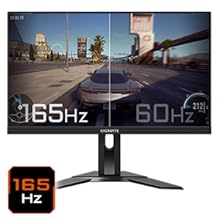
Figure 5.5: Visual comparison of 165Hz vs. 60Hz refresh rate.
- Lub sij hawm teb: Enjoy a 1ms MPRT (Moving Picture Response Time) for minimal ghosting.
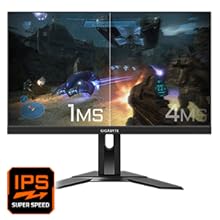
Figure 5.6: Visual comparison of 1ms vs. 4ms response time.
- Xim Gamut: The monitor covers 95% DCI-P3 and 125% sRGB for vibrant and accurate colors.
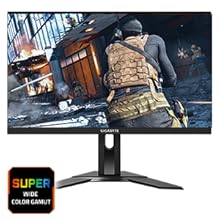
Figure 5.7: Wide color gamut for rich visuals.
- Lub teeb xiav xiav: Reduces blue light emissions to protect your eyes during extended use.
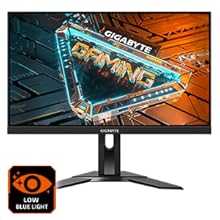
Figure 5.8: Low Blue Light feature for reduced eye strain.
- Flicker-Dawb: Tshem tawm qhov screen flickering kom yooj yim dua viewhauv kev paub.

Figure 5.9: Flicker-Free technology for comfortable viewhauv.
5.5 Product Feature Video
Video 5.1: Ib qho dhau losview of the GIGABYTE G24F 2 monitor's features and specifications.
6. Kev tu
Kev saib xyuas kom zoo yuav ua kom koj lub monitor siv tau ntev.
- Ntxuav lub Screen: Maj mam so lub vijtsam nrog ib daim ntaub mos, qhuav, tsis muaj lint. Rau cov cim tawv tawv, maj mam dampnyob rau hauv daim ntaub nrog dej los yog ib lub tshuaj ntsuam xyuas tshwj xeeb (tso rau daim ntaub, tsis ncaj qha mus rau qhov screen).
- Ntxuav lub Casing: Siv ib daim ntaub mos, qhuav los so lub monitor casing. Tsis txhob siv cov tshuaj ntxuav uas ua rau tawv.
- Qhov cua: Ensure the ventilation openings on the monitor are clear of dust and obstructions.
- Fais fab tawm: Turn off and unplug the monitor when not in use for extended periods.
7. Kev daws teeb meem
If you encounter issues with your monitor, refer to the following table for common problems and solutions.
| Teeb meem | Ua Tau | Kev daws |
|---|---|---|
| Tsis muaj duab nyob rau hauv kev tshuaj ntsuam | Power cable not connected; Video cable not connected; Incorrect input source selected | Xyuas qhov kev sib txuas ntawm lub hwj chim thiab cov yeeb yaj kiab; Xaiv qhov chaw nkag kom raug los ntawm OSD. |
| Duab yog qhov muag plooj lossis distorted | Incorrect resolution; Loose video cable | Set display resolution to 1920x1080; Ensure video cable is securely connected. |
| Tsis muaj suab los ntawm lub mloog pob ntseg / cov neeg hais lus | Audio cable not connected; Volume too low; Incorrect audio output selected on PC | Check audio cable connection; Adjust volume; Select monitor as audio output on PC. |
| USB ports tsis ua haujlwm | USB upstream cable not connected | Connect the USB 3.2 Gen 1 Upstream cable from the monitor to your PC. |
| Flickering npo | Refresh rate issue; Faulty cable | Ensure refresh rate is set correctly; Try a different video cable. |
8. Cov lus qhia tshwj xeeb
Detailed technical specifications for the GIGABYTE G24F 2 monitor.

Daim Duab 8.1: Qhov loj ntawm lub monitor.
| Feature | Paub meej |
|---|---|
| Hom | GIGABYTE |
| Qauv Lub Npe | G24F 2 |
| Qauv nab npawb | 9DG24F2-00-1ABIN |
| Qhov Loj | 23.8 Nws |
| Kev daws teeb meem | 1920 x 1080 pixels (FHD 1080p) |
| Aspect Ratio | 16:9 ua |
| Hom zaub | LCD (SS IPS Panel) |
| Refresh Rate | 165 Hz (180Hz OC) |
| Teb Sijhawm | 1 Milliseconds (MPRT) |
| Brightness | 300 candela_per_square_meter (TYP) |
| Qhov sib piv piv | 1100:1 ua |
| Xim Saturation | 95% DCI-P3, 125% sRGB |
| Viewhauv Angle | 178 Degree |
| Kev sib txuas | 2 x HDMI 2.0, 1 x DisplayPort 1.2, 2 x USB 3.2 Gen 1 Downstream, 1 x USB 3.2 Gen 1 Upstream, 1 x Earphone Jack |
| Adaptive Sync | FreeSync Hwm |
| Kev siv fais fab | 17.5 Watts |
| Yam Nyhav | 3.2 kg ib |
| Yam khoom Dimensions (D x W x H) | 5.3D x 54.1W x 32.6H cm |
| Mounting Hom | Phab ntsa Mount |
| Khoom nta | Flicker-Free, Height Adjustment, High Dynamic Range, Tilt Adjustment |
9. Warranty thiab Support
The GIGABYTE G24F 2 monitor comes with a 3 xyoo warranty los ntawm cov chaw tsim khoom.
For technical support, warranty claims, or further inquiries, please contact GIGABYTE customer service:
- Chaw tsim tshuaj paus: GIGABYTE Technology (India) Pvt Ltd
- Chaw nyob: B-808, Naman Midtown, Elphinstone Road, Mumbai – 400013 – INDIA
- Xov tooj: +91-22-40633222
Thov khaws koj daim ntawv pov thawj yuav khoom rau kev pabcuam warranty.