
1. Taw qhia
The PikDik Mini Portable Photo Printer PD-Q2 is a compact thermal printer designed for on-the-go printing. It connects via Bluetooth to compatible Android and iOS devices, allowing users to print photos, labels, lists, and more without the need for ink cartridges. This manual provides essential information for setting up, operating, maintaining, and troubleshooting your PD-Q2 printer.
2. Cov ntaub ntawv kev nyab xeeb
- Do not expose the printer to water or excessive moisture.
- Avoid extreme temperatures. Operate and store the printer within recommended environmental conditions.
- Siv tsuas yog muab cov cable them thiab cov chaw siv hluav taws xob pom zoo.
- Khaws kom deb ntawm cov menyuam yaus.
- Tsis txhob sim disassemble lossis kho lub tshuab luam ntawv koj tus kheej. Hu rau cov neeg siv khoom txhawb nqa rau kev pab.
3. Cov ntsiab lus ntawm pob
Thov kos lub pob rau cov khoom hauv qab no:
- PikDik Mini Portable Photo Printer PD-Q2
- USB Hom-C Them Rau Cable
- Roll of Thermal Photo Paper
- Cov neeg siv phau ntawv
4. Khoom Tshajview
The PD-Q2 printer features a compact design with a single power/function button and a paper output slot. It utilizes thermal printing technology, eliminating the need for ink. The device is powered by a built-in rechargeable lithium battery.
5. Teeb Qhia
5.1 Them Lub Tshuab Luam Ntawv
Before first use, fully charge the printer. Connect the provided USB Type-C cable to the printer's charging port and a compatible USB power adapter. The LED indicator will show charging status.
5.2 Chaw thau khoom Thermal Paper
- Open the printer's paper compartment cover.
- Insert a new roll of thermal paper, ensuring the printing side faces the print head.
- Pull a small length of paper out of the slot and close the cover securely.
5.3 App Installation and Bluetooth Connection
The PikDik PD-Q2 printer requires the "Meta Print" application for operation. Follow these steps to connect your device:
- Qhib lub tshuab luam ntawv: Nias thiab tuav lub hwj huam khawm kom txog thaum lub teeb pom kev zoo.
- Download and Install the "Meta Print" APP: Nrhiav rau "Meta Print" on your smartphone's app store (Google Play for Android or App Store for iOS) and install it.
- Qhib Bluetooth: On your phone or tablet, go to your device's settings and ensure Bluetooth is turned on.
- Connect in the APP: Open the "Meta Print" app. The app will guide you to link the printer via Bluetooth. Select the PD-Q2 from the list of available devices.
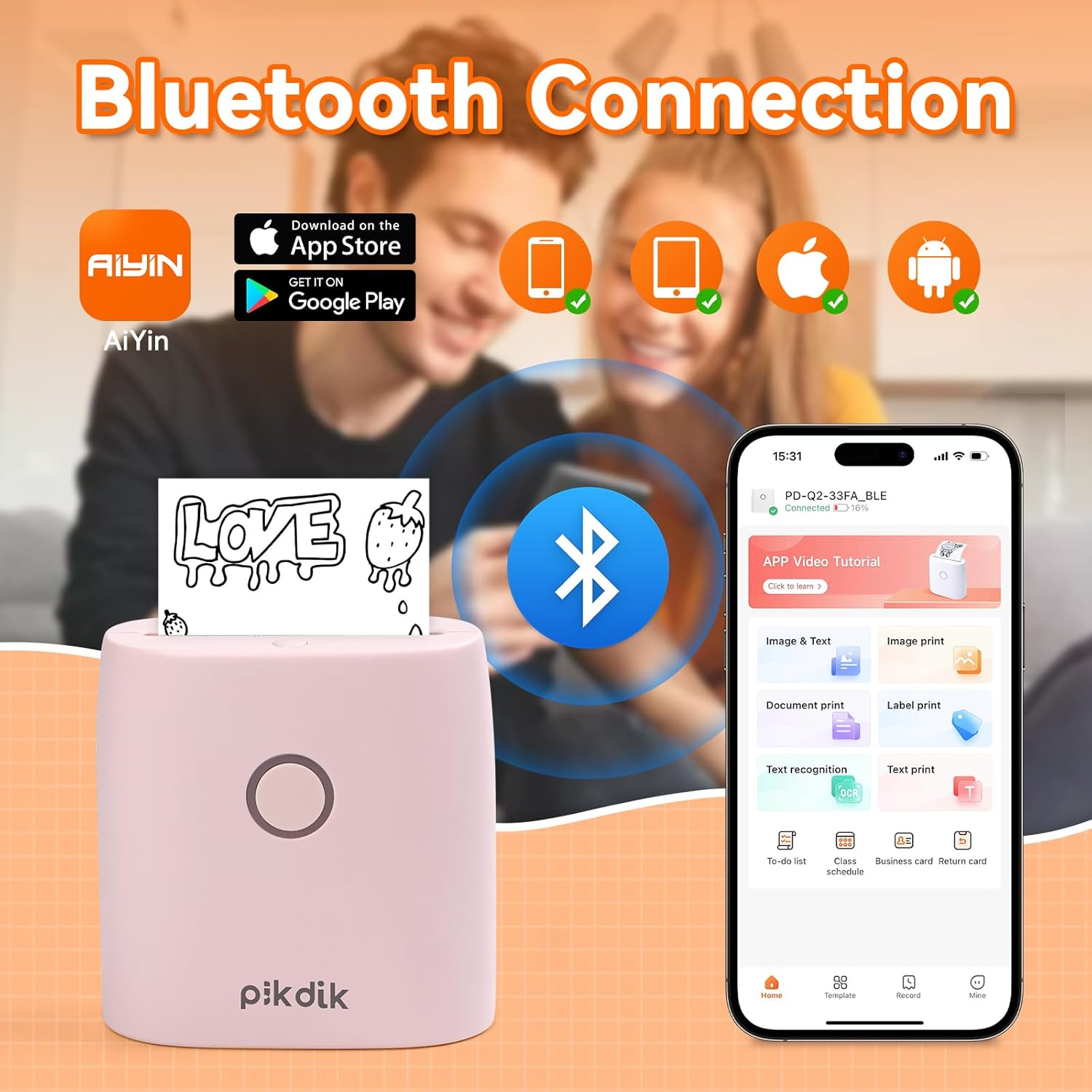
Image: The printer connects to your smartphone via Bluetooth using the Meta Print app, available on both Android and iOS.
6. Cov lus qhia ua haujlwm
6.1 Printing Content
Once connected to the "Meta Print" app, you can select various content types for printing:
- Image & Text: Print photos, graphics, or combine them with text.
- Cov ntaub ntawv luam tawm: Print documents or notes.
- Label Print: Create and print custom labels.
- Text Recognition: Convert images of text into editable text for printing.
- Cov qauv: Utilize pre-designed templates for to-do lists, business cards, emojis, and more.
After selecting and editing your content within the app, tap the print button to initiate printing. The printer will output the thermal paper with your printed content.

Image: The printer is suitable for various applications such as journaling, scrapbooking, printing shopping lists, and notes.
6.2 Print Quality and Limitations
The PD-Q2 printer offers a 300 DPI resolution for clear and detailed black and white prints. As a thermal printer, it does not support color printing.
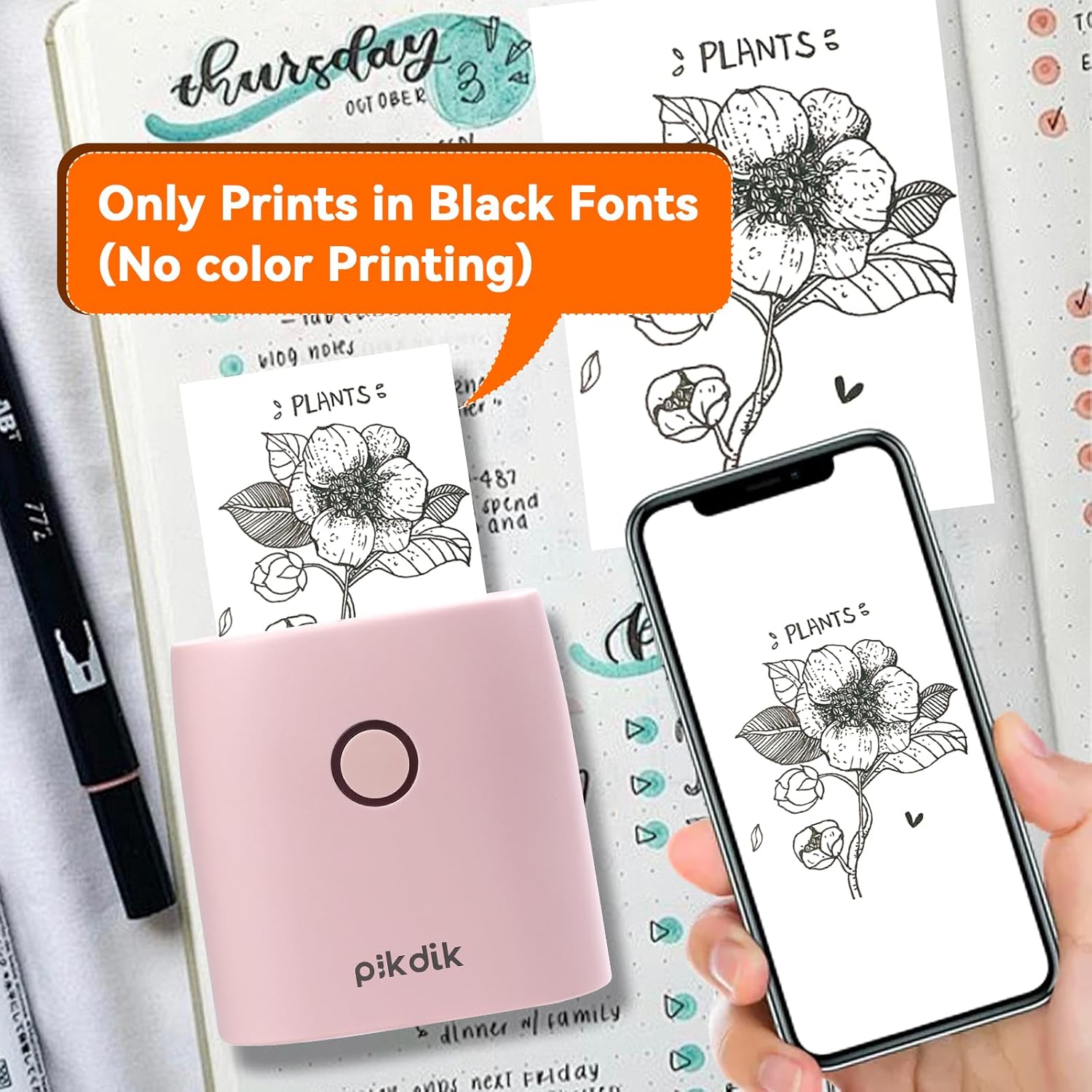
Image: The printer produces prints exclusively in black and white, as shown with a plant illustration.

Image: The 300 DPI resolution of the Q2 printer provides enhanced clarity and detail in prints compared to lower resolution alternatives.
7. Kev tu
7.1 Ntxuav lub tshuab luam ntawv
To maintain optimal print quality, periodically clean the print head. Use a soft, lint-free cloth lightly dampsiv cawv isopropyl. Maj mam so lub taub hau luam ntawv. Xyuas kom lub tshuab luam ntawv raug kaw thiab qhuav tag ua ntej siv.
7.2 Replacing Thermal Paper
When the paper roll is depleted, replace it by following the steps in Section 5.2. Use only thermal paper compatible with the PD-Q2 printer to ensure proper function and print quality.
8. Kev daws teeb meem
| Teeb meem | Ua Tau | Kev daws |
|---|---|---|
| Lub tshuab luam ntawv tsis qhib | Tsawg roj teeb; Lub hwj chim khawm tsis nias kom raug | Them lub tshuab luam ntawv; Nias thiab tuav lub pob hluav taws xob rau ob peb feeb. |
| Tsis tuaj yeem txuas ntawm Bluetooth | Bluetooth off on phone; Printer not in pairing mode; App issue | Ensure phone Bluetooth is on; Restart printer and app; Re-pair device in app. |
| Poor print quality (faint, pixelated) | Low battery; Print head dirty; Incorrect paper type; Image resolution too low | Charge printer; Clean print head (Section 7.1); Use correct thermal paper; Use higher resolution images. |
| Daim ntawv jam | Paper not loaded correctly; Foreign object in paper path | Open cover, remove jammed paper, reload correctly; Check for obstructions. |
| Lub tshuab luam ntawv tsis teb | System yuam kev | Perform a soft reset by turning the printer off and on again. If issue persists, contact support. |
9. Cov lus qhia tshwj xeeb
| Feature | Paub meej |
|---|---|
| Qauv | Q2 |
| Dimensions (D x W x H) | 4.1 x 8.4 x 8.4 cm (1.6 x 3.3 x 3.3 nti) |
| Qhov hnyav | 0.57 Phaus (kwv yees li 258.55 g) |
| Tshuab luam ntawv | Kub |
| Kev daws teeb meem luam tawm | 300 DPI (Ib Leeg) |
| Kev sib txuas | Bluetooth |
| Compatible Devices | Smartphones, Tablets (Android, iOS) |
| Ntau tshaj Media Size | 2cm ua |
| Hwj chim Source | Built-in Lithium Polymer Battery (Rechargeable via USB Type-C) |
| Lub npe App | Meta Print |
10. Warranty thiab Support
For warranty information and technical support, please refer to the warranty card included with your product or contact PikDik customer service directly. Keep your purchase receipt as proof of purchase.