
1. Taw qhia
This manual provides comprehensive instructions for the Maxcom Fit FW55 Aurum Pro Smartwatch. It covers essential information regarding product setup, operation, maintenance, and troubleshooting to ensure optimal performance and user experience. Please read this manual carefully before using your device.
2. Cov ntsiab lus ntawm pob
Thov xyuas kom meej tias txhua yam khoom teev hauv qab no muaj nyob hauv koj lub pob khoom:
- Maxcom Fit FW55 Aurum Pro Smartwatch
- Charge Cable
- Tus Neeg Siv Los Siv (cov ntawv no)
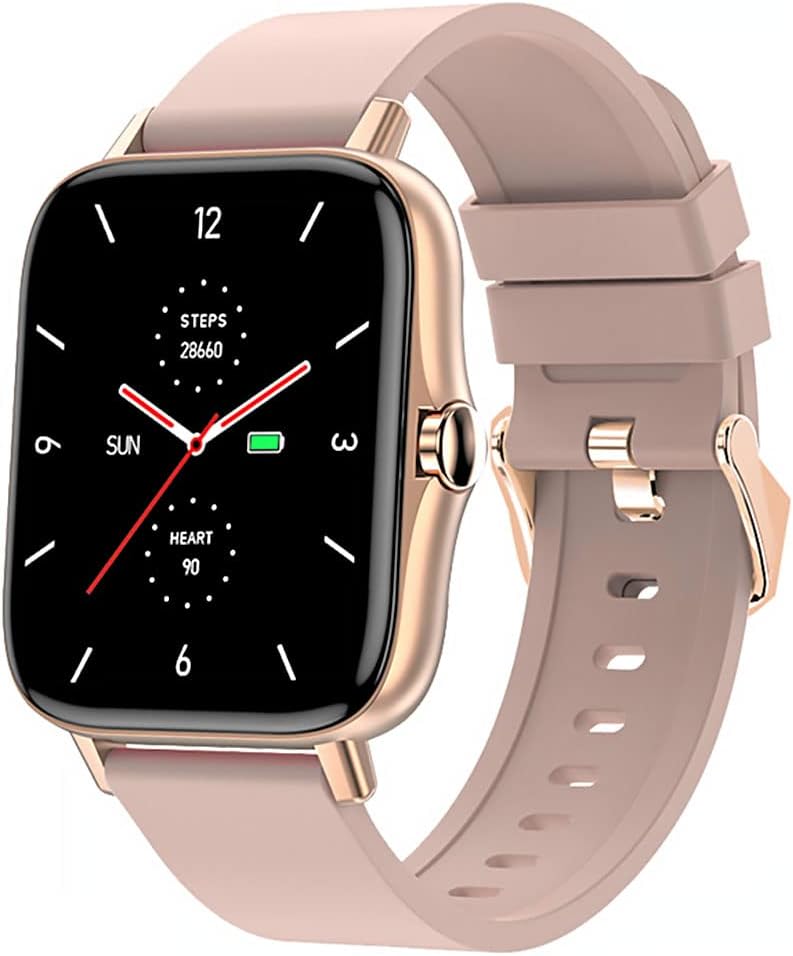
Image 1: Maxcom Fit FW55 Aurum Pro Smartwatch with a pink silicone band. The watch face displays steps, heart rate, and time.
3. Teeb tsa
3.1. Them lub Smartwatch
Before initial use, fully charge your Maxcom Fit FW55 Aurum Pro Smartwatch. Connect the provided charging cable to the charging port on the back of the smartwatch and plug the other end into a standard USB power adapter (not included) or a computer's USB port. The watch display will indicate charging status.
- Ensure the charging pins are clean and properly aligned with the watch's charging contacts.
- Feem ntau them tag nrho yuav siv li 2 teev.
3.2. Pairing nrog koj lub xov tooj smartphone
To unlock the full functionality of your smartwatch, you need to pair it with your smartphone via Bluetooth.
- Download tau lub App: Nrhiav rau the official Maxcom Fit application in your smartphone's app store (iOS App Store or Google Play Store) and install it.
- Qhib Bluetooth: Xyuas kom tseeb tias Bluetooth qhib rau ntawm koj lub smartphone.
- Qhib lub App: Launch the Maxcom Fit application on your smartphone.
- Ntxiv Device: Follow the in-app instructions to add a new device. Select "FW55 Aurum Pro" from the list of available devices.
- Confirm Pairing: A pairing request may appear on both your smartphone and the smartwatch. Confirm the pairing on both devices.
Once successfully paired, the smartwatch will synchronize data with your phone, and you can customize settings through the app.
4. Siv lub Smartwatch
4.1. Fais fab / Off
- Hwj chim On: Press and hold the side button for a few seconds until the Maxcom logo appears.
- Fais fab tawm: From the watch face, swipe down to access quick settings, or navigate to the 'Settings' menu. Select 'Power Off' and confirm. Alternatively, press and hold the side button and select 'Power Off'.
4.2. Basic Navigation
- Kov Screen: The FW55 Aurum Pro features a 1.7-inch touch screen for intuitive interaction.
- Swipe Up/down: Scroll through notifications, menus, or quick settings.
- Swipe Left/Right: Access different widgets or main functions (e.g., heart rate, activity data).
- Coj mus rhaub: Xaiv ib yam khoom lossis paub meej tias qhov kev ua.
- Sab Khawm: Press to return to the watch face or wake the screen. A long press may access power options.
4.3. Cov yam ntxwv tseem ceeb
The Maxcom Fit FW55 Aurum Pro Smartwatch offers a range of features to support your daily activities and health monitoring:
- Kev Ua Haujlwm Saib Xyuas: Monitors steps taken, distance covered, and calories burned.
- Kev Ntsuam Xyuas Lub Plawv: Muab cov ntaub ntawv qhia txog lub plawv dhia tiag tiag.
- Pw tsaug zog saib xyuas: Taug qab cov qauv pw tsaug zog thiab qhov zoo.
- Kev ceeb toom: Receives alerts for calls, messages, and app notifications from your paired smartphone.
- GPS: Integrated GPS for accurate outdoor activity tracking.
- Customizable Watch Faces: Personalize your watch face through the companion app.

Image 2: Maxcom Fit FW55 Aurum Pro Smartwatch featuring a gold metal mesh band. The watch face displays digital time, steps, and heart rate.
5. Kev tu
Proper care and maintenance will extend the lifespan of your smartwatch.
- Ntxuav: Regularly wipe the watch screen and body with a soft, dry, lint-free cloth. For stubborn dirt, slightly dampen daim ntaub nrog dej. Tsis txhob siv cov tshuaj hnyav lossis cov khoom siv abrasive.
- Strap Care: Clean the watch strap according to its material. Silicone straps can be washed with mild soap and water. Metal straps may require specific cleaning agents.
- Tsis txhob muaj xwm txheej heev: Do not expose the smartwatch to extreme temperatures, direct sunlight for prolonged periods, or corrosive liquids.
- Dej tsis kam: While the watch may have some water resistance, it is not suitable for diving or high-pressure water activities. Refer to the product specifications for detailed water resistance ratings.
6. Kev daws teeb meem
If you encounter issues with your Maxcom Fit FW55 Aurum Pro Smartwatch, try the following solutions:
- Saib tsis tig rau: Xyuas kom lub moos tau them tag nrho. Txuas nws mus rau lub charger tsawg kawg 30 feeb.
- Tsis tuaj yeem ua ke nrog smartphone:
- Xyuas kom tseeb tias Bluetooth tau qhib rau ntawm koj lub xov tooj thiab lub moos.
- Xyuas kom tseeb tias lub moos nyob hauv Bluetooth nrug ntawm koj lub xov tooj.
- Rov pib dua koj lub xov tooj thiab lub smartwatch.
- Sim unpairing thiab re-pairing lub ntaus ntawv los ntawm lub app.
- Cov ntaub ntawv tsis raug (cov kauj ruam, lub plawv dhia ceev):
- Ensure the watch is worn snugly on your wrist, about one finger's width above your wrist bone.
- Ntxuav lub sensor nyob tom qab ntawm lub moos.
- Update the companion app to the latest version.
- Kev ceeb toom tsis tau txais:
- Check notification settings in the Maxcom Fit app.
- Xyuas kom tseeb tias koj lub xov tooj cov kev tso cai ceeb toom tau muab rau lub app.
- Verify that the watch is successfully paired and connected to your phone.
If problems persist, consult the Maxcom support website lossis hu rau cov neeg siv khoom.
7. Cov lus qhia tshwj xeeb
Below are the technical specifications for the Maxcom Fit FW55 Aurum Pro Smartwatch:
| Feature | Paub meej |
|---|---|
| Hom | Maxcom |
| Qauv nab npawb | FW55 Aurum Pro |
| Qhov Loj | 1.7 Nws |
| Connectivity Technology | Bluetooth |
| Kev Sib Txuas Lus Wireless | Bluetooth |
| Compatible Devices | Smartphone |
| GPS | Integrated GPS |
| Cov duab | Square |
| Lub Hom Phiaj | Adult Unisex |
| Cov Cheebtsam suav nrog | Charger |

Duab 3: Pem hauv ntej view of the Maxcom Fit FW55 Aurum Pro Smartwatch with a pink silicone band, highlighting the square display.
8. Warranty thiab Support
For warranty information and customer support, please refer to the documentation included with your purchase or visit the official Maxcom webqhov chaw. Khaws koj cov ntaub ntawv pov thawj ntawm kev yuav khoom rau kev lees paub.
For technical assistance or further inquiries, please contact Maxcom customer service through their official channels.