
Taw qhia
The BuzzTV E5 is a 4K UHD Streaming Media Player designed to deliver an immersive viewing experience with its Android 11 operating system. This manual provides essential information to help you set up, operate, and maintain your device.
Ntim Cov Ntsiab Lus
Xyuas kom tseeb tias txhua yam khoom muaj nyob rau hauv lub thawv:
- BuzzTV E5 Set Top Box
- USB Hom-C fais fab mov
- 2 x AA roj teeb
- IR-200 chaw taws teeb
- Setup/Help Card
- HDMI Cable

The package includes the BuzzTV E5 Set Top Box, a USB Type-C power supply, two AA batteries for the remote, an IR-200 remote control, a setup/help card, and an HDMI cable.
Khoom Tshajview
The BuzzTV E5 is a compact and powerful streaming device.

The device features multiple ports for connectivity, including USB 3.0, LAN, TF card slot, AV, Ethernet, HDMI, Optical, and USB-C power input.
Cov yam ntxwv tseem ceeb
- 4K UHD Streaming: Supports ultra-high-definition 4K resolution for crisp visuals.
- Smooth Performance: Equipped with 2GB RAM and 32GB storage for responsive operation.
- Android 11 OS: Access to a wide range of apps and streaming services with an intuitive interface.
- Easy Setup and Connectivity: HDMI output for TV connection and reliable Wi-Fi.
- Compact Design: Sleek, space-saving form factor.
Teeb Qhia
Kev teeb tsa thawj zaug
Follow these steps for the initial setup of your BuzzTV E5:
- Txuas rau TV: Connect the BuzzTV E5 to your television using the provided HDMI cable. Insert one end into the HDMI port on the E5 and the other into an available HDMI input on your TV.
- Kev sib txuas fais fab: Connect the USB Type-C power supply to the E5 and plug the adapter into a power outlet.
- Ntxig roj teeb: Open the battery compartment on the IR-200 remote control and insert the two AA batteries, ensuring correct polarity.
- Hwj chim On: Press the power button on the E5 device or the remote control to turn on the device.
- Initial Configuration: Follow the on-screen instructions to select your language, connect to your Wi-Fi network, and log in with your Google account.

Xyuas kom tseeb tias txhua cov xov hlau tau txuas ruaj khov ua ntej qhib lub cuab yeej.
Cov lus qhia ua haujlwm
Kev ua haujlwm yooj yim
Navigate the Android 11 interface using the IR-200 remote control.
- Kev taw qhia: Use the directional pad and 'OK' button to select items.
- Khawm Tsev: Press the home button to return to the main screen.
- Khawm rov qab: Use the back button to go to the previous screen.
- Volume Control: Kho qhov ntim siv cov nyees khawm ntim tshwj xeeb.
- App Access: Access installed applications from the home screen or the Apps menu.
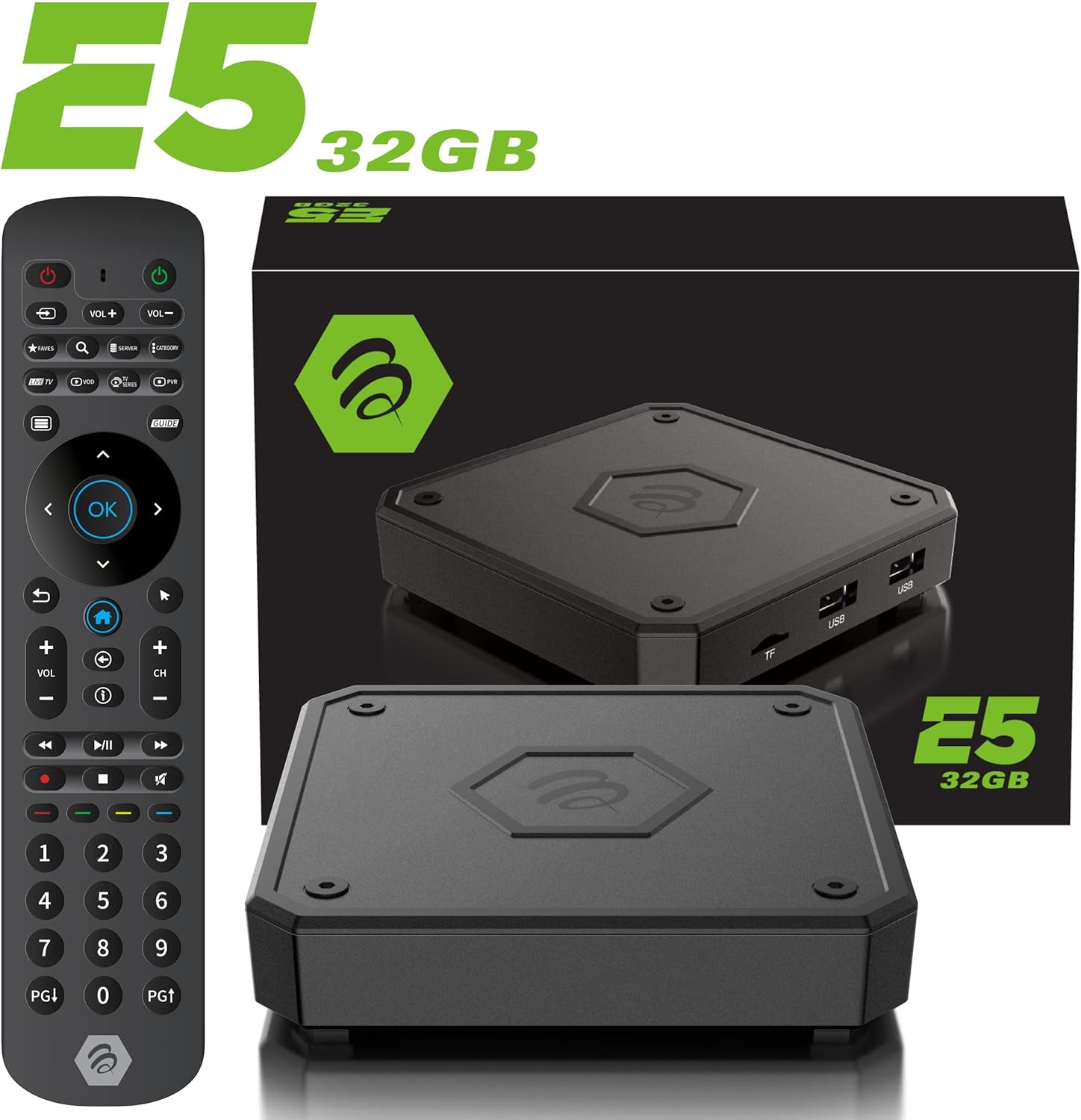
The IR-200 remote provides intuitive control over the BuzzTV E5's functions.
Kev sib txuas
Connectivity Options
- Wi-Fi: Supports dual-band Wi-Fi (2.4 GHz and 5 GHz) for wireless internet connection.
- Ethernet: A Gigabit LAN port is available for wired internet connection.
- HDMI: HDMI 2.1 output for high-quality video and audio to your TV.
- USB 3.0: For connecting external storage devices or peripherals.
- Optical tso zis: For digital audio output to compatible sound systems.
Media Playback & Streaming
Media Playback and Streaming
The BuzzTV E5 supports various media formats and provides access to numerous streaming services via the Google Play Store.
- Kev Pab Txhawb: Access Netflix, Disney+, YouTube, Prime Video, Hulu, and many more.
- Xov Xwm Hauv Zos: Ua si tshaj tawm files from connected USB drives or TF cards.
Official Product Video: Introducing the BuzzTV 5th Generation Lineup
Daim vis dis aus no qhia txog ntau yamview of the BuzzTV 5th Generation lineup, highlighting key features and models.
Specifications
Technical Specifications
| Feature | Paub meej |
|---|---|
| Qauv Lub Npe | E5 |
| Kev Ua Haujlwm | Hauv 11 |
| RAM | 2 GB DDR |
| Cia | 32GB eMMC |
| Kev daws teeb meem | 4K UHD |
| Kev sib txuas | Wi-Fi (2T2R Dual Band), Ethernet (10/100 Mbps) |
| Chaw nres nkoj | HDMI 2.1, USB 3.0, USB 2.0, Optical Audio, Power Input, MicroSD |
| CPU | Amlogic S905X4 Quad-core 64bit Cortex-A55 |
| GPU | Mali-G31 MP2 |
| Bluetooth | 5.0 |
| Qhov ntev | 3 x 12 x 12 po |
| Qhov hnyav | 1.83 puj |

Detailed technical specifications for the BuzzTV E5 model.
Kev daws teeb meem
Tej teeb meem thiab kev daws teeb meem
- Tsis muaj zog: Ensure the power adapter is securely connected to both the device and the power outlet. Check if the power button on the device is pressed.
- Tsis muaj teeb liab ntawm TV: Verify the HDMI cable is correctly connected to both the E5 and the TV. Ensure your TV input is set to the correct HDMI port.
- Cov teeb meem kev sib txuas ntawm Wi-Fi: Check your Wi-Fi router and ensure it's working. Re-enter your Wi-Fi password in the E5 settings.
- Tej thaj chaw deb tsis teb: Check if the batteries are correctly inserted and have sufficient charge. Re-pair the remote if necessary (refer to the setup card).
- App Freezing/Crashing: Try restarting the application. If the issue persists, restart the BuzzTV E5 device.
Warranty thiab Support
For warranty information and technical support, please refer to the official BuzzTV website or the contact information provided on your setup/help card. Keep your purchase receipt for warranty claims.
Online resources and FAQs may also be available on the BuzzTV support page.
Official Product Video: MAG555 Google TV 4K UHD Media Player With Voice Control And HDR From Infomir
This video provides an unboxing and setup guide for a similar Google TV media player, demonstrating general functionality and connectivity.
Official Product Video: MAG555 - revolutionize entertainment with the Google TV
This video showcases the features and user experience of the MAG555 Google TV, highlighting its entertainment capabilities.