
1. Taw qhia
The MOBAPAD ChiTu PRO-HD is a versatile wireless controller designed for an enhanced gaming experience across multiple platforms. It features advanced technology such as Hall-effect joysticks, ALPS linear motors, and comprehensive customization options. This manual provides essential information for setting up, operating, maintaining, and troubleshooting your controller.

Figure 1: MOBAPAD ChiTu PRO-HD Wireless Controller connected to a Nintendo Switch.
2. Cov ntsiab lus ntawm pob
Xyuas kom txhua yam khoom muaj nyob hauv pob:
- MOBAPAD ChiTu PRO-HD Wireless Controller
- USB-A to USB-C Cable (1m / 39.37in)
- Phau ntawv qhia
- Additional Cross-style D-Pad for swapping

Figure 2: Included items in the MOBAPAD ChiTu PRO-HD package.
3. Teeb tsa
3.1 Kev them nyiaj rau tus tswj
Connect the controller to a power source using the provided USB-A to USB-C cable. The controller features a built-in 1000mAh lithium battery, providing approximately 30 hours of usage on a full charge.

Figure 3: USB-C charging port and programmable back paddles.
3.2 Pairing with Nintendo Switch
- On your Nintendo Switch, navigate to the HOME Menu.
- Select 'Controllers' > 'Change Grip/Order'.
- On the MOBAPAD ChiTu PRO-HD controller, press and hold the small pairing button located on the back of the controller (between the M1 and M2 buttons) until the LED indicators begin to flash.
- Once the controller is detected by the Switch, the LED indicators will stabilize, and the controller will be paired.
Video 1: Ib qho dhau losview of the MOBAPAD ChiTu PRO-HD controller's features and pairing process.
3.3 Detachable D-Pad and Joysticks
The controller supports detachable joysticks and a replaceable D-pad. To swap the D-pad, gently pull the existing D-pad off and align the new D-pad with the slots, then press firmly until it clicks into place. This allows for customization based on game genres and player preferences.
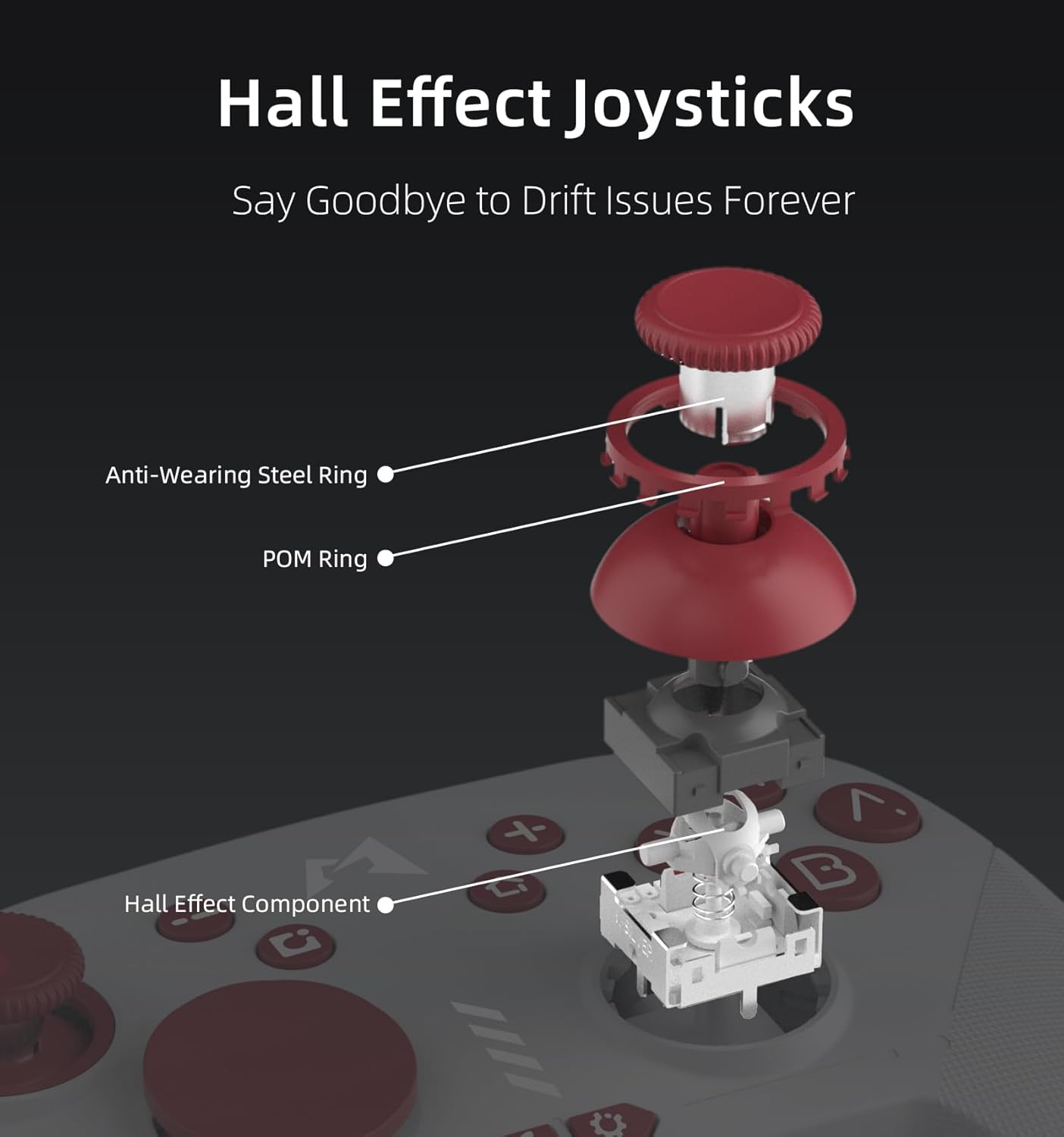
Daim duab 4: tawg view of Hall Effect Joysticks, highlighting components designed to prevent drift.
4. Cov lus qhia ua haujlwm
4.1 Basic Controls
- Analog Sticks: Rau kev txav mus los thiab kev tswj lub koob yees duab kom meej.
- Cov Khawm A/B/X/Y: Cov nyees khawm ua haujlwm txheem.
- +/- Khawm: Plus and Minus buttons for in-game menus.
- Khawm Duab Yees Duab: Capture screenshots during gameplay.
- Khawm Tsev: Rov qab mus rau HOME Menu.
- Shoulder Buttons (L/R, ZL/ZR): For various in-game actions.
4.2 Six-Axis Motion Sensing
The controller supports six-axis motion sensing, allowing for intuitive control in compatible games. This feature is particularly useful for aiming, steering, and solving puzzles that require tilting or motion input.

Figure 5: Demonstrating 6-Axis Gyroscope motion sensing.
4.3 Kev Ua Haujlwm NFC
The controller includes NFC functionality, enabling you to scan Amiibo figures for in-game bonuses and content. Simply place your Amiibo on the MOBAPAD logo area on the controller to activate.

Figure 6: Amiibo scanning via NFC on the controller.
5. Cov yam ntxwv tseem ceeb
- Hall-Effect Joysticks: Equipped with Control Silver's custom JH16 Hall-effect joysticks, ensuring precise input, low power consumption, resistance to interference, and prevention of metal magnetization, effectively eliminating stick drift.
- HD Rumble: Features an original ALPS linear motor with 320Hz high-frequency drive and dual-axis space, providing a lifelike and immersive vibration experience.
- Mechanical Buttons: The face buttons offer a tactile and responsive feel, similar to mechanical switches, ensuring accurate and satisfying feedback with each press.
- Durability: Designed for longevity with 5 million mechanical button presses and 5 million Hall-effect joystick cycles.
- Integrated Mechanical Structure: The joystick's mechanical design uses an integrated structure to resolve issues like metal magnetization and magnetic interference, enhancing electrical performance and consistent quality.
6. Kev hloov kho
6.1 Turbo muaj nuj nqi
The controller includes an independent Turbo button for rapid-fire actions. To activate, press and hold the Turbo button, then press the desired action button (e.g., A, B, X, Y). The button will now repeatedly register presses as long as it's held down. There are three different turbo intensities, starting at medium. Repeat the process to deactivate.

Figure 7: Independent Turbo Button for rapid-fire actions.
6.2 Kev Tsim Kho Macro
The controller supports macro programming for complex command sequences. To record a macro:
- Press and hold the 'Settings' button (gear icon) for a few seconds until the controller vibrates and the logo turns purple, indicating it's ready to record.
- Perform the desired button inputs for your macro.
- To save the macro, press either the M1 or M2 back paddle. The recorded sequence will be assigned to that paddle.
6.3 Software-Based Customization
Utilize the dedicated mobile application for advanced customization, including joystick dead zone adjustment, key remapping for macro programming, and RGB lighting control for the logo.

Figure 8: Companion app for advanced customization.
7. Kev tu
To ensure the longevity and optimal performance of your MOBAPAD ChiTu PRO-HD controller, follow these maintenance guidelines:
- Ntxuav: Siv daim ntaub mos mos thiab qhuav los so lub maub los. Yog tias muaj av qias neeg, me ntsis dampen daim ntaub nrog dej los yog tshuaj ntxuav me me. Tsis txhob siv tshuaj hnyav lossis cov khoom siv abrasive.
- Cia: Khaws tus maub los rau hauv qhov chaw txias, qhuav kom deb ntawm tshav ntuj ncaj qha thiab qhov kub thiab txias.
- Kev tuav: Avoid dropping the controller or subjecting it to strong impacts, as this can damage internal components.
8. Kev daws teeb meem
If you encounter issues with your controller, try the following steps:
- Controller Not Pairing: Ensure the controller is charged. Press and hold the pairing button on the back of the controller until the LEDs flash, then re-attempt pairing via the Nintendo Switch 'Change Grip/Order' menu.
- Kev Nkag Mus qeeb lossis Kev Tsis Txuas: Ensure the controller is within range of the console. Avoid obstructions between the controller and the console. If issues persist, try resetting the controller using the small reset hole on the back.
- Stick Drift: The Hall-effect joysticks are designed to prevent drift. If you experience any unusual stick behavior, try recalibrating the joysticks via the companion app or the Switch system settings.
- Cov teeb meem them nqi: Verify that the USB-C cable is securely connected to both the controller and the power source. Try using a different USB-C cable or power adapter.
9. Cov lus qhia tshwj xeeb
| Feature | Paub meej |
|---|---|
| Qauv nab npawb | PRO-HD |
| Qhov ntev | 5.99 x 4.13 x 2.42 po |
| Yam Nyhav | 12.52 hli |
| Roj teeb | 1000mAh Lithium (included) |
| Roj teeb lub neej | Kwv yees li. 30 teev |
| Kev sib txuas | Wireless (Bluetooth), USB-C |
| Joystick Type | Hall-Effect (JH16) |
| Kev vibration | ALPS Linear Motor (HD Rumble) |
| Motion Control | 6-Axis Gyroscope |
| Kev them nyiaj yug NFC | Yes (Amiibo) |
| Chaw tsim tshuaj paus | Dongguan Heng xun Energy Technology CO., Ltd. |
10. Warranty thiab Support
For warranty information or technical support, please refer to the documentation included with your purchase or contact MOBAPAD customer service directly. Keep your proof of purchase for any warranty claims.