
Taw qhia
This manual provides comprehensive instructions for the installation, operation, and maintenance of your RTX DTS1419 Three-Phase DIN Rail Energy Meter with WiFi connectivity. Please read this manual thoroughly before installation and use to ensure proper function and safety.
Khoom nta
The RTX DTS1419 is an intelligent three-phase energy meter designed for DIN rail mounting. It offers advanced energy monitoring and control capabilities through WiFi connectivity and the Tuya Smart Life application.
Cov yam ntxwv tseem ceeb muaj xws li:
- Real-time monitoring of voltage (V), current (A), and power (kW) for each phase.
- Remote control for switching power on or off.
- Clear LCD display for sequential data viewhauv.
- Integrated status indicator lights.
- Prepayment function with notifications for exceeding set energy limits.
- Detailed energy consumption statistics for each phase.
- Easy installation on a standard DIN rail.
- Muaj peev xwm tam sim no ntawm 80A.
- Continuous current rating of 10A per phase.
- Voice control compatibility with Google Home and Amazon Alexa.
- 2.4 GHz WiFi communication for direct router connection (no gateway required).
- Automated scenarios based on predefined measurement values (e.g., automatic shutdown if voltage exceeds limit).
- Archiving function for historical energy data.
Cov ntaub ntawv kev nyab xeeb
Kev Tiv Thaiv Kev Nyab Xeeb
CEEB TOOM: Installation and maintenance should only be performed by qualified electricians. Disconnect power before installation or servicing to prevent electric shock.
- Ensure all local electrical codes and regulations are followed during installation.
- Tsis txhob khiav lub cuab yeej yog tias nws zoo li puas.
- Khaws lub cuab yeej kom deb ntawm dej thiab cov av noo siab.
- Tsis txhob siv ntau tshaj qhov ntsuas tam sim no ntawm 80A.
- Xyuas kom muaj av zoo.
Teeb tsa
1. Kev teeb tsa
The RTX DTS1419 is designed for DIN rail mounting within an electrical panel.
- Mounting: Securely attach the energy meter to a standard 35mm DIN rail. Ensure the clip at the bottom locks into place.
- Kev xaim: Refer to the wiring diagram below for correct connection of the three phases (L1, L2, L3) and neutral (N). Ensure all connections are tight and secure.

Duab piav qhia: A detailed wiring diagram showing the connection points for the three phases (L1, L2, L3) and neutral (N) on the RTX DTS1419 energy meter. Input terminals are on the left, output terminals on the right. Each phase is clearly labeled with corresponding wire colors (brown, black, grey for phases, blue for neutral) and arrows indicating current flow.
- Hwj chim On: After verifying all connections, restore power to the circuit. The LCD display on the meter should illuminate.
2. App Connection (Tuya Smart Life)
- Rub tawm App: Download the "Tuya Smart Life" app from your smartphone's app store (iOS or Android).
- Sau npe / ID nkag mus: Open the app and register a new account or log in to an existing one.
- Ntxiv Device: In the app, tap the "+" icon to add a new device. Select "Electrical" > "Energy Meter (Wi-Fi)".
- Khub Hom: On the RTX DTS1419 meter, press and hold the "SET" button until the network indicator light (blue LED) starts blinking rapidly. This indicates pairing mode.
- Txuas rau Wi-Fi: Follow the on-screen instructions in the app to connect the device to your 2.4 GHz Wi-Fi network. Ensure your phone is also connected to the same 2.4 GHz network.
- Ntxiv Khoom Siv: Once successfully paired, the network indicator light will become solid, and the device will appear in your Tuya Smart Life app.
Duab piav qhia: The RTX DTS1419 energy meter displayed next to a smartphone showing the Tuya Smart Life application interface. The app displays real-time energy data such as current, active power, and voltage, indicating successful connection and monitoring.
Cov lus qhia ua haujlwm
1. Kev saib xyuas lub sijhawm
Once connected to the Tuya Smart Life app, you can monitor various electrical parameters:
- Current Electrical Consumption (I): View the current draw in Ampyog (A).
- Current Power Consumption (P): View the active power in Kilowatts (kW).
- Current Supply Voltage (V): View cov voltage rau txhua theem.
- Current Energy Consumption (kW.h): Track accumulated energy usage in kilowatt-hours.
The meter's LCD display also cycles through these values directly on the device.

Duab piav qhia: Ib qho ze ze pem hauv ntej view of the RTX DTS1419 Three-Phase DIN Rail Energy Meter. The LCD screen clearly displays "U 235.0", indicating a voltage reading of 235.0 Volts. Status indicator lights for Relay, Alert, Active, and Network are visible on the right side, along with the RTX and Tuya logos.
2. Chaw taws teeb tswj
The Tuya Smart Life app allows you to remotely switch the power on or off for the connected circuit. This function activates the integrated relay within the meter.
- Open the device interface in the Tuya Smart Life app.
- Locate the "On/Off" toggle or button to control the power supply.
3. Energy Statistics and Archiving
The app provides independent energy consumption statistics for each phase and an archiving function for historical data. You can review daily, weekly, or monthly consumption trends.

Duab piav qhia: A screenshot of the Tuya Smart Life app interface, highlighting sections for "totalEle(kWh)" (total energy consumption) and "Gross generation(kWh)". This illustrates the app's capability to display both consumed and potentially generated energy data.
4. Prepayment Function
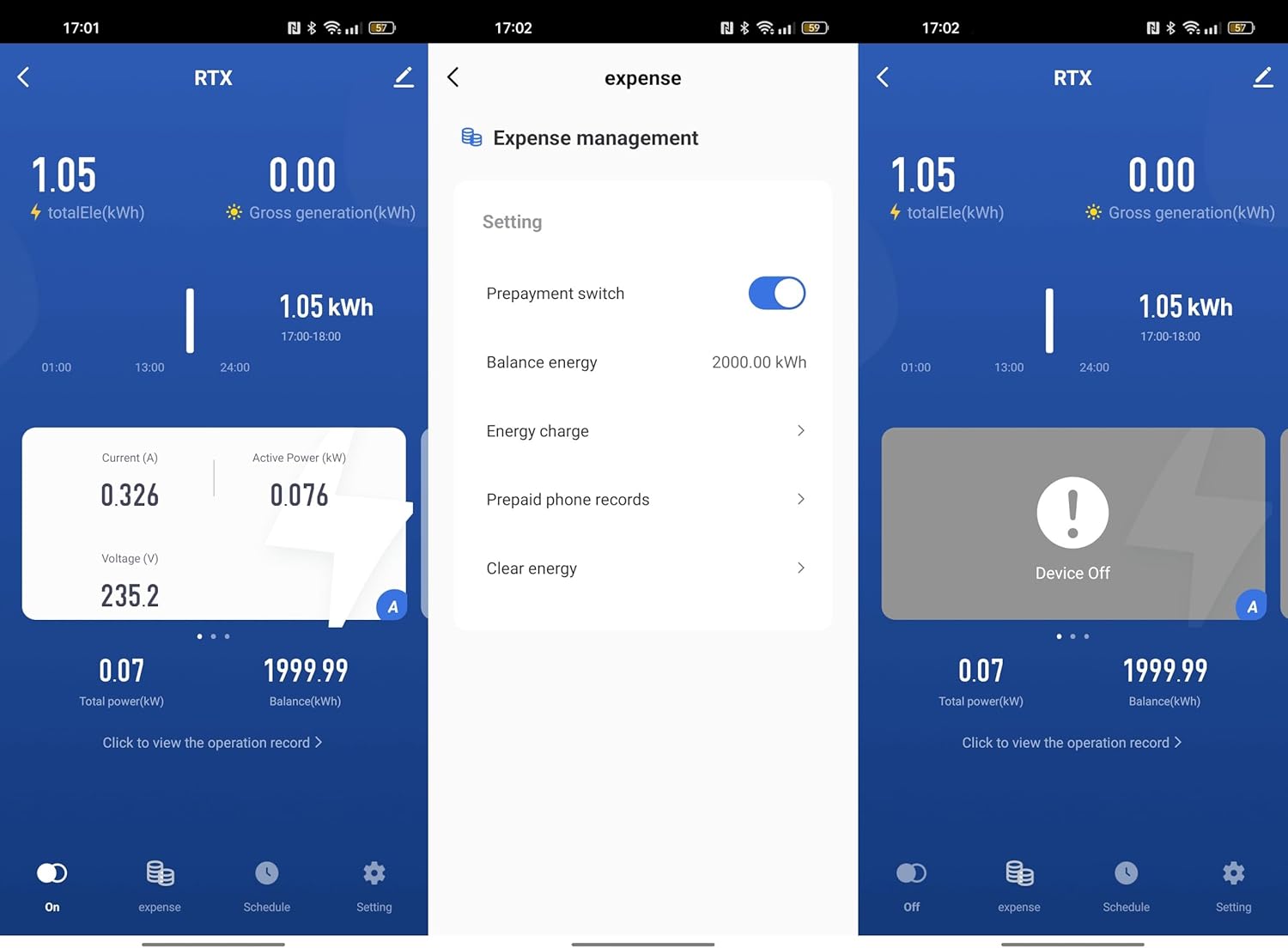
Set an energy limit within the Tuya Smart Life app. The device will notify you if this limit is exceeded, allowing for better energy budget management.

Duab piav qhia: A series of three screenshots from the Tuya Smart Life app. The first shows the main device interface. The second shows the "Expense management" screen with options for "Prepayment switch", "Balance energy", "Energy charge", and "Prepaid phone records". The third shows the device in an "Off" state, indicating remote control functionality.
5. Lub suab tswj
Integrate the RTX DTS1419 with Google Home or Amazon Alexa for voice-activated control. Follow the instructions provided by Google Home or Alexa for connecting Tuya Smart Life devices.
- Enable the "Tuya Smart Life" skill/action in your voice assistant app.
- Link your Tuya account.
- Tshawb nrhiav cov khoom siv.
- Use voice commands such as "Alexa, turn off the main power" or "Hey Google, what is the energy consumption of the meter?" (Specific commands may vary based on setup).
6. Automatic Scenarios
Configure automated actions within the Tuya Smart Life app based on predefined measurement values. For example, you can set the device to automatically shut off if the voltage exceeds a safe limit.
- Navigate to the "Smart" or "Automation" section in the Tuya Smart Life app.
- Create a new automation.
- Set conditions based on voltage, current, or power readings from the DTS1419.
- Define actions, such as turning off the meter or sending a notification.
Kev tu
- Ntxuav: Siv daim ntaub qhuav thiab mos los so lub cuab yeej. Tsis txhob siv cov tshuaj ntxuav uas ua rau tawv los yog cov tshuaj yaj.
- Hloov tshiab Firmware: Periodically check the Tuya Smart Life app for available firmware updates for the device to ensure optimal performance and security.
- Kev txheeb xyuas: Regularly inspect wiring connections for tightness and signs of wear.
Kev daws teeb meem
| Teeb meem | Ua Tau | Kev daws |
|---|---|---|
| Device tsis qhib. | Tsis muaj hluav taws xob; cov xov hlau tsis raug. | Check circuit breaker. Verify wiring connections according to the diagram. |
| Txuas tsis tau Wi-Fi. | Incorrect Wi-Fi password; 5GHz network; device not in pairing mode; weak signal. | Ensure correct 2.4 GHz Wi-Fi password. Put device in pairing mode (blinking blue LED). Move router closer or use a Wi-Fi extender. |
| Kev nyeem tsis raug. | Loose wiring connections; faulty device. | Check all wiring connections for tightness. If problem persists, contact support. |
| Kev tswj chaw taws teeb tsis ua haujlwm. | No internet connection; app issue; device offline. | Check your home internet connection. Ensure the device is online in the Tuya app. Restart the app. |
Specifications
- Qauv: DTS 1419
- Hom Tshuaj: RTX
- Hom: Three-Phase DIN Rail Energy Meter
- Kev sib txuas: Wi-nkaus (2.4 GHz)
- Maximum tam sim no: 80 A
- Nruam Tam sim no: 10A per Phase
- Voltage: 3x230/400V 50Hz
- Pulse Constant: 800 kWh/m²
- Chav Kawm Tiav: 1
- Compatibility: Tuya Smart Life App, Google Home, Amazon Alexa
- Mounting: 35 hli DIN Rail
- ASIN: B0CDVLZV9B
Warranty thiab Support
For warranty information, please refer to the documentation provided with your purchase or contact your retailer. For technical support, please visit the RTX website lossis hu rau lawv lub chaw pabcuam neeg siv khoom.
Chaw tsim tshuaj paus: RTX