
DinoFire X17
DinoFire Rechargeable Presentation Clicker X17 User Manual
Qauv: X17
Taw qhia
Thank you for choosing the DinoFire Rechargeable Presentation Clicker, Model X17. This device is designed to enhance your presentations with its wireless control, integrated laser pointer, and user-friendly features. This manual provides detailed instructions for setup, operation, maintenance, and troubleshooting to ensure optimal performance.
Ntim Cov Ntsiab Lus
Thov xyuas kom meej tias txhua yam khoom muaj nyob hauv koj pob:
- DinoFire Rechargeable Presentation Clicker (X17)
- USB Receiver (stored inside the clicker)
- Micro USB Charging Cable
- Tus Neeg Siv Los Siv (cov ntawv no)
Khoom Tshajview
The DinoFire X17 Presentation Clicker features an ergonomic design with intuitive controls for seamless presentation delivery. Familiarize yourself with the device's components and button functions.
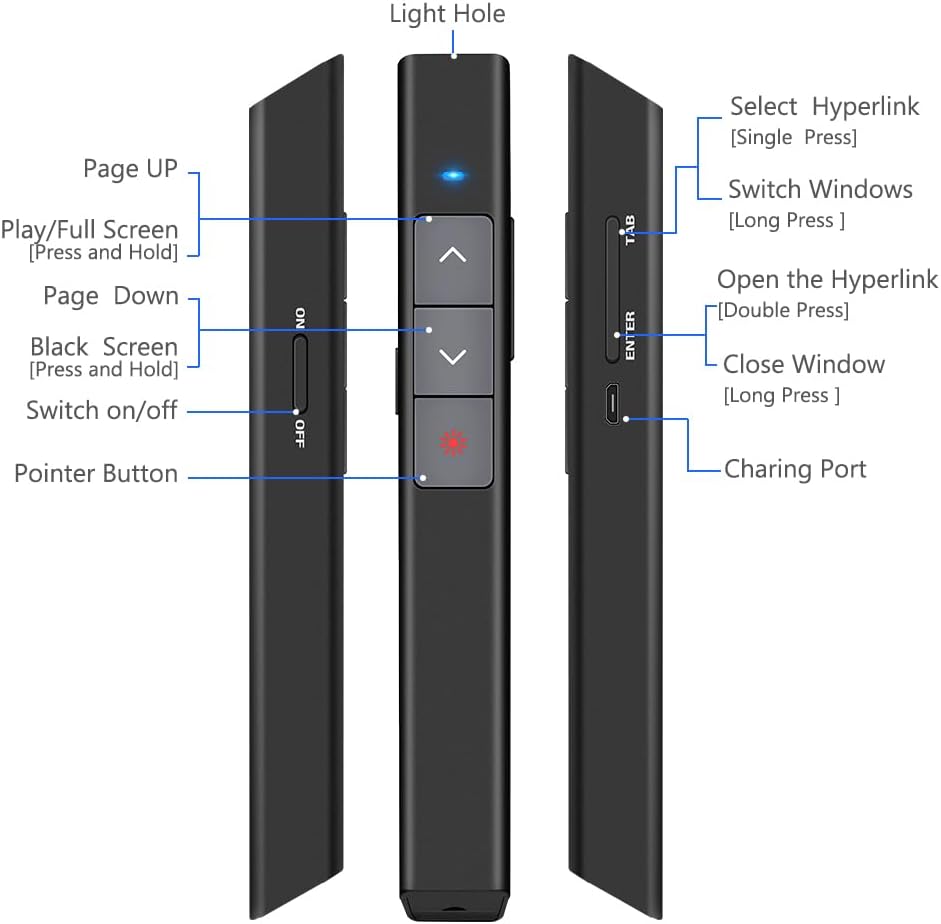
Daim duab 1: Paub meej view of the DinoFire X17 Presentation Clicker showing button functions and port locations.
Button Functions:
- Page Up (▲): Advances to the previous slide.
- Page Down (▼): Advances to the next slide.
- Pointer Button: Activates the red laser pointer.
- Play/Full Screen (Press and Hold): Initiates or exits full-screen presentation mode.
- Black Screen (Press and Hold): Toggles a black screen during presentation.
- Qhib / tawm: Lub hwj chim hloov rau lub cuab yeej.
- Select Hyperlink (Single Press): Selects a hyperlink on the slide.
- Open the Hyperlink (Double Press): Opens the selected hyperlink.
- Switch Windows (Long Press): Cycles through open application windows.
- Close Window (Long Press): Closes the active window.
- Charging Chaw nres nkoj: Micro USB port for recharging the device.
- Light Hole: Location of the laser emitter.
Teeb Qhia
1. Charging the Presenter
Before initial use, fully charge the presentation clicker. A full charge typically takes approximately one hour and provides power for over one week of use.
- Connect the provided Micro USB charging cable to the charging port on the side of the presenter.
- Txuas lwm qhov kawg ntawm lub cable mus rau USB lub zog (xws li, lub computer USB chaw nres nkoj, USB phab ntsa adapter).
- The charging indicator light will illuminate (refer to "Low Power Indicator" section for details).
- Thaum them tag nrho, disconnect tus cable.

Daim duab 2: The presentation clicker being charged via its Micro USB port, connected to a laptop.
2. Txuas USB Receiver
The USB receiver is stored magnetically within the presentation clicker for convenience and to prevent loss.
- Gently pull out the USB receiver from the bottom end of the presentation clicker.
- Insert the USB receiver into an available USB port on your computer (laptop or desktop).
- The system will automatically detect and install the necessary drivers. No manual driver installation is required.

Daim duab 3: The magnetic storage for the USB receiver, demonstrating its removal and insertion into a computer's USB port.
3. Fais fab rau / tawm
- Locate the "Switch on/off" button on the side of the clicker.
- Slide the switch to the "ON" position to power on the device.
- Tig lub pob mus rau qhov chaw "OFF" thaum tsis siv kom txuag tau lub roj teeb.
4. System thiab Software Compatibility
The DinoFire X17 is widely compatible with various operating systems and presentation software.
- Txhawb Systems: Windows 2003, XP, Windows Vista, Windows 7, 8, 10, Linux, Android, Mac OS.
- Txhawb Software: Keynote, Prezi, MS Word, Excel, PowerPoint, ACD See, website browsers, iWork, Google Slides, etc.
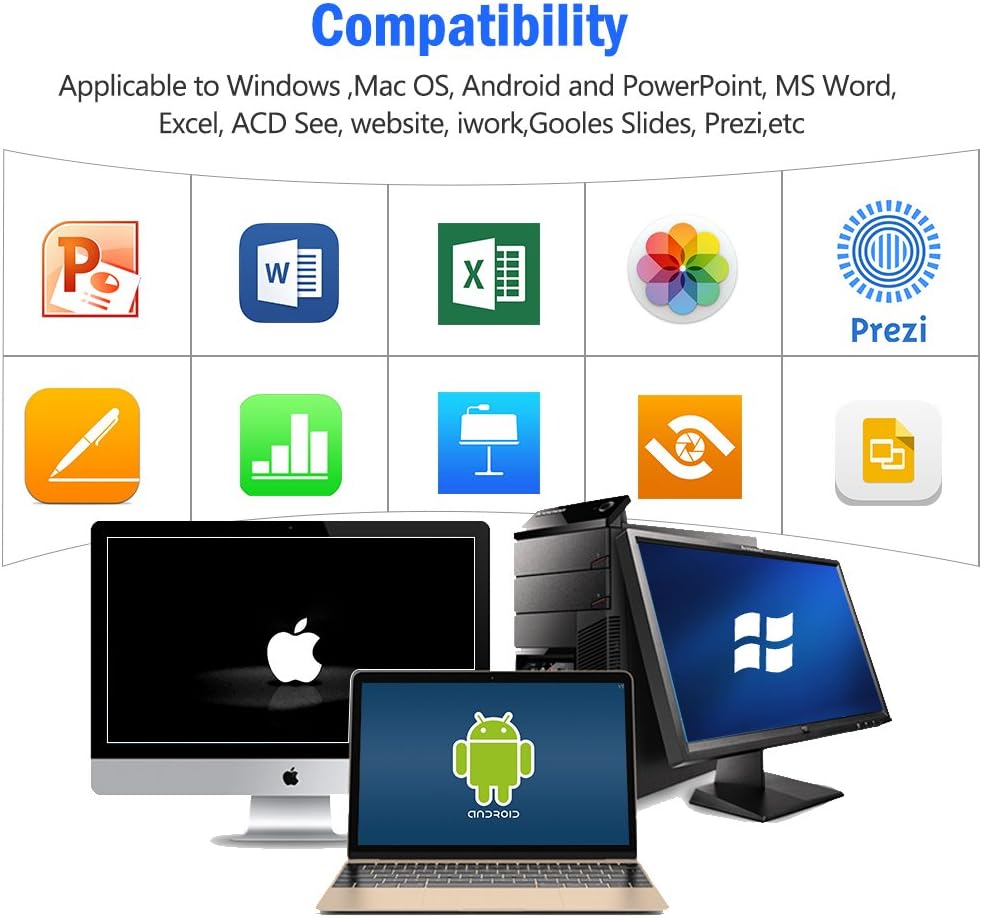
Daim duab 4: Visual representation of the broad compatibility of the presentation clicker with different operating systems and presentation applications.
Cov lus qhia ua haujlwm
Basic Presentation Control
- Next Slide: Press the "Page Down" (▼) button.
- Previous Slide: Press the "Page Up" (▲) button.
- Start/Exit Full Screen: Press and hold the "Page Up" (▲) button.
- Black Screen: Press and hold the "Page Down" (▼) button to toggle a black screen.
Siv lub Laser Pointer
The integrated red laser pointer allows you to highlight specific content on your screen or projection.
- Press and hold the "Pointer Button" (red dot icon) to activate the laser.
- Release the button to turn off the laser.
- The laser has a range of up to 300 feet (91 meters).
- Ceev faj: Do not point the laser directly at people's eyes or at highly reflective surfaces.

Daim duab 5: The red laser pointer in operation, highlighting its visibility and including a safety warning.
Advanced Functions
- Select Hyperlink: Single press the "ENTER" button.
- Open Hyperlink: Double press the "ENTER" button.
- Hloov Windows: Long press the "TAB" button to cycle through open applications.
- Close Window: Long press the "ENTER" button to close the active window.
Wireless Control Range
The DinoFire X17 offers a wireless control range of up to 100 feet (30 meters), allowing you freedom of movement during your presentation.

Daim duab 6: Illustration of the presentation clicker's effective long control range in a presentation setting.
Kev tu
Txoj Cai Them Nqi
- Charge the device when the low power indicator flashes continuously.
- Avoid overcharging by disconnecting the cable once fully charged.
- Use the provided Micro USB cable or a certified equivalent for charging.
USB Receiver Cia Khoom
Always store the USB receiver inside the magnetic compartment of the clicker when not in use to prevent loss and damage.
Ntxuav
So lub cuab yeej nrog ib daim ntaub mos, qhuav. Tsis txhob siv cov tshuaj ntxuav kua lossis cov khoom siv abrasive.
Kev daws teeb meem
| Teeb meem | Ua Tau | Kev daws |
|---|---|---|
| Ntaus tsis teb. | Low battery; USB receiver not connected; Device is off. | Charge the device; Ensure USB receiver is securely plugged in; Turn on the device. |
| Laser pointer not working. | Low battery; Laser button not pressed correctly. | Charge the device; Press and hold the laser button firmly. |
| Kev tswj luv luv. | Obstructions; Interference; Low battery. | Ensure clear line of sight to the receiver; Move away from sources of interference; Charge the device. |
| Hyperlink function not working. | Software specific issue; Hyperlink not properly selected. | Ensure the hyperlink is active and selected (single press ENTER) before attempting to open (double press ENTER). Check software settings. |
Qhov Ntsuas Hluav Taws Xob Tsawg
The device features a low power indicator to alert you when charging is needed. When the indicator flashes continuously, please charge the device. The device will enter auto-sleep mode after approximately 5 minutes of inactivity to save energy.

Daim duab 7: Explanation of the indicator light states for working, charging, and fully charged conditions.
Specifications
- Qauv: X 17
- Hom Tshuaj: DinoFire
- Wireless Technology: 2.4GHz RF
- Tswj ntau yam: Mus txog 100 ko taw (30 meters)
- Laser Hom: Liab lub laser
- Laser Range: Mus txog 300 ko taw (91 meters)
- Hom roj teeb: 1 Lithium Polymer roj teeb (nrog)
- Lub sij hawm them nqi: Kwv yees li 1 teev
- Sijhawm siv: Over one week (on a single charge)
- Qhov Loj: 6.42 x 1.61 x 1.14 po (16.3 x 4.1 x 2.9 cm)
- Yam khoom hnyav: 1.6 ooj (45 grams)
- Compatible Systems: Windows 2003/XP/Vista/7/8/10, Linux, Android, Mac OS
- Tau tshaj Software: Keynote, Prezi, MS Word, Excel, PowerPoint, ACD See, web browsers, iWork, Google Slides
Warranty thiab Support
Warranty Information
The DinoFire Rechargeable Presentation Clicker X17 typically comes with a 3-year warranty. Please refer to your purchase documentation or the manufacturer's official website rau cov lus qhia tshwj xeeb thiab cov xwm txheej.
Kev Pab Txhawb Cov Neeg Siv Khoom
For technical assistance, troubleshooting beyond this manual, or warranty claims, please contact DinoFire customer support through their official website or the retailer where the product was purchased. Keep your purchase receipt or order number handy for faster service.
Ask a question about this manual
Ask about setup, troubleshooting, compatibility, parts, safety, or missing instructions. Manuals+ will review the question and use this page’s manual context to help answer it.