
1. Khoom Tshajview
The TP-Link Deco X1500 is a Wi-Fi 6 Mesh System designed to provide seamless, whole-home Wi-Fi coverage. This 3-pack system utilizes advanced Wi-Fi 6 technologies to deliver faster speeds, connect more devices, and reduce latency for a superior network experience. It creates a unified network that automatically selects the best connection as you move throughout your home.

Image: A single TP-Link Deco X1500 Mesh WiFi 6 unit, showcasing its compact white cylindrical design.
Cov yam ntxwv tseem ceeb:
- Faster Connections: Wi-Fi 6 achieves speeds up to 1,500 Mbps: 1,201 Mbps on 5 GHz and 300 Mbps on 2.4 GHz.
- Connect More Devices: OFDMA and MU-MIMO technologies quadruple capacity for simultaneous transmission to multiple devices.
- Enhanced Seamless Coverage: Achieve perfect whole-home coverage with a clearer and stronger Wi-Fi signal generated by Wi-Fi 6.
- Ultra-Low Latency: Reduced latency enables more responsive gaming and video chats.
- Unified Network: Multiple units form a whole-home network that automatically selects the best connection as you move around your home.
- Kev Tswj Xyuas Niam Txiv Muaj Zog: Txwv lub sijhawm online thiab thaiv qhov tsis tsim nyog websites based on unique profiles tsim rau txhua tus neeg hauv tsev neeg.
- Kev teeb tsa yooj yim: The Deco app guides you step-by-step through the setup process.
2. Cov ntsiab lus ntawm pob
Xyuas kom tseeb tias txhua yam khoom muaj nyob hauv koj pob:
- 3 x Deco X1500 units
- 1 x RJ45 Ethernet cable
- 3 x Fais fab adapters
- 1 x Phau ntawv qhia kev txhim kho ceev
3. Teeb cov lus qhia
Setting up your Deco X1500 Mesh System is straightforward using the TP-Link Deco app. Follow these steps for initial installation:
- Rub tawm Deco App: Nrhiav rau 'TP-Link Deco' in the App Store (iOS) or Google Play Store (Android) and download the application.
- Sign Up or Log In: Open the Deco app and sign up for a TP-Link ID. If you already have one, log in.
- Txuas lub Main Deco Unit:
- Faib koj lub modem.
- Txuas ib chav Deco rau koj lub modem siv Ethernet cable.
- Power on your modem, then power on the Deco unit.
- Ua raws li cov lus qhia hauv app: The Deco app will automatically detect your Deco unit and guide you through the process of creating your Wi-Fi network name and password.
- Ntxiv Cov Chav Deco Ntxiv: Once the main Deco is set up, the app will prompt you to add the remaining Deco units. Place them strategically throughout your home for optimal coverage. The app will provide guidance on ideal placement.
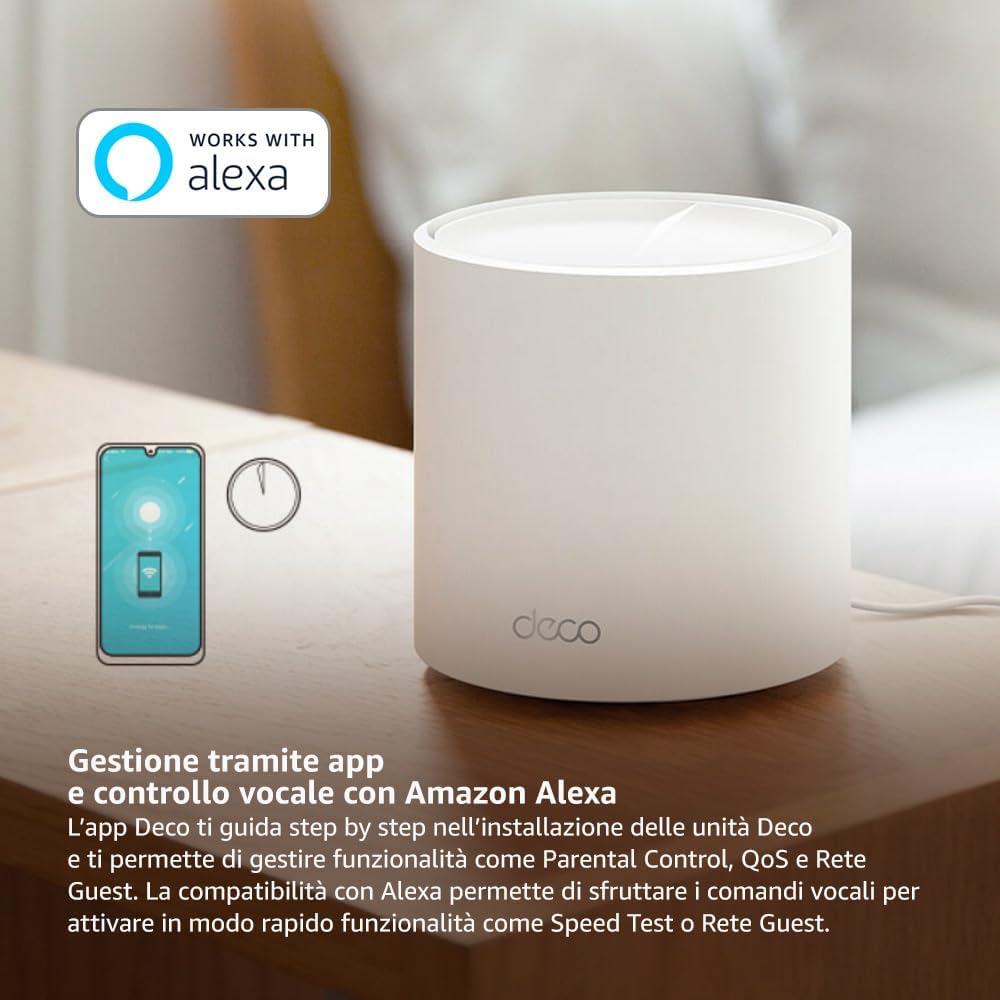
Image: A smartphone screen displaying the TP-Link Deco app, illustrating the step-by-step setup process for the mesh system.
4. Cov lus qhia ua haujlwm
The Deco X1500 system is managed primarily through the TP-Link Deco app, offering various features to control and optimize your home network.
Using the Deco App:
- Network Management: View connected devices, monitor network status, and manage Wi-Fi settings.
- Kev Tswj Xyuas Niam Txiv: Tsim profiles for family members, set time limits, and block inappropriate content.
- Quality of Service (QoS): Tsom cov khoom siv lossis cov haujlwm kom ua tau zoo tshaj plaws.
- Qhua Network: Tsim ib lub network Wi-Fi cais rau cov qhua, ua kom koj lub network tseem ceeb ruaj ntseg.
- Kev Tiv Thaiv Kab Mob: Utilize built-in HomeShield features for network protection.
Lub suab tswj nrog Amazon Alexa:
The Deco X1500 is compatible with Amazon Alexa. Link your TP-Link Deco account to your Alexa account to use voice commands for network functions, such as:
- Enabling or disabling the Guest Network.
- Running a speed test.
- Pausing Wi-Fi for specific profiles.

Image: Hauv qab view of a Deco X1500 unit, showing two Gigabit LAN/WAN auto-sensing Ethernet ports and the power input.
5. Kev tu
Regular maintenance ensures optimal performance and longevity of your Deco X1500 system.
Hloov tshiab Firmware:
- The Deco app will notify you of available firmware updates. It is recommended to keep your Deco units updated to the latest firmware for improved performance, security, and new features.
- Follow the in-app instructions to perform firmware updates. Do not power off the units during an update.
Ntxuav thiab tso chaw:
- Clean the Deco units with a soft, dry cloth. Do not use liquid cleaners or aerosols.
- Place Deco units in open areas, away from obstructions like large metal objects, thick walls, or other electronic devices that may cause interference.
- Ensure adequate ventilation around each unit to prevent overheating.
6. Kev daws teeb meem
If you encounter issues with your Deco X1500 system, refer to the following common troubleshooting steps.
Tsis muaj Internet txuas:
- Tshawb xyuas Modem: Ensure your modem is powered on and has an active internet connection.
- Kev sib txuas Cable: Verify that the Ethernet cable connecting the main Deco unit to the modem is securely plugged in.
- Restart Devices: Power cycle your modem and all Deco units. Wait a few minutes for them to restart and re-establish connections.
- Deco App Status: Check the Deco app for network status and any error messages.
Tsis muaj Wi-nkaus teeb liab lossis Dead Zones:
- Chav nyob qhov chaw: Adjust the placement of your Deco units. Try to place them equidistant from each other and the main Deco, avoiding physical obstructions.
- Kev cuam tshuam: Move Deco units away from other electronics (microwaves, cordless phones, Bluetooth devices) that might cause wireless interference.
- Ntxiv Ntau Chav: For very large homes or those with multiple floors, consider adding more Deco units to expand coverage.
Device Cannot Connect to Wi-Fi:
- Tus password kom raug: Xyuas kom tseeb tias koj nkag mus rau qhov tseeb Wi-Fi password.
- Ntaus Compatibility: Verify that your device supports the Wi-Fi standards used by the Deco system (802.11ax/ac/n/a/g/b).
- Rov pib ntaus ntawv: Restart the device attempting to connect.
- Check Blacklist: Ensure the device has not been accidentally blacklisted in the Deco app.
7. Cov lus qhia tshwj xeeb
| Feature | Specification |
|---|---|
| Hom | TP-Link |
| Qauv Lub Npe | Deco X 1500 |
| Tshwj xeeb Feature | Wi-Fi 6 |
| Zaus Band Class | Dual-Band |
| Kev Sib Txuas Lus Wireless | 802.11ax |
| Compatible Devices | PC, Xov Tooj Ntawm Tes, Ntsiav Tshuaj |
| Pom zoo siv | Tsev |
| Connectivity Technology | RJ 45 |
| Xim | Dawb |
| Txoj Cai Kev Ruaj Ntseg | WPA 3 |
| Number of Ports (per unit) | 2 x Gigabit LAN/WAN (auto-sensing) |
| Tswj Txoj Kev | App |
| Cov Ntaub Ntawv Hloov Tus Nqi | 1500 Megabits ib ob |
| LAN Chaw nres nkoj Bandwidth | 1000 Mbps |
| Voltage | 110.0v XNUMX |
| Tus Nqi Hloov Cov Ntaub Ntawv Mus Rau Sab Sauv Siab Tshaj Plaws | 1201 Megabits ib ob |
| Number of Antennas | Sab hauv |
| Smart Home Compatibility | Yog lawm |
| Wi-Fi Generation | Wi-Fi 6 |
| Kev pab them nqi (3-pob) | Txog li 520 square meters |
| Yam Nyhav | 1.8 kg ib |
8. Warranty Information
The TP-Link Deco X1500 Mesh System comes with a 3 xyoo khoom warranty. This warranty covers defects in materials and workmanship under normal use. For specific terms and conditions, please refer to the warranty card included in your package or visit the official TP-Link webqhov chaw.
9. Txhawb nqa
For further assistance, technical support, or to access additional resources, please visit the official TP-Link support webqhov chaw:
Kev them nyiaj yug TP-Txuas Webqhov chaw
You can also find FAQs, updated manuals, and community forums on the support page.