
Taw qhia
The DieseRC EW-4CH is a versatile 4-channel WiFi smart switch relay module designed for remote control and automation of various electrical devices. It offers stable and reliable performance with high reception sensitivity via 2.4 GHz WiFi. This module allows you to control devices from anywhere using the eWelink APP and integrates with voice assistants like Amazon Alexa and Google Home. It supports both inching and self-locking operating modes, providing flexibility for different applications.
The module features four independent relays with potential-free (dry) contacts, each rated for 10A. It can be powered by DC 5V (via USB) or DC 7V-48V (via terminal block), making it compatible with a wide range of power sources and applications.
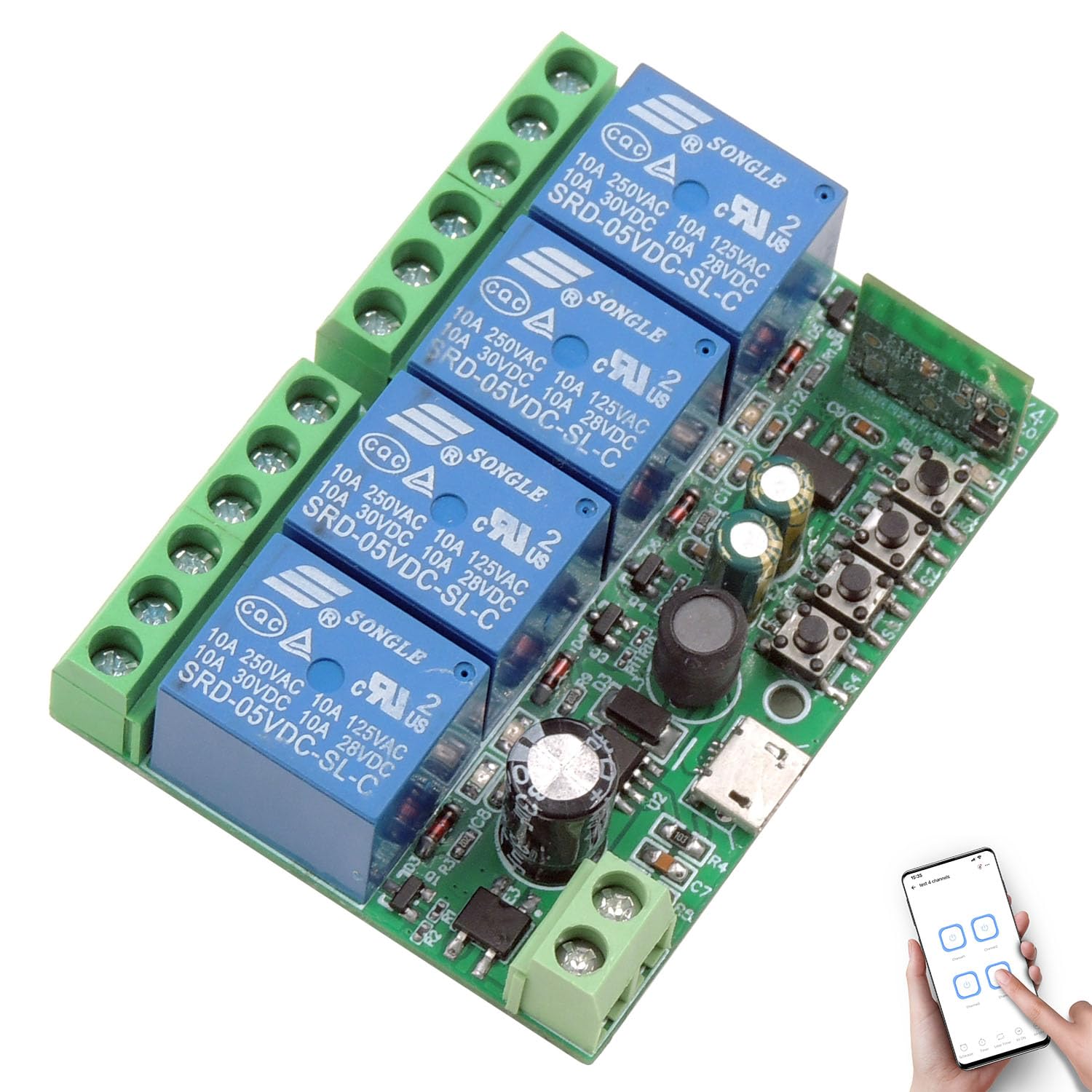
Daim duab 1: Tshajview of the DieseRC EW-4CH 4-Channel WiFi Smart Switch Module.
Cov ntaub ntawv kev nyab xeeb
- Ensure all power is disconnected before installation or wiring to prevent electric shock.
- This device operates with electrical currents. Improper installation or use can be dangerous.
- Do not exceed the maximum current rating of 10A per relay.
- Ensure proper insulation for all connections.
- Operate the device within its specified voltage range (DC 5V or DC 7V-48V).
- Khaws lub cuab yeej kom deb ntawm dej, noo noo, thiab kub heev.
- If you are unsure about any wiring procedures, consult a qualified electrician.
Teeb tsa
1. Physical Installation and Wiring
The EW-4CH module is compact (65x48x17 mm) and can be easily hidden in most electrical boxes or junction boxes. It offers flexible power input options and passive output relays.

Figure 2: Module components including relay indicator lights, WiFi indicator, pairing button, USB input, and terminal definitions (NO, COM, NC).
- Lub zog nkag: The module can be powered in two ways:
- Via Micro USB: DC 5V/0.5A.
- Via Terminal Block: DC 7V-48V/0.5A.
- Kev sib txuas ntawm Relay: Each of the four relays has three terminals:
- TSIS MUAJ (Nquag Qhib): The circuit is open when the relay is off, and closes when the relay is activated.
- COM (Common): Qhov dav dav dav dav rau lub relay.
- NC (Nquag Kaw): The circuit is closed when the relay is off, and opens when the relay is activated.

Figure 3: Power input options: DC 7V-48V via terminal or DC 5V via USB.

Fig 4: Examples of wiring modes for DC devices (lamps, motors) and AC devices (lamps, motors) using the module's passive output relays.
2. eWelink APP Installation
The smart switch is controlled via the eWelink APP, available for Android and iOS devices.
- Download the eWelink APP from your device's app store or scan the QR code below.
- Tsim ib tus account lossis nkag rau hauv yog tias koj twb muaj lawm.

Figure 5: Scan this QR code to download the eWelink APP. Alternatively, visit http://app.coolkit.cc/dl.html.
3. Ntaus Pairing
- Power on the EW-4CH module.
- Open the eWelink APP and tap the '+' icon to add a device.
- Follow the in-app instructions to put the device into pairing mode (usually by pressing and holding the pairing button on the module until the WiFi indicator light blinks).
- Connect the device to your 2.4 GHz WiFi network.
Hom kev ua haujlwm
The EW-4CH supports two main operating modes: Inching (Momentary) and Self-locking (Toggle).
- Inching hom: The relay activates for a set duration (e.g., 0.5 to 3600 seconds) and then automatically deactivates. This is suitable for applications like garage door openers or pulse-triggered devices.
- Self-locking hom: The relay toggles its state with each activation. One press turns it on, another press turns it off. This is suitable for traditional on/off control of lights or appliances.
You can configure these modes within the eWelink APP for each relay independently.
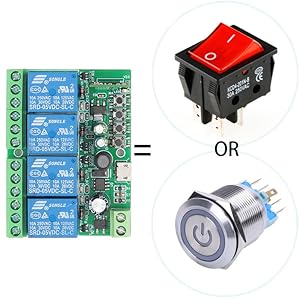
Figure 6: The smart switch module can function as a control interface similar to traditional switches or buttons.
APP tswj
Control your connected devices anytime, anywhere using the eWelink APP on your smartphone (Android and iOS).

Figure 7: Remote control of devices via the eWelink APP, demonstrating control of a garage door from a beach location.
Lub Suab Tswj
The EW-4CH is compatible with Amazon Alexa and Google Home, allowing for hands-free control of your devices.
- Link your eWelink account to Amazon Alexa or Google Home through their respective apps.
- Use voice commands such as "Alexa, turn on the light" or "Hey Google, open the garage door."

Figure 8: Voice control integration with Amazon Alexa and Google Home for convenient device operation.
Kev Teem Sijhawm thiab Timers
The eWelink APP allows you to set schedules, timers, and countdowns for automated operation of your devices.

Fig 9: Example of setting a schedule to automatically open and close lights using the eWelink APP.
Yeem tswj chaw taws teeb
The smart switch is compatible with an optional RM2.4G Bluetooth remote control (not included) for additional control flexibility.

Daim duab 10: Tshajview of various control methods: APP, voice, and optional Bluetooth remote control.
Kev tu
- Khaws lub cuab yeej kom huv si thiab tsis muaj plua plav. Siv ib daim ntaub qhuav, mos los ntxuav.
- Avoid exposing the device to direct sunlight, high humidity, or corrosive environments.
- Tsis tu ncua xyuas cov kab txuas txuas kom ntseeg tau tias lawv muaj kev nyab xeeb.
- Ensure the device has adequate ventilation if installed in an enclosed space.
Kev daws teeb meem
- Ntaus tsis txuas rau WiFi:
- Ensure your WiFi network is 2.4 GHz. The device does not support 5 GHz WiFi.
- Check if the WiFi signal strength is adequate at the device's location.
- Verify your WiFi password is entered correctly in the eWelink APP.
- Try resetting the device to factory settings (refer to the pairing instructions) and re-pairing.
- Device not responding to APP/Voice commands:
- Check if the device is connected to WiFi (WiFi indicator light should be solid).
- Xyuas kom koj lub smartphone muaj kev sib txuas hauv internet.
- Verify that the eWelink APP is updated to the latest version.
- For voice control, ensure your eWelink account is correctly linked to Alexa/Google Home.
- Relay not activating/deactivating:
- Check the power supply to the module.
- Verify the wiring connections to the load are correct (NO, COM, NC).
- Ensure the load's current draw does not exceed 10A.
- Check the operating mode settings (Inching/Self-locking) in the eWelink APP.
Specifications
| Hom | DieseRC |
| Qauv nab npawb | EW-4CH |
| Khoom Dimensions | 65 x 48 x 17 hli (2.6 x 1.9 x 0.7 nti) |
| Qhov hnyav | 60 g ib |
| Cov lus qhia Voltage | DC 5V (USB) or DC 7V-48V (Terminal) |
| Hom tso zis | Passive Output (Dry Contacts) |
| Relay Current Rating | 10 Ampere per channel |
| Hu rau hom | Normally Open (NO), Normally Closed (NC), Common (COM) |
| Kev sib txuas | 2.4 GHz WiFi |
| Tswj hom | APP Control (eWelink), Voice Control (Alexa/Google Home), Optional Bluetooth Remote Control |
| Hom kev ua haujlwm | Inching (Momentary), Self-locking (Toggle) |
Warranty
This product comes with a standard manufacturer's warranty. Please refer to the product packaging or contact DieseRC customer support for specific warranty terms and conditions.
Txhawb nqa
For technical assistance, troubleshooting, or further inquiries, please contact DieseRC customer support through their official website or the contact information provided with your purchase. Ensure you have your product model number (EW-4CH) ready when seeking support.