
symcode 2D QR Orange (B0CS6M178X)
Symcode Bluetooth 2D Barcode Scanner Instruction Manual
Model: 2D QR Orange (B0CS6M178X)
Taw qhia
This manual provides comprehensive instructions for the setup, operation, and maintenance of your Symcode Bluetooth 2D Barcode Scanner. This portable scanner offers versatile 3-in-1 connectivity (Bluetooth, 2.4G Wireless, USB Wired) and is designed for efficient scanning of both 1D and 2D barcodes across various platforms.
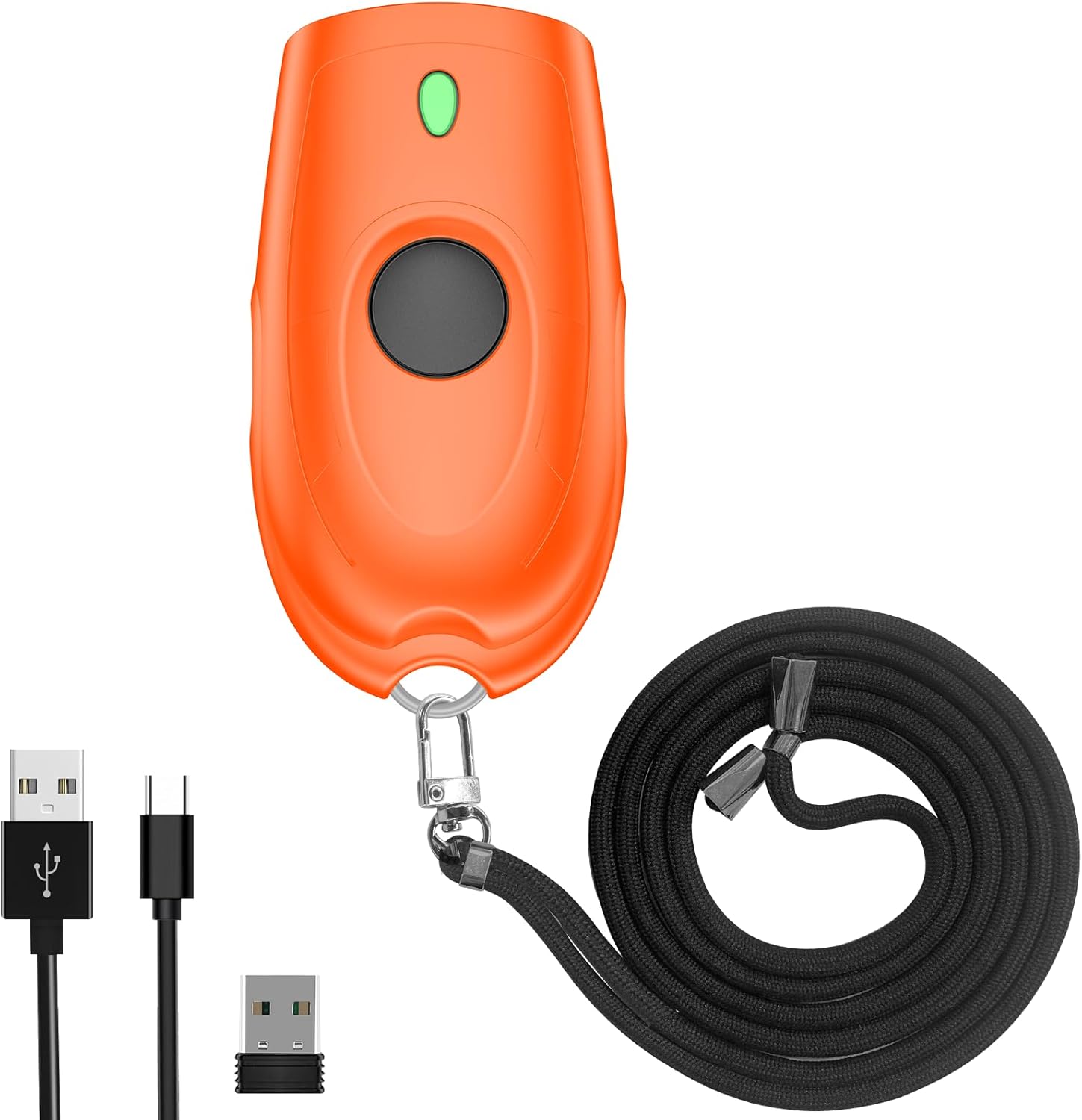
Image: The Symcode Bluetooth 2D Barcode Scanner in orange, shown with its accessories: USB charging cable, 2.4G USB dongle, and a black lanyard.
Khoom Tshajview thiab Pob Txheem
Before using your scanner, please ensure all components are present in the package.

Image: A visual representation of the package contents, including the scanner, 2.4GHz wireless dongle, user manual, USB cable, and sling.
Pob muaj xws li:
- 1x Symcode 2D Barcode Scanner
- 1x USB them Cable
- 1x 2.4G USB Dongle
- 1 x User Manual
- 1x Sling
Specifications
| Feature | Kev piav qhia |
|---|---|
| Qhov ntev | 5.43 x 4.21 x 2.13 nti (Package) |
| Qhov hnyav | 4.2 ooj (khoom) |
| Roj teeb | 650mAh Lithium Polymer (rechargeable, included) |
| Them sij hawm | Kwv yees li. 2 teev |
| Continuous Scanning Time | Mus txog 5 teev |
| Standby Sijhawm | Up to 30 days (720 hours) |
| Kev sib txuas | Bluetooth, 2.4G Wireless, USB Wired |
| Transmission Distance (2.4G Wireless) | 150m/492ft (barrier-free), 15m/49ft (with obstacles) |
| Transmission Distance (Bluetooth) | 50m/164ft (barrier-free), 20m/66ft (with obstacles) |
| Cia Muaj Peev Xwm | 16MB (stores over 100,000 barcodes in offline mode) |
| Decoding Ability (2D) | QR Code, Data Matrix, PDF417, Aztec code, Maxicode |
| Decoding Ability (1D) | JAN/EAN-13, JAN/EAN-8, UPC-A, UPC-E, Code11, Code32, Code39, Code 39 Full ASCII, Code93, Code128, Codabar (NW-7), Interleaved 2 of 5, Matrix 2 of 5, Industrial 2 of 5, Standard 2 of 5, PLESSEY, MSI, ITF14, ISBN, ISSN, GS1 Databar, GS1-128 (UCC/EAN128), ISBT-128 |
| Tau tshaj OS | Windows XP/7/8/10, Mac OS, Linux, Android, iOS |

Image: Detailed battery specifications and internal components of the scanner, highlighting its 650mAh battery and long standby time.

Image: Transmission range capabilities of the scanner in different environments for both 2.4G wireless and Bluetooth connections.

Image: Visual representation of the scanner's mini portable design and dimensions, demonstrating its ease of carrying.
Teeb tsa
1. Them lub tshuab luam theej duab
Before first use, fully charge the scanner. Connect the provided USB charging cable to the scanner's charging port and to a USB power source (e.g., computer USB port, USB wall adapter). The charging indicator light will show the charging status. A full charge takes approximately 2 hours.
2. Kev sib txuas hom
The Symcode scanner supports three connection modes: USB Wired, 2.4G Wireless, and Bluetooth Wireless.

Image: Illustration of the three versatile connection options: USB wired, 2.4G wireless via dongle, and Bluetooth wireless.
USB Wired Hom:
- Connect the scanner directly to your computer using the provided USB cable.
- The scanner will be recognized as a keyboard device, and scanned data will appear wherever your cursor is placed.
- No drivers are required for this mode.
2.4G Wireless Hom:
- Plug the 2.4G USB dongle into an available USB port on your computer.
- Turn on the scanner. It should automatically pair with the dongle.
- This mode offers a transmission distance of up to 150m (492ft) in barrier-free environments.
Bluetooth Wireless Hom:
- Ensure your device (smartphone, tablet, laptop) has Bluetooth enabled.
- Turn on the scanner and put it into Bluetooth pairing mode (refer to the specific steps in the included user manual for pairing instructions, as this typically involves scanning a specific configuration barcode).
- On your device, search for Bluetooth devices and select "Symcode Scanner" or similar from the list.
- This mode supports Bluetooth HID, SPP, and BLE protocols and offers a transmission distance of up to 50m (164ft) in barrier-free environments.
3. System Compatibility
The scanner is highly compatible with a wide range of operating systems and devices.

Image: The scanner's broad compatibility with various operating systems including iOS, Android, Windows, Mac OS, and Linux, connecting to devices like PCs, POS systems, laptops, tablets, and smartphones.
- Operating Systems: Windows XP, Win7, Win8, Win10, Mac OS, Linux
- Cov khoom siv: PC, Laptop, POS systems, Smartphones (Android, iOS), Tablets
Cov lus qhia ua haujlwm
1. Basic Scanning
To scan a barcode, point the scanner's window at the barcode and press the trigger button. A successful scan will typically be indicated by a beep and/or vibration.

Image: The scanner in action, demonstrating its ability to decode various 1D and 2D barcodes, even if they are blurred or incomplete. Examples of scannable codes are shown, including QR Code, Data Matrix, and PDF417.
The scanner can decode a wide range of 1D and 2D symbologies, including:
- 2D: QR Code, Data Matrix, PDF417, Aztec code, Maxicode
- 1D: JAN/EAN-13, JAN/EAN-8, UPC-A, UPC-E, Code11, Code32, Code39, Code 39 Full ASCII, Code93, Code128, Codabar (NW-7), Interleaved 2 of 5, Matrix 2 of 5, Industrial 2 of 5, Standard 2 of 5, PLESSEY, MSI, ITF14, ISBN, ISSN, GS1 Databar, GS1-128 (UCC/EAN128), ISBT-128
Example Barcodes from image:
- Data Matrix: 2125551212
- QR chaws: 20123456789
- PDF417: 00614141999996
- ITF: 1234567890135
- Profiled Barcode: 4603146002134
2. Sound and Vibration Control
The scanner allows you to turn off the sound and vibration feedback according to your preference or work environment. Refer to the detailed instructions in the included user manual for the specific configuration barcodes to enable or disable these features.

Image: Options for controlling the scanner's sound and vibration feedback, allowing for quiet operation when needed.
3. Cov Hom Kev Upload Cov Ntaub Ntawv
Lub scanner txhawb nqa ob hom ntaub ntawv tseem ceeb upload:
- Instant Upload Hom: Scanned barcodes tam sim ntawd xa mus rau lub cuab yeej txuas nrog. Qhov no yog lub neej ntawd hom.
- Storage Mode (Offline Scanning): Barcodes are stored in the scanner's internal memory (16MB, capable of storing over 100,000 barcodes) and can be uploaded later when connected. This is useful for inventory tasks where real-time connection is not always available. To switch to storage mode and upload data, refer to the specific configuration barcodes in the included user manual.
4. Kev xaiv Customization
The scanner offers various customization options to tailor its output to your needs:
- Hide/Add custom prefix/suffix digits.
- Delete characters from scanned data.
- Add keyboard keys (e.g., TAB, CR&LF) to the scanning operation for automated data entry.
Detailed instructions and configuration barcodes for these options are provided in the comprehensive user manual included with your product.
Kev tu
Kev kho roj teeb:
- Txhawm rau kom lub roj teeb lub neej ntev, tsis txhob tso lub roj teeb tas li ntau zaus.
- Them lub scanner tsis tu ncua, txawm tias tsis siv tas li.
- Khaws lub scanner rau hauv qhov chaw txias, qhuav thaum tsis siv rau lub sijhawm ntev.
Ntxuav:
- Use a soft, dry, lint-free cloth to clean the scanner's exterior.
- For the scanning window, use a soft cloth slightly dampnrog ib tug me me, uas tsis yog-abrasive nqus tsev vacuum. Tsis txhob siv tshuaj hnyav lossis cov khoom siv abrasive.
- Do not immerse the scanner in water or any other liquid.
Kev daws teeb meem
If you encounter issues with your Symcode barcode scanner, please refer to the following common problems and solutions:
| Teeb meem | Kev daws teeb meem |
|---|---|
| Scanner tsis qhib. | Ensure the battery is charged. Connect the scanner to a power source using the USB cable and allow it to charge for at least 30 minutes before attempting to turn it on again. |
| Scanner does not scan barcodes. |
|
| Scanned data does not appear on the screen. |
|
| Bluetooth txuas teeb meem. |
|
| Khawm daig lossis tsis teb. | Gently check for any physical obstruction around the button. If the issue persists, contact customer support. Avoid forcing the button. |
Warranty thiab Support
Your Symcode barcode scanner comes with a standard manufacturer's warranty. For specific warranty terms and conditions, please refer to the documentation included in your product packaging or contact Symcode customer support.
For any technical assistance, troubleshooting not covered in this manual, or warranty inquiries, please contact Symcode customer service.
Symcode Customer Service: Please refer to the contact information provided in your product's original packaging or visit the official Symcode website kom paub meej txog kev txhawb nqa.
The seller, Symcode, offers 24/7 pre-sale and after-sales service. If you experience a problem with your Symcode scanner, please contact the seller directly for assistance.
Ask a question about this manual
Ask about setup, troubleshooting, compatibility, parts, safety, or missing instructions. Manuals+ will review the question and use this page’s manual context to help answer it.