
1. Taw qhia
This manual provides essential information for the installation, operation, and maintenance of your TEAMGROUP T-Force G70 PRO Graphene 1TB NVMe PCIe Gen4x4 M.2 2280 Solid State Drive (SSD). Please read this manual thoroughly before using the product to ensure proper functionality and longevity.

Image 1.1: The TEAMGROUP T-Force G70 PRO Graphene SSD, featuring a sleek black design with the T-FORCE logo and G70 PRO branding.
2. Khoom Tshajview
The TEAMGROUP T-Force G70 PRO Graphene SSD is a high-performance internal storage solution designed for gaming and demanding applications. It utilizes an InnoGrit controller, DRAM caching, and SLC caching to deliver fast read/write speeds. The drive features a graphene heatsink for efficient thermal management and is compatible with PlayStation 5 consoles.
Cov yam ntxwv tseem ceeb:
- InnoGrit controller for reliable performance.
- Supports DRAM Caching and SLC Caching for enhanced speed.
- Equipped with a Graphene Heat Dissipation Solution.
- PCIe Gen4x4 interface for high-speed data transfer.
- Read/Write speeds up to 7400 MB/s / 5500 MB/s.
- Compatible with PlayStation 5 for expanded storage.
- Features 3D TLC NAND technology.
- Supports S.M.A.R.T., Windows TRIM, and Wear-Leveling ECC for data integrity and longevity.

Image 2.1: A visual representation of the SSD's features, including S.M.A.R.T. monitoring, SLC Caching, 5-year service, Environmental Protector, Windows TRIM, Wear-Leveling ECC, and patent information.
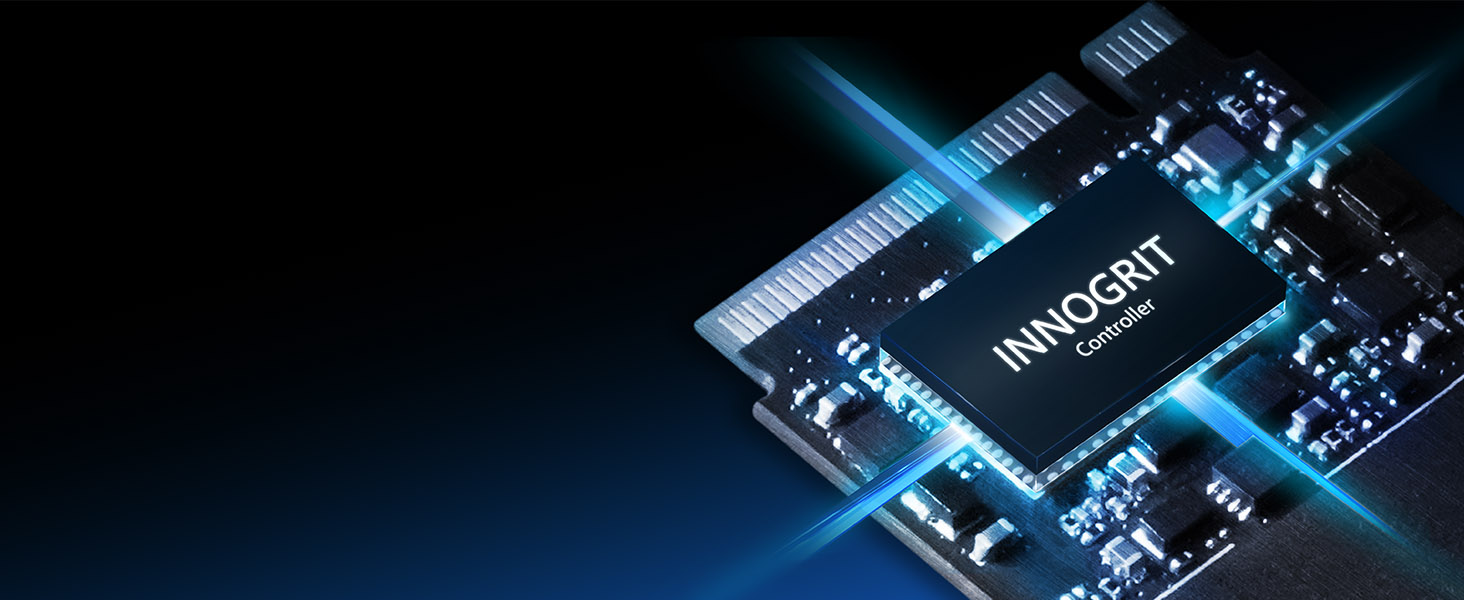
Duab 2.2: Ib qho ntxaws view highlighting the InnoGrit controller, which is integral to the SSD's performance and reliability.

Image 2.3: This image shows the difference between the Graphene heat sink (on the G70 PRO) and an Aluminum heat sink, illustrating the thermal management solutions.
3. Kev teeb tsa thiab kev teeb tsa
Before installation, ensure your motherboard/system supports M.2 2280 NVMe PCIe Gen4x4 SSDs. Refer to your system's manual for specific M.2 slot locations and installation procedures.
3.1. Dab tsi hauv lub thawv
- 1 x TEAMGROUP T-Force G70 PRO Graphene 1TB NVMe PCIe Gen4x4 M.2 2280 SSD

Image 3.1: The retail box for the T-Force G70 PRO SSD, indicating the 1TB capacity and Graphene heatsink.
3.2. General M.2 SSD Installation
- Faib koj lub computer thiab disconnect tag nrho cov cables.
- Qhib koj lub computer case.
- Nrhiav ib qho M.2 qhov muaj nyob ntawm koj lub motherboard.
- Ua tib zoo ntxig SSD rau hauv M.2 qhov ntawm lub kaum sab xis 30-degree.
- Gently push down the SSD and secure it with the provided screw (if applicable, usually with motherboard).
- Kaw koj lub computer rooj plaub thiab rov txuas tag nrho cov cables.
- Boot your system and initialize the new SSD through Disk Management (Windows) or Disk Utility (macOS).

Image 3.2: The T-Force G70 PRO Graphene SSD shown installed in an M.2 slot on a motherboard, demonstrating its physical integration.
3.3. PlayStation 5 Installation
The T-Force G70 PRO SSD is compatible with PlayStation 5 consoles. For detailed installation instructions, please refer to the official PlayStation 5 expansion slot guide. Ensure the SSD is properly seated and secured within the expansion slot.

Image 3.3: The T-Force SSD positioned next to a PlayStation 5 console, illustrating its compatibility for storage expansion.
Video 3.1: An official video from TEAMGROUP demonstrating the T-Force G70 PRO SSD's compatibility and installation process for the PlayStation 5. This video highlights the ease of expanding PS5 storage with this drive.
4. Cov lus qhia ua haujlwm
Once installed and initialized, your TEAMGROUP T-Force G70 PRO SSD will function as a high-speed storage device. For optimal performance, ensure your operating system and drivers are up to date.
4.1. S.M.A.R.T. Monitoring
The SSD supports S.M.A.R.T. (Self-Monitoring, Analysis, and Reporting Technology), which allows you to monitor the drive's health and performance. Utilize compatible software to access S.M.A.R.T. data for proactive maintenance.
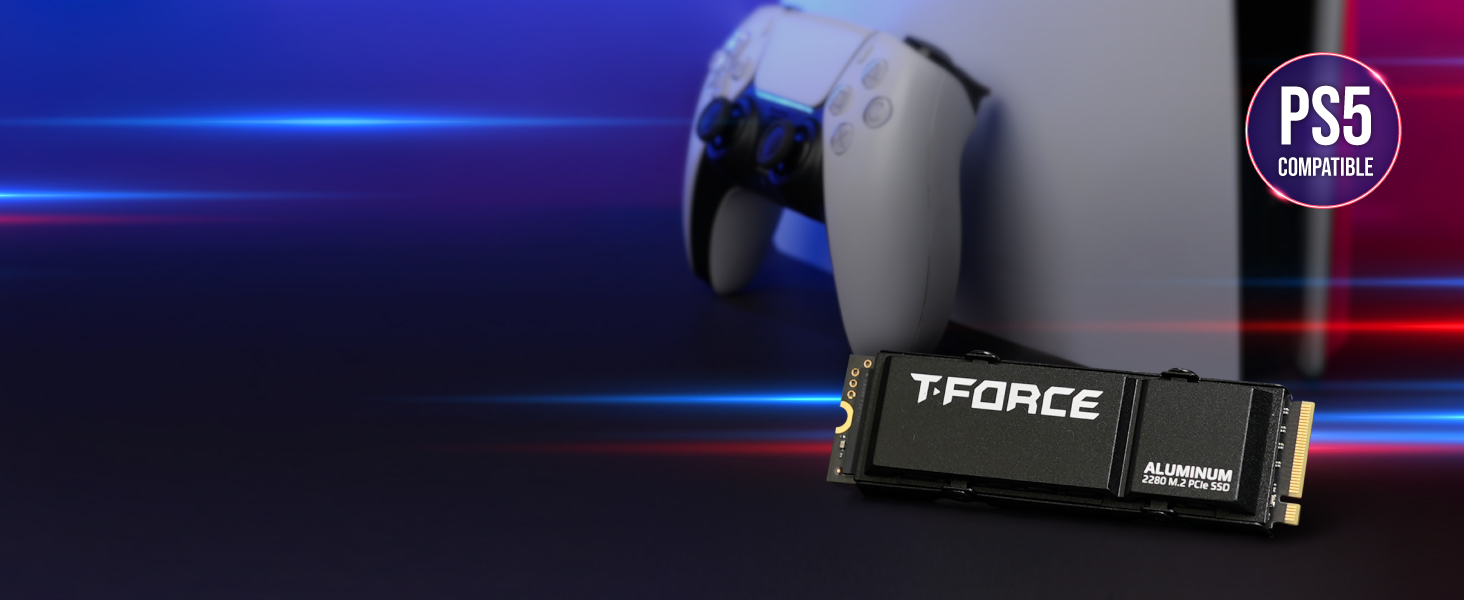
Image 4.1: A screenshot illustrating the interface of a S.M.A.R.T. monitoring tool, displaying various parameters and health status of the SSD.
4.2. Kev Txhim Kho Kev Ua Haujlwm
The drive's performance is optimized through features like DRAM Caching and SLC Caching. For sustained high performance, avoid filling the drive to its maximum capacity. Regular data management practices, such as deleting unnecessary files, can help maintain optimal speeds.
Video 4.1: Ib qho yeeb yaj kiab tshaj tawmasing the features and performance capabilities of the T-Force G70 PRO M.2 PCIe SSD, including its high read/write speeds and internal components.
5. Kev tu
Proper maintenance ensures the longevity and performance of your SSD.
5.1. Hloov kho firmware
Periodically check the TEAMGROUP official website for any available firmware updates for your SSD model. Firmware updates can improve performance, stability, and compatibility.
5.2. Kev Tswj Xyuas Cov Ntaub Ntawv
The SSD supports Windows TRIM and Wear-Leveling ECC. Ensure these features are enabled in your operating system for efficient data management and to extend the lifespan of the NAND flash memory. Avoid unnecessary write operations to prolong the drive's endurance.
6. Kev daws teeb meem
6.1. Displayed Capacity Lower Than Stated
It is common for storage products to display a slightly lower capacity on a computer than the stated capacity. This discrepancy arises from the difference in how flash memory and hard drive manufacturers calculate memory (decimal system) versus how computers calculate it (binary system). For example, 1GB for manufacturers is 1,000,000,000 bytes, while for computers, 1GB is 1,073,741,824 bytes (1024^3). Therefore, a 1TB drive (1,000,000,000,000 bytes) will appear as approximately 931GB on a computer.
6.2. System Instability or Failure to Boot
If your system experiences instability, fails to boot, or does not achieve the stated speeds after installing the SSD, verify the following:
- Ensure your motherboard/laptop, processor (CPU), and BIOS fully support the installed NVMe SSD.
- Check if your BIOS is updated to the latest version.
- Confirm the SSD is correctly seated in the M.2 slot and secured.
- Verify that the M.2 slot is configured correctly in your system's BIOS/UEFI settings.
7. Cov lus qhia tshwj xeeb
| Feature | Paub meej |
|---|---|
| Hom | TEAMGROUP |
| Series | T-Force G70 Pro |
| Qauv nab npawb | TM8FFH001T0C129 |
| Digital Storage Capacity | 1 tib |
| Hard Disk Interface | PCIE x 4 (PCIe Gen4x4) |
| Connectivity Technology | PCIe |
| Hard Disk Form Factor | M. 2 2280 |
| Nyeem Ceev | Mus txog 7400 MB / s |
| Sau Ceev | Mus txog 5500 MB / s |
| Tshwj xeeb nta | 3D NAND Flash, DRAM Cache, Graphene Heat Dissipation Solution, SLC Cache |
| Compatible Devices | Desktop, PlayStation 5 |
| Hom kev teeb tsa | Internal Hard Drive |
| Yam Nyhav | 0.247 hli |
| Khoom Dimensions (LxWxH) | 0.87 x 3.15 x 0.15 po |
8. Warranty thiab Support
8.1. Chaw tsim tshuaj paus Warranty
This product comes with a 5-year limited warranty or TBW (Terabytes Written) limited warranty. The definition and conditions of TBW are based on the JEDEC standard. Please refer to the official TEAMGROUP website for the latest warranty information and terms.
8.2. Kev pab txhawb nqa
Free technical support and customer service are available through TEAMGROUP's official website. For assistance with installation, troubleshooting, or any product-related inquiries, please visit the official support page.